Gmail is great for email, but let’s be honest: your inbox is not exactly a peaceful spa. It is more like a digital airport terminal where meeting invites, shipping notices, client requests, newsletters, reminders, and “quick questions” all arrive wearing tiny roller skates. That is why learning how to view your calendar in Gmail can save you from the classic productivity horror story: replying, “Sure, Tuesday works!” only to discover Tuesday is already packed tighter than a suitcase before vacation.
The good news is that Gmail and Google Calendar work together neatly, especially on the desktop version of Gmail. You can open Calendar from Gmail’s right-side panel, check your day without leaving your inbox, create events from emails, and manage automatically added events like flights, hotel bookings, restaurant reservations, and meetings. In other words, your calendar does not have to live in a separate tab like a mysterious roommate you forget to check on.
This guide explains the easiest ways to view your Google Calendar in Gmail in five simple steps. It also covers practical tips, common problems, mobile options, privacy considerations, and real-world workflow examples so you can stop bouncing between apps and start managing your schedule like a person who definitely did not forget about that 2 p.m. call.
Can You View Google Calendar Directly in Gmail?
Yes, you can view Google Calendar in Gmail, but the most useful built-in option is available in Gmail on a computer. Google’s right-side panel lets you use certain Google Workspace tools side by side, including Calendar, Keep, Tasks, Contacts, and Maps. In Gmail, this means you can open a compact Calendar panel on the right side of your inbox and quickly review your schedule.
This feature is especially helpful when you are reading an email about a meeting, deadline, interview, appointment, event, or travel plan. Instead of opening a new tab, searching for Google Calendar, waiting for it to load, and then forgetting why you opened it in the first place, you can simply click the Calendar icon in Gmail and check your availability immediately.
However, it is important to understand what the Gmail calendar panel is designed to do. It is perfect for quick schedule checks, creating simple events, and confirming availability. For deeper calendar management, such as editing multiple calendars, adjusting advanced sharing settings, changing notification defaults, or managing complex recurring events, the full Google Calendar website still offers the most complete experience.
Easy Ways to View Your Calendar in Gmail: 5 Steps
Step 1: Open Gmail on a Computer
Start by opening Gmail in your web browser and signing in to the Google account connected to your calendar. This matters because Gmail and Google Calendar are tied to your Google account. If you use one account for work and another for personal life, make sure you are in the right one before you start wondering why your dentist appointment has been replaced by three quarterly planning meetings.
For best results, use the desktop version of Gmail in a modern browser such as Chrome, Firefox, Safari, or Edge. The right-side Calendar panel is designed for Gmail on the web. On phones and tablets, the experience is different, and you will usually get better results by using the Google Calendar app alongside the Gmail app.
Once Gmail loads, look at the far-right side of the screen. You should see a vertical panel with small app icons. Depending on your layout and settings, these may include Calendar, Keep, Tasks, Contacts, Maps, or add-ons. If you see the Calendar icon, you are already halfway there. Congratulations: productivity has entered the chat.
Step 2: Show the Right-Side Panel if It Is Hidden
If the right-side panel is not visible, do not panic. Gmail has not personally betrayed you. The panel may simply be hidden. Look at the bottom-right corner of Gmail for the “Show side panel” button. Click it, and the right-side panel should appear.
This panel is a small but powerful part of the Google Workspace experience. It is built to help you work with two Google tools in one window. That means you can keep your inbox open while checking your schedule, reviewing tasks, or opening notes. For anyone who spends much of the day inside Gmail, this little panel can feel like discovering a secret drawer in your desk.
If the panel opens but you do not immediately see Calendar, look for the Google Calendar icon. It usually looks like a small calendar page. Click that icon to open your schedule inside Gmail.
Step 3: Click the Google Calendar Icon
After the side panel is visible, click the Google Calendar icon. A compact version of Google Calendar will open on the right side of Gmail. From there, you can view dates, scan your schedule, and check whether a proposed meeting time actually fits your day.
This side-panel calendar is useful when you are responding to messages like:
- “Are you free tomorrow afternoon?”
- “Can we move the meeting to Friday?”
- “Please confirm your appointment time.”
- “The webinar starts at 11 a.m. Eastern.”
- “Your delivery window is between 2 p.m. and 6 p.m.”
Instead of guessing, you can check your calendar while keeping the email visible. This reduces mistakes and helps you respond faster. It also lowers the risk of double-booking yourself, which is the calendar equivalent of stepping on a rake.
Step 4: Choose a Date or Time to Review Your Schedule
Once Calendar is open in the Gmail side panel, click around the dates to review what is coming up. You can use it to check today’s events, look ahead to tomorrow, or confirm whether next Thursday has room for a call. The side panel gives you a focused view, which is ideal for quick decisions.
If you need to create an event, click a time on the calendar and enter the event details. This can include the title, date, time, guests, location, and notes. For example, if a client emails to ask for a 30-minute consultation, you can open the Calendar panel, pick an available slot, and create the event without fully leaving Gmail.
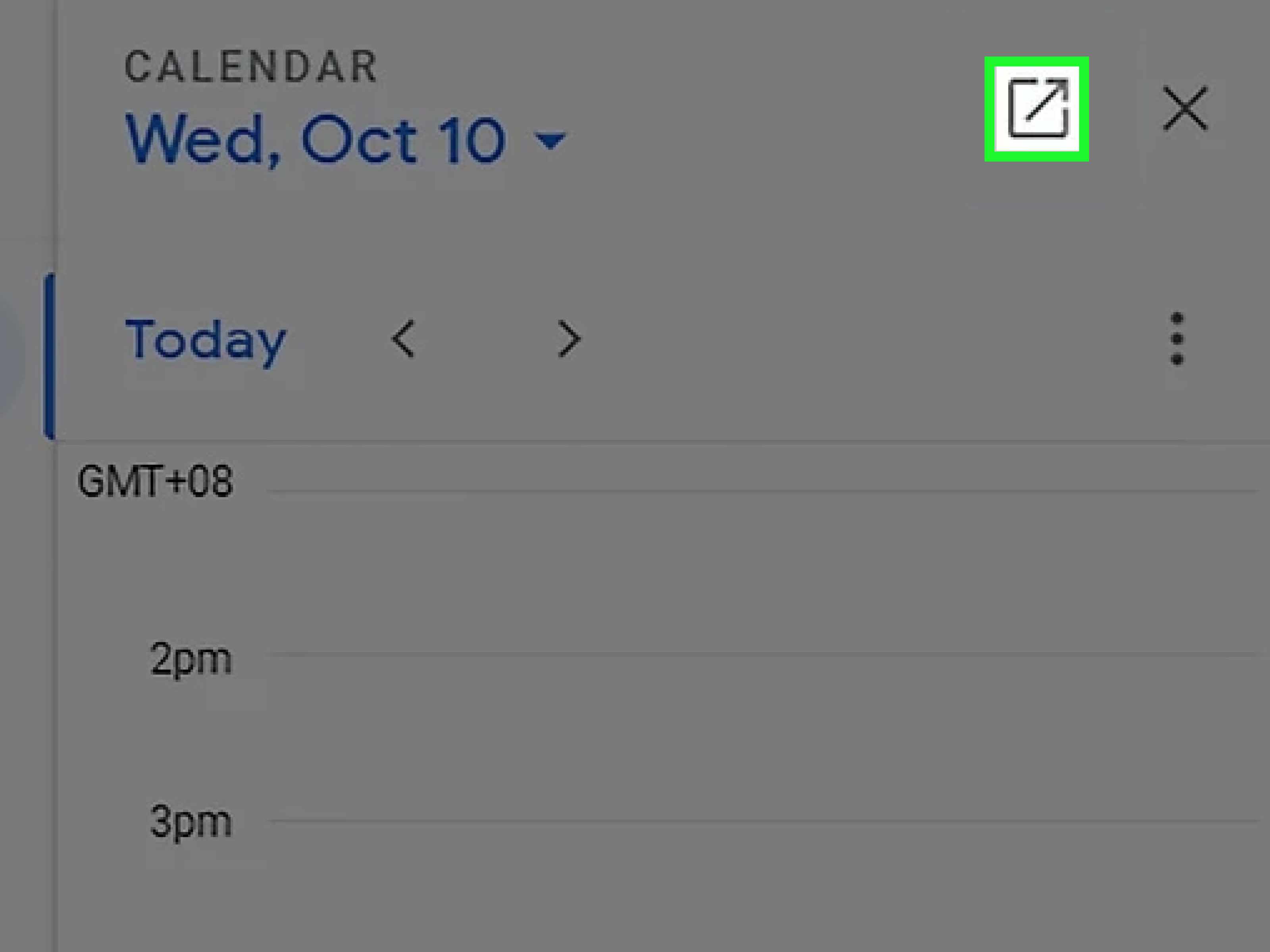
For more advanced event editing, open the event in full Google Calendar. This is helpful when you need to adjust recurring settings, add video conferencing details, manage guest permissions, change calendar visibility, or attach files.
Step 5: Open Full Google Calendar When You Need More Control
The Gmail side panel is excellent for quick calendar viewing, but it is not meant to replace the full Google Calendar interface. When you need a broader view of your week, month, multiple calendars, shared calendars, time zones, reminders, tasks, or appointment schedules, open Google Calendar in a full browser tab.
You can do this by clicking the Google apps launcher, often shown as a nine-dot grid in the upper-right area of Google apps, and selecting Calendar. You can also go directly to Google Calendar in your browser. This gives you the full calendar experience, including day, week, month, schedule, and custom views.
A good rule of thumb is simple: use the Gmail Calendar side panel for quick checks and fast scheduling. Use full Google Calendar for planning your week, cleaning up your calendar, changing settings, or managing complicated events. Think of the side panel as a pocketknife and the full Calendar app as the toolbox. Both are useful, but you probably do not want to remodel a kitchen with a pocketknife.
How to Create a Calendar Event From a Gmail Message
One of the most convenient Gmail and Google Calendar features is the ability to create an event from an email. This is especially useful when someone sends you meeting details, an appointment time, an interview confirmation, or an event invitation in plain text.
To create a Google Calendar event from a Gmail message, open the email, click the “More” option above the message, and choose “Create event.” Gmail will open Calendar and pull useful information from the email into the event details. You can then review the title, date, time, guests, description, and other details before saving.
This feature is a major time-saver because it reduces copying and pasting. Instead of manually transferring details from email to calendar, Gmail gives you a head start. Still, always review the event before saving. Automated tools are helpful, but they are not mind readers. If an email says, “Let’s meet next Friday,” you still want to confirm which Friday, which time zone, and whether the meeting should include your coworker who somehow attends every meeting with three beverages.
How Gmail Automatically Adds Events to Google Calendar
Gmail can also detect certain event-related emails and add events to Google Calendar automatically. This may happen with emails about flights, hotel bookings, restaurant reservations, ticketed events, and similar plans. When you open the event in Calendar, it may include useful details such as addresses, confirmation numbers, times, or links back to the original email.
This feature can be extremely convenient. If you receive a flight confirmation, your travel details may appear on your calendar without manual entry. If you book a hotel, the reservation may show up on the correct dates. It is the kind of automation that makes you feel like your inbox briefly put on a tiny assistant headset and started helping.
However, automatic events are not perfect. Sometimes details can be incomplete, incorrect, or unwanted. If you do not want Gmail events to appear on your calendar, you can change the “Events from Gmail” settings in Google Calendar. You can also delete individual events from your calendar when needed.
What About Gemini and Calendar in Gmail?
Google has also been expanding AI-powered features in Gmail for eligible users. In some Google Workspace and Google One AI Premium contexts, Gemini can help detect calendar-related content in an email and offer an “Add to calendar” option. When available, this can make scheduling even faster by recognizing event details and helping create a calendar entry from the email.
Availability may depend on your account type, region, subscription, organization settings, and Google’s rollout schedule. If you do not see Gemini calendar features in Gmail, it does not necessarily mean anything is broken. You may simply be using an account that does not currently include that feature, or your administrator may have disabled it.
For most users, the classic options still work well: open Calendar from the Gmail side panel, create an event from a message, or open full Google Calendar when you need a larger planning view.
Viewing Google Calendar in Gmail on Mobile
Viewing Calendar inside Gmail works best on desktop. On mobile, the Gmail app does not offer the same right-side panel experience you get in a computer browser. The simplest mobile workflow is to use the Gmail app and the Google Calendar app together.
For example, when you receive an email about a meeting, you can switch to the Calendar app to check availability. If Gmail recognizes a date or event, it may offer calendar-related actions depending on the message and your account settings. For a smoother workflow, make sure both apps are installed, updated, and signed in to the same Google account.
Mobile users should also pay close attention to notifications. Google Calendar notifications can help you avoid missing meetings, while Gmail notifications can alert you to schedule changes. But too many notifications can turn your phone into a tiny panic machine. Choose alerts that actually help you, such as reminders 10 minutes before meetings or one day before important appointments.
Common Problems When Viewing Calendar in Gmail
The Calendar Icon Is Missing
If you cannot find the Calendar icon in Gmail, first check whether the right-side panel is hidden. Click the “Show side panel” button at the bottom right. If the panel appears but Calendar still is not there, refresh Gmail, try another browser, or check whether your Google Workspace administrator has restricted certain apps.
You Are Seeing the Wrong Calendar
If the calendar panel shows events that do not look familiar, you may be signed in to the wrong Google account. This is common when people use separate personal, work, school, or client accounts. Check your profile icon in Gmail and confirm which account is active.
Events From Gmail Are Incorrect
Automatic Gmail-created events can occasionally include wrong times, dates, or details. Open the event in Google Calendar and edit it if needed. If you do not want these events added automatically, adjust your “Events from Gmail” settings in Google Calendar.
The Side Panel Feels Too Small
The Gmail side panel is intentionally compact. It is great for fast schedule checks, but it can feel cramped if your calendar is busy. If you need to compare multiple days, manage shared calendars, or plan a full week, open Google Calendar in a full tab.
Best Practices for Using Gmail and Google Calendar Together
To get the most out of Gmail Calendar integration, use the side panel as part of your daily email routine. Before replying to scheduling emails, check your availability. Before accepting a meeting, confirm whether the time works. Before promising a deadline, glance at your week and make sure you are not already booked into oblivion.
It also helps to keep your calendar clean. Use clear event names, add locations or video links, and include useful notes. Instead of naming an event “Call,” write “Call with Jordan about Q2 campaign.” Your future self will appreciate the difference, especially when Wednesday arrives and your calendar contains six mysterious calls, all named like spy missions.
Color-coding can also help. You might use one color for work meetings, another for personal appointments, and another for deadlines. Shared calendars are useful for teams and families, but avoid clutter. If every possible calendar is visible all the time, your schedule can start looking like a spilled box of crayons.
Finally, review your calendar at the start and end of each workday. In the morning, use it to understand your priorities. In the afternoon, use it to prepare for tomorrow. This simple habit turns Google Calendar from a passive list of obligations into an active planning tool.
Privacy and Visibility Tips
Because Gmail and Calendar can share event-related information, it is smart to understand your privacy settings. Events created from Gmail may include details from the original email, such as reservation numbers, addresses, or travel information. If you share calendars with coworkers, family members, or clients, review event visibility settings when needed.
For sensitive events, mark them private or adjust the details before saving. This is especially important for medical appointments, interviews, personal travel, financial consultations, or anything else you would rather not broadcast to every shared-calendar viewer. Calendar sharing is wonderful until your “private appointment” appears with a title that is a little too descriptive.
Examples of When Viewing Calendar in Gmail Helps
Example 1: Scheduling a Client Call
A client emails, “Can you talk Thursday afternoon?” Instead of opening another app, you click the Calendar icon in Gmail, check Thursday, and see that 2:30 p.m. is open. You reply confidently and create the event. No guessing, no tab juggling, no accidental double-booking.
Example 2: Managing Travel Plans
You receive a flight confirmation in Gmail. Google Calendar may automatically add the flight to your schedule. Later, when reviewing your inbox, you open the Calendar panel and see the travel block already there. This helps you avoid scheduling a video call during boarding, which is technically possible but spiritually exhausting.
Example 3: Turning an Email Into an Event
Your colleague sends a message with the details for a project review. You open the email, use “Create event,” review the details in Calendar, add guests, and save. The email information becomes part of the calendar entry, making it easier to find context later.
Experience-Based Tips: What It Is Actually Like to Use Calendar in Gmail Every Day
In real daily use, the Gmail Calendar side panel shines most when you treat it as a quick decision tool rather than a full planning center. Imagine starting your morning with 42 unread emails, three meeting requests, one shipping notification, and a newsletter promising “one simple trick” that is definitely not simple. The side panel helps you stay in the flow. You can read a message, check your schedule, make a decision, and reply without wandering into five browser tabs and forgetting your original mission.
One practical habit is to open the Calendar panel before answering any email that includes words like “available,” “meeting,” “call,” “deadline,” “appointment,” “reservation,” “interview,” or “follow-up.” These words are tiny calendar alarms. When you see them, check your schedule first. This prevents the very human mistake of saying yes because a time sounds open, only to discover later that your calendar strongly disagrees.
Another useful experience is using Gmail and Calendar together for time-blocking. Suppose you receive a detailed project request by email. Instead of leaving it in your inbox and hoping your future self becomes magically organized, open Calendar and block time to work on it. You might create an event called “Draft homepage copy for client” or “Review tax documents.” This turns an email into scheduled action. It is much harder for a task to disappear when it has a reserved spot on your calendar.
The side panel is also excellent for polite boundary-setting. If someone asks for a meeting at a bad time, you can quickly check your calendar and offer alternatives. A response like “I’m booked at 1 p.m., but I can do 3:30 p.m. or Friday morning” sounds organized and helpful. It also avoids the dreaded open-ended reply: “Let me know what works,” which can create an email tennis match that lasts longer than the actual meeting.
For teams, the biggest advantage is context. Emails often contain the “why,” while calendar events contain the “when.” Using both together gives you the full picture. If a meeting invite seems vague, you can search Gmail for the related thread. If an email mentions a deadline, you can check whether the timeline is realistic. This is especially helpful for freelancers, managers, students, consultants, and anyone coordinating multiple people.
There are a few small frustrations, of course. The side panel can feel narrow, especially if your day has many events. Shared calendars may not always be easy to manage from the compact view. And if you use multiple Google accounts, switching between them can get confusing. The best solution is to keep your main scheduling account clear and consistent. If you use Gmail for work, use the matching work calendar. If you use Gmail for personal plans, make sure your personal calendar is selected. Mixing accounts without checking is how dentist appointments end up competing with quarterly budget reviews.
Another helpful habit is a five-minute calendar cleanup at the end of the day. Open Gmail, review any emails that require scheduling, and use Calendar to create or adjust events. Delete unwanted automatic events, update unclear titles, and add missing video links or addresses. This small routine makes tomorrow easier. It is like clearing dishes after dinner, except the dishes are meetings and none of them are dishwasher safe.
Overall, viewing your calendar in Gmail is not just a technical trick. It is a better way to handle the daily collision between communication and time. Email tells you what people want. Calendar tells you what your day can handle. When you use them together, you make faster decisions, avoid scheduling chaos, and protect your time with fewer clicks.
Conclusion
Viewing your calendar in Gmail is one of the simplest ways to make your inbox more useful and your schedule less chaotic. With the right-side panel, you can check your Google Calendar while reading and replying to emails. You can also create calendar events from Gmail messages, review automatically added events, and open full Google Calendar whenever you need more control.
The five-step process is easy: open Gmail on a computer, show the side panel, click the Calendar icon, review your date or time, and switch to full Google Calendar when needed. Once this becomes part of your routine, scheduling feels less like a guessing game and more like a calm, organized system. And in the world of email, “calm and organized” is basically a superpower.