Cloud storage is one of those modern conveniences we barely notice until it starts yelling at us. One day your Android phone is happily saving photos, videos, downloads, memes, screenshots, receipts, and mysterious files called “final_final_REAL_final.pdf.” The next day, Google Drive refuses to upload, Gmail complains, Google Photos stops backing up, or your phone flashes the dreaded “storage almost full” warning like a tiny digital smoke alarm.
The good news? Checking cloud storage on Android is usually simple once you know where to look. The slightly annoying news? “Cloud storage” can mean different things depending on the app. Google Drive, Google Photos, Gmail, Android device backups, OneDrive, Dropbox, Samsung Cloud, Box, and Amazon Photos all manage storage in their own way. Your phone storage and your cloud storage are also not the same thing, even though they love to create confusion together like a buddy-cop comedy nobody asked for.
This guide explains how to check cloud storage on Android, starting with Google Drive and Google One, then moving through Google Photos, device backups, OneDrive, Dropbox, Samsung Cloud, Amazon Photos, Box, and local Android storage tools. You will also learn what counts toward your storage limit, how to free up space safely, and how to avoid deleting the wrong thing while trying to be “productive.”
Cloud Storage vs. Phone Storage: Know the Difference First
Before you start tapping through settings, it helps to separate two related but different ideas: cloud storage and device storage.
Cloud storage is online space connected to an account. For example, your Google account may store files in Google Drive, photos and videos in Google Photos, emails in Gmail, and certain backups. OneDrive stores files and photos under your Microsoft account. Dropbox, Box, Samsung Cloud, and Amazon Photos each have their own storage systems.
Phone storage is the physical storage inside your Android device. This includes apps, downloaded files, offline music, cached videos, photos saved locally, and system files. A file can exist in the cloud, on your phone, or both. That is why deleting something from your phone may not always delete it from the cloudand deleting something from the cloud may remove it from every synced device. Tiny detail, huge consequences.
How to Check Google Cloud Storage on Android
For most Android users, Google storage is the first place to check. Your Google account storage is shared across major Google services such as Google Drive, Gmail, Google Photos, and certain backups. That means a full Gmail inbox can affect Drive uploads, and a mountain of vacation videos can make your email feel like it needs a larger apartment.
Method 1: Check Google Storage from the Google Drive App
The Google Drive app is one of the fastest ways to see your account storage usage.
- Open the Google Drive app on your Android phone.
- Tap your profile picture or initial in the top-right corner.
- Look for Storage, Manage storage, or the storage usage indicator.
- Tap it to open more detailed storage information, often through Google One.
Here, you can usually see how much storage you have used and how much remains. You may also see a breakdown of what is taking up space, such as Drive files, Gmail, and Photos. If you use more than one Google account, make sure you are checking the correct one. Many people accidentally inspect their work account, panic, and then realize their personal account is the real storage goblin.
Method 2: Check Storage from the Google One App
The Google One app gives a clearer overview of your Google account storage. It is especially useful if you pay for extra storage or share storage with family members.
- Open the Google One app.
- Sign in with your Google account if needed.
- Tap Storage.
- Review the usage breakdown by service.
- Use the storage manager to find large files, deleted emails, spam, and other items that may be removed.
The storage manager can help identify large Drive files, emails with big attachments, and other space-hogging items. This is often the best place to begin if your Google account is nearly full and you do not know why.
Method 3: Check Google Storage from Gmail or Google Photos
You can also reach storage information through other Google apps:
- Gmail: Open Gmail, tap your profile icon, and look for storage or account management options.
- Google Photos: Open Photos, tap your profile icon, then go to backup or storage management settings.
- Google account page: Some Android phones let you access Google account storage from system settings.
The labels may vary slightly by app version and phone model, but the profile icon is usually the magic doorway. When in doubt, tap your profile picture. It has become the secret control room of modern apps.
How to Check Google Photos Storage on Android
Google Photos deserves special attention because photos and videos are usually the biggest storage users. One 4K video of your dog blinking majestically can take more space than hundreds of documents.
Check Storage in Google Photos
- Open the Google Photos app.
- Tap your profile picture or initial.
- Tap Photos settings.
- Tap Backup.
- Select Manage storage.
From there, Google Photos may show your storage usage and suggestions for cleaning up large photos and videos, blurry photos, screenshots, or unsupported videos. These suggestions can be helpful, but review before deleting. A blurry photo might be uselessor it might be the only picture you have of a perfect birthday cake before your uncle leaned on it.
Original Quality vs. Storage Saver
Google Photos commonly offers backup quality choices such as Original quality and Storage saver. Original quality keeps photos and videos closer to their captured quality but may use more storage. Storage saver reduces file size, which can help stretch your account storage further.
For casual users, Storage saver may be enough. For photographers, designers, content creators, or anyone who edits images later, Original quality may be worth the extra space. The best choice depends on whether you value maximum quality or maximum breathing room.
How to Check Android Device Backup Storage
Your Android phone can back up data such as app data, call history, device settings, contacts, SMS messages, and other supported items to your Google account. To check or change the backup account:
- Open your Android phone’s Settings app.
- Tap Google.
- Tap All services if your phone shows that option.
- Under Backup and restore, tap Backup.
- Tap Account storage to view or switch the backup account.
This area is useful when preparing to move to a new phone. It helps confirm that your data is connected to the correct Google account before you reset, trade in, sell, or hand your old phone to a cousin who somehow breaks every device by “just checking something.”
How to Check OneDrive Storage on Android
If you use Microsoft 365, Windows, Outlook, or Office apps, OneDrive may be part of your daily Android storage setup. Microsoft accounts typically include OneDrive storage, and paid Microsoft 365 plans include more space.
- Open the OneDrive app on Android.
- Tap the Me icon or your profile image.
- Open Settings.
- Look for Storage, Account, or Manage storage.
- Review your used and available space.
OneDrive is especially useful for documents, work files, PDFs, and photos that need to sync between Android and Windows. If Camera Backup is turned on, your phone photos may be uploading to OneDrive automatically. That is convenient, but it can also fill space faster than expected if you record lots of videos.
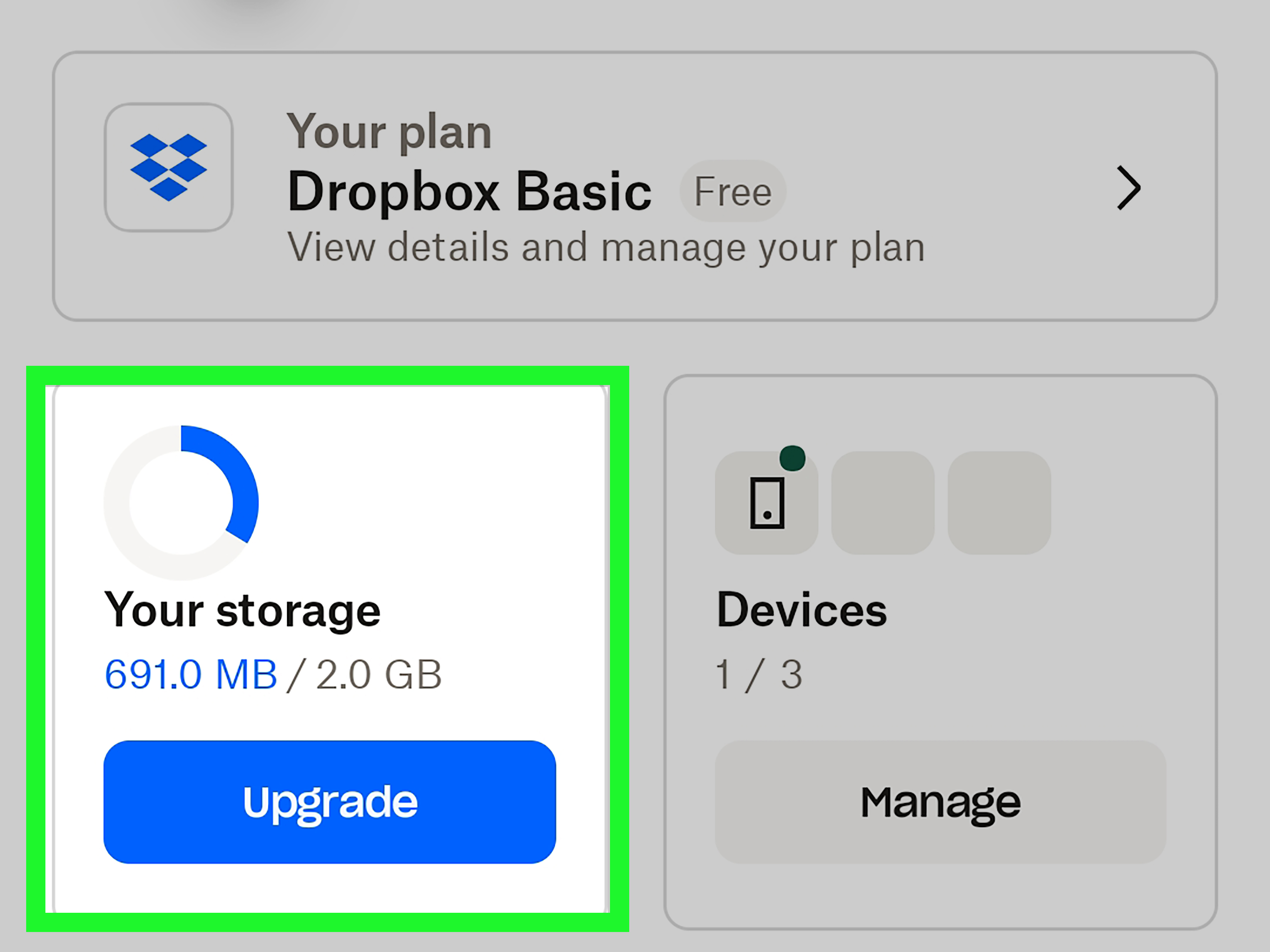
How to Check Dropbox Storage on Android
Dropbox remains a popular cloud storage option for file sharing, collaboration, and cross-device access. To check Dropbox storage from Android:
- Open the Dropbox app.
- Tap Account at the bottom of the screen.
- Tap the settings icon if needed.
- Look for account storage, plan details, or available space.
If you cannot find the full storage breakdown in the app, sign in to Dropbox through a mobile browser and check the account section. Dropbox storage can be affected by uploaded files, shared folders, backups, and team storage rules, depending on your plan.
How to Check Samsung Cloud Storage
Samsung Galaxy users may also have Samsung Cloud for device backups, synced data, and restore options. Samsung Cloud is integrated into Samsung account settings, so you usually do not need a separate app.
- Open Settings on your Samsung Galaxy phone.
- Tap your Samsung account name at the top.
- Tap Samsung Cloud.
- Review backup, restore, sync, and storage options.
Samsung Cloud is most useful for Samsung-specific backup and sync categories, such as settings, contacts, calendar items, notes, and device restore features. Availability and options may vary by device, region, carrier, and software version.
How to Check Amazon Photos Storage on Android
Amazon Photos is another option for photo and video backup. It is popular among Prime members because Prime includes photo storage benefits. To check storage:
- Open the Amazon Photos app.
- Tap your profile, menu, or account area.
- Look for Storage, Manage storage, or account settings.
- Review what is backed up and how much space is used.
If you cannot find detailed usage inside the app, sign in through a browser and check the storage management area. As with Google Photos and OneDrive, automatic photo backup can be a blessinguntil it quietly uploads twelve nearly identical videos of your pocket.
How to Check Box Storage on Android
Box is commonly used for business, education, and secure file sharing. If you use Box on Android:
- Open the Box app.
- Tap your profile or account menu.
- Open Settings or account details.
- Check plan, storage, or usage information.
Some Box users belong to business or school accounts where storage is controlled by an administrator. If your Box app does not show a clear storage limit, your organization’s plan may determine what you can upload.
How to Check Local Android Storage Before Blaming the Cloud
Sometimes cloud storage is not the problem at all. Your Google Drive may have plenty of room, but your phone may be stuffed with downloads, app cache, offline maps, WhatsApp videos, podcasts, or a game that somehow weighs more than a small moon.
Use Android Settings
- Open Settings.
- Tap Storage.
- Review categories such as apps, images, videos, audio, documents, system, and trash.
This shows what is taking up space on your physical phone. If your device is nearly full, cloud apps may fail to sync because they still need temporary local space to upload, download, preview, or cache files.
Use Files by Google
The Files by Google app can help you review local storage, delete duplicate files, find large files, remove old screenshots, and clear junk. It can also show available storage on the device, SD card, or connected USB drive.
Use it carefully. Cleaning recommendations are helpful, but they are not psychic. Always preview files before deleting them, especially downloads, documents, and media from chat apps.
What Counts Toward Cloud Storage?
Every provider has its own rules, but these items commonly count toward cloud storage:
- Uploaded files and folders
- Photos and videos backed up to the cloud
- Email attachments
- Items in trash or recycle bin that have not been permanently deleted
- Cloud backups from phones or apps
- Shared folders, depending on the provider and plan
- Offline files that also sync to the cloud
One of the easiest mistakes is deleting files but forgetting to empty the trash. Many cloud services keep deleted items for a recovery period, and those items may still count toward your storage until permanently removed. Think of trash as the garage of cloud storage: technically out of sight, definitely still full.
How to Free Up Cloud Storage Safely
Once you know what is using space, use a careful cleanup process. Do not begin by deleting random files while annoyed. That is how tax documents, wedding photos, and important work files end up in the digital afterlife.
1. Start with Large Files
Large videos, ZIP files, old backups, exports, and duplicate folders usually provide the fastest results. Sort files by size when the app allows it. Removing one forgotten 4 GB video can be more effective than deleting 300 tiny documents.
2. Empty Trash, Spam, and Recycle Bin
In Google storage, Gmail trash and spam, Drive trash, and Photos trash can all matter. In OneDrive and Dropbox, recycle bins or deleted files areas may also hold recoverable items. Review first, then empty permanently when you are sure.
3. Review Automatic Photo Backup
Photo backup is often the biggest storage drain. Check whether Google Photos, OneDrive, Amazon Photos, Dropbox, or another app is backing up the same camera folder. Duplicate cloud backups are common. Your phone may be sending the same sunset photo to three services, just in case the clouds need a committee.
4. Download Important Files Before Deleting
If a file is important but does not need to stay in cloud storage, download it to a computer, external drive, or another backup location first. For critical documents, keep at least two copies in different places.
5. Upgrade Only After Cleaning
Buying more storage is sometimes the right answer, especially for families, creators, students, and professionals. But clean first. Otherwise, you may simply pay monthly rent for files you forgot existed.
Common Problems When Checking Cloud Storage on Android
The App Shows the Wrong Account
Many Android users have multiple Google accounts: personal, work, school, brand, or old accounts used once and never emotionally processed. Always tap the profile icon and confirm the email address before checking storage.
Storage Still Looks Full After Deleting Files
Deleted files may remain in trash. Also, storage dashboards may take time to update. Empty trash or recycle bin, then wait and refresh. If the number still looks wrong, check other services connected to the same storage pool, such as Gmail or Photos.
Photos Are on the Phone but Not in the Cloud
Open your photo backup app and check backup status. Uploads may pause because of battery saver mode, mobile data restrictions, weak Wi-Fi, low storage, or account problems.
The Phone Is Full but Cloud Storage Has Room
That means local storage is the issue. Use Android Storage settings or Files by Google to remove local downloads, cached files, duplicate media, and unused apps. You can also use cloud backup and then remove local copies, but only after confirming the files are safely backed up.
Best Practices for Managing Cloud Storage on Android
A little routine maintenance prevents storage chaos. Once a month, check your main cloud storage account, review large files, empty trash, and make sure photo backup is working. Before vacations, concerts, conferences, or any event where you may record lots of videos, check both phone storage and cloud storage. Your future self will thank you when the camera does not stop recording right before the good part.
Use one main cloud service for photos if possible. Use folders with clear names. Delete duplicate exports. Be suspicious of files named “copy,” “backup,” or “old,” because they often travel in packs. For work files, keep cloud organization simple: active projects, archived projects, shared files, and personal documents. Fancy folder systems are great until you need a passport scan in 90 seconds.
500-Word Experience Section: Real-Life Lessons from Checking Cloud Storage on Android
In real life, checking cloud storage on Android usually begins with a crisis. Nobody wakes up on a peaceful Saturday and says, “What a beautiful morning to audit my cloud storage allocation.” More often, you are trying to record your child’s school performance, upload a work file, receive an email, or back up vacation photos, and suddenly your phone announces that storage is full. The timing is always dramatic. Phones have a gift for becoming needy at the exact wrong moment.
One common experience is discovering that Google Photos, not Google Drive documents, is the main storage user. Many people assume Drive is full because the warning says “Google storage,” but the real culprit is usually photos and videos. A few long videos, especially in high resolution, can eat storage quickly. The practical lesson is simple: open Google Photos, check backup settings, review large videos, and decide whether every clip needs to live forever in original quality. Spoiler: the twelve-second video of your shoe while you were trying to stop recording probably does not need museum preservation.
Another familiar moment is realizing that Gmail attachments count too. Old emails with PDFs, presentations, videos, and images can occupy more space than expected. Searching Gmail for large attachments and clearing trash can make a visible difference. This is especially helpful for people who use Gmail for work, shopping receipts, school documents, or newsletters that arrive with chunky promotional images.
Android users also learn that cloud cleanup and phone cleanup are two separate chores. You can free up 10 GB in Google Drive and still have a phone that refuses to install updates because local storage is packed. The reverse is also true: you can delete local files and still have a full Google account. The best habit is checking both places: first the cloud account storage, then Android Settings > Storage, then Files by Google for local cleanup suggestions.
Samsung Galaxy users often have an extra layer because Samsung Cloud may handle some backup and sync features separately from Google. That can be useful, especially when restoring settings or Samsung-specific data, but it also means you should know which account is backing up what. Before switching phones, check Google backup, Samsung Cloud, and your photo backup app. A five-minute review can prevent the classic “Where did my notes go?” mystery.
The biggest lesson is to avoid deleting in panic mode. Storage warnings make people impatient, and impatience is dangerous around the delete button. Always confirm whether a file is stored only on the phone, only in the cloud, or synced across devices. If it matters, download a backup before removing it. Empty trash only after reviewing it. And when possible, clean by category: large videos first, duplicate files second, old downloads third, trash last.
Managing Android cloud storage is not glamorous, but it is empowering. Once you understand where storage lives, what counts against it, and how each app reports usage, the whole process becomes less mysterious. Your phone stops feeling like a locked closet full of invisible clutter and starts feeling like a tool you control. That is the goal: fewer warnings, smoother backups, and more room for the photos, files, and slightly ridiculous screenshots that actually matter.
Conclusion
Checking cloud storage on Android is not just a tech chore; it is basic digital housekeeping. Start with Google Drive or Google One to see your shared Google storage. Then check Google Photos, Gmail, Android backup settings, and any third-party cloud apps you use, such as OneDrive, Dropbox, Samsung Cloud, Amazon Photos, or Box. If everything looks fine in the cloud, check your phone’s local storage with Android Settings or Files by Google.
The smartest approach is simple: know which account you are using, review large files first, empty trash only after checking it, and make sure important files are backed up before deleting anything. Do that, and cloud storage becomes much less mysteriousand much less likely to ruin your day with a dramatic “storage full” warning.