If your browser’s address bar feels a little too nosy lately, you are not alone. Many people love Google Chrome for its speed, convenience, extensions, and “it just works” personality, but they also want a search engine that does not act like a detective with a clipboard. That is where DuckDuckGo comes in.
DuckDuckGo is a privacy-focused search engine that lets you search the web without building a personal search-history profile around you. In plain English: you can look up “best pizza near me,” “why is my printer plotting against me,” or “how long do ducks live” without feeling like the internet is quietly adding it to your biography.
The good news? Making DuckDuckGo the default search engine in Chrome is simple. Whether you are using Chrome on Windows, Mac, Chromebook, Android, iPhone, or iPad, you can change your default search engine in just a few minutes. This guide walks you through every practical method, explains what to do if DuckDuckGo does not appear, and gives you real-world tips for making the switch smoother than a freshly polished keyboard.
What Does “Default Search Engine” Mean in Chrome?
Your default search engine is the service Chrome uses when you type a search query directly into the address bar, also known as the omnibox. For example, when you open Chrome and type “how to remove coffee from a white shirt,” Chrome sends that search to your default provider.
By default, Chrome often uses Google Search. But Chrome also allows users to select other search engines, including DuckDuckGo, Bing, Yahoo, and sometimes region-specific or recently visited search engines. Changing the default does not uninstall Google Chrome. It simply tells Chrome, “When I search from the address bar, please ask DuckDuckGo instead.”
Think of Chrome as the car and DuckDuckGo as the destination assistant. You are not replacing the vehicle; you are changing who gives directions.
Why Make DuckDuckGo the Default Search Engine in Chrome?
There are several reasons people switch to DuckDuckGo in Chrome, and privacy is usually the star of the show. DuckDuckGo is known for not saving or sharing your search history when you use its search engine, apps, or extensions. That privacy-first approach appeals to users who want fewer personalized ads, less search profiling, and a calmer browsing experience.
1. More Private Searching
DuckDuckGo’s main pitch is simple: it does not track your searches the way many traditional search systems do. That means your search history is not used to create a detailed profile of your interests, habits, worries, shopping plans, or late-night curiosity spirals.
This is especially helpful if you share a computer, research sensitive topics, shop for surprise gifts, or simply prefer not to have every search become part of a long-term personalization engine.
2. Less Search Bubble Effect
Personalized search can be useful, but it can also trap you inside a bubble of results based on what algorithms think you want. DuckDuckGo gives many users a more neutral search experience. You may still see location-relevant results when needed, but the engine is designed not to build a personal search history around you.
3. Clean, Simple Search Results
DuckDuckGo has a straightforward interface. The results page is easy to scan, and many users appreciate features like instant answers, maps, news, shopping results, and quick commands called “bangs.” Bangs let you search other sites directly from DuckDuckGo. For example, typing “!w browser privacy” can send you to Wikipedia results, while “!a wireless mouse” can search Amazon directly.
4. You Can Keep Chrome
Some privacy advice starts with “replace everything you use.” That is not always realistic. You may need Chrome for work, school, sync, extensions, web apps, or because your favorite password manager behaves nicely there. Changing Chrome’s default search engine to DuckDuckGo is a low-friction upgrade. You keep the browser you know while making your everyday searches more private.
How to Make DuckDuckGo the Default Search Engine in Chrome on Desktop
These steps work for Chrome on Windows, Mac, Linux, and Chromebook. The wording may shift slightly depending on your Chrome version, but the path is generally the same.
Step 1: Open Google Chrome
Launch Chrome on your computer. You do not need to visit DuckDuckGo first, although doing so can help Chrome recognize it as a recently used search engine if it does not already appear in your list.
Step 2: Open Chrome Settings
Click the three-dot menu in the top-right corner of Chrome. This menu is the tiny vertical stack of dots that looks like Chrome is whispering, “I have options.” Select Settings.
Step 3: Go to Search Engine Settings
In the left sidebar, click Search engine. You may see a section labeled Search engine used in the address bar. If DuckDuckGo appears in the dropdown menu, select it. Congratulations, you are already done. You may now celebrate by searching for something dignified, like “duck wearing sunglasses.”
Step 4: Manage Search Engines if Needed
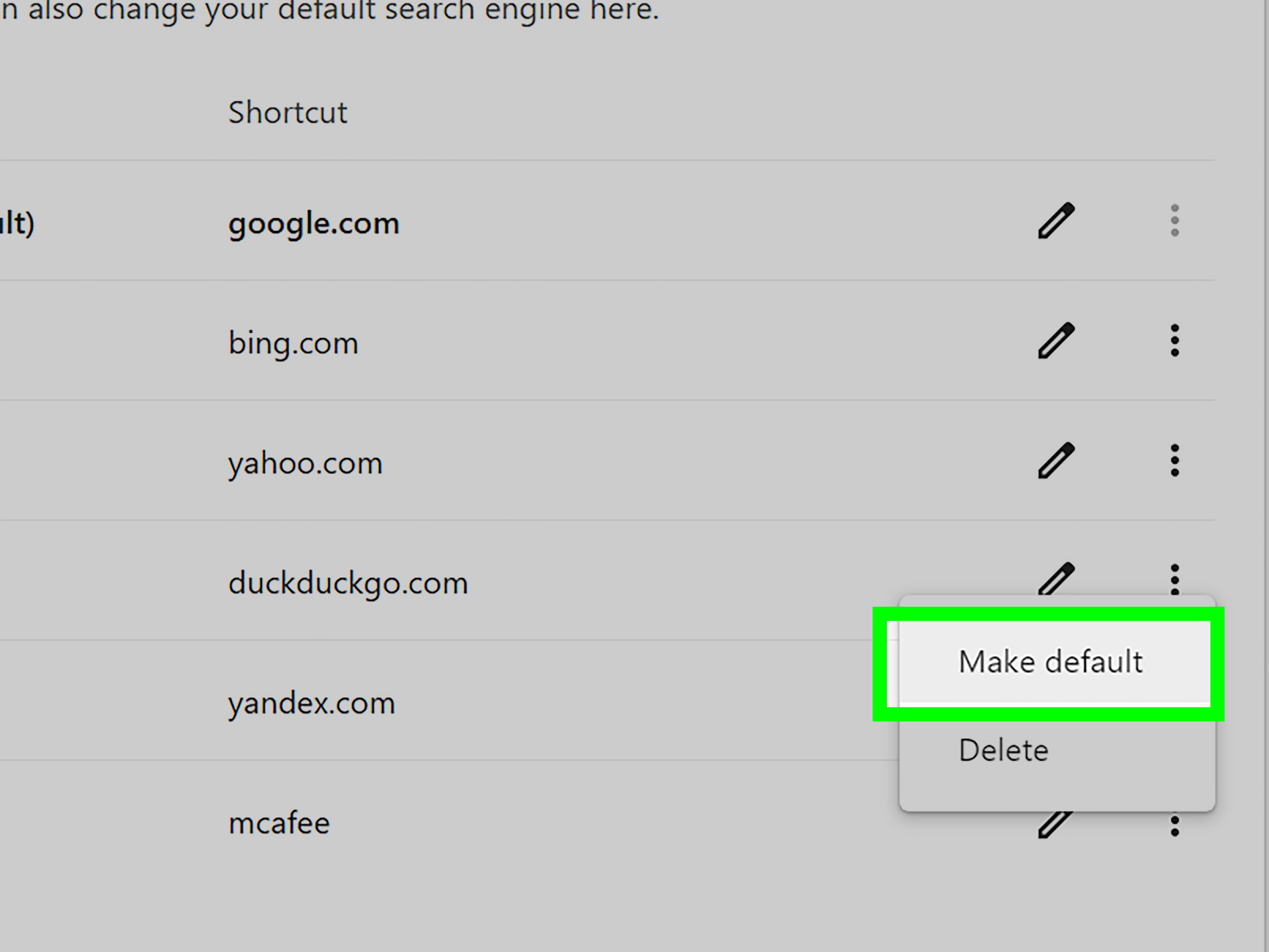
If DuckDuckGo does not appear in the basic dropdown, click Manage search engines and site search. Look under the list of available search engines. If DuckDuckGo is there, click the three-dot menu next to it and choose Make default.
Step 5: Test the Change
Open a new tab and type a search query into the address bar. Press Enter. If the results open on DuckDuckGo, your setup worked. If Chrome still uses another search engine, return to the Search engine settings and confirm that DuckDuckGo is selected.
How to Add DuckDuckGo Manually in Chrome
Most modern versions of Chrome include DuckDuckGo as a search engine option, or they add it after you visit DuckDuckGo.com. But if it is missing, you can usually add it manually.
Manual Setup on Desktop
Open Chrome and go to Settings. Select Search engine, then Manage search engines and site search. Look for a section where you can add a site search shortcut or search engine. Click Add if the option is available.
Use the following details:
- Search engine: DuckDuckGo
- Shortcut: duckduckgo.com or ddg
- URL with %s in place of query: https://duckduckgo.com/?q=%s
After adding it, find DuckDuckGo in the list, open the three-dot menu next to it, and choose Make default. The “%s” part is important because it tells Chrome where to place your search terms. Without it, Chrome gets confused, and nobody wants a confused browser before coffee.
How to Make DuckDuckGo the Default Search Engine in Chrome on Android
Changing the default search engine in Chrome for Android is quick and does not require installing anything extra.
Step-by-Step Instructions for Android
- Open the Chrome app on your Android phone or tablet.
- Tap the three-dot menu near the address bar.
- Tap Settings.
- Under Basics, tap Search engine.
- Select DuckDuckGo.
If DuckDuckGo does not appear, open DuckDuckGo.com in Chrome and perform a search. Then return to Chrome’s Search engine settings. Chrome may add recently visited search engines as options. If it still does not show up, update Chrome from the Google Play Store and check again.
How to Make DuckDuckGo the Default Search Engine in Chrome on iPhone or iPad
Chrome on iOS and iPadOS also lets you choose your search engine from inside the app. The process is simple, though Apple’s interface may place the three-dot menu in a slightly different position depending on screen size and orientation.
Step-by-Step Instructions for iPhone and iPad
- Open the Chrome app.
- Tap the three-dot menu.
- Tap Settings.
- Tap Search engine.
- Choose DuckDuckGo.
Once selected, Chrome should send address-bar searches to DuckDuckGo. If you still see another search engine, close and reopen Chrome, then test again with a fresh search.
Should You Install the DuckDuckGo Chrome Extension?
You do not need the DuckDuckGo Chrome extension just to make DuckDuckGo your default search engine. Chrome settings alone can handle that. However, the extension may be useful if you want extra privacy protections while browsing websites beyond the search results page.
The DuckDuckGo extension can add features such as tracker blocking, cookie protection, private search, and other browsing protections. This matters because using DuckDuckGo Search protects your search activity, but it does not automatically block trackers on every website you visit. For broader protection inside Chrome, an extension can help.
When the Extension Makes Sense
Install the DuckDuckGo extension if you want a more complete privacy setup inside Chrome. It is especially useful for people who want tracker blocking without switching to a different browser right away.
When You Can Skip the Extension
Skip the extension if all you want is for Chrome’s address bar to search with DuckDuckGo. Fewer extensions can mean fewer permission requests and a cleaner browser. As with any extension, install only from the official Chrome Web Store or DuckDuckGo’s own website.
Troubleshooting: DuckDuckGo Does Not Show Up in Chrome
Sometimes Chrome refuses to cooperate, like a cat sitting on your laptop during a deadline. Here are the most common fixes.
Visit DuckDuckGo First
Go to DuckDuckGo.com and run a search. Then return to Chrome settings. Chrome often adds recently used search engines to the available options.
Update Chrome
An outdated browser may show older menus or fewer search options. Update Chrome, restart it, and check the Search engine section again.
Check Extensions
Some extensions can control or change your default search engine. Open Chrome’s Extensions page and review anything related to search, coupons, new tabs, toolbars, or “shopping helpers.” If your search engine keeps changing without permission, disable suspicious extensions one by one and test again.
Look for Managed Browser Settings
If you use a work, school, or organization-managed device, your administrator may lock the default search engine. In that case, you may see a message saying Chrome is managed by your organization. You will need to contact the administrator or use a personal browser profile where settings are not restricted.
Reset Chrome Settings
If your search engine keeps changing to something strange, consider resetting Chrome settings. This can disable extensions, clear temporary settings, and restore Chrome’s default configuration without deleting bookmarks and saved passwords. After resetting, set DuckDuckGo as your default again.
How to Use DuckDuckGo Efficiently After Switching
Once DuckDuckGo is your default search engine in Chrome, your everyday searching will feel familiar. Still, a few tricks can make the experience better.
Use Specific Search Queries
DuckDuckGo does not lean as heavily on personal search history, so clear wording helps. Instead of searching “best one,” search “best budget wireless mouse for MacBook 2026.” Instead of “restaurant,” search “Thai restaurant open now near downtown Austin.” Specific searches get specific answers.
Try DuckDuckGo Bangs
Bangs are one of DuckDuckGo’s most useful power features. They let you jump directly to search results on another site. For example, type !yt how to clean a keyboard to search YouTube, or !w search engine privacy to search Wikipedia.
One privacy note: when you use a bang, your search moves to the other website, so that site’s privacy rules apply. Bangs are convenient, not invisibility cloaks.
Adjust DuckDuckGo Settings
DuckDuckGo lets you customize appearance, region, safe search, language, and result behavior. After switching, spend a few minutes adjusting those settings. It is like arranging your desk: not required, but suddenly everything feels more civilized.
DuckDuckGo vs. Google in Chrome: What Changes?
Changing your default search engine affects searches from the address bar. It does not remove Google services from Chrome. Gmail, Google Docs, YouTube, Google Drive, and Chrome Sync will still work if you use them.
The biggest difference is the search experience. Google often provides highly personalized results based on your activity, location, and account signals. DuckDuckGo focuses more on privacy and less on personal profiling. Some users find DuckDuckGo cleaner and calmer; others may miss Google’s deep personalization, especially for hyperlocal searches or very specific shopping results.
The best approach is practical: try DuckDuckGo as your default for a week. If it works well for 90 percent of your searches, keep it. For the remaining 10 percent, you can still visit Google manually or use a DuckDuckGo bang like !g when needed.
Is DuckDuckGo Enough for Complete Online Privacy?
No single setting can make you completely private online. Making DuckDuckGo the default search engine in Chrome is a meaningful step, but it is not a magic privacy force field. Websites can still use cookies, fingerprinting, account logins, analytics scripts, and advertising networks. Your internet provider may still see domain-level activity unless you use additional protections.
For stronger privacy, combine DuckDuckGo with smart habits: keep Chrome updated, remove sketchy extensions, block third-party cookies where appropriate, use strong passwords, enable two-factor authentication, and avoid logging into unnecessary accounts. If privacy is a major priority, consider using DuckDuckGo’s browser or another privacy-focused browser for sensitive browsing.
Common Mistakes to Avoid
Mistake 1: Installing Random Search Extensions
Do not install random “private search” extensions from unknown developers. Some extensions can hijack search settings, inject ads, or collect browsing data. Stick to official sources.
Mistake 2: Thinking Incognito Mode and DuckDuckGo Are the Same
Incognito mode prevents Chrome from saving browsing history on your device during that session. DuckDuckGo focuses on private search. They are different tools. You can use both, but neither makes you anonymous everywhere.
Mistake 3: Forgetting Mobile Devices
If you use Chrome on your phone and computer, change the default search engine on both. Otherwise, your laptop may use DuckDuckGo while your phone continues using another engine. Privacy consistency is like flossing: annoying to set up, satisfying once it becomes routine.
Personal Experience: What It Feels Like to Use DuckDuckGo as the Default Search Engine in Chrome
Switching Chrome’s default search engine to DuckDuckGo feels surprisingly uneventful at first, and that is actually a compliment. The best technology changes do not announce themselves with trumpets. They quietly make your day better while you continue doing normal human things, like searching for dinner recipes, checking whether a plant is toxic to cats, or diagnosing a mysterious sound your washing machine makes only when guests are over.
The first thing many users notice is that the address bar still works exactly the same way. You type a question, press Enter, and get results. There is no dramatic learning curve. You do not have to become a privacy scholar, memorize technical settings, or wear a hoodie in a dark room. Chrome remains Chrome. Bookmarks stay where they are. Extensions still work. Your browser does not suddenly grow feathers.
After a few days, the difference becomes more noticeable in the mood of the search experience. DuckDuckGo feels less eager to personalize everything. That can be refreshing. When you search for a product once, you may feel less like the entire internet has decided you are now “the person who wants hiking socks.” With Google, one curious search can sometimes follow you around like a raccoon with a marketing degree. DuckDuckGo’s approach feels quieter.
There may be small trade-offs. Google can be extremely good at local intent, business hours, rich snippets, and deeply personalized recommendations. If you often search for nearby stores, hyper-specific maps results, or answers tied closely to your Google account activity, you may occasionally prefer Google. But this does not have to be an all-or-nothing relationship. Many DuckDuckGo users keep it as the default and use Google only when needed. That is not betrayal; that is tool selection.
The most pleasant discovery is DuckDuckGo’s bang shortcuts. Once you learn a few, they become addictive in the useful way, not the “one more episode at 2 a.m.” way. Searching YouTube with !yt, Wikipedia with !w, or Amazon with !a can save clicks. It makes the address bar feel like a command center instead of just a search box.
Another real-world benefit is psychological. Making DuckDuckGo the default search engine is a small act of control. The modern web often feels like it is designed to collect first and explain later. Changing one setting will not solve every privacy issue, but it reminds you that defaults are not destiny. You can choose different tools. You can reduce tracking. You can make your browser serve you instead of quietly serving an advertising profile with your name on it.
For families, shared computers, students, writers, researchers, and anyone who searches sensitive topics, DuckDuckGo can make Chrome feel more comfortable. You do not need a dramatic reason. Maybe you are researching health symptoms. Maybe you are shopping for a surprise anniversary gift. Maybe you simply do not want your search history shaping every future result. That is enough.
The best advice is to try DuckDuckGo as your Chrome default for seven days. Do your normal searches. Use it for work, recipes, news, troubleshooting, shopping research, and random questions that appear in your brain like pop-up windows. At the end of the week, ask yourself one question: did anything meaningfully break? For many people, the answer is no. And if nothing broke, but your search life feels a little more private, that is a pretty good trade.
Conclusion
Making DuckDuckGo the default search engine in Chrome is one of the easiest privacy upgrades you can make without changing your entire digital life. On desktop, go to Chrome Settings, open Search engine, manage search engines if needed, and make DuckDuckGo the default. On Android, iPhone, and iPad, open Chrome Settings and choose DuckDuckGo under Search engine.
This simple change means searches from Chrome’s address bar will go through DuckDuckGo instead of the previous default provider. You can keep Chrome’s speed, bookmarks, extensions, and familiar interface while gaining a more private search experience. Add the DuckDuckGo extension if you want broader tracker protection, but remember: the default search engine setting alone is enough to change where your address-bar searches go.
In a web filled with pop-ups, trackers, algorithmic guesses, and “recommended for you” boxes that are sometimes hilariously wrong, choosing DuckDuckGo is a small but useful reset. Your browser should help you find answers, not turn every question into a permanent personality file. Change the setting, test it for a week, and enjoy searching with a little more peace and a lot less digital side-eye.
Note: This article was created from current official Chrome and DuckDuckGo guidance, Chrome Web Store information, and reputable privacy-focused technology references, rewritten fully for original web publication.