Twitter, now officially called X, is great when you want breaking news, sports chaos, tech gossip, memes, and a stranger’s twelve-part thread about airport sandwiches. But sometimes the app gets a little too visual. Images, GIFs, videos, link cards, and autoplay clips can crowd your timeline faster than a group chat during a school cancellation rumor.
If you are searching for how to turn off Twitter (X) image previews, you probably want a cleaner feed, less surprise media, fewer distractions, lower data usage, or more control over what appears on your screen. Good news: there are several settings that can help. Slightly annoying news: X has changed menu labels over the years, so the exact switch may not appear in every app version.
This guide explains the current practical ways to reduce or disable image previews on X, including the classic Media previews option where available, Data Saver, video autoplay controls, sensitive media settings, and browser-based workarounds for desktop users.
What Are Image Previews on Twitter (X)?
Image previews are the automatically displayed media blocks that appear inside posts as you scroll. They may include photos, GIFs, videos, thumbnails, and sometimes large link preview cards. In the old Twitter days, many users had a simple setting called Image Preview or Media previews. Turning it off made posts more compact. Instead of showing the full image in the timeline, the app would show a link or collapsed media area that you could tap only when you wanted to view it.
That tiny setting was beloved by people who enjoy peaceful scrolling, spoiler avoidance, cleaner timelines, and not being ambushed by a 4K close-up of someone’s lunch. But as Twitter became X, menu names changed, features moved, and some versions of the app stopped showing the same dedicated toggle. That is why many users now need a combination of settings rather than one magic button.
Can You Still Turn Off Image Previews on X?
The honest answer is: sometimes, depending on your device, app version, and account interface. Some users may still see a setting labeled Media previews under display or accessibility menus. Others may not. If the dedicated toggle is missing, the closest official option is usually Data Saver, which reduces media loading by showing lower-quality images and stopping videos from autoplaying.
Data Saver does not always remove every image preview completely. Think of it as putting your timeline on a media diet, not locking the refrigerator. It can make X lighter, calmer, and less data-hungry, but it may not recreate the exact old-school text-only timeline for everyone.
How to Turn Off Twitter (X) Image Previews on iPhone
On iPhone, start with the built-in X settings. The wording may vary slightly, but the path is usually similar.
Method 1: Look for the Media Previews Toggle
- Open the X app on your iPhone.
- Tap your profile picture or menu icon.
- Tap Settings and support.
- Select Settings and privacy.
- Go to Accessibility, display, and languages.
- Look for Display, Display and sound, or a similar menu.
- If you see Media previews, turn it off.
When this option is available, it is the cleanest solution. It prevents media from automatically expanding in your timeline, so you can choose what to open. Your feed becomes more like a tidy notebook and less like a digital confetti cannon.
Method 2: Turn On Data Saver
- Open X.
- Tap your profile picture or side menu.
- Go to Settings and support.
- Tap Settings and privacy.
- Select Accessibility, display, and languages.
- Tap Data usage.
- Turn on Data Saver.
With Data Saver enabled, X reduces how much media loads automatically. Images may appear in lower quality, and videos should not autoplay. This is especially helpful if you use mobile data, travel often, have a limited plan, or simply want your feed to stop acting like a movie trailer festival.
Method 3: Turn Off Video Autoplay
Even if you cannot fully remove image previews, disabling autoplay can make your timeline feel much calmer.
- Go to Settings and privacy.
- Open Accessibility, display, and languages.
- Tap Data usage.
- Find Video autoplay.
- Select Never.
This will not hide all images, but it stops videos from starting automatically while you scroll. Your battery may quietly thank you. It will not send flowers, but the gratitude is there.
How to Turn Off Twitter (X) Image Previews on Android
Android users usually have similar options, though X may organize the menus slightly differently depending on app version.
Method 1: Check for Media Previews
- Open the X app.
- Tap your profile picture or navigation menu.
- Go to Settings and support.
- Tap Settings and privacy.
- Open Accessibility, display, and languages.
- Look for Display, Display and sound, or Data usage.
- If Media previews appears, switch it off.
If you see the toggle, congratulations. You have found the rare bird in the settings forest. Turn it off, return to your timeline, and enjoy a more compact feed.
Method 2: Use Data Saver on Android
- Open X.
- Tap your profile picture or menu icon.
- Select Settings and privacy.
- Find Data usage. In some versions, it may appear under General or Accessibility, display, and languages.
- Turn on Data Saver.
Data Saver is the most dependable official fallback when the old Media previews toggle is not available. It reduces media intensity and helps prevent videos from autoplaying. It is not exactly the same as hiding every preview, but it moves your feed in the right direction.
Method 3: Disable Autoplay
- Open Settings and privacy.
- Go to Data usage.
- Tap Video autoplay.
- Choose Never.
This setting is great for users who mainly want to stop motion, flashing content, battery drain, or surprise videos. Static images may still appear, but the feed will feel less noisy.
How to Turn Off Image Previews on X Desktop
On desktop, X has historically offered fewer direct controls for hiding image previews in the main timeline. You can still reduce media interruptions, but the exact options may not match the mobile app.
Step 1: Check Data Usage Settings
- Go to X.com and sign in.
- Click More in the left menu.
- Choose Settings and privacy.
- Open Accessibility, display, and languages.
- Click Data usage.
- Adjust autoplay and media quality settings if available.
If you see video autoplay controls, set them to Never. If you see image quality options, choose the lighter setting. Desktop X may still display image cards, but these changes can reduce visual clutter.
Step 2: Consider a Browser Extension
If X does not provide a native image preview switch on desktop, a browser extension may help. Some extensions are built specifically to block Twitter or X media previews. Content blockers can also hide page elements, though they may require custom filters and occasional maintenance when X changes its layout.
Before installing any extension, check the developer, reviews, permissions, update history, and privacy policy. A tool that claims to make your timeline cleaner should not need the digital equivalent of a spare key to your house. Avoid suspicious extensions, and remove anything that behaves strangely.
Image Previews vs. Sensitive Media Settings
Many users confuse image previews with sensitive media settings, but they are not the same thing.
Image preview settings control whether ordinary media appears automatically in your feed. This is about layout, data, attention, and convenience.
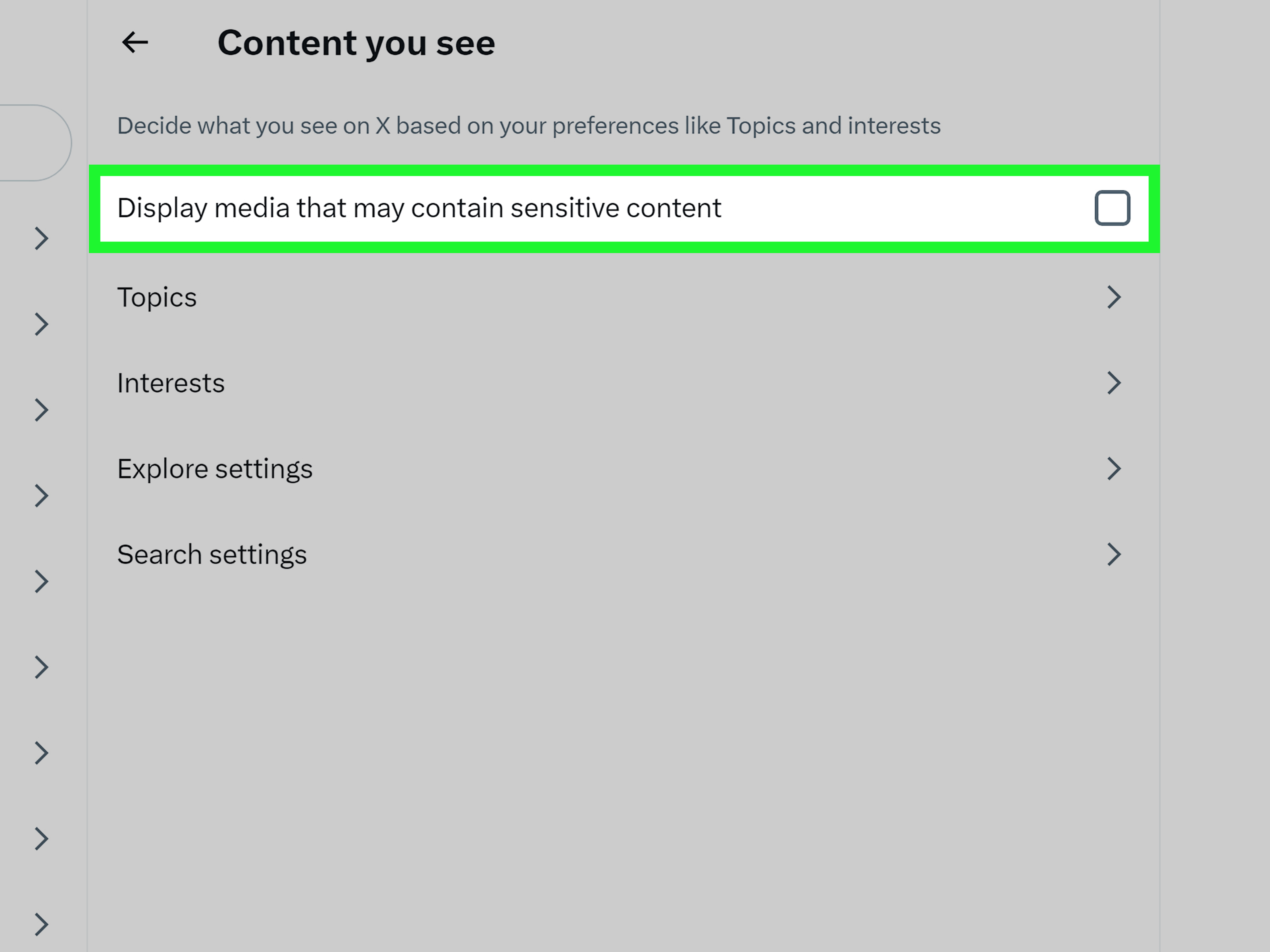
Sensitive media settings control whether X displays media that may be labeled sensitive. This is about content filtering and safety. You can find sensitive media controls under Privacy and safety, usually in a section called Content you see.
If your goal is a cleaner timeline, use Data Saver, Media previews, autoplay, and browser tools. If your goal is to avoid potentially upsetting or sensitive content, adjust sensitive media settings, mute words, block accounts, and report harmful posts when needed.
Why Turn Off Twitter (X) Image Previews?
1. A Cleaner Timeline
Large media previews can make X feel crowded. Turning them off or reducing them creates more room for text, context, and actual conversation. You can scan posts faster without scrolling past enormous images that take up half the screen.
2. Fewer Spoilers
Sports results, movie scenes, game leaks, TV finales, and celebrity reveals often appear as images before you have time to look away. Hiding previews gives you a chance to read before you accidentally learn the ending of something you were saving for Saturday night.
3. Lower Data Usage
Images, GIFs, and videos use more data than plain text. If you are on a limited mobile plan, Data Saver can help reduce unnecessary loading. It is not glamorous, but neither is receiving a data warning before lunch.
4. Better Focus
Visual media is designed to grab attention. That is not always bad, but it can make casual browsing turn into a forty-minute scroll tunnel. Reducing previews helps you decide what deserves your attention instead of letting the timeline decide for you.
5. More Privacy in Public
Scrolling X on a bus, in class during a break, at a coffee shop, or near family can be awkward when random images appear without warning. Turning off previews makes public browsing more discreet and less likely to create the classic “I promise I did not choose that image” moment.
Troubleshooting: Why You Cannot Find the Media Previews Setting
If you cannot find Media previews, do not panic. You probably did not miss it because your thumb lacks ambition. X frequently tests layouts, moves settings, renames menus, and changes features by platform.
Try These Fixes
- Update the app: An old version may hide or misplace current settings.
- Restart the app: Close X completely and reopen it.
- Check both Display and Data Usage: The setting may appear under either area depending on version.
- Search settings manually: Use the app’s search field if available.
- Use Data Saver instead: If Media previews is gone, Data Saver is the best official fallback.
- Turn off autoplay: This reduces the most distracting media behavior.
- Try desktop or mobile web: Sometimes options differ between app and browser.
Best Settings Combination for a Minimal X Feed
If your goal is the cleanest possible X experience, use this combination:
- Turn off Media previews if the option exists.
- Turn on Data Saver.
- Set Video autoplay to Never.
- Review Sensitive media settings.
- Mute keywords for topics you do not want to see.
- Use Lists for focused browsing.
- Consider a reputable browser extension on desktop.
This setup will not make X a quiet library, because X is still X. But it can turn your timeline from a flashing billboard into something closer to a readable feed.
Common Mistakes to Avoid
Do Not Confuse Data Saver With Full Preview Removal
Data Saver reduces media loading, but it may not hide every preview. If you need complete media blocking, you may need the Media previews toggle or a browser-based workaround.
Do Not Install Random Extensions Without Checking Permissions
Browser extensions can be useful, but they can also request broad access. Choose carefully. If an extension asks for more access than it reasonably needs, treat that as a digital raised eyebrow.
Do Not Assume Every Account Has the Same Interface
X often rolls out changes gradually. Your friend may see a toggle you do not have. This is annoying, but normal. Social media settings sometimes behave like furniture in a dream: familiar, but suddenly in the wrong room.
Experiences and Practical Lessons From Turning Off X Image Previews
The biggest change after turning off or reducing Twitter (X) image previews is not technical. It is mental. A timeline with fewer automatic images feels slower in a good way. You read more intentionally. You stop less often. You are less likely to be yanked into a post simply because the image is bright, weird, dramatic, or suspiciously shaped like a celebrity scandal.
For people who use X for news, this matters. When image previews are on, a breaking-news photo can dominate your attention before you understand the context. With previews reduced, you are more likely to read the post, check the source, and decide whether the media is worth opening. That extra second of friction is useful. It is like putting a tiny speed bump between your brain and the chaos machine.
For sports fans, hiding previews can prevent accidental spoilers. Imagine recording a game, opening X for “just one second,” and immediately seeing a victory celebration photo from the team you were trying not to know won. Turning off previews does not eliminate every spoiler, but it reduces visual spoilers dramatically. Text can still betray you, of course. The internet has never promised mercy.
For students and professionals, reducing image previews can also make X less distracting during quick checks. A text-heavy timeline is easier to scan between tasks. You can check mentions, follow a thread, or read updates without falling into a GIF loop that somehow ends with you watching raccoons steal cat food. Again, no judgment. Raccoons are compelling.
Data usage is another real benefit. If you commute, travel, or use X outside Wi-Fi, automatic media can quietly eat your mobile data. Data Saver helps by lowering image quality and stopping videos from autoplaying. Over time, that can make the app feel lighter. Pages may load more smoothly in weak signal areas, and your phone may run a little cooler because it is not constantly pulling media into the feed.
There is also a privacy advantage. Public scrolling becomes less risky when random media does not automatically appear. You control what opens. That is helpful in classrooms, offices, buses, airports, and anywhere else people can glance at your screen. Nobody wants to explain an out-of-context meme to a teacher, manager, grandparent, or nearby stranger holding a sandwich.
The downside is that some posts lose context when previews are hidden or reduced. A joke may depend on an image. A news update may refer to a chart. An artist’s post may be mostly visual. The best solution is not always “hide everything forever.” For many users, the ideal setup is selective: keep autoplay off, use Data Saver, and manually open media when it matters.
After testing different approaches, the most comfortable setup for most people is simple: turn on Data Saver, disable autoplay, mute topics that create visual clutter, and use Lists for focused reading. If the dedicated Media previews toggle appears in your app, use it. If it does not, do not waste an afternoon hunting for a vanished button like it owes you money. Use the closest available controls and move on with your life.
Conclusion
Learning how to turn off Twitter (X) image previews is really about taking back control of your timeline. The exact switch may vary depending on your app version, device, and account interface, but the strategy is clear: check for Media previews, turn on Data Saver, disable video autoplay, review sensitive media settings, and use browser tools when desktop X does not offer enough control.
A cleaner X feed can save data, reduce distractions, prevent spoilers, protect your attention, and make public scrolling less awkward. You may not be able to turn X into a silent reading room, but you can absolutely make it less like a parade of surprise thumbnails. And honestly, that is a win.