If Microsoft Word suddenly looks like it joined a vampire book club, you are not alone. Dark Mode can be great at night, but it is not everyone’s cup of coffee. Some people find the dark interface easier on the eyes. Others open Word in the morning, see a charcoal-colored screen, and immediately want their nice clean white page back.
The good news is that turning off Dark Mode in Microsoft Word is usually fast, painless, and nowhere near as dramatic as it feels when your document goes full bat-cave. Depending on your version of Word, your device, and whether Word is following your system theme, there are several easy ways to switch back to a lighter look.
In this guide, you will learn five practical methods to turn off Dark Mode in Microsoft Word, understand the difference between a dark interface and a dark document page, and figure out which fix makes the most sense for your setup. Whether you use Word on Windows or Mac, these steps will help you get back to a brighter writing space without poking around menus like you are defusing a bomb.
Why Microsoft Word Goes Dark in the First Place
Before we flip the lights back on, it helps to know what is happening. In Word, Dark Mode can affect two different things:
1. The Word interface
This includes the ribbon, menus, toolbar, and surrounding app window. When the interface is dark, Word may use a Black, Dark Gray, or system-based theme.
2. The document page itself
In newer versions of Word, the actual page can also appear dark, with light text on top. This is where many users get confused. Sometimes people think the whole app is stuck in dark mode when really only the page background has changed.
That distinction matters because one fix changes the entire app, while another only changes the page color. If your complaint is, “I want Word to stop looking like a movie editing suite,” you will likely want to change the Office theme. If your complaint is, “Why is my page black when I am trying to write a normal document?” a page-color setting may be enough.
Method 1: Change the Office Theme in Word Account Settings
This is the easiest and most direct method for many Windows users. If Word is using a dark Office theme, changing it here can switch the whole app back to a lighter appearance.
How to do it
- Open Microsoft Word.
- Click File in the top-left corner.
- Select Account.
- Find the Office Theme dropdown.
- Choose White or Colorful.
That is usually enough to turn off Dark Mode in Word. If your version includes Use system setting, you can also pick a light system theme and let Word follow it. This method is quick because it does not require digging through advanced options.
Best for: Users who want to remove the dark interface from Word entirely.
Example: If you open Word and the ribbon, side panels, and menus all look dark, switching the Office Theme to White will usually brighten everything at once.
Method 2: Turn off Dark Mode from Word Options
If you do not see what you need in Account settings, or you want more control, head to the Options menu. This is the place where Word hides some of its more specific appearance settings, because apparently software designers enjoy a little mystery.
How to do it
- Open Microsoft Word.
- Click File.
- Select Options.
- In the General tab, look for Personalize your copy of Microsoft Office.
- Under Office Theme, select White, Colorful, or another light option available in your version.
This method does the same big-picture job as Method 1, but it is useful if you are already in Word Options for other adjustments. Some users prefer this route because it keeps all personalization settings in one place.
Best for: People who want a reliable settings path that works well in desktop Word on Windows.
Tip: If you are helping someone remotely, telling them to go to File > Options > General can be clearer than “look near the bottom-left, then find Account, then find a tiny dropdown that may or may not be feeling cooperative today.”
Method 3: Keep the Page White Even if the Interface Stays Dark
Maybe you do not mind a dark ribbon, but you absolutely do not want a black document page. In that case, you do not necessarily need to turn off Dark Mode completely. You just need to stop Word from changing the page color.
How to do it on Windows
- Open Word.
- Go to File > Options.
- Select General.
- Scroll to Personalize your copy of Microsoft Office.
- Check the box for Never change the document page color.
- Click OK.
This setting is perfect if you like the darker app frame but want the actual writing page to stay bright and traditional. It is a middle-ground option, and honestly, it is one of the smartest fixes for people who work long hours in Word.
Best for: Writers, students, editors, and office workers who want a white page for readability but do not mind a darker interface around it.
Real-life use case: If you are reviewing a contract, resume, or school paper, a white page often feels more familiar and easier to proofread. The dark frame can stay; the page does not have to.
Method 4: Use the View Tab to Switch the Page Background Quickly
If Word is already in Dark Mode and you just want to flip the page from dark to light without going into settings, there is a faster option. The Switch Modes button in the View tab can change the document background color on the fly.
How to do it
- Open your document in Word.
- Click the View tab.
- Select Switch Modes.
This does not always change the entire Word interface. Instead, it usually toggles the page itself between dark and light. Think of it as the “I need this page white right now” button.
Best for: Anyone who wants a fast visual fix without changing broader Word settings.
Example: You are editing late at night and like the dark interface, but then you need to check layout, spacing, or print appearance. Tap Switch Modes, and the page becomes easier to inspect.
This is also handy if you alternate between comfort and accuracy. Dark pages can be easier on the eyes in low light, but a white page can help when you want to see what the document will feel like when shared or printed.
Method 5: Turn off System Dark Mode if Word Follows Your Device Theme
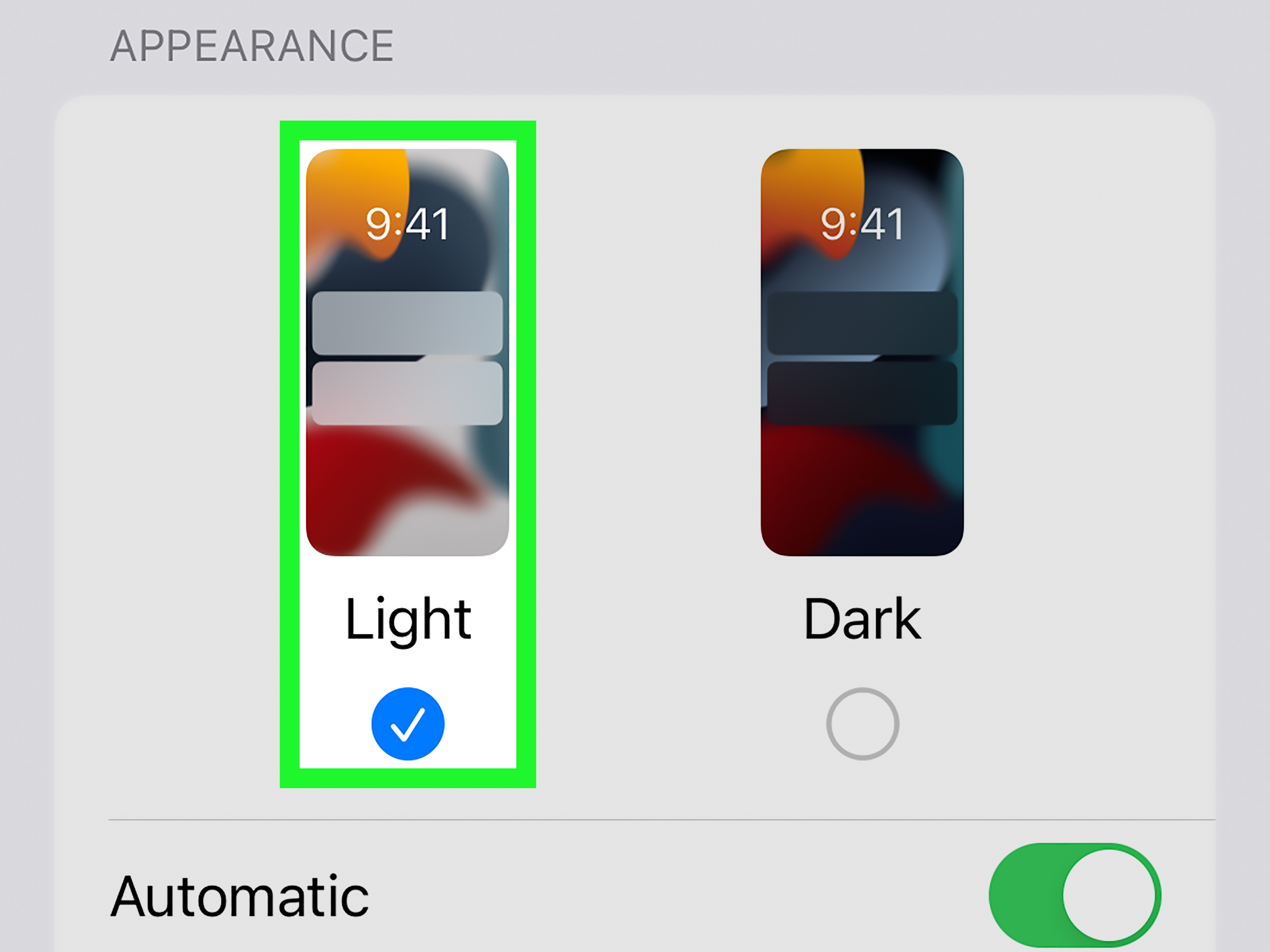
Sometimes Word is not making its own decision at all. It is simply following your system appearance settings. If Word is set to Use system setting, changing your device from Dark to Light mode can switch Word back automatically.
How to do it in Windows
- Open Settings.
- Go to Personalization.
- Click Colors.
- Under Choose your mode, select Light.
How to do it on Mac
- Open System Settings.
- Select Appearance.
- Choose Light.
On Mac, Word may also have its own preference for Dark Mode. In many versions, you can go to Word > Preferences > General and look under personalization settings for a Dark Mode option. If Word follows macOS, switching the system appearance to Light often solves the problem instantly.
Best for: Users whose apps are synced to their operating system theme.
Helpful clue: If Word changes appearance at the same time as other apps on your computer, system settings are probably driving the bus.
Which Method Should You Use?
Here is the quick decision guide:
- Use Method 1 if you want the fastest way to make the whole Word app look light again.
- Use Method 2 if you want more control inside Word’s settings menu.
- Use Method 3 if you want a white page but do not mind a dark interface.
- Use Method 4 if you want a quick page-background toggle while working.
- Use Method 5 if Word is matching your Windows or Mac theme automatically.
In most cases, the problem is solved in under a minute. The trick is identifying whether you are dealing with the app theme, the page color, or the operating system theme.
Common Reasons Dark Mode Seems “Stuck” in Word
If you feel like you changed the setting and nothing happened, here are a few likely reasons:
You changed the page, not the app
Switch Modes may only affect the document background. If the ribbon is still dark, you may also need to change the Office Theme.
Word is following the system theme
If Office Theme is set to Use system setting, Word will continue mirroring Windows or macOS until you change that system appearance.
Your version of Word labels settings differently
Microsoft has adjusted the wording of some appearance settings across versions. You may see terms like Turn Off Dark Mode, Never change the document page color, or similar variations. The goal is the same: make the writing view lighter.
You only changed one Office app
Office themes often apply across Microsoft 365 apps. If Word looks different from Excel or Outlook, double-check whether you changed a document-specific view rather than the full Office theme.
Final Thoughts
If Dark Mode in Microsoft Word is not working for your eyes, your workflow, or your sanity, you have options. In fact, you have at least five easy ones. The right solution depends on whether you want to brighten the whole app, restore a white page, or stop Word from following your system’s dark theme.
For most people, the fastest fix is changing the Office Theme to White or Colorful. For others, the better move is keeping the page white while leaving the interface dark. And if Word insists on living in sync with your computer’s appearance settings, switching your device back to Light mode may be the simplest answer.
The bottom line is this: Microsoft Word does not have to stay dark just because it decided to explore its moody era. With a few clicks, you can bring back the bright, familiar workspace that makes writing, editing, and formatting much easier.
Extra Reader Experience: What It Actually Feels Like to Turn off Dark Mode in Word
There is a surprisingly emotional side to this whole issue. That may sound silly until you open an important document first thing in the morning and get hit with a black page and white text before your coffee has even had a chance to negotiate with your brain. At that moment, Dark Mode does not feel like a sleek design feature. It feels personal.
Many people first run into the problem while doing something routine. Maybe you are updating a resume, writing class notes, editing a report, or reviewing a document your boss sent over with the thrilling subject line “small changes only.” You open Word expecting the usual clean white page, and instead the screen looks like it belongs in a spaceship control room. It is not broken, but it definitely feels broken.
One of the most common reactions is confusion. Users often say, “Why is my document black?” when the real issue is not the document itself but the display mode. That confusion gets worse because Word has more than one appearance setting. You may change the theme and still see a dark page. Or you may switch the page and still have a dark ribbon. It is like fixing the lighting in your kitchen and realizing the hallway is still gloomy.
Once people learn the difference between the interface theme and the page color, the stress level usually drops fast. Suddenly Word makes sense again. You realize you do not need to fight the program. You just need to tell it exactly which part should stop being dramatic.
There is also a productivity angle. Some users genuinely work better with a white page because it matches printed documents, makes comments easier to review, and feels more natural for proofreading. Others like a darker interface around the edges because it reduces glare. That is why the best experience is not always “all light” or “all dark.” Sometimes the sweet spot is a dark frame with a white page in the middle, like the software equivalent of balanced lighting in a good home office.
And then there is the relief factor. Once you find the right setting, it is weirdly satisfying. Word goes from “Why is this app fighting me?” to “Ah, there you are.” The menus look normal again. The page feels readable. The whole program stops acting like it is auditioning for a cyber-thriller. It is a small fix, but when you spend hours in Word, small fixes can feel enormous.
So yes, turning off Dark Mode in Microsoft Word may sound like a tiny task. But if you use Word every day, it can make your screen feel calmer, your documents easier to scan, and your workflow much less annoying. That is not just a setting change. That is quality of life.