Note: This guide is for informational purposes and explains the general account-deletion process for OnlyFans users. Platform menus can change, so always confirm the final prompt shown inside your own account before deleting anything permanently.
Deleting an OnlyFans account sounds like it should be a one-click farewell: tap a button, toss digital confetti, and ride into the sunset. In reality, it is still simple, but there are a few important details that subscribers and creators should understand before pressing the big red “delete” button. Canceling a subscription is not the same as deleting your account. Deleting a creator account is not always instant if paid subscribers are still active. And deleting your profile does not magically erase screenshots, downloaded files, payment records, tax records, or anything someone else may have saved outside the platform.
This in-depth guide explains how to delete an OnlyFans account as a subscriber or creator, what to do before deleting, how to stop future charges, what happens to subscriptions, and how to protect your privacy afterward. Think of it as cleaning out a closet: easy enough, but you probably want to check the pockets before throwing the jacket away.
Deleting vs. Canceling: Know the Difference First
Before you delete your OnlyFans account, make sure you are solving the right problem. If your goal is simply to stop paying for one creator, you do not need to delete your entire account. You only need to cancel that subscription or turn off auto-renewal. If your goal is to remove your profile, payment access, messages, and account presence, then account deletion is the right path.
Canceling a Subscription
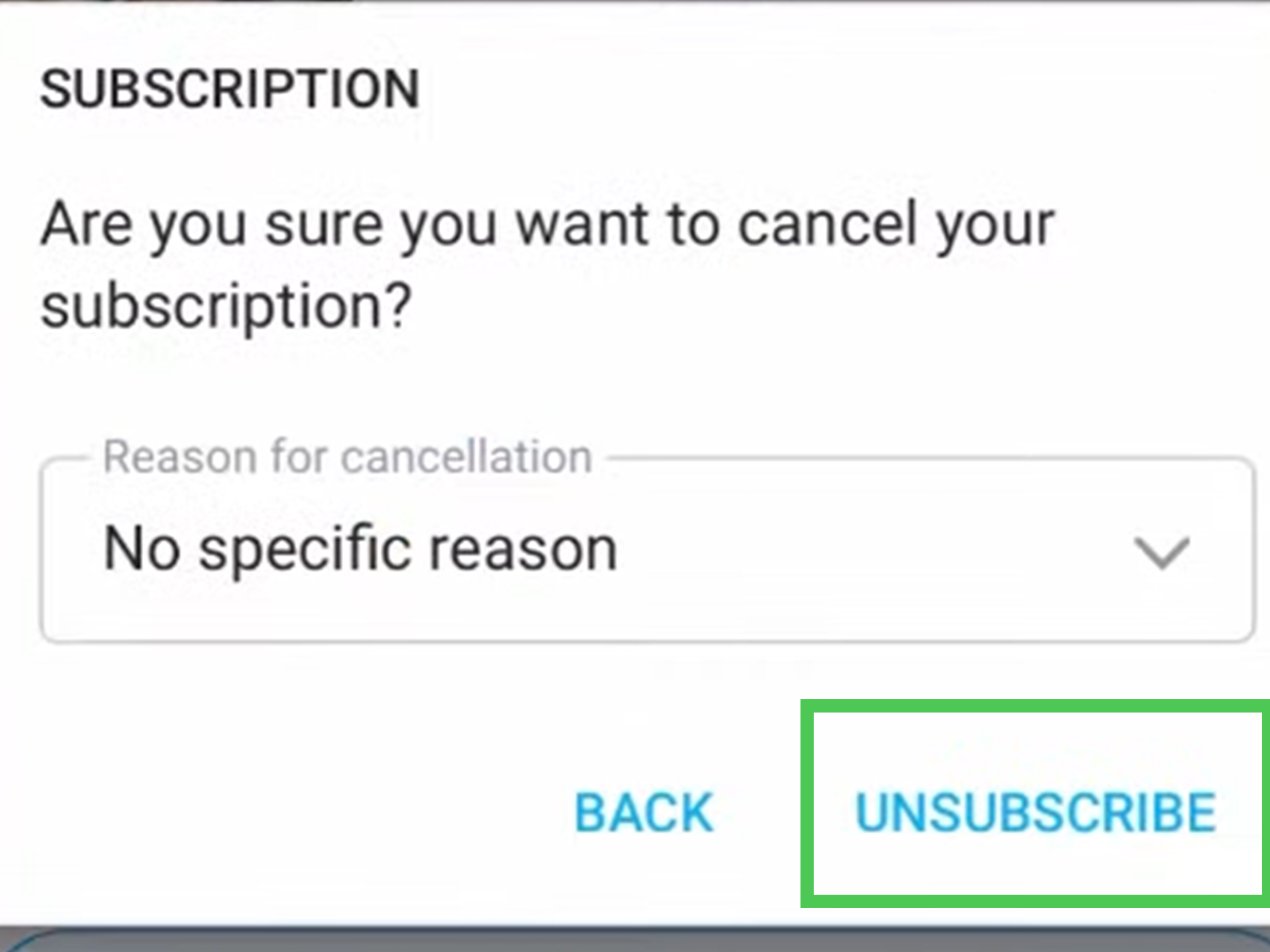
Canceling a subscription stops future recurring payments to a specific creator. In most cases, you keep access until the end of the billing period you already paid for. You usually do not receive a refund just because you canceled early. That is normal for many subscription platforms, although still annoying if you cancel five minutes after renewal. The digital universe is not known for its mercy.
Deleting an OnlyFans Account
Deleting your OnlyFans account is a more permanent step. It removes your account access and should stop future account activity. For subscribers, deletion is usually straightforward once subscriptions are handled. For creators, deletion may involve extra steps because active subscriptions, pending payouts, tax records, paid messages, and content obligations may still exist.
Before You Delete Your OnlyFans Account
Do not rush into deletion like you are smashing an alarm clock on Monday morning. Take a few minutes to prepare. These small steps can help prevent billing confusion, lost records, and privacy headaches.
1. Turn Off Auto-Renew for Active Subscriptions
If you are a subscriber, go through your active subscriptions first. Look for the creators you currently follow with paid access and turn off auto-renewal. This helps prevent future charges. Depending on the current interface, you may find subscriptions under areas such as “Following,” “Subscriptions,” or the individual creator profile. Look for an “Auto-Renew” switch, a three-dot menu, or a subscription management option.
2. Check Your Billing and Payment Method
Review your payment settings and recent charges. If you see active subscriptions, bundles, tips, or pay-per-view purchases, make a note of them. If the platform allows you to remove a card after canceling active renewals, consider doing so. Also check your credit card or bank statement for recurring charges connected to OnlyFans. Statement descriptions can vary, but they often include “OnlyFans,” “OnlyFans.com,” or a related merchant descriptor.
3. Save Anything You Legally Need
Creators should save business records before deleting their accounts. This may include payout summaries, tax forms, earnings reports, subscriber-related notes, promotional records, content calendars, and customer-service conversations. Subscribers may want to save billing confirmations or cancellation emails. Once the account is deleted, accessing older records may become difficult or impossible.
4. Think About Content Already Shared
If you are a creator, remember that deleting content from your account does not guarantee every copy disappears from the internet. Subscribers may have viewed, screenshotted, downloaded, or screen-recorded content despite platform rules. Account deletion removes your official presence, but it cannot reach into someone else’s camera roll like a privacy superhero with Wi-Fi.
How to Delete an OnlyFans Account as a Subscriber
The subscriber process is usually the simplest. Your main job is to cancel renewals, confirm deletion, and keep proof in case billing questions appear later.
Step 1: Log In to OnlyFans
Open OnlyFans in your browser and sign in with the email and password connected to your account. If you use two-factor authentication, complete the login verification. If you cannot log in, use the password reset option before trying anything else.
Step 2: Cancel Active Subscriptions
Go to your subscriptions, following list, or the creator profile connected to each paid subscription. Turn off auto-renewal for every creator you no longer want to pay. Confirm the change when prompted. The subscription should show an expiration date or indicate that it will not renew.
Step 3: Go to Settings
Click or tap your profile icon. Open “Settings.” On desktop, this is usually easier because the layout is wider and less cramped. On mobile, use your browser and be patient with the menus. Tiny buttons on a phone screen have a way of testing your spiritual growth.
Step 4: Open the Account Section
Inside Settings, look for “Account.” Scroll through the account-management options until you find “Delete Account” or a similar deletion prompt. The wording may vary slightly depending on platform updates.
Step 5: Complete the Security Check
OnlyFans may ask you to complete a CAPTCHA, enter a verification code, confirm your password, or approve the action through your registered email or phone number. This step helps prevent someone else from deleting your account without permission.
Step 6: Confirm Account Deletion
Read the final confirmation screen carefully. Once you confirm deletion, your account may become unrecoverable. After successful deletion, watch for a confirmation email. Save that email, especially if your reason for deleting the account is to stop charges.
How to Delete an OnlyFans Account as a Creator
Creators should treat deletion like closing a small online business. Even if the account was casual, there may be subscribers, scheduled posts, unpaid balances, chargeback windows, tax documents, and content records to think about.
Step 1: Pause New Activity
Before deleting, stop promoting your page and avoid selling new pay-per-view content if you do not plan to remain active. If you have scheduled posts, campaigns, discounts, or bundle offers, review and cancel them where possible. The goal is to avoid accepting money for content or access you no longer plan to provide.
Step 2: Notify Active Subscribers If Appropriate
If you have paying subscribers, consider posting a short farewell update. Keep it professional and simple. You do not need to write a dramatic opera titled “The Last Login,” but subscribers appreciate clarity. Tell them when you plan to stop posting and whether renewals will continue or end.
Step 3: Save Payout and Tax Records
Download or record your earnings history, payout confirmations, tax forms, and any financial documents you may need later. This is especially important for U.S. creators who report self-employment income. Account deletion should not be your accounting strategy. The IRS, tragically, does not accept “I deleted the app” as a filing method.
Step 4: Withdraw Available Balance
If you have an available balance, request a payout before deleting. If funds are pending, wait until they become available if you can. Creator payouts may be affected by processing times, account status, minimum payout thresholds, or compliance checks. Deleting too early can make payout questions more complicated.
Step 5: Handle Active Subscriptions
Creator accounts with active paid subscribers may not disappear instantly. In many cases, the deletion process may remain pending until the final active subscription period ends. This protects subscribers who already paid for a period of access. It also means your account may not vanish the second you request deletion.
Step 6: Delete the Account Through Settings
Once you are ready, go to your profile icon, open “Settings,” select “Account,” and look for “Delete Account” under account management. Complete the CAPTCHA, verification code, password confirmation, or other security step. Confirm deletion only after reading the warning screen.
Step 7: Watch for Confirmation
After submitting the deletion request, check your email for confirmation. If your account remains active because subscriptions are still running, monitor the account until the final subscription period ends. Keep screenshots of the deletion request and any confirmation messages.
What Happens After You Delete an OnlyFans Account?
After account deletion, you should lose access to your profile, messages, subscriptions, and creator dashboard. Future subscriptions should not renew. Existing paid access may remain until the billing period ends, especially when creator-side obligations are involved.
However, deletion does not always mean every piece of data is instantly erased from every system. Platforms may retain certain information for legal, tax, fraud-prevention, payment-processing, dispute-resolution, or regulatory reasons. This is common across digital services, especially platforms that process payments, identity verification, and creator income.
Can You Recover a Deleted OnlyFans Account?
Generally, account deletion should be treated as permanent. If you delete the account by mistake, contact OnlyFans support immediately. Do not wait a week and hope the internet has a recycle bin. The faster you act, the better your chance of getting help before the process is finalized. Still, there is no guarantee that a deleted account, content, messages, subscriber list, or creator history can be restored.
How to Delete an OnlyFans Account If You Cannot Log In
If you cannot access your account, start with account recovery. Use the “Forgot Password” option connected to your email address. Check your inbox, spam folder, and any older email accounts you may have used. If you used a phone number or two-factor authentication, make sure you still have access to that device.
If you still cannot log in, contact OnlyFans support through official channels. Provide the email address linked to the account, your username if you know it, the last four digits of the card used, recent charge dates, and any other information that proves account ownership. Avoid random “support” phone numbers found on search results or social media. Scammers love confused billing situations the way raccoons love unsecured trash cans.
How to Stop OnlyFans Charges After Deleting
If charges continue after deletion or cancellation, take action quickly. First, search your email for OnlyFans receipts and cancellation confirmations. Make sure you did not have another OnlyFans account under a different email. Then contact OnlyFans support and ask them to identify the account connected to the charge.
If you believe the charge is unauthorized, contact your card issuer or bank. Explain that you canceled or deleted the account and provide proof. Your bank may help block future merchant charges or open a dispute. Keep records of every message, confirmation email, and screenshot. Documentation is boring, but it is also the adult version of armor.
Privacy Tips Before and After Deleting OnlyFans
Use Strong Passwords Before Deletion
If your account is still active, secure it before deleting. Change the password if you suspect anyone else has access. Enable two-factor authentication if available. This prevents someone from changing account details or interfering before you close it.
Remove Personal Details Where Possible
Before deletion, review your profile, bio, connected social links, display name, and messages. Remove unnecessary personal details where the platform allows it. Do not rely only on deletion to clean up everything.
Search for Reposted Creator Content
Creators who are worried about leaked or reposted content should search major platforms, search engines, and adult-content indexing sites for copies. If you find unauthorized reposts, use platform reporting tools, DMCA takedown requests, or professional content-removal services when necessary.
Keep Your Confirmation Email
Whether you are a subscriber or creator, keep the deletion confirmation email. If billing issues appear later, that email is your “I really did leave” receipt.
Common Mistakes to Avoid
Mistake 1: Deleting Before Canceling Subscriptions
Although account deletion should stop future account activity, it is still wise to turn off auto-renewal first. This gives you clearer proof that each subscription was canceled before the account was removed.
Mistake 2: Forgetting About Multiple Accounts
Some users create accounts with different emails over time. If charges continue, check old inboxes, saved passwords, and bank statements. You may have deleted one account while another one is still happily billing away like a tiny financial goblin.
Mistake 3: Not Saving Creator Records
Creators should save payout and tax records before deleting. If you earned money, you may need those records later. Do not assume support can quickly recover them after deletion.
Mistake 4: Assuming Deleted Content Is Gone Everywhere
Deleting content from OnlyFans removes it from your official account, but it does not control copies already saved or reposted elsewhere. This is why creators should think carefully before uploading anything personal, even on paid platforms.
Subscriber Checklist for Deleting OnlyFans
- Log in to the correct account.
- Turn off auto-renewal for every active subscription.
- Check for paid bundles or upcoming renewals.
- Save receipts and cancellation confirmations.
- Go to Settings > Account > Delete Account.
- Complete CAPTCHA or verification.
- Confirm deletion and save the confirmation email.
- Monitor your bank statement for the next billing cycle.
Creator Checklist for Deleting OnlyFans
- Stop promoting new subscriptions.
- Notify subscribers if appropriate.
- Cancel scheduled posts, discounts, or campaigns.
- Download payout records, tax forms, and earnings reports.
- Withdraw available balance before deleting.
- Wait for pending payouts if necessary.
- Review active subscriptions and paid content obligations.
- Delete the account through Settings > Account.
- Save deletion confirmation and monitor the final account status.
Frequently Asked Questions
Does deleting OnlyFans cancel subscriptions?
Deleting your account should stop future account access and renewal activity, but it is smart to cancel subscriptions manually first. Turning off auto-renewal creates a clearer record and reduces billing confusion.
Will I get a refund after deleting my OnlyFans account?
Usually, no. Subscription platforms commonly do not refund the unused part of a billing period simply because you cancel or delete your account. You may keep access until the paid period ends, depending on the subscription status.
Can creators delete immediately?
Creators may be able to request deletion immediately, but the final removal can depend on active subscriptions, pending payouts, or account review issues. If subscribers already paid for access, the account may remain available until those periods expire.
Can I temporarily deactivate OnlyFans instead?
OnlyFans is generally treated as a delete-or-keep platform rather than a classic temporary deactivation service. If you are unsure, remove personal details, stop posting, turn off renewals where applicable, and contact support before choosing permanent deletion.
What if I still see charges?
Check for multiple accounts, confirm that auto-renewal was disabled, contact OnlyFans support, and then contact your bank or card issuer if the charge appears unauthorized. Keep all confirmation emails and screenshots.
Real-World Experiences and Practical Lessons
Many people decide to delete an OnlyFans account for ordinary reasons: saving money, cleaning up digital accounts, ending a creator project, changing careers, protecting privacy, or simply deciding that the platform no longer fits their life. The deletion process itself is not usually the hardest part. The harder part is making sure nothing important is left behind.
For subscribers, the most common frustration is billing confusion. Someone may think, “I deleted my account, so I am done,” and then panic when they see a familiar-looking charge later. In many cases, the issue is not the deleted account but another subscription tied to a different email, an auto-renewal that was not turned off before deletion, or a charge that processed before the cancellation took effect. A practical habit is to search every email inbox for “OnlyFans,” “subscription,” “renewal,” and “receipt.” That quick search can reveal forgotten accounts faster than memory can.
Another subscriber lesson is to cancel before the renewal date, not on the renewal date. Waiting until the last minute is risky because payment systems can process early, time zones can differ, and websites can be temporarily glitchy. If a subscription renews on Friday, do not wait until Friday night with one eye on the clock and the other eye on your bank app. Cancel a day or two ahead, confirm the expiration date, and save the proof.
Creators often have a more emotional experience. Deleting a creator account can feel like closing a chapter, especially if the account represented months or years of work. Some creators delete because they are rebranding. Others leave because the workload, messaging demands, privacy concerns, or emotional pressure became too much. The best creator experience usually comes from planning the exit instead of disappearing overnight. A short final post, a payout check, saved tax records, and a content-removal plan can turn a stressful exit into a controlled one.
Creators should also remember that subscribers may not understand what deletion means. If a fan paid for a month and the page suddenly goes quiet, they may contact support or dispute a charge. A simple message such as, “This page is closing soon; renewals will not continue, and no new content will be posted after this date,” can prevent confusion. You do not owe anyone your life story. Clear communication is enough.
Privacy is another major lesson. Some users delete their accounts hoping to erase embarrassment, prevent a partner from finding the account, or remove old content from public reach. Deletion helps, but it is not a time machine. If content was shared with other people, there is always a chance copies exist elsewhere. That is not meant to scare you; it is meant to keep expectations realistic. After deleting, creators should search for reposts, set up alerts for usernames or stage names, and report unauthorized uploads quickly.
The smoothest deletions usually follow the same pattern: cancel renewals, save records, remove sensitive details, request deletion, keep confirmation, and monitor statements afterward. It is not glamorous, but it works. Consider it digital housekeeping with slightly more awkward receipts.
Conclusion
Deleting an OnlyFans account as a subscriber or creator is not complicated, but it should be done carefully. Subscribers should turn off auto-renewal, confirm cancellation, delete the account through settings, and monitor future billing. Creators should take extra steps: save payout records, withdraw available funds, communicate with subscribers, handle active subscriptions, and understand that final deletion may depend on remaining paid access periods.
The most important rule is simple: do not delete first and think later. Account deletion can be permanent, and recovery is not guaranteed. Take ten calm minutes to review your subscriptions, money, content, privacy, and records. Your future self may not send flowers, but they will be grateful.