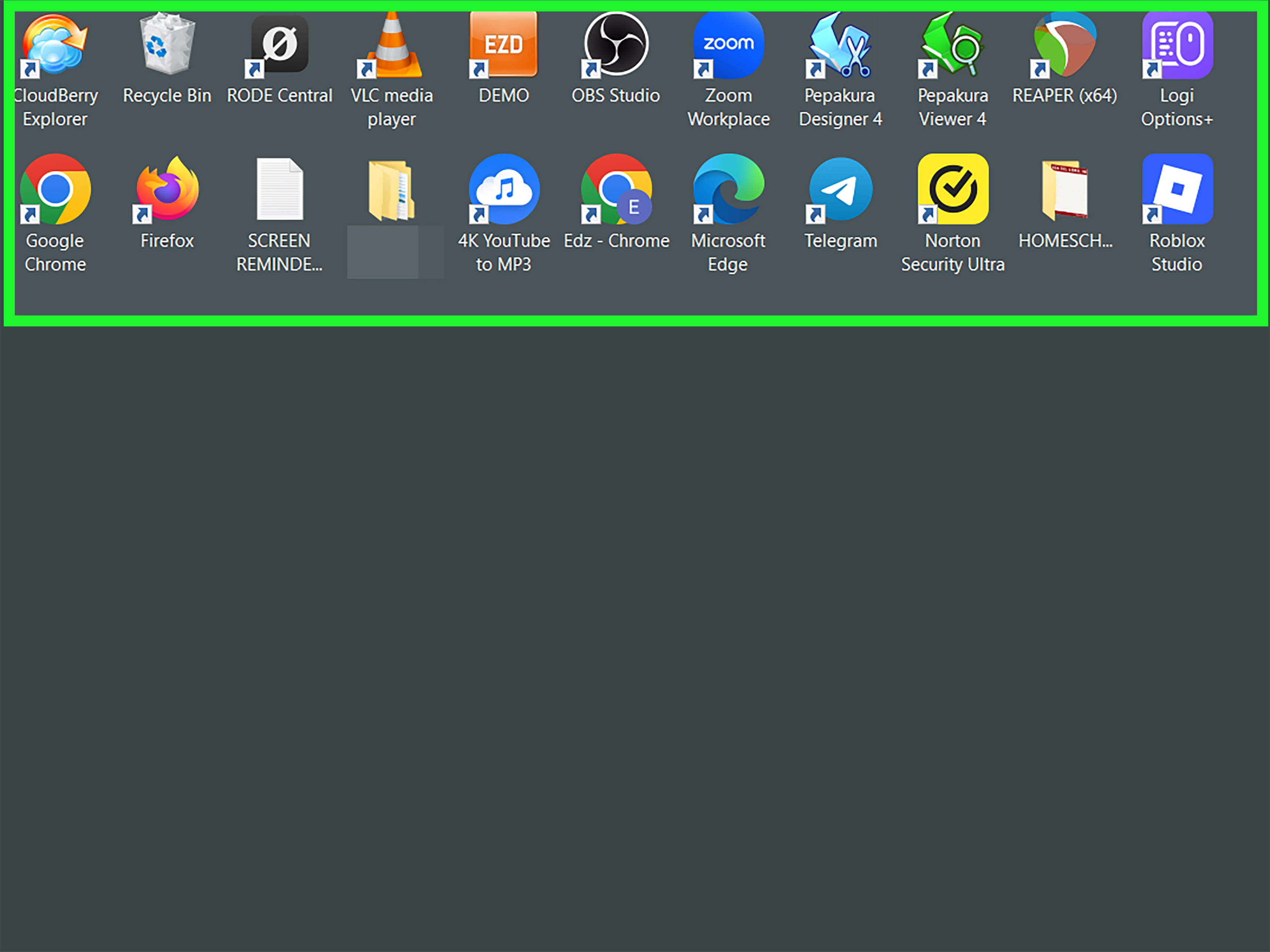
Your Windows desktop does not have to look like a digital junk drawer where 47 screenshots, three mysterious ZIP files, and a shortcut named “New Folder (8)” go to retire. With the right desktop customization tools, your PC can feel polished, personal, and surprisingly practical.
The goal is not to turn your monitor into a neon spaceship cockpit unless that is genuinely your thing. A cool desktop should reflect your style while making it easier to work, study, create, game, or pretend you are being productive while choosing wallpapers for 40 minutes.
This guide covers eight must-try PC tools that can improve your wallpaper, widgets, taskbar, Start menu, window layouts, and desktop organization. Most work best on Windows 10 or Windows 11, and several are free or open-source.
Before You Customize: Build a Desktop Theme, Not a Digital Yard Sale
The best-looking Windows desktops usually follow one simple rule: everything belongs together. Your wallpaper, accent color, icons, widgets, and taskbar should feel like parts of the same room rather than strangers trapped in an elevator.
Start by choosing one visual direction:
- Minimal: Soft wallpaper, hidden desktop icons, muted widgets, and plenty of empty space.
- Cyberpunk: Dark backgrounds, neon highlights, animated wallpapers, and system-monitor widgets.
- Professional: Clean colors, organized files, practical window layouts, and subtle taskbar tweaks.
- Cozy: Nature photography, warm tones, calendar widgets, and gentle animation.
- Gaming: Game-inspired wallpapers, RGB-friendly colors, performance widgets, and streamlined shortcuts.
A good desktop setup is less about installing every customization app you can find and more about choosing a few tools that solve specific problems. Think of it like decorating an apartment: one plant looks intentional; 37 plants may indicate you are preparing for a jungle expedition.
1. Lively Wallpaper: Add Free Motion to Your Desktop
Lively Wallpaper is one of the best free tools for people who want animated desktop backgrounds without immediately handing over their lunch money. It can turn videos, GIFs, web pages, and interactive scenes into live wallpapers.
It is especially useful for users with ultrawide monitors, dual-monitor setups, or a desktop that needs a little more personality than the default Windows blue swirl. You can use rainy city scenes, slow-moving clouds, retro pixel art, abstract animations, or even an interactive web-based wallpaper.
Why Lively Wallpaper Is Worth Trying
Lively Wallpaper is a strong starting point because it is free, open-source, and designed with Windows users in mind. It can also pause animated wallpapers when a full-screen app or game is running, which helps prevent your background from competing with your graphics card for attention.
For the cleanest result, choose subtle motion. A gently animated landscape or low-key abstract background looks premium. A wallpaper featuring 14 exploding dragons, flashing text, and dubstep-reactive lightning may look exciting for about six minutes.
Best Use Case
Use Lively Wallpaper if you want a modern animated desktop but prefer a free option. It is ideal for students, gamers, and anyone who wants their Windows PC to feel more alive without making it feel chaotic.
2. Wallpaper Engine: The Premium Choice for Live Wallpapers
Wallpaper Engine is one of the most popular live wallpaper tools for Windows. Available through Steam, it supports animated 2D scenes, 3D backgrounds, video wallpapers, web-based designs, and interactive creations from its huge Workshop community.
The major appeal is variety. You can find everything from calm mountain landscapes and anime scenes to futuristic city loops, music visualizers, space simulations, and game-inspired designs. It also lets you create and share your own wallpapers if you enjoy tinkering.
How to Make Wallpaper Engine Look Better
Choose a wallpaper that leaves room for your desktop icons and widgets. If your background is too busy, your folders will look like they are trying to survive a storm. Darker wallpapers with one clear focal point tend to work best.
For a stylish setup, pair Wallpaper Engine with a simple taskbar and one or two widgets. You do not need five clocks, three CPU graphs, and a giant weather radar unless your PC is running a weather station.
Best Use Case
Wallpaper Engine is excellent for users who want maximum wallpaper variety, Steam Workshop access, and deeper creative control. It is particularly popular among gaming PC owners and people who enjoy changing their desktop theme often.
3. Rainmeter: Build Custom Widgets That Actually Look Good
Rainmeter is the classic Windows desktop customization tool for widgets, also called “skins.” It can display clocks, calendars, weather information, CPU and RAM meters, music controls, app launchers, notes, network usage, and much more.
This is the tool that can transform a plain Windows desktop into something sleek, futuristic, minimal, or wildly over-engineered. Rainmeter is powerful because you can download skins made by the community or customize them yourself.
Start Small With Rainmeter
The biggest beginner mistake is installing an enormous widget pack and loading everything at once. Suddenly, your desktop has more gauges than a submarine. Instead, start with three useful widgets:
- A clock and date widget
- A weather widget
- A small system-monitor widget for CPU, RAM, or storage
Match the widget color to your wallpaper. White text works well over dark backgrounds, while soft gray or muted accent colors can create a more refined look. Avoid mixing five fonts unless your goal is “group project presentation from 2007.”
Best Use Case
Rainmeter is best for people who want desktop widgets with personality. It works especially well for creators, streamers, developers, music fans, and anyone who enjoys tweaking details until a clock is positioned exactly three pixels farther left.
4. Microsoft PowerToys: Make Your Desktop Feel Smarter
Microsoft PowerToys is not primarily a visual customization app, but it can make your Windows desktop feel dramatically more organized and professional. It includes a collection of free utilities that improve window management, search, color selection, shortcuts, and more.
The star feature for desktop customization is FancyZones. This tool lets you create custom window layouts, then snap apps into those layouts. It is especially useful on large monitors, ultrawide displays, and multi-monitor setups.
Use FancyZones for a Clean Workstation Look
Imagine opening your browser on the left, a document editor in the center, and Slack or Spotify in a narrow panel on the right. Instead of dragging windows around like you are playing digital Tetris, FancyZones helps you place them into consistent zones.
PowerToys also includes useful tools such as Color Picker, Always On Top, Image Resizer, PowerToys Run, and Shortcut Guide. These utilities do not merely make your desktop prettier; they make it feel intentional.
Best Use Case
PowerToys is ideal for anyone who wants their cool desktop to remain useful. It is particularly valuable for remote workers, students, designers, programmers, content creators, and people with a suspicious number of open browser tabs.
5. Stardock Fences: Turn Desktop Clutter Into Clean Sections
Stardock Fences is designed for people whose desktop is full of files, shortcuts, screenshots, folders, and things they plan to organize “later.” Fences groups desktop items into labeled sections, making the desktop easier to scan and far less stressful.
You can create separate areas for work projects, games, downloads, school files, editing tools, invoices, or whatever else currently lives in desktop purgatory. The sections can be resized, moved, and customized so the layout feels structured instead of accidental.
How to Use Fences Without Making Things Worse
Keep your categories broad. Try labels such as Work, Creative, Games, and Temporary Files. Avoid making folders for every tiny task, such as “Photos to Maybe Edit Possibly Tuesday.”
Use one fence for active projects and another for temporary downloads. When you finish a project, move its files to Documents or cloud storage. Your desktop should be a launchpad, not a museum of abandoned files.
Best Use Case
Fences is perfect for busy users who want a clean, visually organized desktop without hiding every icon. It is especially helpful if you rely on desktop shortcuts but still want your setup to look neat.
6. Start11: Personalize the Start Menu and Taskbar
Start11 is a Windows customization tool from Stardock that lets you reshape the Start menu and taskbar experience. It can be useful if you miss older Windows layouts or simply want more control over colors, transparency, spacing, icon size, and menu style.
Windows 11 looks polished out of the box, but some users want a Start menu that feels more familiar, more compact, or more focused on apps rather than recommendations. Start11 gives you room to make those changes.
Try a Cleaner Start Menu Layout
A good Start menu should help you launch important apps quickly. Pin your daily tools, remove distractions, and use a layout that matches how you work. For example, a writer may pin a browser, notes app, document editor, image tool, and cloud drive.
Try using one accent color across your Start menu, taskbar, and wallpaper. This creates a more unified Windows desktop aesthetic and makes the setup feel less like a collection of random settings.
Best Use Case
Start11 is useful for users who care about the visual details of Windows navigation. It works well for people who want a classic Start menu feel, a more customized taskbar, or a cleaner app-launching experience.
7. Windhawk: Customize Windows With Community Mods
Windhawk is a customization marketplace for Windows that offers mods for the taskbar, title bars, File Explorer behavior, clock appearance, icon sizing, and other interface details. It is a powerful option for users who want changes that Windows does not offer by default.
For example, you can explore taskbar styling mods, custom taskbar labels, clock adjustments, title bar color changes, and other small interface improvements. These changes can make Windows feel more personal without replacing the entire operating system experience.
Use Windhawk Carefully
Windhawk is best approached with restraint. Install one mod, test it for a few days, and make sure it does not conflict with other taskbar tools. Windows updates can occasionally affect third-party customization tools, so avoid building your whole digital identity around one experimental modification.
Create a restore point before making major interface changes. It takes only a few minutes and can save you from the classic “Why is my taskbar floating in the middle of nowhere?” moment.
Best Use Case
Windhawk is best for advanced users and confident tinkerers who want fine-grained Windows customization. It is great for people who enjoy experimenting with taskbar layouts, visual details, and user interface behavior.
8. RoundedTB: Give Your Taskbar a Modern Floating Look
RoundedTB is a lightweight customization tool that can add rounded corners and margins to the Windows taskbar. The result is a floating taskbar appearance that can make a standard Windows desktop feel cleaner and more modern.
This is a subtle customization, but subtle changes often make the biggest difference. A taskbar with breathing room around it can visually separate the desktop from the controls you use every day.
Keep the Floating Taskbar Look Simple
RoundedTB looks best with a clean wallpaper, centered taskbar icons, and limited desktop clutter. It may not shine if your screen is already packed with widgets, folders, notifications, and 18 open apps.
Try a small margin and moderate corner radius first. Huge rounded corners can make the taskbar look less like a refined design choice and more like a cartoon speech bubble.
Best Use Case
RoundedTB is ideal for minimalists who want a cleaner taskbar without rebuilding their entire Windows desktop. It pairs well with animated wallpapers, hidden icons, and a centered Start menu.
How to Combine These Tools Without Slowing Down Your PC
Desktop customization should not turn your PC into a very expensive slideshow. The safest approach is to combine tools gradually.
- Start with one wallpaper tool: Lively Wallpaper or Wallpaper Engine.
- Add Rainmeter only if you truly want widgets.
- Use PowerToys for practical window organization.
- Add Fences if desktop clutter is your main problem.
- Choose either Start11, Windhawk, or RoundedTB for interface changes.
Avoid running multiple apps that modify the same Windows feature. For example, taskbar tools can conflict with each other if several utilities try to reshape the taskbar at once. Less is often more, especially when your goal is a polished desktop rather than a troubleshooting hobby.
Desktop Design Rules That Make Any Setup Look Better
Use One Main Color Palette
Pick two or three main colors. A dark blue wallpaper with white widgets and a cyan accent looks coherent. A red taskbar, green widgets, yellow icons, and purple wallpaper looks like your computer lost a bet.
Leave Some Empty Space
Negative space is not wasted space. A clean area on your screen helps wallpapers look better and makes widgets easier to read. You do not need to fill every corner of your monitor just because it exists.
Hide or Organize Desktop Icons
If you want a clean wallpaper to stand out, hide unused icons or organize them with Fences. You can also keep only your most important shortcuts visible and move the rest into the Start menu or taskbar.
Choose Function Over Flash
The coolest desktop is one that makes your day easier. A beautiful live wallpaper is great. A beautiful live wallpaper that makes your laptop fan sound like it is preparing for takeoff is less great.
Experience-Based Lessons: What Usually Works After the Excitement Wears Off
Most people begin desktop customization with enormous enthusiasm. They install an animated wallpaper, download a widget pack, modify the taskbar, change the Start menu, replace icons, add a music visualizer, and then stare proudly at a desktop that looks like it belongs in a science-fiction movie.
Then Monday arrives.
That is when the real test begins. A desktop setup is successful when it still looks good while you are answering emails, opening spreadsheets, studying for an exam, editing images, joining video calls, or trying to locate a file you saved last Thursday under an extremely helpful name like “final_final_REALfinal.docx.”
The most satisfying setups tend to become simpler over time. Users often discover that one animated wallpaper, a clock, a weather widget, and a practical window layout are enough. The desktop still feels custom, but it does not demand attention every time you open your computer.
A good example is a work-and-play setup built around a dark blue city wallpaper. The wallpaper moves slowly, so it creates atmosphere without becoming distracting. A small Rainmeter clock sits in one corner. PowerToys FancyZones handles the browser, document editor, and messaging app. Fences keeps work files grouped in one area and game shortcuts grouped in another. The taskbar remains simple, with only frequently used apps pinned.
That setup looks intentional because every tool has a job. The wallpaper sets the mood. Rainmeter provides quick information. FancyZones improves workflow. Fences removes clutter. The taskbar stays out of the way. Nothing is installed merely because it looked impressive in a screenshot.
Another common lesson is that performance matters more than people expect. Animated wallpapers and widgets can be fun, but older laptops, entry-level desktops, and systems with limited RAM may benefit from a simpler setup. A static 4K wallpaper, subtle transparency, organized shortcuts, and PowerToys can still create a premium desktop look without adding much overhead.
It also helps to think about how you use your PC at different times. A flashy cyberpunk setup may feel perfect for gaming at night but slightly distracting during work hours. Some users create different setups for different moods: a calm minimalist theme for work, a bold gaming theme for evenings, and a cozy wallpaper for weekends.
The best customization habit is reviewing your desktop once a month. Delete old shortcuts. Remove widgets you no longer look at. Uninstall tools that are not helping. Update your wallpaper when you are bored. Your desktop should evolve with your habits instead of becoming a permanent archive of every customization trend you tried in 2024.
Ultimately, the coolest PC desktop is not necessarily the loudest one. It is the one that feels like yours, works smoothly, and makes opening your computer slightly more enjoyable every day.
Final Thoughts
Learning how to make your desktop look cool is really about balancing style and usefulness. Start with a wallpaper, add a few practical tools, organize your files, and customize only the parts of Windows that genuinely improve your experience.
Whether you choose a calm minimal workspace, a futuristic gaming setup, or a polished productivity desktop, these eight Windows customization tools can help your PC look more personal, organized, and fun to use.
Note: Third-party Windows customization tools can change compatibility after major Windows updates. Install them from official sources when possible, test one tool at a time, and create a restore point before making major interface modifications.