Keyboard shortcuts are tiny digital cheat codes for everyday life. They save seconds, prevent hand cramps, and make you look mysteriously competent in front of coworkers who are still right-clicking their way through the wilderness. Whether you use Windows, macOS, Chrome, Google Docs, Microsoft Office, Slack, Zoom, or a browser with too many tabs open, the right shortcut can turn a slow task into a blink-and-it-is-done moment.
The best part? You do not need to memorize every shortcut ever invented. Nobody is asking you to become the Beethoven of the keyboard. Start with the most useful keyboard shortcuts: copy, paste, undo, find, switch tabs, save, screenshot, lock screen, and a few more daily lifesavers. Once they become muscle memory, your computer starts feeling less like a machine and more like a well-trained assistant that actually listens.
Below are 27 keyboard shortcuts that everybody needs to know, with Windows and Mac versions where they differ. Think of this as your practical productivity toolbox: no fluff, no obscure key acrobatics, and no shortcuts that require three hands and a small prayer.
Why Keyboard Shortcuts Matter
Keyboard shortcuts improve speed, accuracy, accessibility, and focus. Instead of moving your hand from the keyboard to the mouse, hunting through menus, and trying to remember where some tiny button lives, you press a few keys and keep working. That matters when you are writing a report, editing a spreadsheet, managing browser tabs, answering emails, presenting on Zoom, or trying to recover from accidentally deleting an entire paragraph that deserved better.
Shortcuts are also helpful for accessibility. Many operating systems and apps support keyboard navigation so people can work efficiently without relying on a mouse or touchscreen. In plain English: keyboard shortcuts are not just “power user” tricks. They are everyday tools for anyone who wants to work faster and with fewer interruptions.
27 Keyboard Shortcuts That Everybody Needs To Know
1. Copy: Ctrl + C / Command + C
Copy is the classic shortcut for duplicating selected text, files, images, or data without removing the original. Use it when you want to reuse something without playing the dangerous game of retyping it from memory. In most Windows apps, press Ctrl + C. On Mac, press Command + C.
2. Cut: Ctrl + X / Command + X
Cut moves selected content from one place to another. It is copy’s bolder cousin: useful, efficient, and slightly more dramatic. Highlight text, a file, or a spreadsheet cell, press Ctrl + X on Windows or Command + X on Mac, then paste it where it belongs.
3. Paste: Ctrl + V / Command + V
Paste places copied or cut content into a new location. This is the shortcut you probably already use, but it deserves respect because it carries half the internet on its back. Press Ctrl + V on Windows or Command + V on Mac.
4. Paste Without Formatting: Ctrl + Shift + V / Command + Shift + V
Have you ever copied text from a website and pasted it into a document only for it to arrive wearing a giant font, strange spacing, and emotional baggage? Paste without formatting fixes that. Use Ctrl + Shift + V in many Windows apps and browsers, or Command + Shift + V in many Mac apps. In some programs, the exact shortcut may vary, but the concept is essential.
5. Undo: Ctrl + Z / Command + Z
Undo is the panic button of civilization. Deleted a paragraph? Moved the wrong file? Changed a spreadsheet formula into chaos soup? Press Ctrl + Z on Windows or Command + Z on Mac and breathe again.
6. Redo: Ctrl + Y or Ctrl + Shift + Z / Command + Shift + Z
Redo reverses your undo. It is useful when you undo too far and realize the previous version was actually fine. On Windows, many apps use Ctrl + Y, while some use Ctrl + Shift + Z. On Mac, Command + Shift + Z is common.
7. Select All: Ctrl + A / Command + A
Need to highlight an entire document, folder list, email draft, spreadsheet range, or webpage field? Use Ctrl + A on Windows or Command + A on Mac. It is perfect when you want everything selected, not when you want to accidentally replace your whole essay with the letter “k.” Use responsibly.
8. Save: Ctrl + S / Command + S
Autosave is wonderful until it is not. Pressing Ctrl + S or Command + S is still one of the smartest habits in digital work. Save early, save often, and save yourself from giving a motivational speech to a crashed app.
9. Print: Ctrl + P / Command + P
Print opens the print dialog in most apps and browsers. Use Ctrl + P on Windows or Command + P on Mac. It is also the fast route to saving many webpages or documents as PDFs when your system offers that option.
10. Find: Ctrl + F / Command + F
Find is one of the most underrated shortcuts in existence. Press Ctrl + F or Command + F to search within a webpage, document, PDF, spreadsheet, or email thread. Looking for one sentence in a 40-page report? Find is your flashlight in the attic.
11. Replace: Ctrl + H / Command + Shift + H in Some Apps
Replace helps you swap one word, phrase, or value for another. In many Windows apps, Ctrl + H opens Find and Replace. On Mac, the shortcut varies by app, but Command + Shift + H is common in some editors. This shortcut is especially helpful when a name, product title, or repeated typo changes across a document.
12. New Tab: Ctrl + T / Command + T
In most browsers, Ctrl + T or Command + T opens a new tab. It is quick, clean, and better than clicking the tiny plus button like you are trying to defuse a bomb with a mouse pointer.
13. Close Tab or Window: Ctrl + W / Command + W
Close the current browser tab, document, or app window with Ctrl + W on Windows or Command + W on Mac. This is ideal when you have 37 tabs open and at least 12 are just search results for “how many tabs is too many tabs.”
14. Reopen Closed Tab: Ctrl + Shift + T / Command + Shift + T
Accidentally closed the tab you needed? Press Ctrl + Shift + T on Windows or Command + Shift + T on Mac. Most major browsers reopen recently closed tabs in reverse order. It feels like time travel, but with fewer paradoxes.
15. Switch Browser Tabs: Ctrl + Tab / Command + Option + Right Arrow
Use Ctrl + Tab on Windows to move to the next browser tab. On Mac, many browsers support Command + Option + Right Arrow to move forward and Command + Option + Left Arrow to move back. This shortcut is a must for research, shopping comparisons, writing, and pretending your tab situation is under control.
16. Jump to the Address Bar: Ctrl + L / Command + L
Press Ctrl + L or Command + L to highlight the browser address bar. From there, you can type a new URL or search query immediately. It is faster than grabbing the mouse, clicking the bar, missing the bar, clicking again, and questioning your life choices.
17. Refresh Page: Ctrl + R or F5 / Command + R
Refresh reloads the current webpage. On Windows, use Ctrl + R or F5. On Mac, use Command + R. This is useful when a page freezes, a form updates, or a tracking page insists your package is still “almost there” in another state.
18. Zoom In and Out: Ctrl + Plus or Minus / Command + Plus or Minus
Make text and images larger with Ctrl + Plus or Command + Plus. Make them smaller with Ctrl + Minus or Command + Minus. Reset zoom in many browsers with Ctrl + 0 or Command + 0. Your eyes work hard enough; give them a raise.
19. Switch Between Apps: Alt + Tab / Command + Tab
Use Alt + Tab on Windows or Command + Tab on Mac to move between open applications. This shortcut is essential for multitasking, especially when you are copying information from a browser into a document or switching from a spreadsheet to a meeting window before anyone says, “Can you see my screen?”
20. Switch Between Windows in the Same App: Ctrl + F6 or Command + Grave Accent
When one app has multiple windows open, you may need a more specific shortcut. In many Windows apps, Ctrl + F6 cycles through open windows. On Mac, Command + ` often switches between windows in the same app. The grave accent key usually sits above Tab on U.S. keyboards.
21. Show Desktop: Windows + D / Command + F3 or Mission Control Gesture
On Windows, Windows + D shows the desktop instantly. Press it again to bring your windows back. On Mac, Command + F3 may show the desktop depending on keyboard settings. This is useful when you need a file on the desktop or need to hide digital clutter before it judges you.
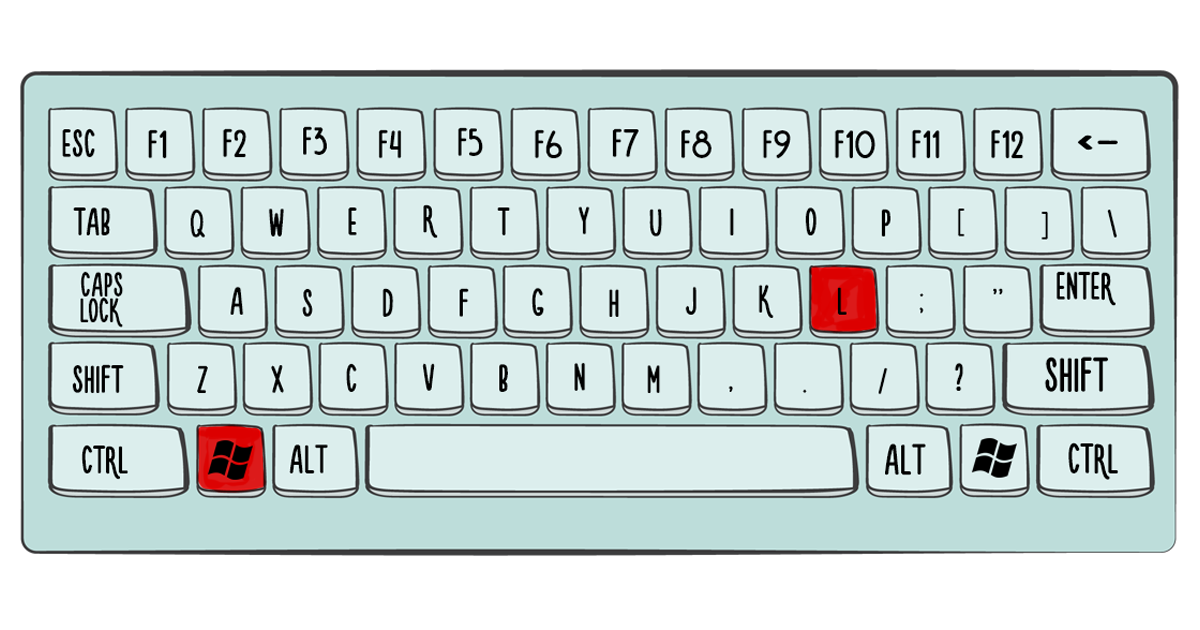
22. Lock Your Computer: Windows + L / Control + Command + Q
Security can be simple. Press Windows + L on Windows or Control + Command + Q on Mac to lock your screen. Use this whenever you step away from your computer, especially in offices, coffee shops, classrooms, or homes with curious children who enjoy renaming folders.
23. Take a Screenshot: Windows + Shift + S / Command + Shift + 5
On Windows, Windows + Shift + S opens a screenshot snipping tool for selecting part of the screen. On Mac, Command + Shift + 5 opens screenshot and screen recording options. Screenshots are perfect for saving receipts, capturing error messages, documenting design feedback, or proving that yes, the website really did say that.
24. Open Task Manager or Force Quit: Ctrl + Shift + Esc / Command + Option + Esc
When an app freezes and starts acting like a dramatic houseplant, use Ctrl + Shift + Esc on Windows to open Task Manager. On Mac, use Command + Option + Esc to open Force Quit Applications. These shortcuts help you close stuck apps without restarting the entire computer.
25. Rename a File: F2 / Return
On Windows, select a file and press F2 to rename it. On Mac, select a file and press Return. This is faster than right-clicking, choosing rename, and wondering why your file is still called “final_final_reallyfinal_v7.”
26. Create a New Folder: Ctrl + Shift + N / Command + Shift + N
Organize files quickly with Ctrl + Shift + N on Windows or Command + Shift + N on Mac. New folders are the digital equivalent of cleaning your desk, except you can do it without finding a receipt from 2019.
27. Open Keyboard Shortcut Help: Ctrl + / or Command + /
Many apps, including Google Docs and Slack, let you open a keyboard shortcut list with Ctrl + / on Windows or Command + / on Mac. This is the shortcut that teaches you more shortcuts, which makes it the keyboard equivalent of a wise little mentor in a robe.
Best Keyboard Shortcuts by Situation
For Writing and Editing
If you write emails, blog posts, documents, reports, or captions, focus first on Copy, Paste, Paste Without Formatting, Undo, Find, Save, and Select All. These keyboard shortcuts reduce repetitive clicking and help you clean up drafts faster.
For Web Browsing
For browser-heavy work, learn New Tab, Close Tab, Reopen Closed Tab, Switch Tabs, Refresh, and Jump to Address Bar. These are the shortcuts that make online research feel less like wrestling an octopus made of tabs.
For Office Work
In Microsoft Word, Excel, Google Docs, and Google Sheets, shortcuts like Ctrl + F, Ctrl + H, Ctrl + S, Ctrl + P, and Ctrl + A are everyday essentials. In spreadsheets, shortcuts become even more powerful because repetitive editing, selecting, copying, and moving data can eat hours if you rely only on the mouse.
For Meetings and Collaboration
Apps like Zoom and Slack include their own shortcut systems for muting, navigating, searching, and opening shortcut menus. Even if you only remember the shortcut help command, you can quickly discover the app-specific keys you need. In live meetings, a quick mute shortcut can save everyone from hearing your dog defend the neighborhood from a suspicious leaf.
How to Memorize Keyboard Shortcuts Without Feeling Like You Are Studying for a Space Exam
The easiest way to learn keyboard shortcuts is not to memorize a giant list. Pick five shortcuts you use every day and practice them for one week. Start with Copy, Paste, Undo, Find, and Save. Once those feel natural, add browser shortcuts such as New Tab, Reopen Closed Tab, and Jump to Address Bar.
You can also use context clues. The letters often match the action: C for copy, S for save, P for print, F for find, A for all, T for tab. Some shortcuts feel random at first, but your fingers learn patterns faster than your brain expects. After a while, using the mouse for everything will feel like walking across the room to turn off a lamp when the switch is beside you.
Common Keyboard Shortcut Mistakes to Avoid
First, remember that shortcuts vary by operating system, app, keyboard layout, and language setting. A shortcut that works in Chrome may behave differently in Photoshop, Excel, or a web app. Second, be careful with destructive shortcuts such as cut, close window, or select all followed by typing. Third, do not panic when a shortcut fails. Sometimes the cursor is in the wrong place, the app uses a different shortcut, or another tool has taken control of the key combination.
Finally, do not try to learn every shortcut at once. That is how people end up with a sticky note forest around their monitor. Learn the shortcuts that match your real work. A writer needs editing shortcuts. A researcher needs browser shortcuts. A data analyst needs spreadsheet shortcuts. A meeting host needs mute and screen-sharing shortcuts. The best keyboard shortcuts are the ones that save you time every single day.
Real-World Experience: What Happens When You Actually Use These Shortcuts Every Day
The first time you consciously switch from mouse-heavy work to keyboard shortcuts, it feels a little awkward. Your fingers hesitate. Your brain says, “Wouldn’t clicking be easier?” For the first day, maybe it is. But by the third or fourth day, something changes. You stop thinking about Ctrl + C and Ctrl + V. They become automatic, like turning a doorknob. Then you add Ctrl + F, and suddenly long documents become searchable instead of intimidating. That is when the magic starts.
In daily office work, keyboard shortcuts reduce tiny interruptions that add up. For example, writing an email while moving between a browser, a document, and a spreadsheet can involve dozens of small actions. Without shortcuts, you click a tab, drag across text, right-click, choose copy, click another window, right-click again, paste, fix the formatting, and repeat. With shortcuts, the same workflow becomes highlight, copy, switch apps, paste without formatting, save. It feels cleaner because your attention stays on the task, not the interface.
Research work becomes much faster too. Imagine comparing product specs, gathering quotes, checking definitions, or reviewing policy pages. Browser shortcuts like Ctrl + L, Ctrl + T, Ctrl + Tab, and Ctrl + Shift + T turn tab management from a messy clicking contest into a smooth rhythm. Reopening a closed tab is especially satisfying because it saves you from digging through browser history like a raccoon in a filing cabinet.
For writers and students, Undo, Find, Save, and Paste Without Formatting are the big four. Undo removes fear from editing. Find helps locate repeated words, missing sections, names, citations, and awkward phrases. Save protects your work. Paste without formatting keeps your document from looking like three websites got into a font fight. These shortcuts do not just save time; they make the writing process calmer.
For remote workers, screenshot and meeting shortcuts become everyday heroes. A screenshot can capture a bug, receipt, chart, or confusing message in seconds. A quick mute or app-switching shortcut can make meetings smoother and less chaotic. And locking the screen before stepping away is one of those habits that feels small until it prevents a privacy problem.
The biggest lesson is that shortcuts work best when they become part of a routine. Do not chase obscure combinations just because they sound impressive. Learn the ones connected to tasks you actually repeat. After a few weeks, you may notice that your hands move before you consciously decide what to press. That is not laziness. That is efficiency wearing comfortable shoes.
Conclusion
Keyboard shortcuts are simple, practical, and surprisingly powerful. They help you move faster through documents, browsers, files, meetings, and apps without constantly reaching for the mouse. The 27 shortcuts above cover the daily essentials: copy, paste, undo, save, find, switch tabs, take screenshots, lock your computer, manage windows, and recover from small digital disasters.
You do not need to learn them all today. Start with five, use them until they feel natural, then add more. Before long, your computer workflow will feel smoother, cleaner, and less click-heavy. And when someone sees you reopen a closed tab with one quick key combo, you may receive the highest honor in modern office life: “Wait, how did you do that?”