Logging out of the Twitter app sounds like it should be as easy as waving goodbye to a group chat you never wanted to join. But because Twitter is now X, menus have moved, labels have changed, and the app occasionally feels like it was designed by someone who hides the TV remote for fun. The good news: logging out is still simple once you know where to tap.
This guide explains how to log out of Twitter, now officially called X, on iPhone, iPad, Android, and through account session settings. You will also learn how to remove a saved account from a device, log out remotely if you lost your phone, avoid common mistakes, and protect your account before handing your phone to a friend, selling a device, or taking a much-needed social media break.
Before we begin, one quick clarification: logging out does not delete your Twitter/X account. It simply removes your current access from that app or device. Your posts, followers, messages, bookmarks, and profile remain intact. Think of it like leaving a restaurant. Your table still exists; you are just not sitting there refreshing the menu every six seconds.
Why You Might Need to Log Out of the Twitter App
Most people only think about logging out when something feels off. Maybe you borrowed someone’s phone to check a notification. Maybe your old device is going to a trade-in box. Maybe the app keeps glitching, freezing, or showing you the same argument from three days ago like it is a treasured family heirloom.
Logging out can help in several everyday situations. It protects your privacy on shared phones, prevents someone from posting under your account, refreshes app login problems, and helps separate personal and work accounts. It is also useful if you manage multiple Twitter/X profiles and want to make sure you are not accidentally posting a spicy personal opinion from the company account. Nobody wants “brand voice” to become “intern forgot to switch accounts.”
Before You Log Out: Two Things to Check
1. Save Drafts You Care About
If you have unsent post drafts inside the app, save anything important before logging out. App-based drafts may disappear when you log out, uninstall, or reset app data. Copy the text into Notes, Google Keep, or another safe place. This is especially important if your draft is a beautifully crafted post that took three coffees and one dramatic sigh to write.
2. Make Sure You Can Log Back In
Before tapping Log out, confirm that you know your username, email, phone number, password, and two-factor authentication method. If you use an authentication app, backup code, passkey, or security key, make sure it is available. Logging out is easy. Logging back in without your 2FA device is where the adventure music starts.
Method 1: Log Out of Twitter/X on Android
If you use the Twitter app on an Android phone, the logout option is inside your account settings. Depending on your app version, you may see either a profile icon or a navigation menu icon at the top of the screen.
Step-by-Step Instructions for Android
- Open the Twitter/X app on your Android device.
- Tap your profile icon or the navigation menu icon in the top-left corner.
- Select Settings and privacy.
- Tap Your account.
- Choose Account information.
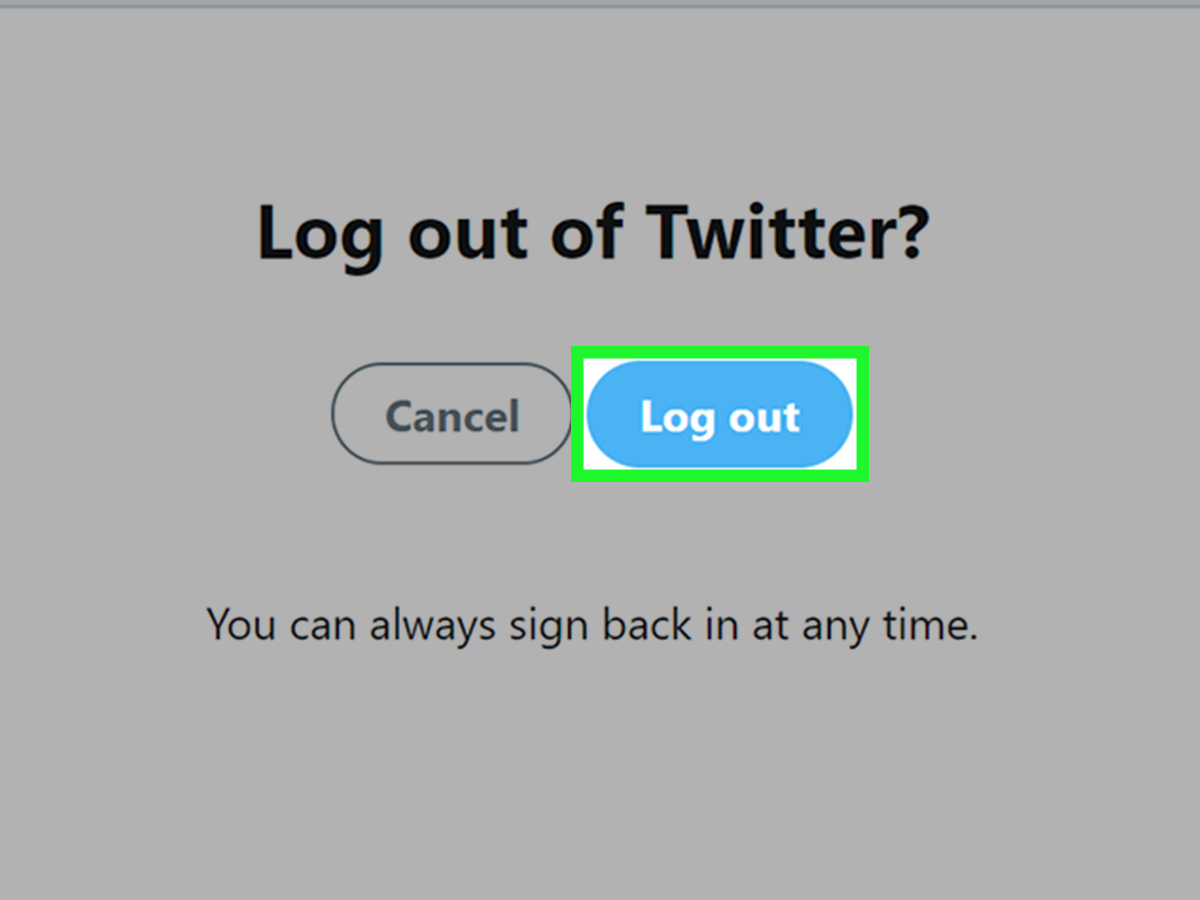
- Tap Log out.
- Confirm by tapping OK.
After this, your account is logged out of the app on that Android device. Your Twitter/X account still exists, and you can add it again later by opening the app and tapping Log in.
Android Tip: If the App Is Acting Weird
If the app is slow, freezing, or refusing to show the logout screen, close the app and reopen it. You can also check for updates in the Google Play Store. If the problem continues, restart your phone. Yes, “turn it off and back on again” remains undefeated in the technology Olympics.
Method 2: Log Out of Twitter/X on iPhone or iPad
On iPhone and iPad, the logout path is slightly shorter than Android. The main thing to remember is that the option lives under account settings, not directly on the home timeline.
Step-by-Step Instructions for iOS
- Open the Twitter/X app on your iPhone or iPad.
- Tap your profile icon in the top-left corner.
- Tap Settings and privacy.
- Tap Account.
- Select Log out.
- Confirm the action if prompted.
Once you log out, the app should return to a logged-out state. To use the account again, open the app, tap Log in, and enter your credentials.
iPhone Tip: Logging Out Is Not the Same as Deleting the App
Deleting the app removes the app from your device, but it is not always the cleanest way to manage account access. If your goal is simply to stop using the account on your iPhone, use the in-app logout option first. If you are selling, gifting, or returning the phone, also remove saved passwords and review device-level account settings.
Method 3: Remove a Twitter/X Account from iPhone Settings
Sometimes the app is stuck, or you have multiple accounts connected and want to remove one from the device. On iOS, you can remove an account through the device’s Settings app. This effectively logs that account out from the Twitter/X app on that device.
Step-by-Step Instructions
- Open the Settings app on your iPhone or iPad.
- Scroll down and tap X.
- If multiple accounts appear, select the account you want to remove.
- Tap Delete Account.
- Confirm the removal.
Do not panic when you see the phrase “Delete Account.” In this context, it means removing the account from the app on your device. It does not delete your actual Twitter/X profile from the platform. Your followers will not vanish into the digital mist.
When This Method Is Best
Use this method when the app will not open properly, when you cannot reach the normal logout menu, or when you want to remove a specific account from a device that has multiple Twitter/X accounts connected.
Method 4: Log Out of Twitter/X from All Other Sessions
This method is the security superhero of the group. If you lost your phone, forgot to log out on someone else’s device, used a public computer, or suspect unauthorized access, you should review active sessions and log out remotely.
Active sessions are places where your Twitter/X account is currently logged in. These may include phones, tablets, browsers, and other devices. Logging out of sessions stops those sessions from taking new actions such as posting, liking, or replying.
Step-by-Step Instructions
- Open Twitter/X in the app or visit X.com in a browser.
- Go to Settings and privacy.
- Select Security and account access.
- Tap or click Apps and sessions.
- Open Sessions.
- Review the devices and locations listed.
- Choose Log out next to a specific session, or select Log out all other sessions.
This is especially useful if your phone was stolen or if you logged in on a device you no longer control. However, remember that remote logout may not erase content already cached on that device, such as previously loaded messages or timeline data. For stronger protection, change your password and enable two-factor authentication.
Security Example
Imagine you checked Twitter/X on a hotel lobby computer and forgot to log out. First, do not blame yourself; travel brain is real. Second, open your account on your own phone, go to active sessions, and log out of the unfamiliar browser session. Then change your password if you entered it on a public machine.
Method 5: Remove Saved Login Info and App Access
Logging out stops the app session, but saved passwords and connected apps can still make future logins very easy. That is convenient when it is your phone. It is less convenient when someone else now owns the device.
Remove Saved Passwords on iPhone
- Open the Passwords app or go to Settings and find Passwords.
- Use Face ID, Touch ID, or your passcode.
- Search for Twitter or X.
- Select the saved login.
- Tap Edit, then delete the saved password or passkey if needed.
Remove Saved Passwords on Android
- Open Chrome or your device password settings.
- Go to Google Password Manager.
- Search for Twitter or X.
- Select the saved login.
- Delete the saved password if you no longer want it stored.
Revoke Suspicious Third-Party App Access
Third-party tools connected to your Twitter/X account may have permission to read information, post, or perform other actions depending on what you approved. To review them, go to Settings and privacy, then Security and account access, then Apps and sessions. Remove anything you do not recognize or no longer use.
This is not necessary every time you log out, but it is smart account hygiene. Think of it like cleaning out your fridge. You may not remember when that jar got there, but if it looks suspicious, it has to go.
Common Problems When Logging Out of the Twitter App
The Log Out Button Is Missing
If you cannot find the logout button, update the app first. App menus change, and older versions can show outdated navigation. On Android, look under Your account and then Account information. On iPhone, look under Account. If the app layout still looks different, use the search function inside Settings if available.
You Logged Out but Still See Your Account
You may have multiple accounts added to the app. Logging out of one account does not always remove every account. Open the account switcher and check whether another profile is still active. If needed, repeat the logout process for each account.
The App Keeps Logging You Back In
This usually happens because your device or browser has saved login credentials. Remove saved passwords, turn off automatic sign-in if needed, and check whether you use Sign in with Apple, Google Password Manager, or another password manager.
You Forgot Your Password After Logging Out
Use the password reset option on the login screen. If you still have access to the email address or phone number connected to your account, recovery should be straightforward. If two-factor authentication is enabled, you may need your backup code, authenticator app, passkey, or security key.
Logging Out vs. Deactivating: Do Not Mix These Up
Logging out simply removes access from the current device or session. Deactivating your account begins the process of taking your profile offline. Deleting your account is a much bigger decision and should not be used as a troubleshooting step unless you genuinely want to leave the platform.
If your goal is privacy, log out. If your goal is to stop notifications, adjust notification settings. If your goal is a break, log out and delete the app temporarily. If your goal is to permanently leave, research account deactivation carefully before taking action. In other words, do not use a sledgehammer when you only need to close a door.
Best Practices After Logging Out
- Change your password if you logged in on a shared or suspicious device.
- Enable two-factor authentication for better account protection.
- Review active sessions every few months.
- Remove unknown connected apps from Apps and sessions.
- Delete saved passwords before selling or giving away a device.
- Update your recovery email and phone number so you can get back in later.
Real-World Experience: What Logging Out Actually Feels Like
In practice, logging out of the Twitter app is less dramatic than people expect, but the little details matter. The most common experience is this: you open the app intending to log out quickly, then spend two minutes tapping around because the button is not sitting in plain sight. It is not on the main profile page, not next to your bio, and not beside the giant pile of opinions on your timeline. It is tucked inside settings, like a tiny emergency exit behind a decorative plant.
For Android users, the process usually feels logical once you know the route: profile icon, Settings and privacy, Your account, Account information, Log out. The confusing part is that “Account information” sounds like a place for your username and email, not the door marked exit. Still, after you do it once, it becomes easy. The confirmation screen is helpful because it prevents accidental logouts, especially if you manage several accounts.
For iPhone users, the in-app method is cleaner, but the device Settings method can feel alarming because of the phrase “Delete Account.” Many users hesitate there, assuming it means deleting the actual Twitter/X account forever. It does not. It removes the account from that device. Still, the wording can make your thumb freeze in midair like it just saw a ghost. If you are unsure, use the regular in-app logout method first.
The biggest lesson from real use is that logging out is only one layer of privacy. If you borrow a friend’s phone, logging out is enough most of the time. If you used a public device, review active sessions. If you are selling a phone, remove saved passwords too. If you suspect someone accessed your account, change your password and turn on two-factor authentication. The more sensitive the situation, the more complete your cleanup should be.
Another practical tip: do not log out during a rushed moment if you are not sure you can log back in. This sounds obvious until you are standing in an airport, your authenticator app is on another phone, and your account recovery email is an inbox you have not opened since 2018. Before logging out, check your recovery options. Future you will send present you a thank-you card, probably in all caps.
Finally, logging out can be surprisingly refreshing. Removing the app session creates a small speed bump between you and the endless scroll. That speed bump can be useful. You may still log back in later, but at least you have to choose it instead of opening the app automatically because your thumb has developed muscle memory. Sometimes the best feature of logging out is not security. It is peace and quiet.
Conclusion
Learning how to log out of the Twitter app is simple once you know which menu to open. Android users can log out through Settings and privacy, Your account, and Account information. iPhone and iPad users can log out through Settings and privacy and Account, or remove an account from the device’s Settings app. If your device is lost, shared, or no longer in your hands, active session controls let you log out remotely.
The safest approach depends on your situation. For a quick break, use the standard logout button. For a device you are giving away, remove saved passwords too. For suspicious activity, log out of other sessions, change your password, enable two-factor authentication, and revoke unknown app access. Logging out is not just a button; it is a small privacy habit that keeps your account from wandering into places it should not be.