Note: This guide is written for everyday Instagram users, creators, and small business owners who need practical fixes without turning their phone into a science project.
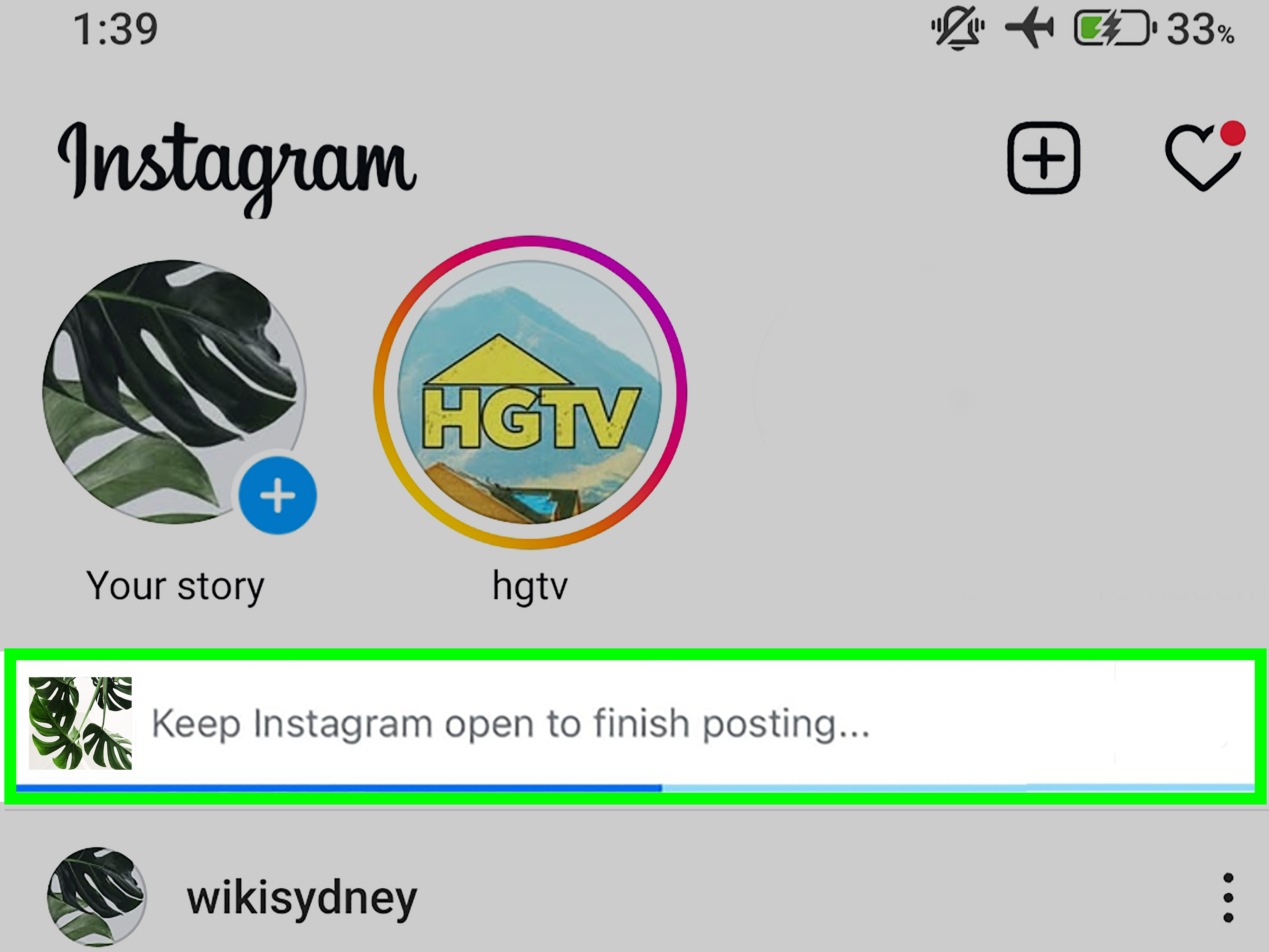
You have the perfect Reel. The caption is witty. The lighting is suspiciously good. You tap Share and then Instagram rewards your creative genius with the least exciting suspense movie ever: “Keep Instagram Open to Finish Posting.”
At first, it sounds simple. Fine, Instagram, I will keep you open. But then one minute becomes five, the progress bar starts acting like it has retired, and suddenly you are staring at your phone like it owes you rent. If your Instagram post is stuck on posting, your Story will not upload, or your Reel keeps hanging at the finish line, do not panic. This usually means Instagram is still trying to upload your media, process the file, or reconnect to its servers.
The good news? In most cases, the problem is fixable. The better news? You probably do not need to delete your account, throw your phone into a lake, or blame Mercury retrogradealthough Instagram does sometimes make that tempting.
Below are 10 practical ways to fix the “Keep Instagram Open to Finish Posting” message, plus extra real-world posting experience tips at the end to help you avoid the problem next time.
Why Does Instagram Say “Keep Instagram Open to Finish Posting”?
The message usually appears when Instagram has not fully uploaded your photo, carousel, Story, or Reel. Posting on Instagram is not just one tap and done. Your phone must send the media file, caption, tags, location data, audio, stickers, filters, and other details to Instagram’s servers. If the upload is interrupted, Instagram asks you to keep the app open so it can finish the process.
This can happen because of a weak internet connection, a large video file, low phone storage, an outdated Instagram app, app cache problems, battery-saving settings, or temporary Instagram server issues. Reels and long videos are more likely to trigger the warning because they take longer to upload and process than a single photo.
How to Fix “Keep Instagram Open to Finish Posting”: 10 Ways
1. Keep Instagram Open Until the Upload Fully Finishes
Yes, this sounds painfully obvious, but it is the first fix for a reason. If Instagram is still uploading, switching apps, locking your phone, or closing Instagram can interrupt the process. Keep the app open, stay on the posting screen, and avoid tapping around like you are defusing a tiny social media bomb.
For small photos, posting may finish in seconds. For Reels, high-resolution videos, or carousels, it may take several minutes depending on your connection. If you are uploading a large Reel, place your phone down, keep the screen awake, and let Instagram do its thing. Think of it as giving your post a runway instead of making it take off from a parking lot.
2. Check Your Internet Connection
A weak or unstable connection is one of the most common reasons Instagram gets stuck on posting. Uploading is different from scrolling. You may be able to watch Reels smoothly but still have poor upload speed. Instagram needs a steady connection to send your content from your device to its servers.
Try switching between Wi-Fi and mobile data. If Wi-Fi is slow, turn it off and use cellular data. If mobile data is crawling, connect to a strong Wi-Fi network. You can also turn Airplane Mode on for about 10 seconds, turn it off, and reconnect. This refreshes your phone’s network connection and often fixes small glitches.
For creators uploading Reels, avoid posting from elevators, parking garages, crowded events, airports, or anywhere your phone signal is doing emotional gymnastics. A strong connection makes a big difference.
3. Cancel the Stuck Upload and Repost
If Instagram has been stuck for a long time with no progress, the upload may have frozen. In that case, canceling and reposting is usually faster than waiting forever. Before you cancel, copy your caption, hashtags, and important details into Notes, Google Docs, or another safe place. Instagram drafts are helpful, but they are not a sacred vault guarded by dragons.
After saving your text, close the upload if Instagram allows it. Then restart the app and try posting again. If you are uploading a Reel, check whether it was saved as a draft. If not, reselect the video from your camera roll and upload it again using a stronger connection.
This step works especially well when the app briefly lost internet access during posting or when Instagram froze while processing media.
4. Restart the Instagram App
Sometimes Instagram simply gets stuck. Apps can run into temporary memory problems, failed background tasks, or small bugs that make posting freeze. Closing and reopening Instagram gives the app a clean start.
On iPhone, swipe up from the bottom of the screen and pause, then swipe Instagram away. On Android, open the recent apps screen and close Instagram. After that, reopen Instagram and try posting again.
If the same post keeps freezing, do not keep hammering the Share button like it is an arcade machine. Restart the app first, then upload again. This gives Instagram a fresh attempt instead of forcing it to continue a broken one.
5. Restart Your Phone
If restarting Instagram does not work, restart your phone. This clears temporary system issues, refreshes network connections, and closes background processes that may be interfering with uploads.
A restart is especially useful if several apps are behaving strangely, your phone feels slow, your keyboard lags, or Instagram keeps crashing. After restarting, open Instagram first before launching a bunch of other apps. Then try uploading your post again.
It sounds basic, but “turn it off and on again” has survived decades of technology because it works more often than anyone wants to admit.
6. Update Instagram to the Latest Version
An outdated Instagram app can cause posting errors, upload glitches, broken features, or compatibility issues with your phone’s operating system. Instagram changes frequently, especially around Reels, Stories, music, editing tools, and account features.
On iPhone, open the App Store, tap your profile icon, and check whether Instagram has an available update. On Android, open the Google Play Store, search for Instagram, and tap Update if available.
After updating, restart the app and try posting again. If the “Keep Instagram Open to Finish Posting” message was caused by a known app bug, an update may solve it quickly.
7. Clear Instagram Cache on Android or Reinstall on iPhone
Cache is temporary data that helps apps load faster. Over time, however, cached files can become cluttered or corrupted. On Android, you can clear Instagram’s cache without deleting your account.
Go to Settings > Apps > Instagram > Storage > Clear Cache. Menu names may vary depending on your phone brand, but the idea is the same. Clear the cache, reopen Instagram, and try posting again.
On iPhone, there is no simple one-tap Instagram cache button. The most complete option is to delete and reinstall Instagram. Before doing that, make sure you know your login details. Then delete the app, reinstall it from the App Store, sign in again, and test your upload.
This fix is helpful when Instagram repeatedly freezes, fails to upload, or behaves oddly even after restarting.
8. Free Up Storage Space on Your Phone
Instagram needs space to process photos, videos, drafts, edits, filters, and temporary upload files. If your phone is nearly full, posting can slow down or fail. This is especially true for Reels because video files are larger and require more processing.
Check your storage settings. Delete unused apps, old downloads, duplicate videos, blurry screenshots, and that 11-minute screen recording you forgot existed. Also clear large files from messaging apps if they are eating your storage.
Try to keep at least a few gigabytes of free space when uploading videos. If your phone has only a tiny sliver of storage left, Instagram may struggle to finish posting no matter how patient you are.
9. Turn Off Low Power Mode, Low Data Mode, or Data Saver
Battery-saving and data-saving modes are useful, but they can limit background activity, slow network behavior, or restrict how apps use data. That can interfere with Instagram uploads, especially if you switch apps or the screen locks during posting.
On iPhone, check Settings > Battery and turn off Low Power Mode. Also check your Wi-Fi or Cellular settings for Low Data Mode. On Android, check Battery Saver and Data Saver settings. Make sure Instagram is allowed to use mobile data and background data.
After posting successfully, you can turn those settings back on. But during an upload, give Instagram enough power and data access to finish the job. Your Reel deserves more than survival mode.
10. Check Whether Instagram Is Down
If nothing works, the problem may not be your phone. Instagram can have temporary outages, server delays, or upload problems that affect many users at once. When that happens, reinstalling the app 12 times will not help. It will only make you increasingly suspicious of your phone.
Check whether other people are reporting Instagram issues. You can look at Instagram’s official channels, outage-tracking websites, or recent posts on other social platforms. If many users are complaining about posting failures, wait and try again later.
In the meantime, save your caption and media. Do not keep repeatedly uploading the same post if the platform is unstable. Once Instagram’s service returns to normal, your post should upload more smoothly.
Extra Fixes Worth Trying
Check Your File Format and Size
If one specific video refuses to post, the file itself may be the problem. Instagram generally works best with common formats like MP4 or MOV for video and JPG or PNG for images. For Reels, vertical 9:16 video is usually ideal, and a minimum frame rate of 30 FPS is commonly recommended for smoother playback.
If your video was exported from an editing app, try exporting it again with standard settings: MP4, H.264, 1080 x 1920 resolution, and a reasonable file size. Huge 4K files may look beautiful, but they can also make Instagram cough dramatically during upload.
Remove Problematic Edits, Music, Stickers, or Tags
Sometimes the media is fine, but a specific sticker, audio track, location tag, product tag, or collaboration tag causes trouble. If the upload keeps failing, try posting a simpler version. Remove extra stickers, use a different audio track, or skip the location tag temporarily.
If the simpler post uploads, add elements back one by one next time. This helps you identify what caused the issue without sacrificing your entire creative masterpiece.
Check Instagram Account Status
If your account has restrictions, removed content, or recommendation issues, some features may behave differently. Open Instagram and check your account status in settings. This is especially useful for business accounts, creators, meme pages, repost accounts, or anyone who frequently posts copyrighted clips, reused content, or sensitive material.
Account restrictions are not the most common cause of the “Keep Instagram Open” message, but they are worth checking if upload problems keep happening across multiple posts.
How to Prevent Instagram from Getting Stuck on Posting
The best fix is prevention. Before uploading an important post, make sure your internet connection is strong, Instagram is updated, your phone has enough storage, and battery-saving modes are turned off. If you are posting a Reel for a brand campaign, product launch, client account, or time-sensitive announcement, prepare early instead of uploading at the last possible second.
Save your caption somewhere outside Instagram. Keep the original media file in your camera roll. If you use hashtags, save them in a notes app. This way, if Instagram crashes or loses your draft, you are annoyedbut not destroyed.
For large videos, compress the file before uploading. You do not always need ultra-heavy 4K video for Instagram. A clean 1080p vertical video often uploads faster and looks excellent on mobile screens. Also avoid jumping between apps during upload. Let Instagram finish before checking messages, opening TikTok, or doing “just one quick thing” that somehow becomes 20 minutes.
Real Experiences: What Usually Works When Instagram Refuses to Finish Posting
Anyone who posts regularly on Instagram eventually develops a little troubleshooting ritual. Mine starts with the classic stare: looking at the upload screen as if intense eye contact will scare the progress bar into moving. Sadly, progress bars are immune to intimidation.
In real-world use, the “Keep Instagram Open to Finish Posting” message often appears at the worst possible moment. You are not casually posting a sandwich photo. No, it happens when you are uploading a carefully edited Reel, a birthday carousel, a client post, or a Story that must go live before the joke expires. Instagram has a talent for drama.
The most common pattern is weak upload speed. People often assume their internet is fine because they can watch videos, but uploading is a different beast. Downloading is like receiving packages. Uploading is like carrying boxes uphill. A connection that streams Reels smoothly may still fail when sending a large video to Instagram. When I switch from crowded public Wi-Fi to stable mobile data, stuck uploads often start moving again.
Another frequent issue is the oversized video file. Many creators export Reels from editing apps at maximum quality because “maximum” sounds professional. Then Instagram receives a giant file and reacts like someone asked it to move a refrigerator upstairs. A 1080p MP4 file is usually enough for a sharp mobile post. Smaller, cleaner files upload faster and fail less often.
Storage also causes sneaky problems. A phone with almost no free space can still open Instagram, scroll the feed, and play videos, which makes users think everything is fine. But uploading requires temporary working space. If the phone is packed with videos, screenshots, memes, and mystery files from 2021, Instagram may freeze while processing the post. Freeing up space often makes the app feel instantly healthier.
Reinstalling Instagram is the “fine, let’s get serious” step. It is not always necessary, but when the app keeps failing across multiple posts, reinstalling can clear out stubborn cached data. Just make sure your login information is ready before deleting the app. Nothing ruins troubleshooting like fixing Instagram and then getting locked out because you forgot which email you used.
For creators and small businesses, the best habit is to build a posting safety net. Write captions outside Instagram. Save final videos to your camera roll. Keep a backup copy in cloud storage. Post important content before the deadline, not at the exact minute your campaign is supposed to launch. Instagram is powerful, but it is still an appand apps occasionally trip over their own shoelaces.
The funniest part is that the simplest fix is often the winner: keep Instagram open, use a strong connection, and wait. But if waiting turns into a staring contest with no progress, move through the fixes in order: connection, restart app, restart phone, update, clear cache or reinstall, free storage, check power and data settings, then check whether Instagram is down.
Once you understand what the message means, it becomes less mysterious. Instagram is basically saying, “Please do not leave while I carry this large video through the internet.” Annoying? Absolutely. Fixable? Usually. A reason to abandon your social media career and become a mushroom farmer? Not yet.
Conclusion
The “Keep Instagram Open to Finish Posting” message usually means Instagram needs more time, a better connection, or a healthier app environment to finish uploading your content. Start with the simple fixes: keep the app open, check your internet, restart Instagram, and try reposting. If the problem continues, update the app, clear cache, free up storage, turn off data-saving or battery-saving modes, and check whether Instagram is having server issues.
For Reels and large videos, file size and format matter. A clean, properly exported video can save you from endless upload frustration. And for anything important, always save your caption and media outside Instagram before posting. That way, if the app decides to take a coffee break, your content is still safe.
Instagram glitches are annoying, but they are usually temporary. With the 10 fixes above, you can get your post unstuck, finish uploading, and return to the important work of pretending you did not spend 27 minutes choosing the perfect caption.