There are few things more humbling than owning a very expensive pocket computer that can translate phrases, set reminders, identify songs, and still pronounce your name like it was assembled from refrigerator magnets. If Siri has been calling you by the wrong name, saying your name oddly, or refusing to recognize who you are, the good news is that your iPhone gives you several simple ways to fix it.
This easy iPhone guide explains how to get Siri to say your name correctly, how to change what Siri calls you, how to add a nickname, how to use pronunciation fields in Contacts, and what to do when Siri still sounds like it is auditioning for a comedy sketch. Whether your name is commonly misread, has a unique spelling, includes accents, or simply deserves better treatment from your digital assistant, these steps will help.
Why Siri May Not Say Your Name Correctly
Siri usually gets your name from your personal contact card, also known as My Card, in the Contacts app. If that card is missing, outdated, duplicated, or filled in differently from how you want to be addressed, Siri may use the wrong first name, a formal legal name, an old nickname, or no name at all.
Pronunciation is a separate issue. Siri reads names using language rules, regional settings, and phonetic patterns. That works beautifully for many names, but it can fail when a name has silent letters, a non-English origin, an uncommon spelling, or multiple accepted pronunciations. For example, “Sean,” “Sian,” “Caoimhe,” “Nguyen,” “Xavier,” and “Ari” can all challenge voice assistants depending on the language and region selected.
The fix is not to argue with Siri in your kitchen like a tiny courtroom drama. The better solution is to update your contact card, set the correct My Information card, add a nickname if needed, and use pronunciation or phonetic name fields so Siri has a clearer guide.
Step 1: Make Sure Siri Knows Who You Are
Before teaching Siri how to say your name, confirm that Siri is connected to the right contact card. This is the foundation of the whole setup. If Siri does not know which contact card belongs to you, it may not know what name to say in the first place.
How to Set Your Personal Contact Card
- Open the Contacts app on your iPhone.
- Tap My Card at the top of the list.
- If you do not see My Card, create a contact for yourself with your name, phone number, email, and other basic details.
- Tap Edit and make sure your first name, last name, and nickname are correct.
- Open Settings.
- Tap Siri or Apple Intelligence & Siri, depending on your iOS version.
- Tap My Information.
- Select your own contact card.
Once this is set, Siri can connect your voice requests with your identity. This helps with personal commands such as “Call my mom,” “Take me home,” “What is my name?” or “Send a message to my brother.” It also gives Siri the correct name to use when referring to you.
Step 2: Ask Siri What It Calls You
Now that your iPhone has the right contact card, test what Siri currently says. Activate Siri and ask:
“Siri, what is my name?”
Siri should respond using the name from your contact card. If Siri says the wrong name, go back to your contact card and check the first name, last name, and nickname fields. Sometimes the issue is not Siri being stubborn; it is simply reading the information it was given. Like a very polite intern with no context.
Step 3: Change What Siri Calls You
If you want Siri to call you by a nickname, shorter name, or preferred name, you can update your contact card. This is useful if your full name is formal but you prefer a casual version in daily use.
Option A: Change Your First Name
- Open Contacts.
- Tap My Card.
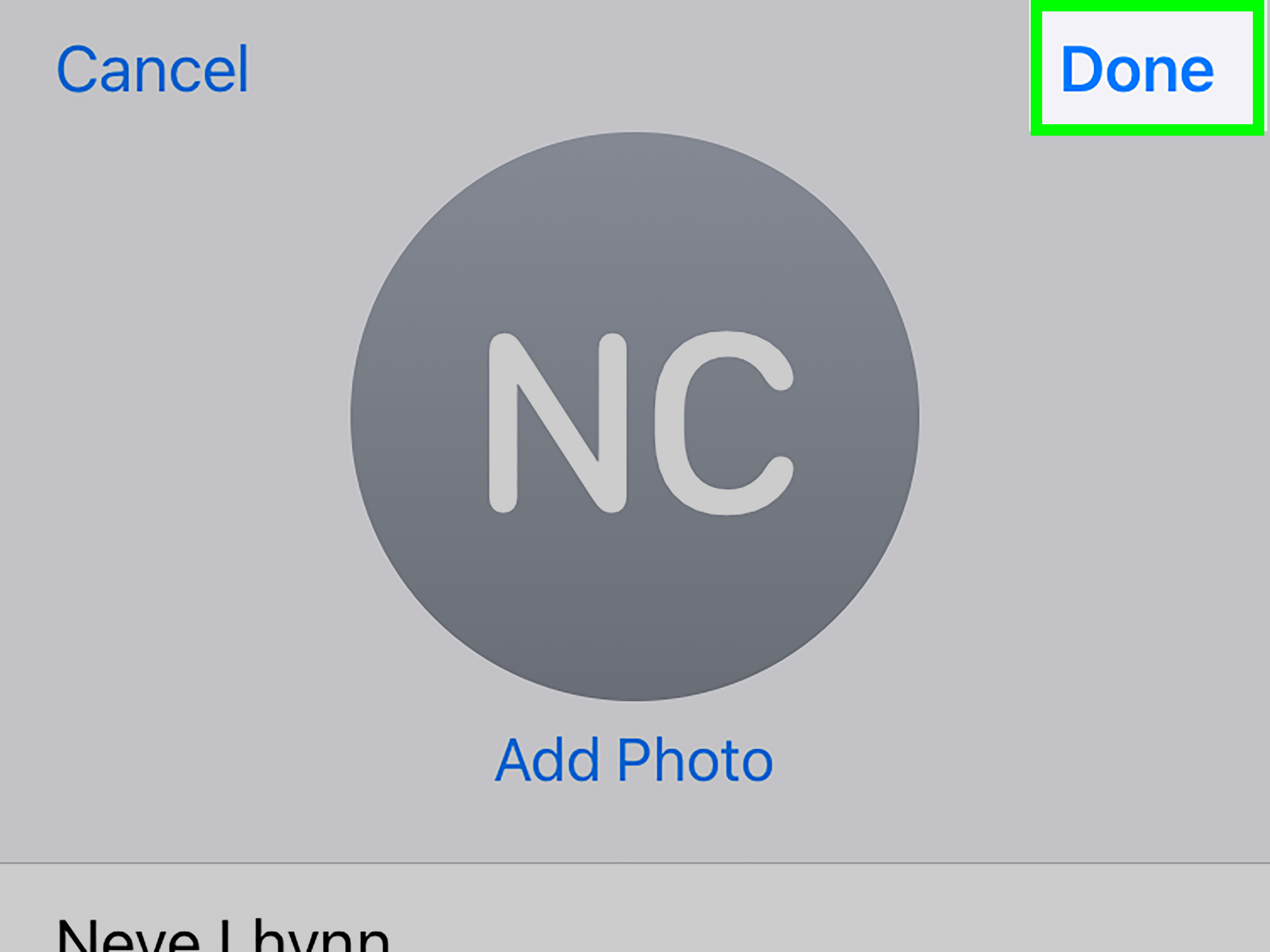
- Tap Edit.
- Change the First Name field to the name you want Siri to use.
- Tap Done.
This is the most direct option, but it may also affect how your name appears in other apps, contact sharing, and AutoFill. If you want to keep your formal name but have Siri use something friendlier, the nickname method is usually better.
Option B: Add a Nickname
- Open Contacts.
- Tap My Card.
- Tap Edit.
- Scroll down and tap add field.
- Select Nickname.
- Enter the name you want Siri to call you.
- Tap Done.
For example, if your contact card says “Jonathan Parker” but you prefer “Jon,” add Jon as your nickname. Then ask Siri, “What is my name?” If Siri still uses the formal name, restart Siri or your iPhone and test again.
Step 4: Teach Siri How to Pronounce Your Name
If Siri knows your name but says it incorrectly, use pronunciation fields in the Contacts app. This tells Siri how the name should sound without forcing you to change the actual spelling.
How to Add a Pronunciation Field
- Open the Contacts app.
- Tap My Card.
- Tap Edit.
- Scroll down and tap add field.
- Select a pronunciation field, such as Pronunciation First Name or Pronunciation Last Name.
- Type your name the way it should sound.
- Tap Done.
For example, if your name is “Aisling” and Siri says it like “Ace-ling,” you might type a pronunciation such as “ASH-ling.” If your last name is “Nguyen,” you might test versions such as “win,” “nuh-WIN,” or another spelling that matches how you personally say it. There is no single perfect phonetic spelling for every accent, so experiment until Siri gets close.
Step 5: Try Phonetic Name Fields Too
On iPhone, contact cards may include both pronunciation and phonetic fields. These sound similar, but they can behave differently depending on iOS version, language, and Siri voice settings. If one does not work well, try the other.
How to Add a Phonetic Name
- Open Contacts.
- Choose your contact card or another person’s contact card.
- Tap Edit.
- Scroll down and tap add field.
- Select Phonetic First Name, Phonetic Middle Name, or Phonetic Last Name.
- Enter a sound-based spelling of the name.
- Tap Done.
Here is the trick: spell the name the way Siri is likely to read it, not necessarily the way a dictionary would write it. If Siri mispronounces “Mireille,” you may need to test something like “mee-RAY” or “meer-AY.” If your name has a sound that does not exist neatly in English, try breaking it into simple syllables.
Step 6: Test Siri After Each Change
After you edit your contact card, activate Siri and ask:
“Siri, what is my name?”
You can also ask:
“Siri, how do you pronounce my name?”
If Siri still says it incorrectly, return to the pronunciation or phonetic field and adjust the spelling. Small changes can make a big difference. A hyphen, a capitalized syllable, or a simpler spelling can help Siri emphasize the correct part of the name.
Step 7: Teach Siri Other People’s Names
This guide focuses on how to get Siri to say your name, but the same method works for friends, family members, coworkers, and anyone else in your Contacts app. This is especially useful if Siri struggles when you say commands like “Call Siobhan,” “Text Jorge,” or “FaceTime Nguyen.”
How to Fix a Contact’s Name
- Open Contacts.
- Select the person whose name Siri mispronounces.
- Tap Edit.
- Scroll down and tap add field.
- Add a pronunciation or phonetic field.
- Type the name the way it sounds.
- Tap Done.
This can make voice commands much smoother. Instead of repeating a name five times while Siri confidently offers to call someone completely unrelated, you give Siri a pronunciation roadmap. Everyone wins. Especially your patience.
Step 8: Add Relationship Labels for More Natural Siri Commands
Another way to make Siri feel more personal is to teach it your relationships. You can say things like:
- “Siri, Sarah Johnson is my sister.”
- “Siri, Michael Lee is my dad.”
- “Siri, Emma is my boss.”
After Siri saves the relationship, you can use simpler commands such as “Call my sister” or “Text my boss.” This does not directly change how Siri says your name, but it helps Siri understand your personal world more accurately.
Step 9: Check Siri Language and Voice Settings
If Siri keeps pronouncing your name strangely, your Siri language or voice settings may be part of the issue. A name that sounds natural in one language may be pronounced differently if Siri is set to another language or regional accent.
How to Change Siri Language or Voice
- Open Settings.
- Tap Siri or Apple Intelligence & Siri.
- Tap Language to change the language Siri uses.
- Tap Siri Voice to choose a different voice or accent.
- Test your name again after the new voice downloads.
For example, if your name is French, Spanish, Vietnamese, Irish, Arabic, or Japanese, Siri’s pronunciation may change depending on whether your assistant language is set to American English, British English, or another supported language. You do not have to change your whole phone language; Siri has its own language settings.
Step 10: Set Up Siri to Recognize Your Voice
If Siri does not respond reliably when you ask about your name, call yourself, or use personal requests, retrain voice recognition. This is especially helpful after a major iOS update, a device transfer, or a period when Siri has been disabled.
How to Retrain Siri Voice Recognition
- Open Settings.
- Tap Siri or Apple Intelligence & Siri.
- Tap Talk & Type to Siri if available.
- Turn off Listen for “Siri” or Listen for “Hey Siri.”
- Turn it back on.
- Follow the on-screen setup prompts.
- Say each phrase clearly, then tap Done.
This does not directly edit your name, but it helps Siri understand your voice better. If Siri cannot clearly hear your command, even the perfect pronunciation field will not save the moment.
Common Problems and Easy Fixes
Siri Says the Wrong Name
Check Settings > Siri > My Information and make sure your own contact card is selected. If the wrong card is selected, Siri may think you are someone else. This is awkward for both of you.
Siri Uses Your Full Name Instead of Your Nickname
Add a nickname to your contact card. If that does not work immediately, restart your iPhone and ask Siri again. Also make sure your nickname field is not hidden inside a duplicate contact card.
Siri Still Mispronounces the Name
Try a different pronunciation spelling. Keep it simple and syllable-based. Instead of writing a complicated phonetic system, use plain sounds like “JEN-uh,” “oh-LEE-vee-ah,” or “kuh-MEE-lah.” Siri often responds better to simple sound clues than to technical pronunciation symbols.
There Are Duplicate Contact Cards
Open Contacts and search for your name. If you find multiple versions of your contact card, clean them up or merge them. Siri may be reading from an older card, especially if you restored your iPhone from a backup or synced contacts from several accounts.
The Pronunciation Works for One Siri Voice but Not Another
Different Siri voices and accents may interpret phonetic spelling differently. If you recently changed Siri’s voice, test your name again and adjust the pronunciation field if needed.
Best Tips for Writing a Siri-Friendly Pronunciation
Getting Siri to say your name correctly is often a tiny experiment. Think of it like teaching a parrot with a software update. The goal is not perfect linguistic spelling; the goal is a spelling Siri can read out loud correctly.
- Use simple syllables: Break longer names into smaller sound chunks.
- Use capital letters for emphasis: Write “ma-REE-ah” if the second syllable needs stress.
- Avoid rare symbols: Siri may not understand pronunciation marks the way humans do.
- Test different spellings: “Lee-ah,” “Lia,” and “LEE-uh” may produce different results.
- Match your accent: Spell the sound the way you say it, not the way someone else says it.
- Update both first and last names: If Siri gets both wrong, add fields for both.
Does This Work on iPad and Mac?
Yes, the general idea works across Apple devices if they use the same Contacts information through iCloud. If your iPhone, iPad, and Mac share contacts, updating your My Card or adding phonetic name fields can help Siri on multiple devices. However, menus may look slightly different depending on the device and software version.
For the smoothest result, start with your iPhone because it is usually the device most people use for Siri, calls, messages, and personal requests. Once your contact card is correct there, check your other Apple devices to make sure the same information syncs properly.
Privacy Note: What You Should Know
When you personalize Siri, you are giving your iPhone more context about you, your contacts, and your relationships. Apple provides settings for Siri, app access, Siri history, and dictation privacy, so it is worth reviewing them if you care about how voice assistant data is handled.
You can manage Siri settings in the Settings app, including app access, voice activation, Siri responses, and Siri history options. If you share a device with someone else, double-check that your own contact card is selected and that personal requests behave the way you want.
Quick Recap: The Easiest Way to Get Siri to Say Your Name
If you only want the fastest path, do this:
- Open Contacts.
- Tap My Card.
- Tap Edit.
- Make sure your name is correct.
- Add a Nickname if you want Siri to call you something else.
- Tap add field and add a pronunciation or phonetic name field.
- Type your name the way it sounds.
- Go to Settings > Siri > My Information and select your card.
- Ask Siri, “What is my name?”
- Adjust the pronunciation spelling until Siri gets it right.
Personal Experience: What It Is Really Like Fixing Siri’s Name Pronunciation
In real life, getting Siri to say your name correctly can feel surprisingly satisfying. It is a small detail, but it changes the way your iPhone feels. A phone that says your name properly feels more personal, more polished, and less like it just guessed your identity during a pop quiz.
The most common experience is that the first attempt is not perfect. You add a phonetic spelling, test it, and Siri still lands somewhere near the correct name but not quite on it. That is normal. Siri reads what you type based on its own speech rules, so the spelling that looks obvious to you may not sound obvious to Siri. The winning move is to test short, simple versions. Instead of writing a full pronunciation guide, try two or three syllables with clear emphasis.
For example, someone named “Andrea” may pronounce it as “ANN-dree-uh,” “ahn-DRAY-uh,” or “AN-dree-ah.” Siri might choose one version automatically, but not the one the person actually uses. Adding a pronunciation field lets the user guide Siri toward the preferred version. The same applies to last names. Many family names carry cultural, regional, or personal pronunciations that are not obvious from spelling alone.
Another useful experience is discovering that nicknames can be more convenient than editing your legal name. If your contact card says “Christopher” but everyone calls you “Chris,” adding a nickname is cleaner than changing the whole contact. It also helps keep AutoFill, contact sharing, and formal information intact while making Siri sound more natural.
There is also a trial-and-error stage that can be oddly funny. You may type one phonetic version and hear Siri produce something even stranger than before. That does not mean the feature is broken. It just means Siri interpreted your spelling differently. Try writing the name the way a child might sound it out. Use hyphens. Capitalize the stressed syllable. Remove letters that confuse the voice engine. Sometimes a less “correct” spelling produces a more accurate spoken result.
One practical tip from experience: test the name in several Siri situations. Ask “What is my name?” Then ask Siri to call, text, or identify the contact. A pronunciation that works in one sentence may sound slightly different in another. If you use Siri often for hands-free calling, test the command you actually use most.
Finally, do not forget that Siri voice and language settings matter. A name may sound better with one Siri voice than another. If you switch from an American voice to a British, Australian, Irish, Indian, or South African voice, your phonetic spelling may need a small adjustment. This is not a failure; it is just how accents and speech systems work.
Once Siri gets your name right, the result feels surprisingly polished. Your iPhone no longer sounds like it is guessing. It sounds like it knows you. That tiny change can make daily commands feel smoother, especially when using reminders, messages, calls, CarPlay, AirPods, or hands-free requests while cooking, walking, or driving. It is a small customization, but it is one of those iPhone settings that makes the device feel truly yours.
Conclusion
Learning how to get Siri to say your name is mostly about giving your iPhone the right information in the right place. Start by setting your personal contact card, then decide whether Siri should use your first name, nickname, or another preferred name. If pronunciation is the problem, add pronunciation or phonetic name fields in Contacts and test different spellings until Siri says it naturally.
The process only takes a few minutes, but it can make Siri feel much more personal. No more awkward name mangling. No more arguing with a voice assistant. Just a cleaner, smarter, and more customized iPhone experience.