WhatsApp Status is the digital version of tapping your friends on the shoulder and saying, “Look at this before it disappears.” Whether you are sharing a travel photo, a dramatic song lyric, a birthday shout-out, or a simple “Monday needs a refund” thought, the font you choose can change the whole vibe. A plain sentence can look calm, funny, bold, artsy, or suspiciously poetic depending on how you style it.
The good news is that learning how to change font in WhatsApp Status is easy. The slightly annoying news is that WhatsApp does not give you unlimited font control like a full design app. You can change the font inside text-based status updates, add text over photos or videos, adjust colors, use emoji for personality, and sometimes paste stylish Unicode text from a font generator. You can also change your phone’s system font or WhatsApp chat font size, but those settings do not work exactly the same as Status fonts.
This guide breaks everything down into six simple steps, explains what works on Android and iPhone, and gives practical examples so your next WhatsApp Status does not look like it was typed during a power outage.
What Does “Changing Font in WhatsApp Status” Really Mean?
Before we start tapping buttons like a DJ with a deadline, let’s clear up one thing: changing a WhatsApp Status font can mean different things depending on the type of Status you create.
Text Status
A text Status is created from the Status or Updates section using the pencil or text option. This is where WhatsApp usually gives you the most direct font controls. You can type your message, tap the text/font icon, cycle through available font styles, change the background color, and choose a look that matches your message.
Photo or Video Status
When you upload a photo or video, you can add text over it. In this mode, WhatsApp may offer text styling tools such as font options, color choices, and placement controls. The exact interface can vary slightly between Android, iPhone, and app versions.
Fancy Fonts from Outside WhatsApp
Some “fonts” you see in WhatsApp Status are not real fonts installed inside WhatsApp. They are Unicode characters generated by third-party font websites or apps. For example, normal text like “Good Morning” can be converted into decorative characters that look cursive, bold, boxed, or bubbly. You copy the styled text and paste it into WhatsApp Status. It is a clever trick, though it should be used carefully because some fancy characters are harder to read or may not display perfectly on every device.
How to Change Font in WhatsApp Status: 6 Steps
Step 1: Open WhatsApp and Go to Updates or Status
Open WhatsApp on your Android phone or iPhone. Depending on your app version, you may see a tab called Updates or Status. Tap it. This is where WhatsApp keeps Status updates from your contacts and where you create your own.
On many newer versions of WhatsApp, the Status feature sits inside the Updates tab. Older guides may still mention the Status tab directly. Do not panic if the label looks different. WhatsApp enjoys moving furniture around occasionally, just to keep everyone humble.
Step 2: Tap the Pencil or Text Status Button
To create a text-based Status, tap the pencil icon or text option. This opens a simple editor where you can type your Status message. For example, you might write:
“Coffee first. Decisions later.”
This type of Status is best for quotes, announcements, jokes, quick updates, moods, and messages that do not need a photo. If your message is short and punchy, a text Status with the right font can look cleaner than a busy image.
Step 3: Type Your Status Message
Now enter the text you want to share. Keep it readable. A WhatsApp Status disappears after a limited time, and most people view it quickly while standing in line, pretending to listen in meetings, or avoiding laundry. Short text usually performs better.
Here are a few examples:
- “New day, same playlist.”
- “Busy building something cool.”
- “Weekend mode: activated.”
- “Taking small wins seriously today.”
- “Offline for a bit. My brain is buffering.”
Try to avoid writing an entire novel in one Status. If your Status has five paragraphs, congratulations, you may have invented a blog post.
Step 4: Tap the Font or Text Icon to Change the Style
After typing your message, look for the text icon, often shown as a letter such as T. Tap it to cycle through available font styles. WhatsApp’s built-in options may vary by platform and update, but the basic idea is the same: each tap changes the appearance of your text.
Some fonts feel casual. Some look bold. Some look more modern or handwritten. Choose the font that matches the message. A birthday wish can use a playful style. A business announcement should stay clean. A mysterious quote can use a dramatic font, but please use dramatic fonts responsibly. Your “deep thoughts at 1:00 a.m.” Status does not need to look like an ancient prophecy.
Step 5: Adjust Text Color, Background Color, and Placement
Font is only one part of the design. WhatsApp also lets you customize the background color for text Status updates. In photo or video Status updates, you can usually change the text color and move the text around the screen.
Use contrast wisely. White text on a bright yellow background can look like a flashlight attack. Dark text on a dark photo may disappear completely, which is great if your goal is to create a secret message for owls. For normal humans, choose a text color that stands out clearly.
For photo Status updates, place text where it does not cover faces, important objects, or the main subject. If you are posting a sunset, do not put a giant sentence directly over the sun unless you want the sun to look like it is wearing a name tag.
Step 6: Preview and Share Your Status
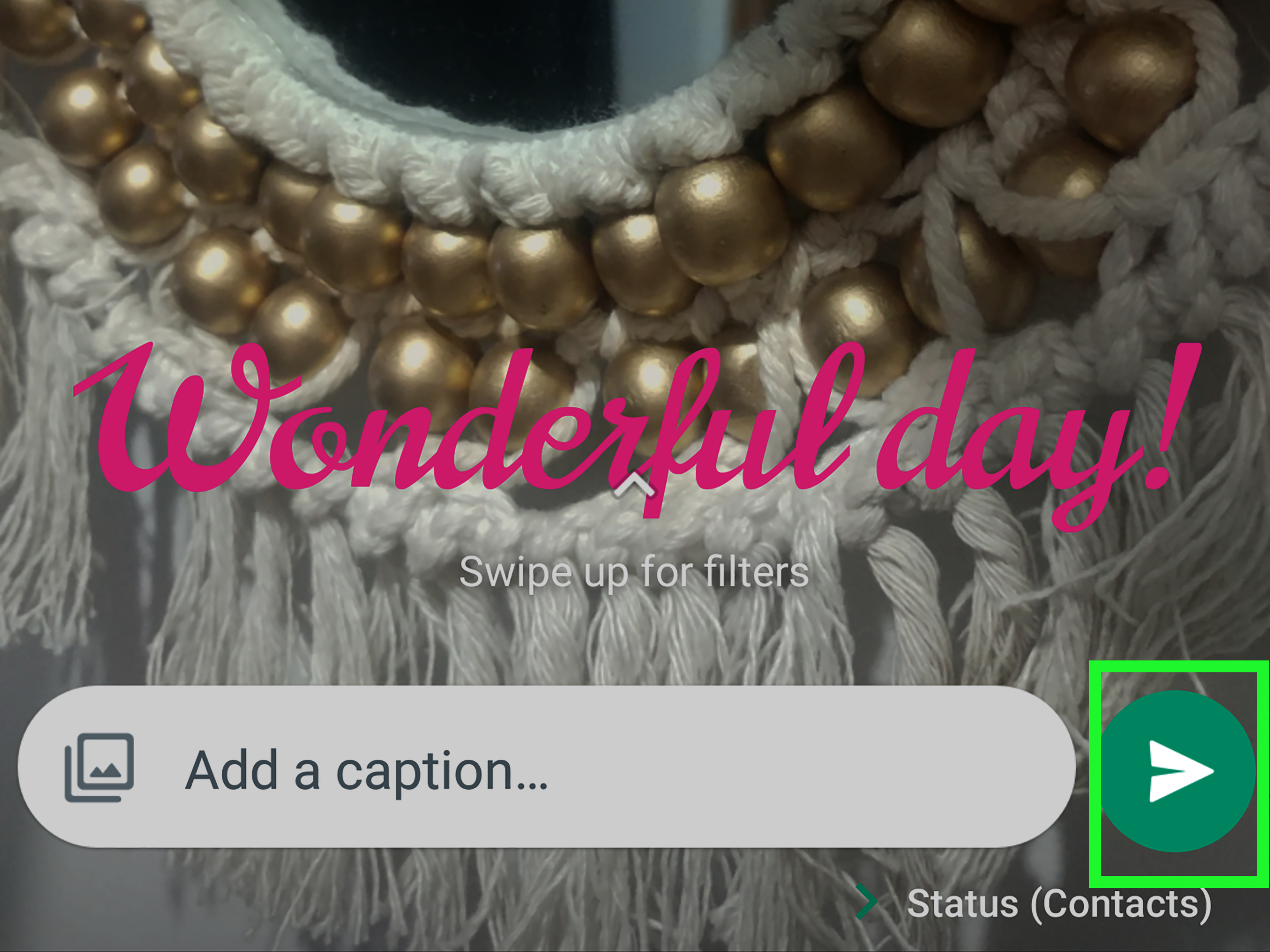
Before posting, pause for a quick preview. Check spelling, readability, color contrast, and placement. Once everything looks good, tap the send or share button to publish your WhatsApp Status.
Your contacts can view it according to your Status privacy settings. If you want to control who sees your updates, open Status privacy settings and choose whether to share with all contacts, exclude certain people, or share only with selected contacts. This is useful when your “gym motivation” Status is really just for three friends and not your entire extended family group.
How to Change Font on a Photo or Video WhatsApp Status
If you are adding text to a photo or video Status, the process is slightly different. Open WhatsApp, go to Updates or Status, and tap the camera option or choose media from your gallery. After selecting your photo or video, tap the text tool. Type your message, then use the available text controls to change the style, color, and position.
For example, imagine you are posting a beach photo. Instead of writing a long caption, you could add:
“Salt air. Clear mind.”
Place it in an empty corner of the image, choose a readable color, and avoid covering the main subject. Simple text often looks more polished than overly decorated text. The goal is to enhance the image, not challenge it to a wrestling match.
Can You Use Bold, Italic, or Monospace in WhatsApp Status?
WhatsApp supports text formatting in chats, including bold, italic, strikethrough, and monospace. For chats, you can usually type special characters around words, such as asterisks for bold or underscores for italic. However, Status text does not always behave exactly like chat text. Some formatting shortcuts may work in certain areas, while the built-in Status editor mainly relies on its own font and color tools.
If your goal is to create a bold-looking Status, the easiest method is to use the built-in font button or paste styled Unicode text. If your goal is to format a normal WhatsApp message, the chat formatting shortcuts are more reliable.
Using Fancy Font Generators for WhatsApp Status
Fancy font generators can make your WhatsApp Status look more unique. These tools convert ordinary text into decorative Unicode characters. You type your phrase into the generator, choose a style, copy it, and paste it into WhatsApp Status.
Example
Normal text:
Happy Birthday, Sarah!
Fancy-style text might look like:
𝓗𝓪𝓹𝓹𝔂 𝓑𝓲𝓻𝓽𝓱𝓭𝓪𝔂, 𝓢𝓪𝓻𝓪𝓱!
This can be fun for birthdays, celebrations, aesthetic quotes, or personal branding. But do not overuse it. Decorative Unicode text can be difficult for screen readers, may not display correctly on all phones, and can become tiring if every Status looks like it escaped from a glitter factory.
Can You Change the Default WhatsApp Font?
WhatsApp does not offer a full setting that lets you permanently change the app’s default font style for all chats and Status updates. On Android, some phone brands such as Samsung, OPPO, vivo, OnePlus, and Xiaomi may allow system-level font changes. If you change your phone’s system font, parts of the interface may look different, and WhatsApp may reflect some of those changes depending on the device.
On iPhone, WhatsApp generally follows Apple’s system design more closely. You can adjust text size and accessibility settings, but you cannot simply pick a custom WhatsApp-only font from inside the app. In other words, WhatsApp gives you a stylish jacket for Status posts, not a full wardrobe replacement for the entire app.
How to Change WhatsApp Font Size
Changing font size is different from changing font style. Font style changes how letters look. Font size changes how big or small they appear.
On Android
Open WhatsApp, tap the three-dot menu, go to Settings, choose Chats, and look for Font size. You may be able to select small, medium, or large. This mainly affects chat text, not the creative font style inside Status.
On iPhone
iPhone users typically adjust text size from iOS settings. Open the iPhone Settings app, go to display or accessibility text size options, and adjust the slider. This can affect readability in supported apps, including WhatsApp. It is useful if WhatsApp text feels too tiny, especially when your eyes have had enough of pretending everything is fine.
Best Practices for Better WhatsApp Status Fonts
Choose Readability First
A beautiful font that nobody can read is just decoration with commitment issues. Use clear fonts for important updates, event details, addresses, times, or announcements.
Match the Font to the Mood
Use playful fonts for jokes, clean fonts for professional updates, and soft styles for personal quotes. If the font and message disagree, the result feels awkward. Imagine writing “Quarterly sales report is ready” in a bubbly birthday font. That is not branding; that is confusion wearing confetti.
Use Color Contrast
Make sure your text stands out from the background. Light text usually works well on dark backgrounds, while dark text is better on light backgrounds. For photos, place text on empty space or add it where the image is less busy.
Keep It Short
Status updates are designed for quick viewing. A short sentence with the right font often gets more attention than a crowded paragraph. Think headline, not encyclopedia.
Avoid Too Many Emojis
Emojis can add personality, but too many can make your Status look chaotic. A good rule is one to three emojis per short Status. More than that and your update may start looking like a fruit salad with Wi-Fi.
Common Problems and Quick Fixes
The Font Button Is Missing
Make sure you are creating a text Status, not only typing a caption. Also check whether your WhatsApp app is updated. Interface changes can move icons or rename tabs.
The Fancy Font Does Not Display Correctly
Some Unicode characters may not appear properly on every phone. Try a simpler style or use WhatsApp’s built-in fonts instead.
The Text Is Hard to Read
Change the text color, background color, or placement. If the photo is too busy, choose a cleaner image or place the text over an empty area.
The Status Looks Different on Another Phone
Different devices, operating systems, and app versions can render text slightly differently. This is especially true for decorative Unicode fonts.
Real-World Examples of WhatsApp Status Font Ideas
For a Birthday Status
Use a playful font with a bright background. Example: “Happy Birthday, Maya! You make life louder, funnier, and 100% better.”
For a Business Update
Use a clean, readable font. Example: “New arrivals are live today. Message us for details.”
For a Travel Status
Use a minimal font over a scenic photo. Example: “Found my kind of quiet.”
For a Funny Status
Use a casual font. Example: “I came. I saw. I forgot why I opened WhatsApp.”
For a Motivational Status
Use a bold font with strong contrast. Example: “Small steps still move you forward.”
Experience Notes: What Actually Works Best When Changing WhatsApp Status Fonts
After using WhatsApp Status fonts in real everyday situations, the biggest lesson is simple: readable beats fancy almost every time. Decorative fonts look exciting when you are creating the Status, but the viewer only has a few seconds to understand it. If they need to squint, rotate the phone, or emotionally prepare themselves to decode your text, the font is doing too much.
For casual updates, the built-in WhatsApp font styles are usually enough. They load correctly, look consistent, and do not require extra apps. When posting a text-only Status, cycling through the font button is quick and reliable. Pair that with a background color that matches the mood, and you can create a clean Status in less than a minute. A short quote on a solid background often looks better than a complicated design. Minimalism is not boring; sometimes it is just design with better manners.
For photo Status updates, placement matters more than the font itself. The best-looking text usually sits in open space: sky, wall, road, table, or any quiet area of the image. Text placed across faces, food, signs, or detailed backgrounds becomes messy fast. A simple white or black text color can work beautifully if the contrast is strong. If the picture is bright, dark text may be better. If the picture is dark, light text usually wins.
Fancy font generators are best saved for special moments. Birthdays, anniversaries, celebrations, aesthetic quotes, and personal branding posts can benefit from stylish Unicode text. However, avoid using fancy fonts for important information like phone numbers, addresses, event times, prices, or instructions. Some characters may be difficult to copy, search, or read with accessibility tools. If the message matters, clarity should be the boss.
Another practical tip is to preview your Status like a stranger would. Do not just ask, “Do I like this?” Ask, “Can someone understand this in two seconds?” If the answer is yes, post it. If the answer is no, simplify the font, shorten the text, or change the background. WhatsApp Status is not a billboard on a highway, but it behaves a little like one: quick glance, quick impression, quick decision to keep watching or move on.
One surprisingly useful approach is creating a personal “font style system.” For example, use clean fonts for work updates, playful fonts for friends, bold fonts for announcements, and soft fonts for reflective quotes. This keeps your Status updates consistent without making them repetitive. People may not consciously notice your system, but they will feel that your updates look organized.
Finally, do not forget privacy. A beautifully styled Status is still a public-ish update inside your contact list. Before sharing personal jokes, location hints, emotional posts, or business announcements, check who can see them. The best font in the world cannot save a Status posted to the wrong audience. Design is important, but audience control is the quiet superhero of WhatsApp Status.
Conclusion
Changing the font in WhatsApp Status is a small trick that can make your updates feel more personal, polished, and expressive. In six steps, you can open WhatsApp, create a text Status, type your message, tap the font icon, adjust colors, preview the design, and share it with the right audience. For photos and videos, the same idea applies: add text, choose a readable style, place it carefully, and keep the message short.
WhatsApp does not offer unlimited typography control, but it gives you enough tools to make your Status stand out. Built-in fonts are best for everyday use, while fancy Unicode fonts can add personality for special posts. The secret is balance. Use style to support your message, not bury it under decorative chaos. Your WhatsApp Status should feel like a quick spark of personality, not a ransom note from a graphic design class.
Note: WhatsApp menus and icons may vary slightly by Android model, iPhone version, country, and app update. The steps above reflect current common WhatsApp behavior and should be checked against the latest app interface before publication.