Note: This article is based on current public guidance from Google, Mozilla Thunderbird documentation, and U.S. university IT support resources. Settings and menus can change slightly by Thunderbird version, but the core Gmail IMAP, SMTP, and OAuth setup remains the same.
Introduction: Give Your Gmail Inbox a Desk Job
Gmail is excellent in the browser, but sometimes you want your email to behave like a proper desktop tool instead of another tab hiding between a shopping cart, a recipe, and the video you absolutely did not mean to watch for 42 minutes. That is where Mozilla Thunderbird comes in. Thunderbird is a free, open-source email client that lets you manage Gmail from your computer, organize folders, search messages, use filters, and handle multiple accounts from one place.
Learning how to access Gmail with Mozilla Thunderbird is not difficult, but it does require understanding one important modern rule: Gmail no longer wants older, password-only email logins. Instead, Thunderbird should connect through OAuth2, which means you sign in through Google and approve Thunderbird without handing your regular Gmail password directly to the app. In plain English, it is like showing your ID at the door instead of giving the bouncer a copy of your house key.
This guide walks you through the process in seven practical steps. You will learn how to prepare your Gmail account, install Thunderbird, add your Gmail address, confirm IMAP and SMTP settings, approve Google access, sync your folders, and troubleshoot common problems. Whether you are setting up Thunderbird for personal email, school, work, or a “please stop making me open 19 browser tabs” lifestyle change, this tutorial will help you get it right.
Why Use Thunderbird With Gmail?
Thunderbird gives Gmail a traditional desktop experience. You can keep emails available locally, manage more than one account, use a unified inbox, sort messages with filters, and work with an interface built for email instead of endless browser distractions. For people who write a lot of email, manage client messages, or simply prefer desktop software, Thunderbird can feel calmer and more organized.
Another benefit is control. Gmail’s web interface is powerful, but Thunderbird lets you decide how messages are displayed, which folders are synchronized, how notifications appear, and whether you want local storage. It is especially useful if you manage several Gmail or Google Workspace accounts and do not want to keep switching between browser profiles like a digital octopus.
The key is setting it up correctly. Gmail uses IMAP to sync messages across devices, while SMTP handles outgoing mail. Thunderbird usually detects the right Gmail settings automatically, but knowing the manual configuration helps when something goes wrong.
Before You Start: What You Need
Before adding Gmail to Thunderbird, make sure you have three things ready. First, you need an active Gmail or Google Workspace email account. Second, you need the latest stable version of Mozilla Thunderbird installed on your Windows, macOS, or Linux computer. Third, you need access to your Google sign-in method, including any two-step verification prompt, security key, authenticator app, or phone approval required by your account.
For most users, you should not need a Google app password. Thunderbird supports OAuth2 for Gmail, and OAuth2 is the recommended approach. App passwords are mostly for older apps that cannot use Sign in with Google. If Thunderbird is updated and working properly, OAuth2 should be your first choice.
How to Access Gmail With Mozilla Thunderbird: 7 Steps
Step 1: Check Gmail IMAP Access
IMAP is the protocol that lets Thunderbird sync your Gmail messages instead of simply downloading them once. With IMAP, an email you read in Thunderbird also appears as read in Gmail on the web or on your phone. If you archive a message in Thunderbird, Gmail understands that action too.
For many newer Gmail accounts, IMAP is already enabled by default. Still, it is smart to check. Open Gmail in your browser, click the gear icon, choose See all settings, and go to Forwarding and POP/IMAP. Look for the IMAP section and confirm that IMAP is enabled. Save changes if you make any adjustment.
If you are using a school or work Google Workspace account, your administrator may control these settings. In that case, you may not see all options. Do not panic. This does not mean Thunderbird hates you personally. It means your organization may require OAuth, device policies, or administrator approval.
Step 2: Download and Install Mozilla Thunderbird
Go to the official Thunderbird website and download the desktop version for your operating system. Avoid random download sites, because your inbox deserves better than mystery software wrapped in a suspicious “download manager.” Install Thunderbird using the standard setup unless you have a specific reason to customize the installation.
Once installed, open Thunderbird. If this is your first time using it, Thunderbird will usually show an account setup screen automatically. If it does not, you can open the menu and choose New Account, then select Existing Email or Mail Account, depending on your version.
Using the latest Thunderbird version matters because modern Gmail access relies on OAuth2. Older clients that only support basic password login may fail, even if your email address and password are correct.
Step 3: Enter Your Gmail Account Information
In Thunderbird’s account setup window, enter your name, Gmail address, and password. Your name is the display name people will see when you send email. Your email address should be the full address, such as [email protected] or your full Google Workspace address.
When Thunderbird asks for a password at this stage, enter your normal Google account password only if it is part of the OAuth setup flow. The important part happens next: Thunderbird should detect Gmail settings and open a Google sign-in window. If you have two-step verification enabled, Google may ask for a code, phone approval, security key, or authenticator prompt.
Do not confuse your Gmail password with an app password. For modern Thunderbird and normal Gmail setup, OAuth2 is usually better. App passwords are a fallback for apps that cannot use Google’s secure sign-in method.
Step 4: Confirm IMAP and SMTP Settings
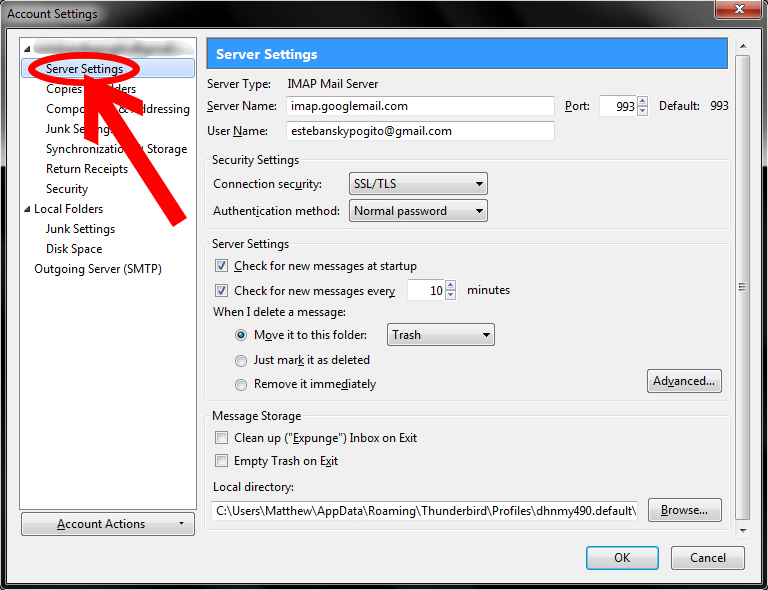
Thunderbird usually finds Gmail’s settings automatically. Still, it helps to recognize the correct values, especially if automatic setup fails.
| Setting | Correct Gmail Value |
|---|---|
| Incoming protocol | IMAP |
| Incoming server | imap.gmail.com |
| Incoming port | 993 |
| Incoming security | SSL/TLS |
| Outgoing server | smtp.gmail.com |
| Outgoing port | 465 with SSL/TLS or 587 with STARTTLS |
| Authentication | OAuth2 |
| Username | Your full Gmail address |
Choose IMAP rather than POP unless you have a very specific reason to download mail to one computer only. IMAP keeps Gmail synchronized across Thunderbird, the Gmail website, and your mobile devices. POP is older and less convenient for people who check email from more than one place.
Step 5: Sign In Through Google and Allow Access
After Thunderbird finds the Gmail settings, a Google sign-in page should appear. Sign in with your Google account and approve Thunderbird’s access request. This is the OAuth2 step. Instead of Thunderbird storing your regular Gmail password, Google gives Thunderbird a secure token that allows mail access.
Read the permission screen carefully. It should refer to Mozilla Thunderbird or Thunderbird email access. If everything looks correct, click Allow. Thunderbird will then finish creating the account and begin connecting to Gmail.
If the Google sign-in window does not appear, check that Thunderbird is allowed to accept cookies. OAuth sign-in needs a browser-like window to complete the approval process. In Thunderbird, open Settings, go to Privacy & Security, and make sure cookies are allowed for the Google sign-in page. This tiny checkbox has ruined many afternoons, so it deserves respect.
Step 6: Let Thunderbird Download and Sync Gmail Folders
Once the account is created, Thunderbird will begin downloading message headers and folders. If your Gmail account has years of email, this may take time. Keep Thunderbird open and stay connected to the internet while the first sync completes.
Gmail labels appear as folders in Thunderbird. For example, a Gmail label called “Receipts” may show as a Thunderbird folder named “Receipts.” This is normal. Gmail’s label system is not exactly the same as old-fashioned folders, but Thunderbird translates it into a folder-like structure so you can manage messages comfortably.
One folder deserves special attention: All Mail. Gmail stores archived messages there, and it can become huge. If Thunderbird feels slow or your computer storage starts gasping dramatically, consider unsubscribing from All Mail or changing synchronization settings. You can right-click the Gmail account in Thunderbird, choose Subscribe, and decide which folders should appear.
Step 7: Send a Test Email and Adjust Settings
After sync begins, send a test email to yourself or another account. If the message sends successfully and appears in your Sent folder, SMTP is working. Then reply to that message from Gmail on the web and confirm the reply appears in Thunderbird. This checks both outgoing and incoming mail.
Next, review your account settings. You may want to adjust how often Thunderbird checks for new messages, whether it stores messages locally, how it handles junk mail, and how notifications appear. You can also add a signature, set up filters, or enable a unified inbox if you manage several accounts.
At this point, Gmail is connected to Thunderbird. Congratulations: your inbox has moved from browser chaos to desktop command center. Please celebrate responsibly, perhaps by deleting three newsletters you never read.
Common Gmail and Thunderbird Problems
Problem: Thunderbird Says the Password Is Wrong
If Thunderbird says your password is wrong, the issue may not actually be your password. Gmail may be rejecting password-only sign-in. Make sure the authentication method is set to OAuth2 for both the incoming IMAP server and outgoing SMTP server. You can check this in Thunderbird’s Account Settings.
Problem: Google Sign-In Window Never Appears
Check Thunderbird’s cookie settings. OAuth needs permission to complete the Google login process. Also temporarily disable VPNs, strict firewall rules, or privacy tools that may block the sign-in window. You can turn them back on after setup if everything works.
Problem: Mail Receives but Does Not Send
This usually means the SMTP settings are wrong. Confirm that the outgoing server is smtp.gmail.com, authentication is OAuth2, and the port is either 465 with SSL/TLS or 587 with STARTTLS. Also confirm that the username is your full Gmail address.
Problem: Too Many Folders Appear
That is Gmail labels showing up as Thunderbird folders. It is expected behavior. Use Thunderbird’s folder subscription settings to hide labels you do not need. If All Mail is slowing things down, consider unsubscribing from it or disabling full offline synchronization for that folder.
Should You Use an App Password?
In most modern Gmail and Thunderbird setups, no. OAuth2 is preferred. Google app passwords are intended for apps or devices that cannot use Sign in with Google. They require two-step verification and create a special 16-character password for one app or device.
If you are using an older email client, an old Thunderbird version, or a special system that does not support OAuth2, an app password may appear as a workaround. However, for Thunderbird users today, the better solution is usually to update Thunderbird and configure OAuth2. It is cleaner, safer, and less likely to break when Google tightens security rules.
Security Tips for Using Gmail in Thunderbird
Use two-step verification on your Google account. Keep Thunderbird updated. Do not save your computer login password on shared devices. If you lose a laptop, remove its access from your Google account security page. Also, avoid installing unknown Thunderbird extensions unless you trust the source and understand what the add-on does.
For work or school accounts, follow your organization’s IT rules. Some administrators may block third-party mail clients, require device management, or restrict IMAP access. That is not Thunderbird’s fault; it is usually a policy decision.
Practical Experience: What It Feels Like to Use Gmail in Thunderbird
In real daily use, connecting Gmail to Thunderbird feels less like changing your email address and more like changing your workspace. Gmail in the browser is fast and familiar, but it lives in the same crowded neighborhood as social media, search tabs, documents, videos, and every other distraction on the internet. Thunderbird pulls email into its own dedicated room. That alone can make work feel more focused.
The first setup experience is usually smooth when Thunderbird detects Gmail automatically. The most important moment is the Google OAuth approval screen. Users who expect a traditional password box may feel confused, but the Google sign-in window is exactly what you want. It confirms that Thunderbird is using modern authentication rather than old password-only access.
The first sync can be surprisingly slow for large Gmail accounts. A person with 500 messages may be ready in minutes. A person with 80,000 messages, 47 labels, and archived receipts from the era when phones still had headphone jacks may need patience. Thunderbird has to build a local view of your mail, and Gmail’s labels can create what looks like many folders. This is normal, but it can feel messy at first.
One useful habit is to clean up Gmail labels before or shortly after connecting Thunderbird. If you have labels you no longer use, remove them in Gmail first. If you want to keep them in Gmail but do not need them in Thunderbird, unsubscribe from those folders inside Thunderbird. This keeps the left sidebar cleaner and reduces unnecessary syncing.
Another practical lesson: do not panic when Gmail’s Archive behavior looks different from a regular email account. In Thunderbird, Gmail archiving points to All Mail because that is how Gmail works. Deleting and archiving are not the same. Archive removes the message from the Inbox but keeps it in All Mail. Delete sends it to Trash. This distinction matters if you use Thunderbird for serious work, customer communication, or record keeping.
Sending mail through Thunderbird is usually reliable once SMTP is configured correctly. The most common sending problem comes from mismatched security settings. If incoming mail works but outgoing mail fails, check SMTP first. Use the full Gmail address as the username, OAuth2 as authentication, and a supported secure port. The settings table in this article is worth saving because it can solve most setup headaches in under a minute.
Thunderbird is also helpful for people who manage multiple Gmail accounts. Instead of opening separate browser profiles, you can add several accounts and view them separately or together. A unified inbox is convenient, but some users prefer keeping accounts separate to avoid accidentally sending a work email from a personal address. That mistake has a special flavor of embarrassment, somewhere between “reply all” and calling your teacher “Mom.”
For long-term use, the best experience comes from regular maintenance. Update Thunderbird, keep your Google recovery options current, review connected apps occasionally, and remove access for devices you no longer use. If Thunderbird suddenly asks you to sign in again, it may simply need a fresh OAuth token. That is not unusual and does not automatically mean something is broken.
Overall, Gmail with Thunderbird is a strong setup for people who want a desktop email client without abandoning Gmail’s cloud sync. It gives you local organization, better focus, and multi-account control while still keeping messages available through Gmail on the web and mobile. Once configured correctly, it mostly disappears into the background, which is exactly what good email software should do. Email is already dramatic enough; the tool used to read it should not audition for the role of villain.
Conclusion
Accessing Gmail with Mozilla Thunderbird is straightforward when you use the right modern method. The winning formula is simple: enable or confirm IMAP, install the latest Thunderbird version, add your Gmail account, use OAuth2, approve access through Google, let your folders sync, and test both sending and receiving. Most setup problems come from outdated password-only login, incorrect SMTP settings, blocked cookies, or confusion over Gmail labels.
Once everything is working, Thunderbird can make Gmail feel more organized and less distracting. It is especially useful for people who handle multiple accounts, prefer desktop software, or want more control over folder subscriptions and offline access. Gmail stays in the cloud; Thunderbird becomes your calm, capable desktop command center.