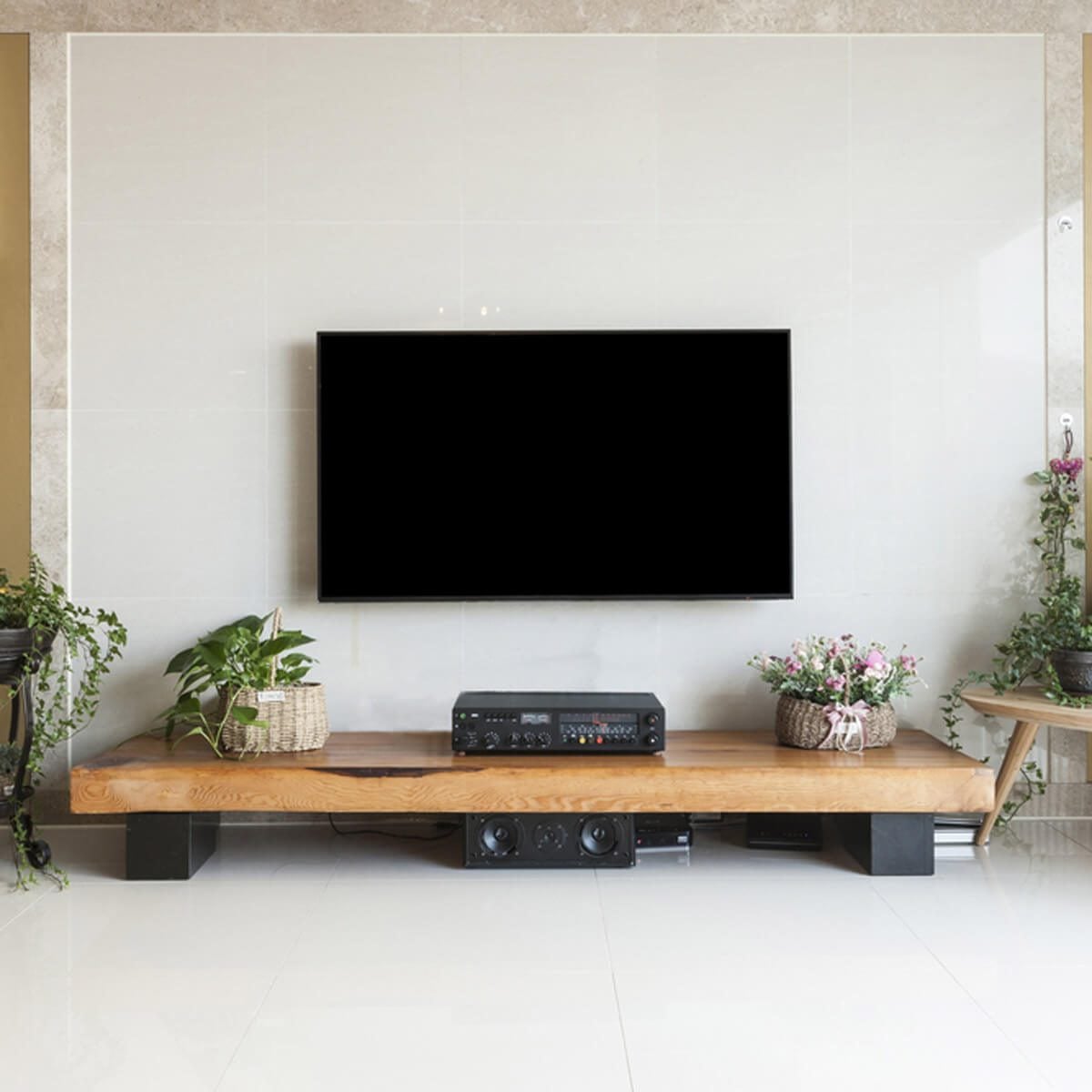
Smart TVs can stream movies, recommend shows, obey voice commands, display family photos, and occasionally suggest a cooking documentary five minutes after you ordered pizza. With all that intelligence sitting across the living room, one question is understandable: Do smart TVs have cameras, and could one be watching you?
The reassuring answer is that most modern smart TVs do not have built-in cameras. Some modelsespecially certain premium, older, or video-conferencing-focused televisionsdo include a camera or support a detachable one. Microphones, however, are much more common, and many TVs also collect viewing information without taking photos or recording video.
Here is how to determine what your television contains, what data it may collect, and how to keep movie night from turning into an accidental episode of a cyber-thriller.
Do All Smart TVs Have Cameras?
No. Being “smart” means a television can connect to the internet, run apps, receive software updates, and provide interactive services. It does not automatically mean the TV contains a camera.
Most mainstream televisions currently sold in the United States have no integrated camera. Manufacturers generally favor thin bezels, lower production costs, and optional accessories instead of permanently installing a lens that many buyers may never use.
Nevertheless, cameras can appear in several forms:
- A built-in camera: The lens may be embedded in the bezel or placed in a small pop-up module.
- A detachable manufacturer camera: Certain TVs work with accessories such as Sony’s BRAVIA CAM or LG’s Smart Cam.
- A third-party USB webcam: Some television platforms and video-call apps support compatible external cameras.
- A connected device: A streaming box, game console, video-calling device, or smart-home accessory may have its own camera even when the TV does not.
For example, Sony’s BRAVIA CAM is supplied with or supported by select BRAVIA televisions and includes a sliding camera cover. LG has also offered a detachable Smart Cam for compatible webOS televisions. These accessories are visible on top of the screen, so they are considerably less sneaky than the average internet rumor suggests.
Why Would a Smart TV Need a Camera?
A smart TV camera is normally included for interactive features rather than secret surveillance. Depending on the model and available apps, it may support the following functions.
Video Calls
A television camera can turn the largest screen in the house into a video-conferencing display. This is useful for family calls, remote meetings, online classes, and group conversations in which five people would otherwise be crowded around one laptop like contestants in a very low-budget game show.
Gesture Controls
Some televisions use a camera to recognize hand movements. A viewer may be able to change volume, navigate menus, or control playback without touching the remote. These features have appeared more often in premium models than in ordinary budget TVs.
Fitness and Posture Features
Compatible fitness apps can use a camera to show the viewer on screen, compare body movements with an instructor, or provide basic form feedback. Sony has also promoted camera-based sensing features that can adjust aspects of the viewing experience according to the viewer’s position.
Presence and Distance Detection
Some camera accessories can detect whether someone is sitting too close to the television or whether viewers have left the room. The TV may display a warning, reduce brightness, or pause certain activity. Availability varies by product, region, software version, and app support.
How to Tell Whether Your Smart TV Has a Camera
You do not need a degree in electronic forensics. A careful inspection and a model-number search will usually settle the question.
1. Inspect the Top and Side Bezels
Stand close to the television in a well-lit room and examine the frame around the screen. A built-in camera lens usually looks like a small dark circle similar to a laptop webcam. Check the center of the top bezel first, followed by the corners and side edges.
Older models may use a pop-up camera that stays hidden until pressed or activated. Look for a small movable panel, seam, sliding cover, or raised section along the upper edge.
2. Do Not Confuse Sensors With Cameras
A tiny dark window on the bottom bezel is often an infrared receiver, ambient-light sensor, status indicator, or motion sensor. These components help the remote communicate with the television or allow the screen to adjust brightness. A dark dot is therefore not automatic proof that your TV has been moonlighting as a documentary filmmaker.
3. Check the Product Specifications
Locate the full model number on the back of the television or in its settings menu. Search the manufacturer’s official support site for phrases such as “built-in camera,” “camera and microphone unit,” “video calling,” “gesture control,” or “webcam compatibility.”
The manual may also include a diagram identifying every sensor, switch, microphone, and port. This is usually more reliable than studying the bezel with a flashlight while becoming increasingly suspicious of the power indicator.
4. Review the TV Settings
Open the privacy, device, accessory, or app-permission menus. Camera-equipped TVs may display options for camera access, video calling, gesture recognition, sensing functions, or connected USB devices.
5. Look for a Physical Shutter or Detachable Module
External TV cameras are normally mounted above the screen and connected through USB or a dedicated port. Some include a physical shutter. Closing or detaching the camera provides stronger reassurance than relying entirely on a software toggle.
Smart TV Cameras and Microphones Are Not the Same Thing
A television may have no camera but still contain one or more microphones. In fact, microphones are much more common because they support voice search, virtual assistants, accessibility tools, and hands-free commands.
The microphone may be located inside the remote control rather than the television. In that arrangement, it usually captures audio only while the voice button is pressed. Other models have far-field microphones in the TV that listen for a wake phrase such as “Hey Google,” “Alexa,” or a manufacturer-specific command.
Samsung and Sony both document physical microphone switches on certain models. Turning off these switches disables associated voice features. Google also advises that the hands-free microphone on a Google TV device may be located in the TV, remote, or connected streaming device.
How to Check for a Microphone
- Look for a microphone symbol on the remote.
- Inspect the television’s underside or rear panel for a physical microphone switch.
- Open the privacy or voice-assistant settings.
- Review app permissions for microphone access.
- Disable hands-free listening when you do not use it.
Your TV Can Collect Data Without a Camera
The most important smart TV privacy issue is often not the camera. It is the software.
Many television platforms use a technology known as automatic content recognition, or ACR. It can identify programs, advertisements, movies, or games shown on the screen by comparing small samples or digital fingerprints with a reference database. Depending on the platform and settings, this may include content received from cable boxes, antennas, game consoles, or other HDMI-connected devices.
Viewing information can be used for audience measurement, recommendations, advertising, and product analytics. ACR does not require a camera pointed at the room. It analyzes what appears on the television itself.
Research published in 2024 found that ACR traffic occurred on tested Samsung and LG televisions even when the sets were being used as external displays. In those tests, opting out through the available privacy controls stopped the observed ACR traffic. The Federal Trade Commission also recommends reviewing a television’s tracking settings and removing unused apps because apps may continue collecting behavioral information.
Common Names for Viewing-Data Settings
The exact wording differs among manufacturers and software versions. Look for settings such as:
- Automatic Content Recognition
- Viewing Information Services
- Live Plus
- Smart TV Experience
- Interest-Based Advertising
- Content Recognition
- Personalized Recommendations
- Limit Ad Tracking
Disabling these options may reduce personalized recommendations or interactive features, but it generally does not prevent you from watching ordinary television and streaming services.
Can Someone Hack a Smart TV Camera?
Any internet-connected device with a camera, microphone, operating system, and installed apps can present a security risk if vulnerabilities are exploited or account credentials are stolen. That does not mean smart TV cameras are routinely being hijacked, but the possibility should not be dismissed when a camera actually exists.
Potential weaknesses include outdated firmware, malicious or poorly secured apps, reused passwords, compromised manufacturer accounts, insecure home networks, and unsupported older devices that no longer receive security patches.
A compromised camera could theoretically expose video from the room. A compromised microphone could expose audio, while a compromised account might reveal viewing activity, app usage, or personal details. The practical risk depends on the TV model, enabled features, network configuration, and whether a camera is physically connected.
The FTC recommends securing internet-connected home devices, changing relevant privacy settings, removing unused apps, and keeping devices updated. Security guidance for connected cameras also emphasizes encryption, strong account protection, and understanding how video or recordings are handled.
How to Protect Your Smart TV Privacy
Install Software Updates
Enable automatic updates when available, or check periodically for new firmware. Updates may repair security vulnerabilities, improve privacy controls, and remove bugs affecting cameras, microphones, or apps.
Disable Features You Do Not Use
Turn off camera access, hands-free voice activation, gesture recognition, personalized advertising, and ACR if those features provide no value to you. A feature cannot misunderstand your intentions when it is switched off entirely.
Use Physical Controls
Close the camera shutter, disconnect an external webcam, or use a removable cover that does not damage the lens. Turn off the TV’s physical microphone switch when available. Physical controls are easier to verify than a menu buried somewhere beneath “Advanced Enhanced Personalized Experience Settings.”
Review App Permissions
Delete apps you no longer use. For remaining apps, grant camera and microphone access only when the app genuinely needs it. A weather app probably does not require a panoramic view of your sofa.
Secure Your Accounts
Create a unique password for the television platform and connected streaming accounts. Enable multifactor authentication wherever it is offered. Do not reuse the same password protecting your email, online banking, and an app that exists primarily to recommend reality television.
Protect the Home Network
Use modern Wi-Fi encryption and a strong router password. Update the router’s firmware, disable obsolete security protocols, and consider placing smart-home devices on a guest or separate network if your router supports it.
Disconnect the TV From the Internet
For maximum privacy, use the television as a display and disconnect it from Wi-Fi or Ethernet. Streaming can then be handled through a separate device that is easier to replace, reset, or unplug. This approach sacrifices built-in apps, updates, voice features, and recommendations, but it sharply limits the television’s ability to transmit viewing data.
Smart TV Camera Examples by Brand
Samsung
Most current Samsung televisions do not have a permanently integrated camera. Select models can work with compatible external cameras for video calls, fitness services, or other camera experiences. Many Samsung TVs do include voice functions, and certain models have a physical microphone switch on the television.
LG
LG’s standard televisions generally do not include built-in cameras. The company has offered the detachable LG Smart Cam for compatible 2022 and 2023 models, supporting camera apps and selected video or fitness experiences. LG Magic Remotes may also provide voice recognition through a remote-control microphone.
Sony
Select Sony televisions support the detachable BRAVIA CAM, while a limited number of model series have included it. The accessory supports video-chat and sensing functions and provides a sliding physical camera cover. Sony TVs with hands-free voice search may also include a separate built-in microphone switch.
Roku TV, Google TV, and Fire TV Models
The operating-system label alone does not tell you whether a camera is present. Roku TV, Google TV, and Fire TV software appears across televisions produced by multiple hardware manufacturers. One Google TV may have no camera, while another model may support a USB accessory. Always check the exact television model rather than assuming every product using the same platform has identical hardware.
Frequently Asked Questions
Where Is the Camera on a Smart TV?
When built in, it is usually centered along the top bezel or placed inside a pop-up module. External cameras typically clip or magnetically attach above the screen. Tiny components near the bottom edge are more likely to be infrared receivers, indicator lights, or brightness sensors.
Can a Smart TV Record You While It Is Off?
A fully powered-down and unplugged television cannot operate its camera or transmit data. In standby mode, however, some network and voice-related functions may remain active. Disconnect the camera, use its shutter, disable the microphone, or unplug the television when stronger physical assurance is required.
Does a Red Light Mean the TV Camera Is Recording?
Not necessarily. A red light commonly indicates standby power or a remote-control command. Check the owner’s manual to learn what each indicator means. Do not assume an LED is a recording indicator unless the manufacturer specifically identifies it as one.
Can I Cover a Smart TV Camera?
Yes. Use the built-in privacy shutter when possible. Otherwise, use a removable webcam cover that does not scratch the lens, block ventilation, obstruct sensors, or interfere with a pop-up mechanism.
Do Smart TVs Listen to Conversations?
Models with hands-free voice assistants may monitor local audio for a wake phrase. Other TVs capture voice only while the microphone button on the remote is pressed. Review the voice-assistant settings, privacy policy, microphone permissions, and physical switches for your specific model.
Is a Smart TV Safe in a Bedroom?
A camera-free TV presents no camera-surveillance risk by itself, although microphones and viewing-data collection may still be relevant. For a bedroom television, disable unnecessary voice features, turn off tracking options, remove unused apps, and disconnect any external camera.
Common Experiences With Smart TV Camera Concerns
Real-world smart TV privacy worries often begin with a mysterious dot on the bezel, an unexpected voice-assistant response, or a setting nobody remembers enabling. The following situations reflect common owner experiences and show how calmly checking the hardware usually produces a less dramatic explanation.
The “Hidden Camera” That Was Actually a Sensor
One of the most common experiences starts when someone shines a phone flashlight along the bottom of a television and discovers a glossy black square. It looks vaguely lens-like, so the household immediately promotes it from “unknown component” to “international surveillance device.”
After checking the model diagram, the component usually turns out to be the infrared receiver used by the remote, an ambient-light sensor, or a power indicator. The practical lesson is to identify the part through the official manual before covering it. Blocking an infrared receiver may stop the remote from working, which protects privacy only by making everyone too frustrated to watch television.
The External Camera Nobody Noticed
Another common situation involves a television inherited from a relative, installed in a furnished rental, or purchased secondhand. A small accessory is clipped to the top, but the new owner assumes it is part of the original display. Closer inspection reveals a USB cable running from the module into the rear of the TV.
In that case, the safest response is simple: disconnect the accessory, note its model number, and research its purpose. It may be an ordinary webcam previously used for video calls or home workouts. Leaving it unplugged removes the camera from the equation without changing the television’s basic picture and sound functions.
The Television That Seemed to Be Listening
Voice assistants occasionally activate after hearing dialogue that resembles a wake phrase. A character says something close to “Hey Google,” the TV displays a voice panel, and everyone in the room suddenly becomes much more careful about discussing birthday presents.
This is not evidence of a camera. It usually means a hands-free microphone is enabled. Turning off wake-word detection or using push-to-talk voice control can prevent accidental activations while preserving voice search when it is deliberately requested.
The Privacy Setup That Takes Ten Minutes
Many owners accept every setup prompt because they want to reach the home screen before the snacks get cold. Later, they revisit the privacy menu and discover that viewing-data collection, personalized advertising, voice services, and recommendation features were all enabled during setup.
A basic privacy review usually takes only a few minutes: disable content recognition, limit ad tracking, turn off hands-free microphones, remove unused apps, install updates, and close or disconnect any camera. The TV remains useful, but it gathers less information and exposes fewer unnecessary features.
The Old TV With a Real Built-In Camera
Some owners genuinely do find a camera, particularly on older premium televisions designed during the brief era when manufacturers expected video calling and gesture control to become living-room essentials. These cameras are often obvious once located, appearing in a pop-up housing at the top of the display.
When software support has ended, the cautious approach is to disable the feature, cover the lens, or keep the television offline. An older display can still be paired with a modern streaming device, allowing it to deliver an excellent picture without depending on an outdated smart platform.
Across these experiences, the same pattern appears: identify the exact model, separate cameras from microphones and sensors, inspect connected accessories, and adjust the privacy settings intentionally. Panic is rarely useful. A flashlight, the owner’s manual, and ten quiet minutes are usually much better detectives.
Conclusion: Is Your Smart TV Watching You?
Most smart TVs do not have built-in cameras, but a limited number include one or support a detachable camera accessory. Cameras are generally intended for video calls, gesture controls, fitness services, or viewer-sensing features. They can usually be identified through a physical inspection, the model specifications, or the television’s privacy and accessory menus.
Microphones and viewing-data collection are far more widespread. Even without a camera, a television may support voice assistants, track app activity, or use automatic content recognition to identify what appears on the screen. That makes a complete privacy review more valuable than simply placing tape over every mysterious dot.
Keep the software updated, disable features you do not need, review app permissions, turn off viewing-data collection, use physical camera and microphone controls, and secure the accounts connected to the television. Your smart TV can remain smart without being the nosiest member of the household.