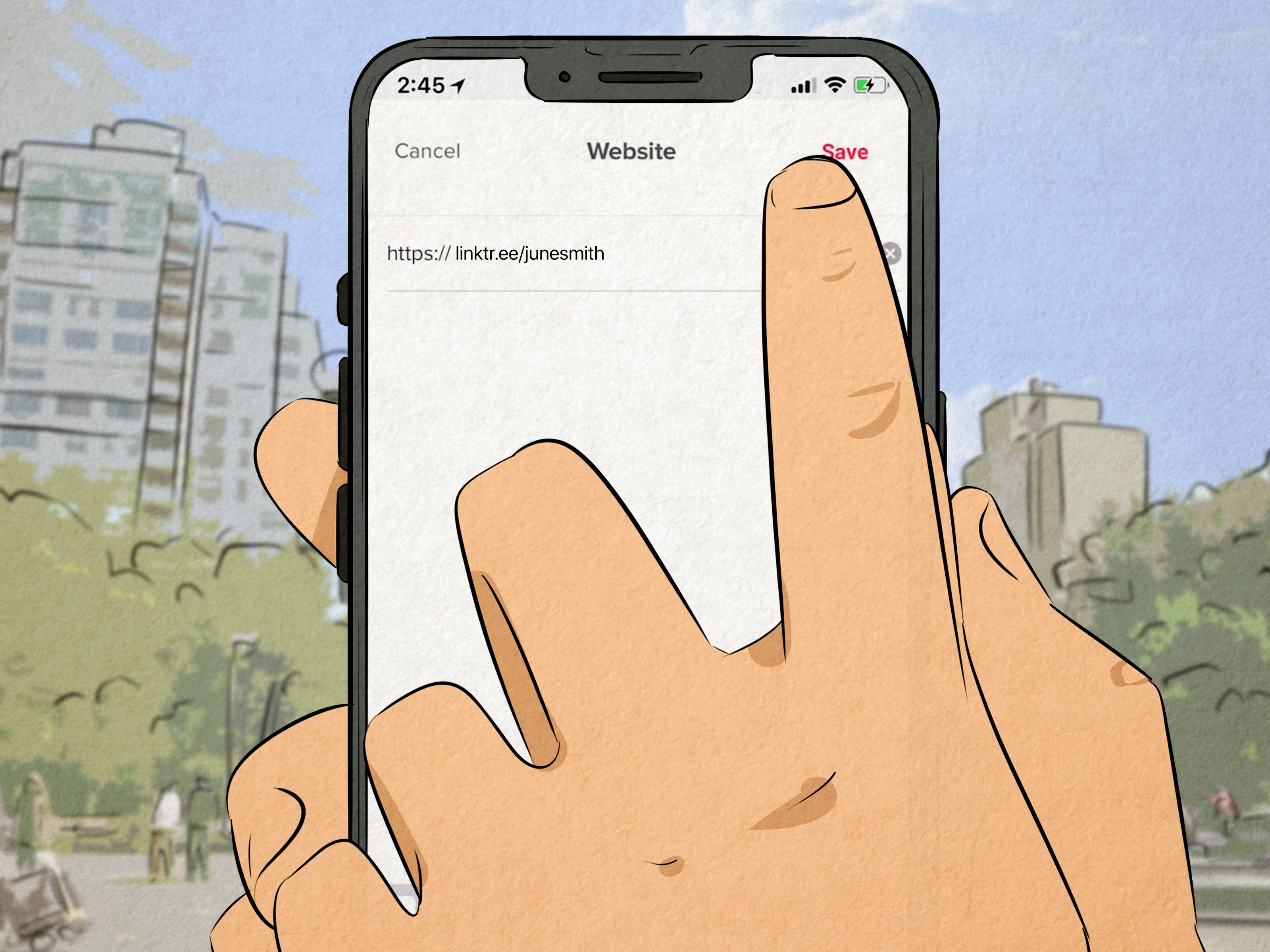
TikTok is excellent at earning attention and famously less generous about letting that attention wander elsewhere. Viewers can watch a dozen videos without blinking, but sending them to your store, newsletter, portfolio, podcast, booking page, or newest long-form video requires a clear path. That is where Linktree earns its tiny patch of digital real estate.
Adding Linktree to your TikTok bio gives followers one clickable destination containing several useful links. Instead of replacing your bio URL whenever you launch a product or publish something new, you can keep one Linktree address and update the destinations behind it.
The setup is simple, but TikTok eligibility rules, account types, regional availability, and a few common mistakes can create confusion. This guide covers the complete process, troubleshooting steps, optimization tips, and practical lessons for turning profile visits into meaningful clicks.
What Does Linktree Do on TikTok?
Linktree is a mobile-friendly landing page that places multiple destinations behind one URL. Your TikTok profile displays that URL as its main website link. A visitor taps it and can choose among buttons leading to your website, store, email signup form, other social profiles, appointment calendar, affiliate offer, or featured content.
This works well because TikTok generally provides one primary clickable website field. A direct homepage link is fine when you have one goal. Linktree is more practical when your audience may want several things.
Linktree is especially useful when you:
- Publish across multiple platforms.
- Promote several products, services, or campaigns.
- Want to collect subscribers while sharing free resources.
- Need to update featured destinations without editing TikTok repeatedly.
- Want click data to see what followers choose.
The goal is not to build a digital junk drawer. It is to create a short, obvious menu that helps visitors take the next useful action.
Check TikTok Link Eligibility First
Not every TikTok account automatically receives a clickable website field. TikTok currently says a website link may be available to personal accounts with at least 1,000 followers or to registered business accounts. Availability can also vary by region.
Open TikTok, go to Profile, and tap Edit profile. Look for Links, Website, or an Add option beside links. If you see it, you can proceed. If you do not, your account may not meet the requirements, your business registration may be incomplete, or the feature may not be available in your location.
Should you switch to a Business Account?
Switching account types should be a business decision, not a desperate attempt to summon a missing button. Business accounts receive commercial tools, but they do not have the same access to TikTok’s general music library because many popular tracks are not cleared for commercial use. Businesses generally use TikTok’s Commercial Music Library or properly licensed audio.
If you represent a real business, open Settings and privacy, find the account-management options, switch to a Business Account, select a relevant category, and complete any registration steps TikTok presents. Menu wording may change by app version.
If your personal content depends heavily on trending sounds, reaching 1,000 followers may be a better route than switching solely for link access.
How to Create and Prepare Your Linktree
Step 1: Create a Linktree account
Create an account and choose a short username that resembles your TikTok handle or brand name. Matching identities reduce hesitation because visitors can quickly confirm they reached the correct page.
linktr.ee/sunnysidebakery looks trustworthy. linktr.ee/sunnysidebakery983741_final2 looks like the bakery’s printer became self-aware.
Step 2: Add your most important links
In the Linktree dashboard, add a new link, enter a clear button title, and paste the complete destination URL. Repeat only for pages that deserve attention.
Use benefit-focused labels such as:
- Shop the New Collection
- Get the Free Meal Planner
- Watch the Full Tutorial
- Book a Consultation
- Join the Weekly Newsletter
Avoid vague labels like Click Here or Stuff. Mobile visitors rarely approach mystery buttons with the patience of an archaeologist.
Step 3: Put the priority link first
The first visible button usually receives the most attention. If a TikTok video promises a free checklist, place that checklist first. If you are launching a product, lead with the product page. Evergreen links such as your homepage and other social profiles can sit lower.
Step 4: Customize and preview the page
Add a recognizable image or logo, a short description, readable buttons, and colors that fit your brand. Then preview the page on a phone. Check that text is legible, buttons are easy to tap, and the important offer appears without excessive scrolling.
Step 5: Copy and test the Linktree URL
Copy your public URL, usually in the format https://linktr.ee/yourusername. Open it in a browser and test every button before adding it to TikTok.
How to Add Linktree to Your TikTok Bio
Step 1: Open your TikTok profile
Launch TikTok and tap Profile. Confirm that you are signed into the correct account, especially if you manage several profiles.
Step 2: Tap Edit profile
Tap Edit profile. This area controls your profile image, display name, username, bio, and eligible external links.
Step 3: Open the website or links field
Find Links, Website, or the Add option beside links. Tap it and choose the website option if TikTok displays several choices.
Step 4: Paste your Linktree URL
Paste the full Linktree address into the website field. Use the secure version beginning with https://. Remove accidental spaces or punctuation.
Step 5: Save and verify
Tap Save, Done, or the confirmation control shown in your app. Return to your profile and make sure the address appears as a tappable link.
Step 6: Test the complete journey
Tap the link from your profile, then test it from another account or ask someone else to check it. Open the top buttons and confirm that they load quickly and lead to the correct pages.
This prevents the classic marketing tragedy: publishing a brilliant video, telling everyone to tap the link, and sending them to a discontinued candle from three summers ago.
What to Do When the Website Option Is Missing
Confirm eligibility
Personal accounts generally need at least 1,000 followers. Business accounts may need to complete TikTok’s registration process. Merely selecting the Business label may not unlock the field immediately for every account.
Update and restart TikTok
Install the newest available app version, close TikTok completely, reopen it, and check Edit profile again. Signing out and back in may also refresh account features, but first confirm that your login and recovery details are available.
Consider regional availability
TikTok notes that website links are not available everywhere. An eligible account may still lack the option in some regions.
Report the problem in the app
Open Settings and privacy, select Report a problem, and choose the closest profile or website-link category. Include a short explanation and screenshots. Do not pay anyone who promises to unlock the field through a secret trick. Secret tricks are often ordinary scams wearing sunglasses.
Common Problems and Fast Fixes
The URL is visible but not clickable
You probably pasted it into the written bio instead of the dedicated website field. Move it to Links or Website when your account becomes eligible.
TikTok rejects the URL
Copy the public Linktree address again, include https://, remove spaces, and test it in a browser. Confirm that the Linktree username has not changed and that the page follows platform policies.
A Linktree button is broken
Edit the button and replace the destination URL. Watch for deleted products, expired events, changed domains, and tracking codes that break during redirects.
The page receives clicks but few conversions
Reduce the number of choices, improve button titles, move the featured offer to the top, and match your TikTok call to action with the exact wording on Linktree.
How to Optimize Linktree for More Clicks and Sales
Use a specific call to action
“Link in bio” works, but “Get the free camera-settings guide from the first button in my bio” gives viewers a reason and a destination.
Limit visible choices
Start with three to seven strong destinations. Remove outdated or repetitive buttons. Your Linktree should resemble a carefully edited menu, not the terms-and-conditions screen for a refrigerator.
Track campaigns
Use Linktree analytics to review page views and link clicks when those features are available. Add consistent UTM parameters to destination URLs for deeper measurement in Google Analytics. Identify TikTok as the source, social as the medium, and use a clear campaign name.
Maintain trust and consistency
Use the same profile image, name, colors, and tone visitors saw on TikTok. Write accurate button labels, disclose affiliate relationships when required, and avoid exaggerated promises.
Review the page regularly
Check your Linktree after major campaigns and at least monthly. Remove expired events, sold-out products, abandoned projects, and old signup pages.
Experience-Based Lessons From Link-in-Bio Workflows
The mechanics take only a few minutes. The valuable lessons appear after real visitors begin using the page. Several patterns repeatedly separate a useful Linktree from a decorative one.
Lesson 1: The first button should finish the video’s sentence
Imagine a fitness coach posts “Three stretches for desk workers” and says, “The complete seven-day routine is in my bio.” The first Linktree button should read Download the 7-Day Desk Mobility Plan. If it says My Website, the visitor must investigate. Every extra moment of uncertainty loses people.
Repeat the video’s promise on the landing page. Visitors should feel they continued the same conversation, not entered a different department.
Lesson 2: Fewer buttons often perform better
New users tend to add everything: social profiles, stores, podcasts, archives, discount codes, donation pages, and a playlist from 2019. It feels productive because nothing was left behind. To visitors, it feels like homework.
A bakery might use four choices: Order This Week’s Box, View Pickup Locations, Join the Recipe List, and Follow on Instagram. Four useful actions can outperform fourteen equally loud ones.
Lesson 3: Old campaign links quietly waste traffic
A creator may promote a webinar, receive a burst of visits, and forget the registration button after the event ends. Weeks later, older TikTok videos still send people to a closed form. The creator sees clicks but no signups and assumes the audience is low quality. The actual problem is that the digital sign still points to yesterday’s event.
Review campaign links on a schedule. Replace expired pages with a replay, waitlist, related resource, or evergreen offer.
Lesson 4: Mobile speed beats fancy effects
TikTok users expect immediate movement. A Linktree button that opens a heavy page filled with giant images, pop-ups, autoplay media, and slow scripts creates friction. Test the full path on mobile data, not only fast Wi-Fi.
Compress images, simplify pages, and place the desired action near the top. Linktree can deliver the click, but the destination must complete the job.
Lesson 5: Tracking reveals what people actually want
Without measurement, creators keep the links they personally like. With click data, they see audience preferences. A designer may learn that a free pricing calculator receives far more clicks than a portfolio. The calculator can become the entry point, collect leads, and introduce the portfolio later.
Judge clicks alongside signups, inquiries, and sales. A high-click button with no conversions may have a mismatched promise. A lower-click button producing qualified inquiries may be more valuable.
Lesson 6: The TikTok bio and Linktree must work together
A strong bio explains who the account helps and why the visitor should tap. For example: Easy meals for busy families. Get the weekly plan below. Linktree then opens with Get This Week’s Meal Plan.
This alignment is the quiet secret behind effective link-in-bio marketing. Linktree is the hallway. Your TikTok content opens the door, your bio points down the hallway, and the first button clearly labels the room.
Final Checklist
- Create a recognizable Linktree username.
- Add current, useful destinations.
- Place the campaign’s main link first.
- Copy and test the public URL.
- Paste it into TikTok’s dedicated website field.
- Save and test from another account.
- Add a clear call to action to your bio and videos.
- Measure clicks, conversions, and broken links.
Conclusion
Learning how to add Linktree to your TikTok bio is straightforward once your account has access to the website field. Create a focused Linktree page, copy its public URL, paste it into TikTok’s dedicated links section, and test the complete visitor journey.
The larger benefit is flexibility. One stable TikTok bio link can support changing campaigns, products, resources, and social channels without constant profile editing. Keep the page focused, match the top button to your current call to action, use mobile-friendly destinations, and improve the page with real performance data instead of guesses.
Note: TikTok eligibility rules, menu names, business-registration requirements, and regional availability may change. Check the options shown in the latest version of the TikTok app before publishing instructions for a specific audience.