Mac scrolling is one of those tiny settings that can make your whole computer feel either perfectly smooth or mildly possessed. You move two fingers up on the trackpad, and the page goes… wait, why is it going that way? You roll your mouse wheel down, and suddenly your brain files a formal complaint. Good news: you are not broken, your Mac is not haunted, and changing the scroll direction on a Mac is quick once you know where Apple tucked the setting.
This guide explains exactly how to change the scroll direction on a Mac using two common methods: one for the trackpad and one for a mouse. You will also learn what “Natural Scrolling” means, why Mac scrolling can feel different from Windows scrolling, what to do if the option is missing, and how to make your setup feel comfortable whether you use a MacBook trackpad, Magic Mouse, Magic Trackpad, or an external mouse.
The steps below apply to modern macOS versions that use System Settings, including recent releases such as macOS Ventura, Sonoma, Sequoia, and newer versions with similar settings menus. Some wording may vary slightly, but the core option is the same: Natural Scrolling.
What Does Scroll Direction Mean on a Mac?
Scroll direction controls how content moves when you swipe on a trackpad or scroll with a mouse. On a Mac, Apple calls its default style Natural Scrolling. When Natural Scrolling is turned on, the content moves in the same direction as your fingers. Think of it like touching a sheet of paper and pushing it upward: the page itself moves upward.
That makes sense if you are used to an iPhone, iPad, or touchscreen. You swipe up, and the content moves up. Simple. Elegant. Very Apple.
But if you are coming from a traditional mouse wheel or years of Windows use, it may feel backward. With classic scrolling, rolling the mouse wheel down usually moves the page down. Your finger movement controls the scrollbar rather than the page itself. Neither method is morally superior. This is not a character test. It is simply muscle memory.
Natural Scrolling vs. Traditional Scrolling
Before changing anything, it helps to understand what the setting actually does.
Natural Scrolling On
When Natural Scrolling is enabled, moving your fingers up on the trackpad moves the page content up. Moving your fingers down moves the page content down. This matches the feel of a touchscreen and is usually the default behavior on many Macs.
Natural Scrolling Off
When Natural Scrolling is disabled, the scrolling behaves more like a traditional mouse or older desktop computer. Scrolling down moves the page down in the familiar “wheel controls the scrollbar” style. Many users who switch between Windows and Mac prefer this setup, especially when using an external mouse.
The important thing is comfort. If your Mac scroll direction makes you pause every three seconds like you are decoding ancient runes, change it.
Way 1: Change the Scroll Direction for a Mac Trackpad
If you use a MacBook Air, MacBook Pro, or an Apple Magic Trackpad, this is the method you want. The trackpad setting controls how two-finger scrolling behaves across apps such as Safari, Chrome, Finder, Mail, Notes, Pages, and pretty much anywhere else you can scroll.
How to Change Trackpad Scroll Direction
- Click the Apple menu in the top-left corner of your screen.
- Select System Settings.
- Scroll down in the sidebar and click Trackpad.
- Click the Scroll & Zoom tab.
- Find Natural Scrolling.
- Turn Natural Scrolling on or off depending on your preference.
If you want the page to move in the same direction as your fingers, turn Natural Scrolling on. If you want the more traditional scroll direction, turn Natural Scrolling off.
Example: Which Trackpad Setting Should You Choose?
Imagine you are reading an article in Safari. With Natural Scrolling on, swiping two fingers upward pushes the page upward, revealing lower content. This feels similar to scrolling on an iPhone. With Natural Scrolling off, swiping two fingers downward usually moves the page downward in the classic computer style.
If you use your MacBook trackpad most of the time, Natural Scrolling often feels smooth after a short adjustment period. If you regularly switch between a Mac and a Windows laptop, traditional scrolling may feel less confusing. Your fingers have opinions. Listen to them.
Way 2: Change the Scroll Direction for a Mouse on Mac
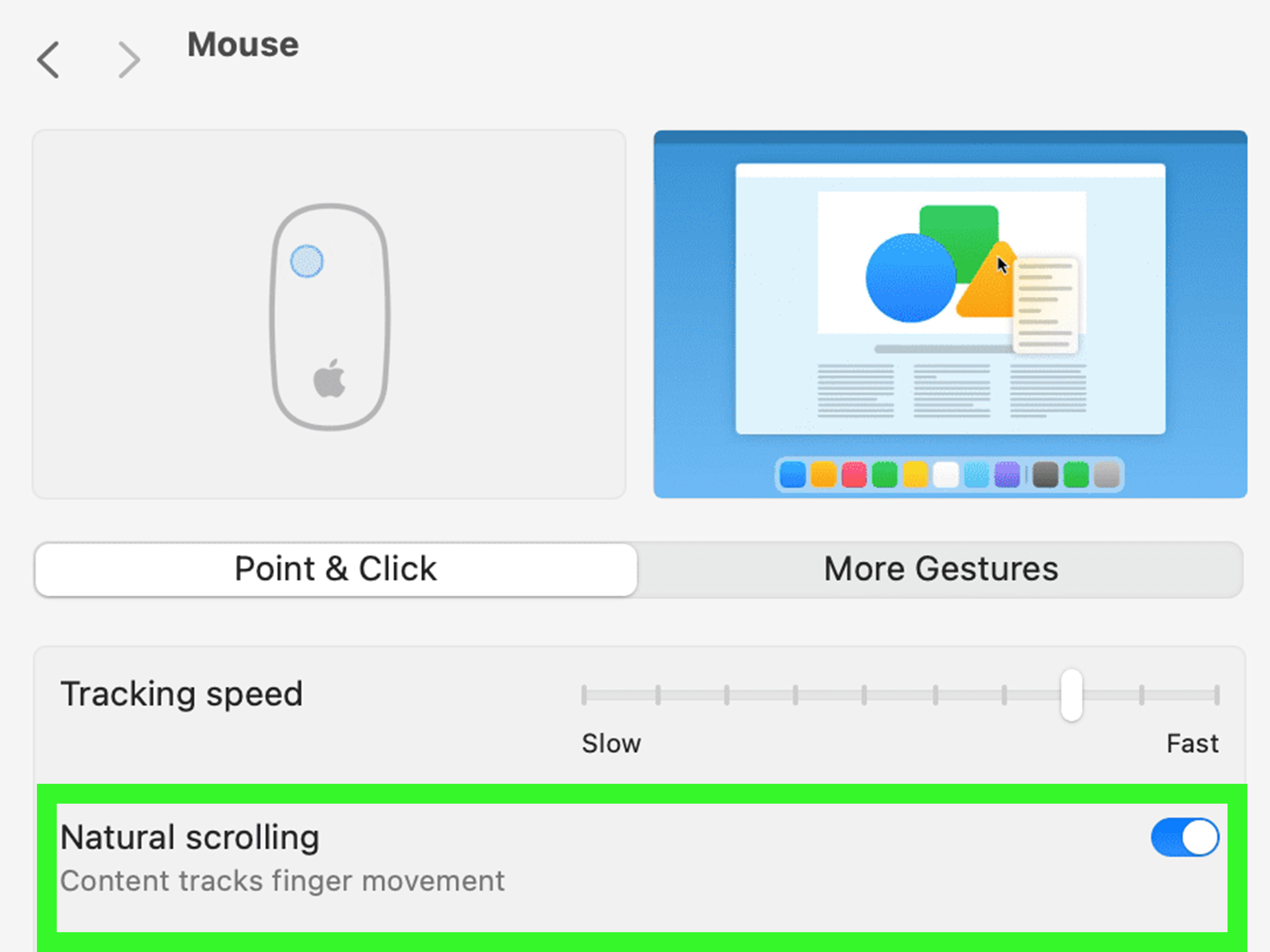
If you use an Apple Magic Mouse, Logitech mouse, USB mouse, Bluetooth mouse, or another external pointing device, you can change the mouse scroll direction from System Settings. This is especially useful because mouse wheels often feel more natural with traditional scrolling, while trackpads often feel better with Natural Scrolling.
How to Change Mouse Scroll Direction
- Click the Apple menu in the top-left corner.
- Choose System Settings.
- Click Mouse in the sidebar. You may need to scroll down.
- Look for Natural Scrolling.
- Turn Natural Scrolling on or off.
If you do not see the Mouse settings, make sure your mouse is connected. macOS may hide certain mouse options when no compatible mouse is detected. For a Bluetooth mouse, check System Settings > Bluetooth and confirm that the device is connected. For a USB mouse, unplug it and plug it back in. The ancient ritual of “turn it off and on again” remains undefeated.
Magic Mouse vs. Regular Mouse Wheel
The Magic Mouse is a special case because its top surface behaves more like a touchpad than a traditional wheel. Many people prefer Natural Scrolling on the Magic Mouse because the finger swipe feels closer to trackpad scrolling. On a regular mouse with a physical wheel, traditional scrolling may feel more familiar.
There is no universal best choice. The best scroll direction is the one that lets you move through a page without thinking about it.
Can You Set Different Scroll Directions for Trackpad and Mouse?
This is where things get slightly messy. In many macOS versions, the Trackpad and Mouse panels may show separate Natural Scrolling options, but changing one can affect the other. That means you may not always be able to use Natural Scrolling for the trackpad and traditional scrolling for the mouse using only built-in macOS settings.
This frustrates many users because the two devices feel different. A trackpad swipe feels like touching content directly. A mouse wheel feels like rotating a control. Naturally, people often want opposite scroll directions for each one.
If your Mac keeps linking the two settings, you have a few practical options:
- Choose the scroll direction that feels best for your main device.
- Use your mouse manufacturer’s software if available, such as Logitech’s configuration tools.
- Use a trusted third-party utility designed to reverse scroll direction separately for mouse and trackpad.
- Build a habit around one direction and give yourself a few days to adjust.
If you use a Logitech mouse, for example, its companion software may let you customize mouse behavior separately while leaving macOS trackpad scrolling alone. This can be a good solution for people who love Natural Scrolling on the trackpad but want classic wheel scrolling on an external mouse.
What to Do If Natural Scrolling Is Missing
Sometimes users open System Settings and cannot find the Natural Scrolling option. This usually happens for one of several reasons: the device is not connected, the sidebar is scrolled to a different section, the macOS layout has changed slightly, or the setting is tucked under a tab such as Scroll & Zoom.
Try These Fixes
- Use the search box in System Settings: Type “Natural Scrolling” or “scroll direction.”
- Check the correct device panel: Use Trackpad for a MacBook trackpad or Magic Trackpad, and Mouse for an external mouse.
- Reconnect your mouse: Some mouse options appear only after macOS detects the device.
- Restart your Mac: A simple restart can refresh missing settings.
- Update macOS: If settings are behaving oddly, install available updates from System Settings > General > Software Update.
If you are using an older version of macOS, the path may say System Preferences instead of System Settings. In older layouts, you may find the option under System Preferences > Trackpad > Scroll & Zoom or System Preferences > Mouse.
How to Adjust Scroll Speed on a Mac
Scroll direction is not the only thing that affects comfort. Scroll speed can also make your Mac feel either precise or like it has consumed three espressos. If scrolling feels too fast or too slow, adjust the scroll speed separately.
How to Change Scroll Speed
- Open System Settings.
- Click Accessibility.
- Select Pointer Control.
- Choose Mouse Options or Trackpad Options.
- Adjust the Scroll speed slider.
This does not reverse the scroll direction, but it can make scrolling feel much better. A slower scroll speed can help with long documents, spreadsheets, and design work. A faster speed is useful if you fly through web pages, code files, or giant PDFs like a caffeinated librarian.
Why Mac Scroll Direction Feels Weird After Switching from Windows
Many people search for how to change scroll direction on Mac right after switching from Windows. That is completely normal. Windows users often expect the scroll wheel to move the page in the direction of the wheel motion. Mac users who are comfortable with iPhone and iPad gestures may expect content to follow their fingers.
The confusion gets stronger when you use both platforms daily. Your hand learns one pattern at work, then your Mac asks it to do the opposite at home. The result is a tiny daily battle between your brain and your index finger.
If you switch between Windows and macOS often, traditional scrolling may reduce friction. If your main devices are Apple products, Natural Scrolling may feel more consistent across iPhone, iPad, and Mac. The right answer depends on your ecosystem, your habits, and how much patience you have before coffee.
Best Settings for Different Mac Users
For MacBook Trackpad Users
Keep Natural Scrolling on if you like the iPhone-like feel. It works especially well with gestures, smooth scrolling, and full-screen app navigation.
For External Mouse Users
Turn Natural Scrolling off if you prefer traditional mouse wheel behavior. This is often the most comfortable setup for users coming from Windows desktops.
For Magic Mouse Users
Try Natural Scrolling first. Since the Magic Mouse uses a touch-sensitive surface, it can feel closer to a trackpad than a regular mouse wheel.
For Mixed Trackpad and Mouse Users
Test both settings for a full day. If macOS links the mouse and trackpad directions, choose the setting that works best for the device you use most. If that is still annoying, consider device-specific software or a trusted scroll-reversing utility.
Troubleshooting: Scroll Direction Still Feels Wrong
If you changed the setting but scrolling still feels backward, try these checks:
- Close and reopen the app: Some apps may not immediately reflect system changes.
- Disconnect and reconnect your mouse or trackpad: This can refresh device settings.
- Check third-party mouse software: Apps from Logitech, Microsoft, Razer, or other brands may override macOS behavior.
- Look for app-specific settings: Some virtual machines, remote desktop tools, and gaming apps include their own scroll options.
- Restart your Mac: Not glamorous, but frequently effective.
If the issue happens only in one app, the app may be controlling scroll behavior independently. This is common in remote desktop software, virtual machine apps, and some design or development tools.
Is Natural Scrolling Better?
Natural Scrolling is not automatically better; it is just different. It shines on touch surfaces because your finger movement feels connected to the content. That is why it works well on MacBook trackpads and Magic Trackpads. Traditional scrolling shines with mouse wheels because it matches decades of desktop behavior.
Apple’s naming can make the choice sound like one option is “natural” and the other is “wrong.” Do not let the label bully you. If turning off Natural Scrolling makes your Mac easier to use, turn it off with pride. Your computer exists to serve you, not to test your loyalty to gesture philosophy.
Experience Notes: Real-World Advice for Changing Mac Scroll Direction
After helping many Mac users adjust this setting, one pattern becomes obvious: scroll direction is less about technology and more about muscle memory. The setting itself takes seconds to change, but your hands may need a little time to stop arguing with your eyes. That is especially true if you use a MacBook at home, a Windows PC at work, and an external mouse somewhere in between. Your fingers are basically running a tiny international relations department.
The most common experience is that trackpad users adapt to Natural Scrolling faster than mouse users. On a trackpad, two-finger scrolling feels like pushing the page directly. The movement is smooth, physical, and similar to using a phone. If you spend a lot of time on an iPhone or iPad, Natural Scrolling on a Mac trackpad can feel logical after a day or two. At first, though, you may overshoot pages, scroll the wrong way in Safari, or dramatically sigh at a PDF. That is normal. Give it a fair test before switching back.
Mouse users often have the opposite experience. A physical scroll wheel creates a different expectation. Many people feel that rolling the wheel down should move the page down, because that is how traditional desktop scrolling has worked for years. When Natural Scrolling is enabled for a standard mouse, the page may feel reversed. This is one reason external mouse users often turn Natural Scrolling off almost immediately. It is not resistance to change; it is ergonomics mixed with years of habit.
One useful tip is to avoid changing the setting repeatedly throughout the day. Switching back and forth can make the confusion worse. Pick one direction, use it for a full work session, and then decide. Try writing an email, browsing a long web page, scrolling a spreadsheet, and navigating a document. Those real tasks reveal more than simply flicking up and down on a blank page while judging your life choices.
If you use both a trackpad and mouse, the best setup depends on which device handles your serious work. Designers and writers who live on the MacBook trackpad may prefer Natural Scrolling because gestures feel fluid and direct. Spreadsheet users, gamers, engineers, and people who use a mouse all day may prefer traditional scrolling for precision. There is no trophy for using the default setting. The goal is to remove friction so you can focus on the work, not the direction of the page.
Another practical experience: scroll speed matters almost as much as scroll direction. A direction that feels “wrong” may actually feel worse because the speed is too aggressive. If the page shoots across the screen with one tiny wheel movement, try reducing scroll speed before blaming the direction. Likewise, if you have to swipe like you are polishing a table, increase the speed. Comfort usually comes from the combination of direction, speed, device type, and habit.
Finally, remember that changing Mac scroll direction is reversible. You are not signing a mortgage. Try Natural Scrolling for a day. Try traditional scrolling for a day. Use the one that makes your Mac disappear into the background. The best interface is the one you stop noticing.
Conclusion
Changing the scroll direction on a Mac is simple once you know where to look. For a trackpad, go to System Settings > Trackpad > Scroll & Zoom and adjust Natural Scrolling. For a mouse, go to System Settings > Mouse and change the same option there. Turn Natural Scrolling on if you want content to follow your fingers. Turn it off if you prefer classic desktop scrolling.
The best setting depends on your device and habits. Trackpad users often enjoy Natural Scrolling, while traditional mouse users may prefer it off. If you use both, test your setup in real work, not just in the settings window. Your Mac should feel comfortable, predictable, and easy to controlnot like it is playing a small prank every time you open a web page.
Note: macOS menu names and settings locations can vary slightly by version and connected device. If you do not see Mouse or Trackpad options, reconnect the device, use the System Settings search box, or check for available macOS updates.