Note: This guide is written for legitimate troubleshooting on your own computer, home network, business network, server, or website. Firewalls are security tools, not digital furniture to kick when Wi-Fi acts dramatic.
Introduction: When the Internet Works… Except for That One Thing
You click an app, open a website, start a game, join a video call, or try to connect to a work serverand nothing happens. The rest of the internet seems fine. Your browser loads cat videos with Olympic-level enthusiasm, but the one thing you actually need refuses to connect. Naturally, the firewall becomes suspect number one.
A firewall is designed to monitor and control incoming and outgoing network traffic based on security rules. That sounds serious because it is. A firewall can protect your computer from unwanted connections, block suspicious traffic, prevent unauthorized access, and keep risky apps from turning your network into an all-you-can-eat buffet for cyber troublemakers. But sometimes, a firewall blocks something legitimate: an app update, a multiplayer game, a printer, a remote desktop session, a website request, a VPN connection, an email client, or a custom business application.
The good news is that you do not need to be a network wizard in a dark hoodie to figure out whether your firewall is blocking something. You need a clear troubleshooting process, a few built-in tools, and the patience to test one change at a time. This guide explains how to check if your firewall is blocking something on Windows, macOS, Linux, routers, business firewalls, and cloud or website security systems.
What Does It Look Like When a Firewall Blocks Something?
Firewall blocks can look different depending on the app, device, and network. Some failures are loud and obvious. Others are quieter than a mouse wearing socks.
Common Signs of a Firewall Block
- An app says it cannot connect to the internet.
- A website times out, but other websites load normally.
- A game cannot connect to multiplayer servers.
- A printer or file share disappears from the local network.
- Remote Desktop, SSH, FTP, or database connections fail.
- Email sends but does not receive, or receives but does not send.
- A VPN connects but certain internal resources remain unreachable.
- A server works locally but cannot be reached from another device.
- Security logs show dropped, denied, rejected, or blocked traffic.
However, not every connection failure is caused by a firewall. DNS problems, bad passwords, expired certificates, offline servers, wrong ports, broken routes, VPN split tunneling, ISP issues, and misconfigured apps can all wear the same disguise. That is why the goal is not to randomly disable security and hope for the best. The goal is to isolate the problem.
Step 1: Confirm the App, Website, or Service Is Actually Reachable
Before blaming the firewall, check whether the destination is alive. If the remote server is down, your firewall may be completely innocent. It happens. Firewalls get blamed for everything, including printers being emotionally unavailable.
Try Basic Connectivity Tests
On Windows, open PowerShell and test a connection to a host and port:
For a web server, port 443 is used for HTTPS. For SSH, test port 22. For Remote Desktop, test port 3389. For SMTP email sending, test ports such as 25, 465, or 587 depending on your configuration.
On macOS or Linux, you can use:
You can also test a website with curl:
If the test succeeds from one network but fails from another, the firewall, router, ISP, or network path may be involved. If it fails everywhere, the destination service may be offline or configured incorrectly.
Step 2: Check Windows Defender Firewall
On Windows 10 and Windows 11, Microsoft Defender Firewall is usually enabled by default. It protects different network profiles, including Domain, Private, and Public networks. A common mistake is allowing an app on a private home network but not on a public Wi-Fi profile. Windows then politely says, “Absolutely not,” and blocks it.
Check Allowed Apps in Windows
- Open Settings.
- Go to Privacy & Security.
- Open Windows Security.
- Select Firewall & network protection.
- Click Allow an app through firewall.
- Click Change settings.
- Find the app and check whether it is allowed on the correct network type.
If the app is missing, use Allow another app and browse to the program file. Be careful here. Only allow apps you trust. “It asked nicely” is not a security policy.
Use Windows Firewall Logs
For deeper troubleshooting, enable firewall logging. Windows can log dropped packets, successful connections, or both. This is useful when an app fails silently.
- Open Windows Defender Firewall with Advanced Security.
- Right-click the top-level firewall item and choose Properties.
- Select the active profile: Domain, Private, or Public.
- Under Logging, click Customize.
- Set Log dropped packets to Yes.
- Note the log file location, commonly
C:\Windows\System32\LogFiles\Firewall\pfirewall.log.
After enabling logging, reproduce the problem. Then open the log and look for the destination IP address, port number, protocol, and action. A dropped packet entry is a strong clue that Windows Firewall is involved.
Check Rules from the Command Line
Advanced users can list firewall rules with:
You can also use PowerShell to inspect rules:
If you find a rule blocking the app or port, do not delete it immediately. First confirm what it does, who created it, and whether it is part of antivirus, endpoint protection, company policy, or a VPN client.
Step 3: Check Firewall Settings on macOS
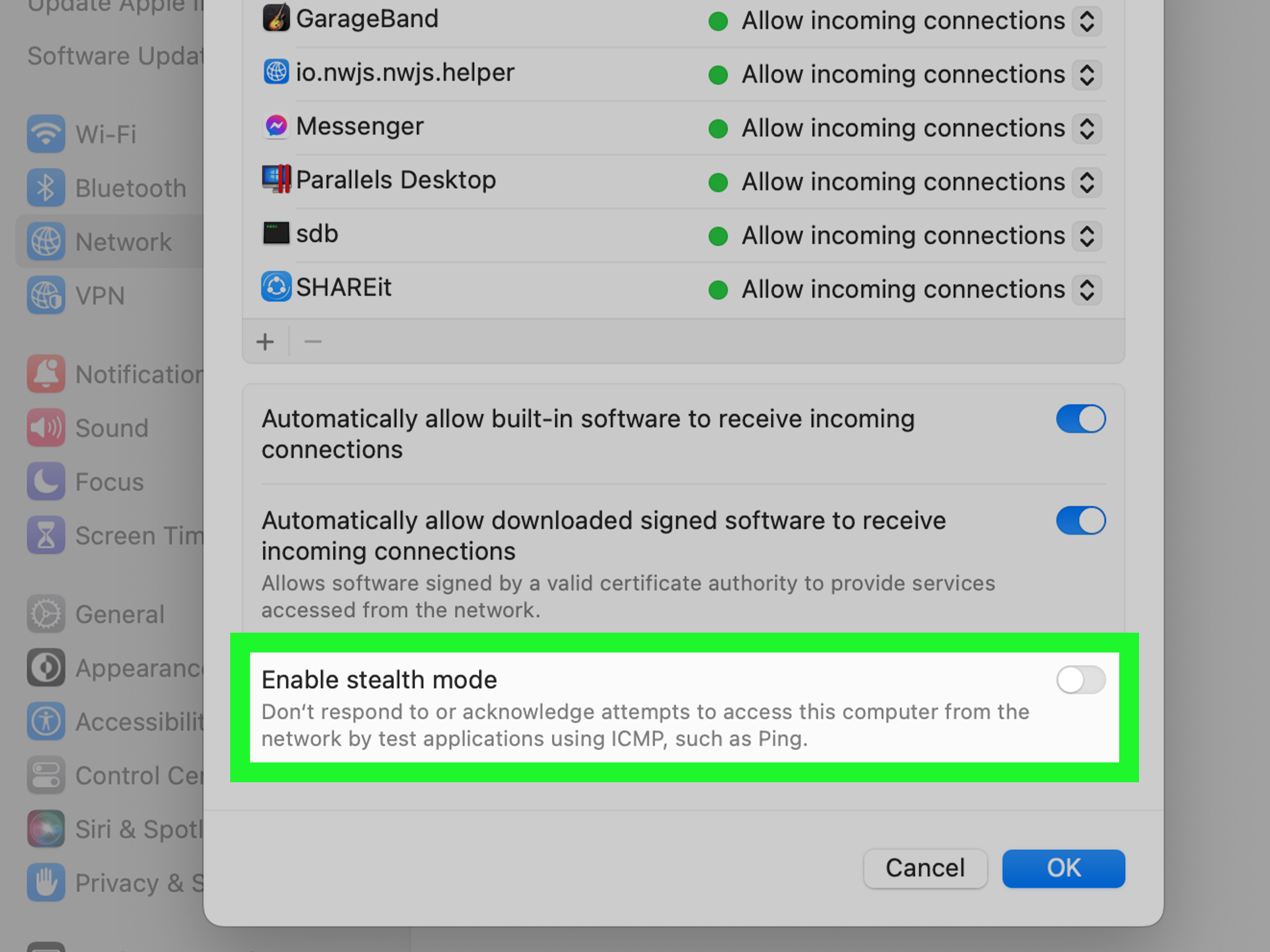
macOS includes an application firewall that focuses mainly on incoming connections. If a local app needs to accept connections from another device, the Mac firewall may block it unless the app is allowed.
How to Review macOS Firewall Rules
- Open the Apple menu.
- Go to System Settings.
- Select Network.
- Open Firewall.
- Click Options.
- Review apps set to allow or block incoming connections.
If “Block all incoming connections” is enabled, many sharing services and apps may stop accepting connections. That option can be useful in hostile environments, but it may also break local file sharing, development servers, media servers, or device discovery.
For example, if another computer cannot connect to a local web development server running on your Mac, check whether the app or service is allowed to accept incoming connections. Also confirm the service is actually listening on the expected port.
Step 4: Check Linux Firewalls Like UFW and firewalld
Linux firewall behavior depends on the distribution and tool in use. Ubuntu commonly uses UFW, while many Red Hat-based systems use firewalld. Servers may also use raw nftables or iptables rules.
Check UFW on Ubuntu
To see whether UFW is active, run:
To see numbered rules:
To enable logging:
Then check logs, commonly in:
If your web server is blocked, you may need to allow HTTP and HTTPS:
If SSH is blocked, be extremely careful. Locking yourself out of a remote server is a rite of passage, but not one you need to experience today.
Check firewalld on Red Hat, Fedora, Rocky Linux, and AlmaLinux
To check the active zone and rules:
To see whether a service is allowed:
To allow HTTPS permanently:
Remember that many Linux firewalls block traffic on ports that are not explicitly open. If a service is listening but still unreachable, the firewall is a likely checkpoint.
Step 5: Check Your Router or Home Network Firewall
Your computer is not the only device with firewall powers. Your router may block inbound traffic, prevent device-to-device communication, or apply parental controls, security filtering, guest network isolation, or port forwarding rules.
Router Settings to Review
- Port forwarding: Needed when outside traffic must reach a device inside your network.
- UPnP: Sometimes used by games and media apps, but it can introduce security concerns.
- Guest network isolation: Blocks guest devices from reaching local printers, computers, and smart devices.
- Parental controls: May block apps, games, sites, or categories.
- Security filtering: May block suspicious domains or services.
- IPv6 firewall: Can behave differently from IPv4 rules.
If your printer works on the main Wi-Fi but not the guest Wi-Fi, that is probably not a printer tantrum. It is likely network isolation doing exactly what it was told to do.
Step 6: Check Business Firewalls and Security Appliances
In business environments, traffic may pass through dedicated firewalls from vendors such as Fortinet, Palo Alto Networks, Cisco, Sophos, Check Point, SonicWall, or Netgate pfSense. These systems usually have detailed logs, rule IDs, security profiles, NAT policies, zones, and inspection engines.
What to Look for in Enterprise Firewall Logs
- Source IP address
- Destination IP address
- Destination port
- Protocol, such as TCP, UDP, or ICMP
- Rule or policy name
- Action, such as allow, deny, drop, reject, reset, or block
- Security profile result, such as antivirus, IPS, web filter, or application control
- NAT translation details
- Session end reason
A key detail: traffic can be allowed by a firewall policy but later blocked by a security profile. For example, a web request may match an allow rule but still be stopped by intrusion prevention, SSL inspection, malware scanning, DNS filtering, or application control. In other words, “allowed” does not always mean “arrived happily at the destination with a little suitcase.”
Step 7: Check Website Firewalls and WAF Rules
If you run a website, a Web Application Firewall, or WAF, may block requests before they reach your server. Cloudflare, AWS WAF, ModSecurity, Sucuri, Akamai, Fastly, and other services can block suspicious requests based on IP reputation, country, request patterns, headers, URLs, bots, rate limits, or custom rules.
Signs a WAF Is Blocking Something
- Visitors see 403 Forbidden errors.
- Checkout, login, or form submissions fail.
- API requests work locally but fail in production.
- Only certain users, countries, or IP addresses are affected.
- Security event logs show a managed rule or custom rule match.
To troubleshoot, open the WAF security events or firewall logs. Filter by the visitor IP address, timestamp, path, hostname, rule ID, or action. If a legitimate request is blocked, create a narrow exception. Do not disable the entire WAF because one contact form is being dramatic. Tune the specific rule instead.
Step 8: Temporarily Disable the Firewall Only as a Controlled Test
Temporarily disabling a firewall can help confirm whether it is involved, but it should be a short, controlled testnot a lifestyle choice.
Safe Testing Rules
- Disable the firewall only long enough to test the connection.
- Do not test on public Wi-Fi unless absolutely necessary.
- Turn the firewall back on immediately after testing.
- Prefer creating a specific allow rule instead of leaving protection off.
- Do not disable a corporate firewall without permission.
If the connection works only when the firewall is off, you have strong evidence. The next step is to create or adjust a rule for the exact app, port, protocol, source, and destination. Avoid broad rules like “allow everything from everywhere forever.” That is less troubleshooting and more inviting raccoons into the kitchen.
Step 9: Identify the Exact Port and Protocol
Firewalls do not usually think in app names alone. They care about direction, port, protocol, interface, profile, zone, source, and destination. Knowing the exact port matters.
Common Ports You May Need to Test
| Service | Common Port | Protocol |
|---|---|---|
| HTTP | 80 | TCP |
| HTTPS | 443 | TCP |
| SSH | 22 | TCP |
| Remote Desktop | 3389 | TCP/UDP |
| DNS | 53 | UDP/TCP |
| SMTP Submission | 587 | TCP |
| MySQL | 3306 | TCP |
| PostgreSQL | 5432 | TCP |
If you test the wrong port, you may chase the wrong problem. For example, opening port 80 will not fix an HTTPS-only app using port 443. The firewall is literal. It does not read minds, which is unfortunate because neither do printers.
Step 10: Use Nmap Carefully for Deeper Testing
Nmap is a powerful network scanning tool that can help identify whether a port appears open, closed, or filtered. A filtered result often means a firewall or network filter is preventing Nmap from determining whether the port is open.
Example:
Use Nmap only on systems you own or have permission to test. Scanning random networks can violate policies, terms of service, or laws. For your own server or internal network, though, it can be a useful diagnostic tool.
Common Firewall Blocking Scenarios and Fixes
Scenario 1: A Game Cannot Connect Online
Check whether the game is allowed through Windows Firewall for the correct network profile. Then review router settings for NAT type, UPnP, or required ports. If you are on a school, hotel, office, or apartment network, upstream filtering may block gaming traffic.
Scenario 2: Remote Desktop Does Not Work
Confirm Remote Desktop is enabled on the target computer. Then test port 3389 from the client. Check Windows Firewall inbound rules for Remote Desktop. If connecting from outside the network, review VPN access or port forwarding. For security, avoid exposing Remote Desktop directly to the internet whenever possible.
Scenario 3: A Website Shows 403 Forbidden
If only some users are affected, check WAF logs, IP reputation blocks, country blocks, bot rules, and rate limits. If a plugin or security rule is blocking form submissions, create a narrow exception for that endpoint rather than disabling the entire security layer.
Scenario 4: A Printer Is Missing
Make sure the computer and printer are on the same network. Guest Wi-Fi often blocks local device discovery. Check firewall rules for file and printer sharing. Also confirm that network discovery is enabled on Windows if needed.
Scenario 5: A Server Port Is Open Locally but Closed Remotely
Check whether the service is bound to the correct IP address. A server listening only on 127.0.0.1 will not accept remote connections. Then check the host firewall, cloud security group, router NAT, and any upstream firewall.
Best Practices When Creating Firewall Allow Rules
Once you confirm your firewall is blocking something legitimate, fix it carefully. The safest rule is specific, documented, and limited.
- Allow only the required port and protocol.
- Limit the source IP address when possible.
- Use app-based rules only for trusted applications.
- Document why the rule exists.
- Review old rules regularly.
- Remove temporary rules after troubleshooting.
- Do not allow broad inbound access unless absolutely necessary.
A good firewall rule is like a good house key: specific, controlled, and not copied for the entire internet.
Extra Experience-Based Tips: What Real Firewall Troubleshooting Teaches You
After working through firewall issues long enough, you learn that the firewall is often guiltybut not always in the way people expect. One of the most common experiences is the “it worked yesterday” problem. Yesterday, the laptop was on a private network profile. Today, after reconnecting to Wi-Fi, Windows decided the network looked public, and the app lost permission. Nothing “broke.” The rule simply no longer applied. That small profile mismatch can burn an entire afternoon if you do not check it early.
Another frequent lesson is that local tests can be misleading. A web app might load perfectly from the server itself because the request never leaves the machine. Then a coworker tries from another device and gets a timeout. That usually means the service is running, but something between the client and server is blocking traffic. The fix may be a host firewall rule, a cloud security group, or a network firewall policy. Testing from the same machine, another device on the same network, and a device outside the network gives you a much clearer picture.
Logs are also more valuable than guesses. Many people start by toggling settings randomly. That can create three new problems while hiding the original one. A better approach is to reproduce the issue, note the exact time, then check firewall logs for that timestamp, source, destination, and port. If you see a deny or drop entry, you have evidence. If you do not, the problem may be DNS, routing, authentication, certificates, or the application itself.
Business firewalls add another layer of fun. A rule may say “allow,” but a security feature may still block the session. Web filtering, SSL inspection, intrusion prevention, antivirus scanning, DNS protection, and data loss prevention can all interrupt traffic after the basic firewall rule matches. This is why enterprise troubleshooting should include both traffic logs and security logs. Otherwise, you may stare at an allow rule and wonder why reality refuses to cooperate.
Cloud firewalls create their own memorable moments. A server administrator may open the port inside Linux but forget the cloud security group. Or they may update the cloud rule but forget UFW on the server. The connection still fails because traffic has to pass every gate, not just your favorite one. Think of the path like airport security: passing the first checkpoint does not mean you are already on the plane.
Finally, the best firewall troubleshooting habit is to change one thing at a time. If you disable the firewall, restart the router, change DNS, edit app settings, flush cache, and reinstall the software all at once, you may fix the problem without knowing why. That sounds fine until it returns next week wearing sunglasses. Test carefully, keep notes, and prefer precise rules over giant exceptions. Your future self will thank you, probably with coffee.
Conclusion: How to Know if Your Firewall Is the Culprit
To check if your firewall is blocking something, start with a simple connection test, identify the exact app, port, protocol, source, and destination, then review firewall rules and logs on the device, router, business firewall, cloud firewall, or WAF involved. On Windows, check allowed apps and enable dropped-packet logging. On macOS, review Firewall Options. On Linux, inspect UFW or firewalld rules. On routers and business networks, check logs, NAT, policies, security profiles, and isolation settings.
The smartest firewall fix is not turning everything off. It is finding the exact blocked traffic and creating a narrow, safe exception. Firewalls are supposed to say “no” most of the time. Your job is to teach them when a specific “yes” is safe.