Need to share your internet connection from a Windows 11 laptop or desktop? Good news: you do not need a networking degree, a secret command-line spell, or a drawer full of mystery cables. Windows 11 includes a built-in Mobile hotspot feature that can turn your PC into a Wi-Fi or Bluetooth hotspot in just a few minutes.
This guide explains how to create a hotspot in Windows 11, how to customize the hotspot name and password, when to use 2.4 GHz or 5 GHz, and what to do when the hotspot refuses to behave like a civilized piece of technology. Whether you are sharing Ethernet in a hotel room, helping a tablet get online, or giving your phone a backup connection, this easy setup guide walks you through the whole process.
“`
What Is a Windows 11 Hotspot?
A Windows 11 hotspot is a shared internet connection broadcast from your PC to other devices. In simple terms, your computer acts like a mini router. It receives internet from one connection, such as Ethernet, Wi-Fi, or cellular data, and shares that connection with another device over Wi-Fi or Bluetooth.
The most common setup is sharing a wired Ethernet connection over Wi-Fi. For example, imagine your laptop is plugged into a hotel Ethernet port, but your phone, tablet, and portable game console are all staring at you like hungry baby birds. Instead of buying a travel router, you can enable Mobile hotspot in Windows 11 and connect those devices to your laptop’s shared network.
You can also share a Wi-Fi connection, though performance may depend on your wireless adapter. Some adapters handle receiving and broadcasting at the same time better than others. Newer laptops usually manage this smoothly, while older machines may occasionally act like they need a motivational speech.
Before You Start: What You Need
Before creating a Windows 11 mobile hotspot, check a few basics. First, your PC needs an active internet connection. That connection can come from Wi-Fi, Ethernet, or cellular data if your computer has LTE or 5G support.
Second, your PC needs a wireless adapter if you want to share over Wi-Fi. Most laptops have one built in. Desktop PCs may need a USB Wi-Fi adapter or PCIe wireless card. If the Mobile hotspot option does not appear or Wi-Fi sharing is unavailable, your adapter or driver may be the reason.
Third, decide what kind of device you are connecting. Modern phones, tablets, laptops, and streaming devices usually connect easily to 5 GHz Wi-Fi. Older smart devices, printers, and budget gadgets may only support 2.4 GHz. This matters because choosing the wrong network band can make your hotspot look “broken” when the real problem is compatibility.
How to Create a Hotspot in Windows 11
Step 1: Open Windows Settings
Click the Start button, then select Settings. You can also press Windows + I on your keyboard. This shortcut is the tech equivalent of skipping the line at the coffee shop, except nobody gives you a suspicious look.
Step 2: Go to Network & Internet
In the Settings window, choose Network & internet from the left-hand menu. This section controls Wi-Fi, Ethernet, VPN, proxy settings, airplane mode, and the all-important Mobile hotspot feature.
Step 3: Select Mobile Hotspot
Click Mobile hotspot. You should now see options for sharing your internet connection, choosing how to share it, editing the network name, and turning the hotspot on or off.
Step 4: Choose the Internet Connection to Share
Under Share my internet connection from, choose the connection you want to share. If your PC is connected through Ethernet, select Ethernet. If it is connected through Wi-Fi, select Wi-Fi. If your Windows 11 device has cellular connectivity, that option may appear as well.
For best results, sharing Ethernet over Wi-Fi is usually the most stable arrangement. Sharing Wi-Fi over Wi-Fi can work, but it depends more heavily on your wireless hardware and driver quality.
Step 5: Choose Wi-Fi or Bluetooth
Under Share over, choose Wi-Fi or Bluetooth. In most cases, choose Wi-Fi. It is faster, more familiar, and easier for most phones, tablets, and laptops to connect to.
Bluetooth sharing can be useful for low-bandwidth tasks, but it is not ideal for streaming, large downloads, video calls, or anything involving the phrase “quickly upload this file.” Bluetooth is more like a bicycle; Wi-Fi is more like a car. Both move, but one gets you there before lunch.
Step 6: Edit the Hotspot Name and Password
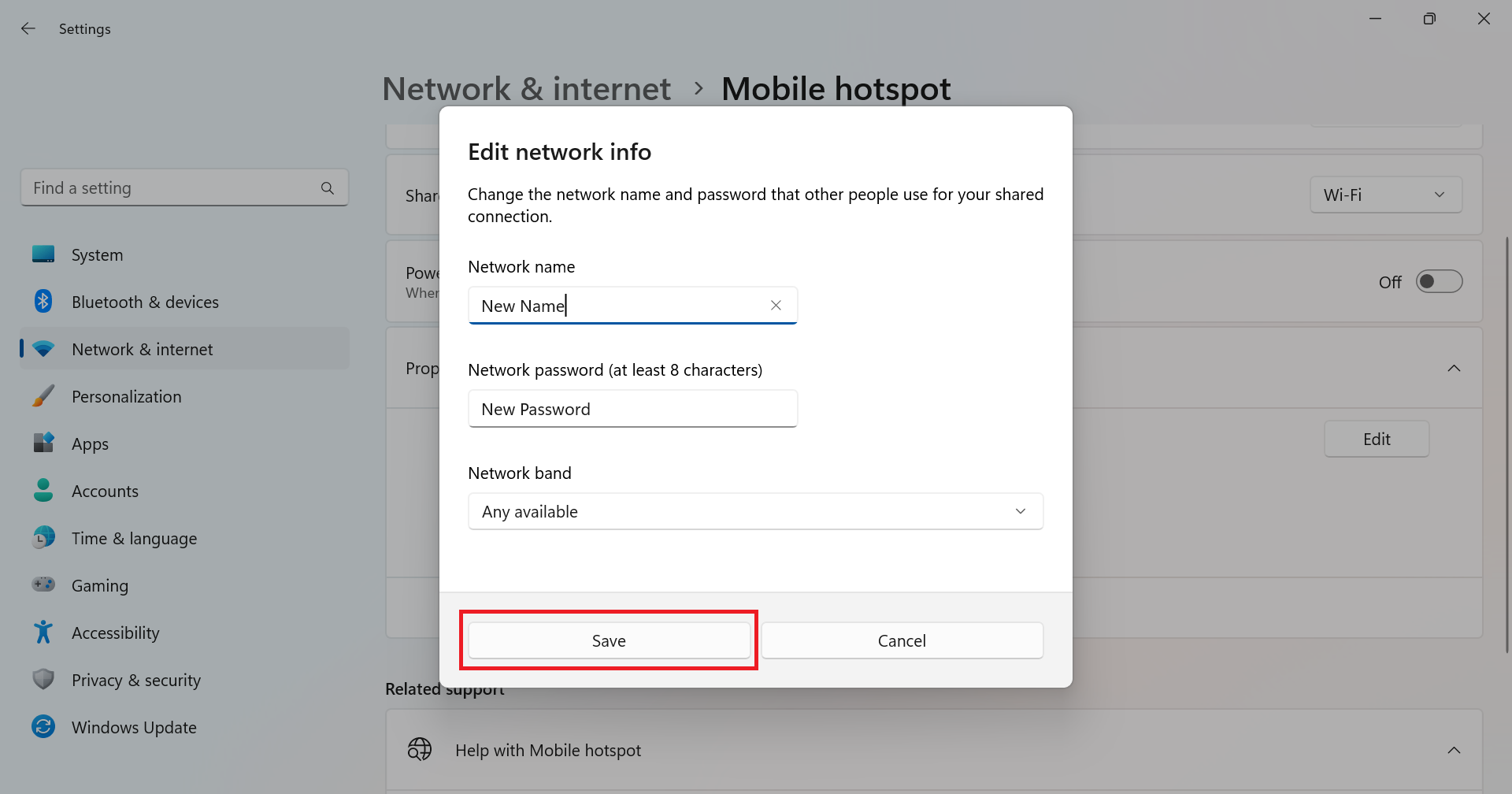
Open the Properties section and click Edit. Here you can change the network name, password, and network band. Pick a clear hotspot name that you can recognize easily, such as John-Laptop-Hotspot or OfficeBackupWiFi.
For the password, use something strong but typeable. A good password should combine uppercase letters, lowercase letters, numbers, and symbols. Avoid weak choices like password123, hotspot, or your dog’s name followed by the year. Your dog deserves privacy too.
Step 7: Choose the Network Band
Windows 11 may allow you to choose Any available, 2.4 GHz, 5 GHz, or another band depending on your hardware. If you are unsure, start with Any available.
Use 2.4 GHz when you need better range or compatibility with older devices. Use 5 GHz when you want faster speeds at shorter distances and your connecting device supports it. If a device cannot see your hotspot, switch the band to 2.4 GHz and try again.
Step 8: Turn On Mobile Hotspot
Finally, switch Mobile hotspot to On. Your Windows 11 PC should begin broadcasting the hotspot network. On your phone, tablet, or other device, open Wi-Fi settings, select the hotspot name, enter the password, and connect.
That is it. You have created a hotspot in Windows 11. Somewhere, a travel router just felt nervous.
How to Connect Another Device to Your Windows 11 Hotspot
Once the hotspot is active, connecting another device is almost the same as joining any Wi-Fi network. On an iPhone, open Settings > Wi-Fi, tap the hotspot name, and enter the password. On Android, open Settings > Network & internet > Internet or Wi-Fi, select the network, and enter the password. On another Windows laptop, click the Wi-Fi icon in the taskbar, choose the hotspot, and connect.
If the device connects but has no internet access, do not panic. That usually means the shared connection needs attention, not that your laptop has joined a tiny rebellion. Turn the hotspot off and on, confirm the source internet connection works on the Windows 11 PC, and reconnect the second device.
Best Settings for a Windows 11 Mobile Hotspot
Use a Simple Network Name
A simple hotspot name makes troubleshooting easier. Avoid using emojis, unusual symbols, or extremely long names. While “DragonPoweredWiFiOfDestiny” is emotionally satisfying, “Laptop-Hotspot” is easier to identify in a crowded Wi-Fi list.
Use a Strong Password
A hotspot is still a network, and a network needs protection. Use a password that is not easy to guess. If you are sharing the hotspot temporarily, create a password that is secure but easy enough to type on a phone keyboard.
Choose 2.4 GHz for Range
The 2.4 GHz band is often better for distance and wall penetration. It is also more compatible with older devices, smart home gadgets, and inexpensive accessories. The trade-off is that 2.4 GHz can be more crowded, especially in apartment buildings, airports, dorms, and coffee shops.
Choose 5 GHz for Speed
The 5 GHz band usually provides faster speeds and less interference, but it works best at shorter distances. If your phone is sitting next to your laptop and you want a smoother video call, 5 GHz may be the better choice.
Turn Off the Hotspot When You Are Done
Mobile hotspot can use battery power and create unnecessary network exposure if left on. When you finish sharing your connection, return to Settings > Network & internet > Mobile hotspot and switch it off. Your battery will thank you, silently but sincerely.
Common Windows 11 Hotspot Problems and Fixes
The Mobile Hotspot Option Is Missing
If you cannot find Mobile hotspot in Settings, check whether your device has a working wireless adapter. Open Device Manager, expand Network adapters, and look for your Wi-Fi adapter. If it has a warning icon, Windows may have a driver problem.
Run Windows Update and install optional driver updates if available. You can also visit your PC manufacturer’s support website, such as Dell, HP, Lenovo, ASUS, or Acer, and download the latest wireless driver for your exact model.
The Hotspot Turns On but Devices Cannot Connect
Start with the classics: turn the hotspot off, wait a few seconds, then turn it back on. Restart the connecting device as well. If that fails, change the hotspot password and reconnect. Sometimes a saved network profile on the phone or tablet becomes outdated, especially after you edit hotspot settings.
On the connecting device, choose the hotspot network and select Forget, then reconnect from scratch. This clears old credentials and forces the device to treat the network like new.
The Device Connects but There Is No Internet
First, test the internet on the Windows 11 PC itself. If your laptop cannot browse the web, the hotspot cannot magically fix that. It is a hotspot, not a wizard.
If the PC has internet but the connected device does not, switch the shared source connection. For example, if you are sharing Wi-Fi and it fails, try Ethernet if available. You can also restart the network adapter from Settings > Network & internet > Advanced network settings.
The Hotspot Is Slow
Slow hotspot speeds can come from weak source internet, distance, interference, or an overloaded Wi-Fi band. Move the connected device closer to the PC. Try 5 GHz for speed or 2.4 GHz for range. Disconnect extra devices that are using the hotspot, especially anything streaming video, downloading game updates, or quietly eating bandwidth like a digital raccoon.
The Hotspot Keeps Disconnecting
Check battery saver settings. Some laptops reduce wireless performance or power down adapters to save energy. Plug the laptop into power if possible. Also update the Wi-Fi driver, because hotspot stability often depends on the adapter driver working properly with Windows 11.
Security Tips for Using a Windows 11 Hotspot
A personal hotspot is often safer than random public Wi-Fi, but it still needs basic security. Always use a password. Do not create an open hotspot unless you enjoy the idea of strangers using your connection to watch videos, download mystery files, or perform other activities best described as “future headaches.”
Use a unique hotspot password and change it after sharing with guests. If you are in a public place, avoid naming your hotspot after your full name, business, room number, or anything that reveals personal details. A neutral name like TravelNet-247 is better than SarahsLaptopRoom1208.
When using public Wi-Fi as the source connection and then sharing it through your Windows 11 hotspot, remember that the source network still matters. Look for encrypted websites, avoid sensitive transactions on suspicious networks, and consider using a trusted VPN if you regularly work from airports, hotels, or cafés.
When Should You Use a Windows 11 Hotspot?
A Windows 11 hotspot is useful in more situations than many people realize. It can help when your hotel allows only one device per login, when your desktop has Ethernet but your phone needs Wi-Fi, when your tablet has weak reception, or when you want a quick backup network for a small meeting.
It is also handy for testing devices. Developers, IT technicians, and small business owners often use PC hotspots to connect phones, printers, payment terminals, or demo devices to a controlled network. Instead of changing the office router settings, they can create a temporary hotspot, run the test, and shut it down afterward.
However, a Windows 11 hotspot is not always a replacement for a real router. If you need to connect many devices, cover a large home, or run a network all day, a dedicated router or mesh system will usually be more reliable. Think of the Windows hotspot as a Swiss Army knife: extremely useful, but not the tool you use to build an entire house.
Windows 11 Hotspot vs. Phone Hotspot
A phone hotspot shares mobile data from your smartphone. A Windows 11 hotspot shares whatever internet connection your PC is using. If your phone has strong 5G service, the phone hotspot may be better. If your laptop has fast Ethernet, the Windows hotspot may be faster and more stable.
Battery life is another difference. Phone hotspots can drain a phone quickly, especially during video calls or large downloads. A plugged-in laptop may handle longer sharing sessions more comfortably. On the other hand, a phone hotspot is more portable and works even when your PC has no internet connection.
The best choice depends on the situation. Use your phone hotspot when you are mobile. Use your Windows 11 hotspot when your PC has the stronger or more convenient internet connection.
Advanced Tip: Rename and Reuse Your Hotspot
Once you create a hotspot in Windows 11, your settings are saved. That means you can reuse the same network name and password later. This is helpful if you regularly connect the same phone, tablet, or secondary laptop.
For example, if you travel often, you can set your Windows 11 hotspot name to something consistent like MyTravelHotspot. Your devices will remember it, and reconnecting becomes easier. Just be careful not to use the same password forever if you share it with other people.
Experience Notes: What I’ve Learned from Real Windows 11 Hotspot Use
In everyday use, the Windows 11 hotspot feature is one of those tools that feels boring until the exact moment it saves your day. I have seen it become unexpectedly useful in hotel rooms, temporary offices, classrooms, shared apartments, and even during router troubleshooting. The biggest lesson is simple: the best hotspot setup starts with the most stable source connection. If your laptop is connected to weak Wi-Fi, the hotspot will not magically become strong Wi-Fi. It will share the weakness with great enthusiasm.
Ethernet-to-Wi-Fi sharing is usually the smoothest experience. When a laptop is plugged into a wired connection, Windows 11 can broadcast that connection to nearby devices with fewer hiccups. This is especially helpful in places where the wired connection is fast but the local Wi-Fi is overloaded. It can feel like opening a private side door while everyone else is stuck in the lobby.
The second lesson is to respect the network band. Many users assume that 5 GHz is always better because it sounds faster, shinier, and more futuristic. In practice, 5 GHz is excellent when your device is close to the PC, but 2.4 GHz often wins when you need range or compatibility. If a printer, older phone, smart speaker, or budget tablet cannot see your hotspot, switching to 2.4 GHz is often the fix. It is not glamorous, but it works.
The third lesson is that drivers matter more than people want them to. A Windows 11 hotspot relies heavily on the Wi-Fi adapter. If the driver is outdated, unstable, or mismatched after a Windows update, the hotspot may turn on but fail to provide internet. Updating through Windows Update is a good first step, but the manufacturer’s support page can be even better for laptops with custom wireless hardware.
Another practical habit is to keep the hotspot name simple. During troubleshooting, a clean name like WorkLaptopHotspot is easier to find than a joke name with symbols, emojis, or twelve dramatic words. Save the comedy for the password hint you do not use.
Finally, turn the hotspot off when you are done. It saves battery, reduces heat, and prevents surprise connections later. Windows 11 makes hotspot creation easy, but good hotspot habits make it reliable. Set it up carefully once, and it becomes a dependable backup tool whenever normal Wi-Fi decides to take an unscheduled vacation.
Conclusion
Creating a hotspot in Windows 11 is straightforward: open Settings, go to Network & internet, choose Mobile hotspot, select the connection you want to share, customize the name and password, choose a network band, and switch it on. In a few clicks, your PC can share internet with phones, tablets, laptops, and other Wi-Fi devices.
For the best experience, use Ethernet as the source connection when possible, choose 2.4 GHz for compatibility or 5 GHz for speed, protect the hotspot with a strong password, and keep your wireless drivers updated. Windows 11’s Mobile hotspot feature is not meant to replace a full home router, but as a quick, flexible, and surprisingly powerful sharing tool, it earns a permanent spot in the “things I’m glad I know how to do” folder.