Deleting a Skype account used to sound simple. Open Skype, click a few buttons, wave goodbye, and move on with life. Unfortunately, technology loves drama, and Skype is no exception.
Now that Skype has been retired and folded into Microsoft’s broader account system, deleting your Skype account is really about deleting the Microsoft account connected to it. In other words, this is less “throw away one old app” and more “carefully remove a whole digital keyring without locking yourself out of the house.” Fun, right?
The good news is that it’s still very doable. In this guide, you’ll learn the two simplest step-by-step ways to delete your Skype account today, what happens after you do it, what to back up first, and how to avoid the classic mistake of deleting far more than you intended. If your real goal is just to stop seeing Skype in your life forever, I’ll cover that too.
Why Deleting a Skype Account Is Confusing in 2026
Here’s the part that trips people up: a Skype account is usually tied to a Microsoft account. That means when you close the account used for Skype, you may also lose access to other Microsoft consumer services connected to the same login, such as Outlook.com, OneDrive, Xbox, Teams Free, and sometimes even the Microsoft account you use to sign in on a Windows device.
So when people search for how to delete your Skype account, they often mean one of three different things:
- Permanently close the account behind Skype
- Delete Skype data and conversations
- Remove Skype from a phone or computer and never look at it again
This article focuses on true account deletion first, because that’s what the title promises. But I’ll also explain the “lighter exit” option, because sometimes you do not want to nuke your Microsoft life just to get rid of one aging communication app that already took its retirement party photos and left.
Before You Delete Skype, Do These 4 Things First
Before you start either method, take five or ten minutes to do a quick cleanup. Future You will be smug and grateful.
1. Export anything you care about
If you still need old Skype chats, shared files, or contacts, export them first. This is especially important if you used Skype for interviews, international family calls, freelance work, or client conversations. Once the closure window ends, getting that information back is not something you should count on.
2. Use or review any remaining paid features
If your account still has Skype Credit, a Skype Number, or any leftover subscription details, check them before closing the account. Paid Skype features have been phased out for new customers, but old billing and account remnants can still matter if your account was active before retirement.
3. Cancel subscriptions and turn off recurring billing
This step matters more than people expect. Deleting the account is not always instant, and if recurring billing is still active, you could keep getting charged during the waiting period. That is the kind of surprise nobody enjoys.
4. Make sure you can still sign in
If you cannot sign in, you cannot close the account normally. Also, if you recently changed or reset your Microsoft security info, Microsoft may make you wait before allowing account closure. That delay is a security feature, not a glitch, even if it feels like the internet personally decided to test your patience.
Way 1: Delete Your Skype Account Through the Microsoft Account Closure Page
This is the main and most direct method. It works best if you’re on a desktop or laptop browser, though you can do it on mobile too.
Step 1: Sign in to the Microsoft account connected to Skype
Open the Microsoft account closure page and sign in with the account you used for Skype. If you had multiple Microsoft accounts over the years, double-check that you’re in the correct one. Deleting the wrong account would be a legendary own goal.
Step 2: Verify your identity
Microsoft may ask you to verify your password, email, phone number, or another security method. Complete whatever verification steps appear. This is normal and helps prevent someone else from closing your account without permission.
Step 3: Review the closure checklist carefully
Microsoft will show you a checklist that explains what happens when the account closes. Read it. Yes, actually read it. This is the part where you confirm that you understand you may lose access to services tied to that Microsoft login.
If the account is also used for Outlook email, OneDrive storage, Microsoft purchases, or Xbox services, stop here and make a final decision before going further.
Step 4: Check every acknowledgment box
You’ll need to confirm that you have reviewed the consequences. This usually includes losing access to saved content, subscriptions, and connected services. Tick the boxes only after you’ve handled anything important.
Step 5: Choose your waiting period
Microsoft typically lets you choose a 30-day or 60-day reopening window. Think of this as your “Are you absolutely sure?” phase.
If you’re 100% certain, 30 days is faster. If you want a little insurance in case you suddenly remember an old tax document, a sentimental chat log, or a forgotten sign-in tied to that email address, choose 60 days.
Step 6: Select a reason and mark the account for closure
Pick the closest reason from the dropdown menu, then confirm the action to mark the account for closure. At that point, the deletion process officially begins.
Important detail: the account is not instantly vaporized. It enters the waiting period you selected. During that time, you can still reopen it by signing back in and canceling the closure request.
Step 7: Remove Skype from your devices
Once the account is marked for closure, go ahead and uninstall Skype from your computer, tablet, or phone. This does not delete the account by itself, but it does stop the app from hanging around like an ex who keeps liking your old posts.
Way 2: Delete Your Skype Account Through the Teams Free Mobile App
This second method is useful for people who moved from Skype into Microsoft Teams Free, or for anyone managing everything from a phone. It leads to the same underlying result: closure of the Microsoft account tied to Skype.
Step 1: Open the Teams Free app on your phone
Sign in with the same credentials tied to your old Skype identity. If your Skype chats and contacts were migrated, you’re in the right place.
Step 2: Tap your profile picture
Look for your profile icon in the app. This opens the account and settings area.
Step 3: Go to Settings
Inside Settings, scroll until you find the account management area. Microsoft’s support flow points mobile users to a Delete account option from here.
Step 4: Tap Delete account
From there, Microsoft takes you through the same account-closure process. You may still need to verify your identity, review warnings, choose the waiting period, and confirm the closure.
Step 5: Finish the prompts and confirm
Read each step carefully and make sure you understand that this action affects the whole Microsoft account tied to that Skype login, not just one app icon on your screen.
If you prefer doing serious account decisions from your phone while standing in line for coffee, congratulations: this is your method.
What Happens After You Delete the Account?
Once your Microsoft account is marked for closure, a few things happen.
- The account enters a waiting period, usually 30 or 60 days
- You can still change your mind during that window by signing back in
- After the window ends, the account is permanently deleted
- Access to Microsoft services tied to that account ends too
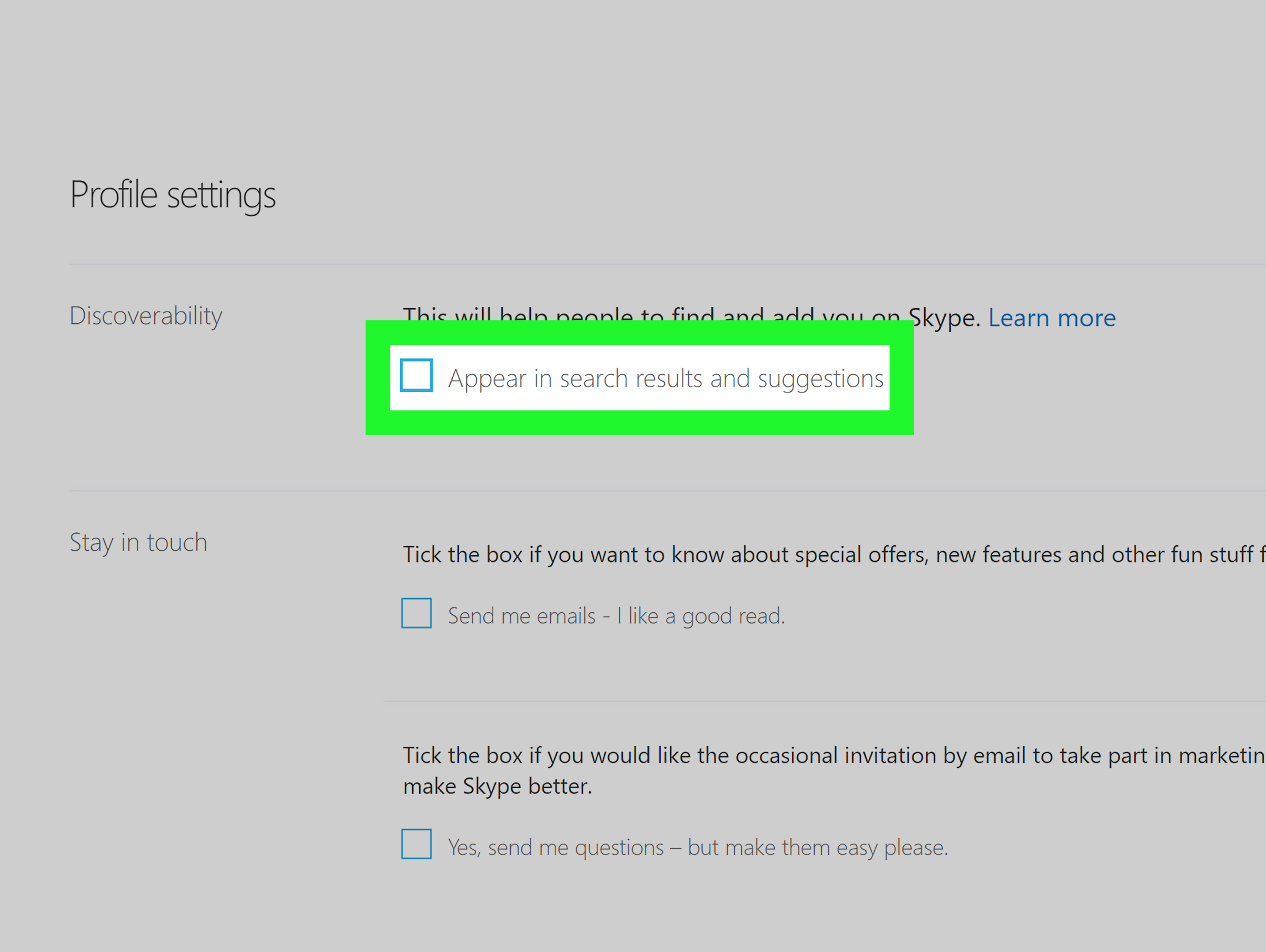
There’s another small wrinkle: your Skype profile may still appear in search or suggestions during the waiting period. If that bothers you, adjust the profile visibility settings so you’re harder to find while the closure finishes processing.
What If You Only Want Skype Gone but Want to Keep Your Microsoft Account?
This is the question a lot of people should be asking first.
If you want to keep your Outlook email, OneDrive files, Xbox account, or Microsoft login but simply never use Skype again, do not close the whole Microsoft account unless you truly mean it. Instead, do this:
- Export any Skype chats or contacts you want to keep
- Delete Skype activity data where available in your Microsoft privacy settings
- Hide your Skype profile from search and suggestions
- Cancel any old Skype-related billing
- Uninstall Skype from every device
That option is not a full account deletion, but it is often the smarter move. It gives you practical separation without taking a wrecking ball to the rest of your Microsoft services.
Common Mistakes to Avoid
Assuming uninstalling the app deletes the account
It doesn’t. Uninstalling Skype only removes the app from your device.
Forgetting that Skype and Microsoft are linked
This is the biggest trap. If the Skype identity is tied to your main Microsoft login, deleting it can affect much more than messaging and calls.
Skipping the data export step
Old files, contacts, and conversations can matter more than you think. People often realize this approximately three minutes after deleting something important.
Ignoring subscriptions or billing settings
Always review recurring billing, account balances, and old paid features before closing the account.
Choosing the shortest waiting period too quickly
If you’re even a little unsure, give yourself the longer reopening window. There is no trophy for deleting an account in record time.
Real-World Experiences: What People Usually Learn the Hard Way
One of the most common experiences people describe is surprise. Not because deleting Skype is technically difficult, but because they expected Skype to behave like a stand-alone app from 2012, not a front door into a much bigger Microsoft account ecosystem. A person might sit down planning to delete one old calling account and suddenly realize that same login also handles Outlook email, cloud storage, purchase history, and even access to an old Windows laptop. That moment usually sounds something like, “Well, that escalated quickly.”
Another very relatable experience involves old conversations. Many people do not think they care about Skype history until they remember what was actually in it. Maybe it holds job interview notes, family photos sent during a long-distance relationship, client instructions from a freelance project, or years of chats with relatives overseas. The lesson here is simple: nobody misses archived data until the second it becomes inconveniently unavailable. Exporting first may feel boring, but it is the kind of boring that saves you from future regret.
There is also the billing surprise. Some users haven’t touched Skype in ages, yet the account still has traces of old subscriptions, credit, or account settings they forgot existed. That is why the smartest deletions are never impulsive. A careful user checks whether recurring billing is still active, confirms whether any paid features remain, and makes sure the account really is the one they want to close. It’s not glamorous, but neither is discovering that a supposedly “dead” account still had one more administrative trick up its sleeve.
People who approach the process calmly usually have the smoothest experience. They make a checklist, save what matters, confirm which Microsoft account they’re using, and choose the 60-day reopening period if there is any chance they might need to undo the decision. That extra cushion often brings peace of mind. It also prevents the classic late-night panic where someone suddenly remembers an old account recovery email, an invoice, or a shared file that lived under the same Microsoft login.
Then there are users who don’t actually want deletion at all. They simply want Skype out of sight and out of mind. For them, the better experience is often to keep the Microsoft account, clear whatever Skype data they can, hide the profile, and uninstall the app everywhere. This route feels lighter, safer, and much less dramatic. It’s the digital equivalent of quietly moving out instead of setting the house on fire.
In practical terms, the best experience usually comes from asking one honest question before clicking anything: Do I want to delete an account, or do I just want Skype to stop existing in my daily life? Those are not the same thing. Once you understand that difference, the whole process becomes much easier, much less stressful, and far less likely to end with you staring at a login screen in mild emotional ruin.
Final Thoughts
If you need to delete your Skype account today, the process is still straightforward once you know the trick: you are really closing the Microsoft account connected to Skype. The two easiest ways are to start from the Microsoft account closure page in a browser or begin the same process from the Teams Free mobile app.
Before you do it, back up your chats and contacts, review any billing leftovers, and double-check what else that Microsoft login controls. If you only want Skype out of your life but still need Outlook, OneDrive, or other Microsoft services, a lighter cleanup may be the better choice.
Either way, the key is knowing exactly what you’re deleting before you click the final button. Digital decluttering feels great. Accidentally deleting the wrong account feels like stepping on a Lego made of consequences.