Pegasus spyware is not the kind of malware that announces itself with a suspicious app called “Definitely Not Spyware.” It is a sophisticated surveillance tool designed to compromise selected smartphones quietly, collect sensitive information, and avoid ordinary detection methods.
That stealth creates an awkward problem: many articles promise a quick Pegasus spyware check based on battery life, overheating, or strange noises during calls. Those symptoms can indicate ordinary technical problems, background apps, a worn battery, poor cellular service, or dozens of other issues. They cannot confirm a Pegasus infection.
Reliable detection usually requires a combination of threat notifications, forensic artifacts, current indicators of compromise, and expert interpretation. Pegasus and similar mercenary spyware can exploit vulnerabilities without requiring the victim to tap a link, giving an operator access to messages, location data, photos, microphones, cameras, and connected cloud information.
This guide explains how to detect Pegasus spyware on an iPhone or Android phone, which warning signs deserve attention, how forensic tools such as Mobile Verification Toolkit work, and what to do without accidentally deleting the evidence.
What Is Pegasus Spyware?
Pegasus is commercial surveillance software associated with NSO Group. It has been documented in targeted operations involving journalists, activists, politicians, diplomats, attorneys, dissidents, and other people whose communications may be valuable to a government or intelligence customer.
Older attacks sometimes relied on malicious links delivered through text messages. Newer attack chains have included “zero-click” exploits, meaning the target may not need to open a message, download a file, or press anything. Google researchers have described zero-click exploitation as exceptionally difficult for an individual user to prevent, while Citizen Lab investigations have repeatedly documented sophisticated exploit chains targeting current versions of mobile operating systems.
Documented Pegasus investigations have continued well beyond the original 2016 discovery. In July 2026, Citizen Lab reported forensic evidence that a former member of the European Parliament had been repeatedly infected while serving on a committee investigating spyware abuse. In other words, Pegasus is not merely a dusty exhibit in the cybersecurity museum.
Can You Recognize Pegasus From Phone Symptoms?
Usually, no. Pegasus is deliberately engineered to remain inconspicuous. It may not create a visible icon, an unfamiliar notification, or a convenient folder labeled “secret government surveillance.”
Weak Warning Signs
The following changes may justify further investigation, especially when several begin suddenly:
- Battery life drops dramatically without a clear reason.
- Mobile data consumption rises unexpectedly.
- The device becomes warm while apparently idle.
- Settings, permissions, or account options change without your involvement.
- The microphone or camera indicator appears at unexplained times.
- The phone restarts, freezes, or crashes more frequently.
- Someone knows private details that were discussed only near the phone.
The Federal Trade Commission lists unexplained battery drain, increased data use, unexpected settings changes, and an observer’s suspicious knowledge as possible signs of ordinary stalkerware. These clues are useful for starting an investigation, but they are not Pegasus fingerprints.
A two-year-old battery can drain quickly because it is tired, not because it has joined an international espionage operation. Treat device symptoms as supporting context rather than proof.
Stronger Indicators
You should take the situation more seriously when one or more of these events occurs:
- Apple sends a verified mercenary-spyware threat notification.
- A security organization contacts you about a confirmed targeting campaign.
- A forensic scan matches known malicious domains, processes, files, or account activity.
- Several colleagues, relatives, sources, or campaign members receive similar warnings.
- You recently worked on politically sensitive, diplomatic, legal, military, investigative, or human-rights matters.
- A suspicious message closely coincides with a sensitive meeting, publication, protest, election, lawsuit, or negotiation.
How to Detect Pegasus Spyware on an iPhone
1. Verify Any Apple Threat Notification
Apple sends threat notifications when its investigators detect activity consistent with highly targeted mercenary spyware attacks. The warning can appear at the top of the Apple Account website after the user signs in. Apple may also send an email and an iMessage to the addresses and phone numbers associated with that account.
A genuine Apple threat notification will not ask you to install an application or configuration profile, provide a password or verification code, open an attachment, or follow a payment demand. Instead of trusting a link in an unexpected message, manually sign in to your Apple Account and check for the warning there. Apple describes these notifications as high-confidence alerts, although the company may not identify a particular spyware vendor or confirm that an infection succeeded.
This distinction matters: targeted does not always mean successfully infected. A forensic examination is normally required to determine what happened.
2. Preserve the Phone Before Making Major Changes
If the threat is credible, avoid immediately erasing the iPhone, resetting all settings, deleting conversations, or restoring an old backup. Those actions may destroy records that investigators need to reconstruct the attack.
Write down when the warning appeared, save screenshots on a separate trusted device, and record recent suspicious messages or events. Keep the phone charged and physically secure. Do not continue confidential conversations on it.
When personal safety is at immediate risk, protection takes priority over perfect evidence preservation. Use a different trusted phone or computer to contact an experienced digital-security organization and determine whether you should update, isolate, replace, or preserve the device first.
3. Create an Encrypted Local Backup
Mobile Verification Toolkit, commonly called MVT, can examine an iPhone backup for forensic artifacts. An encrypted local backup is generally more useful than an unencrypted one because it includes additional records, such as certain browser, call, interaction, and diagnostic data.
On a Mac, the backup can be created through Finder. On Windows, it can be created through Apple Devices or iTunes, depending on the software installed. Select the option to encrypt the local backup, create a strong password, and store that password securely. Losing it transforms your forensic backup into a very secure digital brick.
4. Analyze the Backup With Mobile Verification Toolkit
MVT is an open-source forensic toolkit developed in connection with Amnesty International’s Pegasus investigations. It extracts records from iOS backups and compares them with known indicators of compromise, or IOCs.
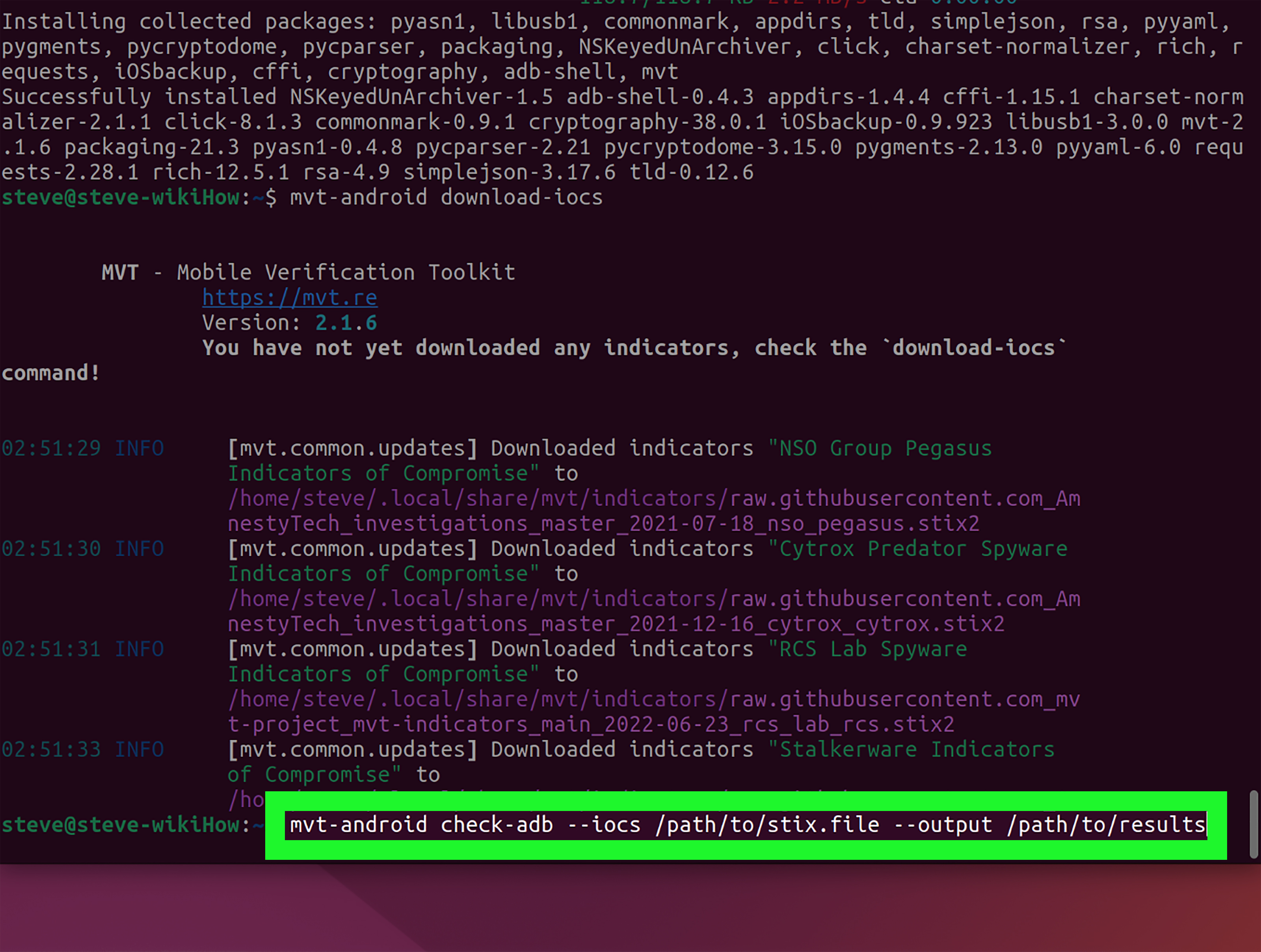
After installing the current version of MVT on a suitable computer, a trained user may download available public indicators and analyze a decrypted backup with commands similar to these:
MVT can produce structured files containing extracted information about applications, configuration profiles, browser records, network usage, messages, diagnostic events, and other artifacts. Matches associated with supplied indicators are typically highlighted and written to result files whose names include a detected marker.
Do not treat every warning as a confirmed infection. A domain match could come from a received message that was never opened. A process name may require timeline analysis. A suspicious artifact might be unrelated, historical, or a false positive. Context is what turns a blinking warning into a defensible conclusion.
5. Get a Professional Review
Amnesty International explicitly describes MVT as a forensic research tool for technologists and investigators rather than an end-user self-assessment app. Public indicators may not cover the newest infrastructure, and advanced spyware can change faster than public detection lists.
A forensic specialist can correlate several types of evidence, examine timestamps, compare the device with known campaigns, and distinguish attempted targeting from a successful compromise.
How to Detect Pegasus Spyware on Android
Pegasus detection on Android can be especially challenging because manufacturers implement Android differently, local backups may be incomplete, and the availability of diagnostic artifacts varies among devices.
1. Check Android Updates and Play Protect
Open the phone’s security settings and record its Android version, Android security update level, and Google Play system update level. Install legitimate updates promptly unless a forensic expert has asked you to preserve the device in its current state.
Next, open the Google Play Store, select your profile, and run a Play Protect scan. Keep “Scan apps with Play Protect” enabled. Play Protect checks installed applications for harmful behavior, including apps obtained outside the Play Store, and may warn about, disable, or remove known harmful software.
A clean Play Protect result is reassuring for common malicious applications. It does not conclusively exclude a sophisticated exploit that left no recognizable app package.
2. Review High-Risk Permissions and Administrative Access
Inspect the Android privacy dashboard, permission manager, installed applications, accessibility services, device-administrator applications, notification access, VPN settings, and any installed certificates. Pay special attention to unfamiliar apps with access to the microphone, camera, location, SMS messages, notifications, or accessibility controls.
These checks are particularly useful for detecting commodity stalkerware. Pegasus may operate at a deeper level and may not present itself as a conveniently removable application.
3. Use AndroidQF and the Current MVT Workflow
Older tutorials often instruct users to connect a phone directly to MVT through Android Debug Bridge. That workflow is outdated. Current MVT documentation says direct ADB analysis has been removed because data collection differed substantially among Android devices and did not produce a consistent forensic snapshot.
The current approach is to use AndroidQF to collect available artifacts and then analyze the resulting package with MVT:
MVT can also analyze a compatible Android bug report:
Because Android evidence collection can be incomplete, investigators may combine MVT output with device logs, app inventories, account records, network information, suspicious messages, and campaign-specific private indicators.
What a Pegasus Scan Can and Cannot Tell You
A Positive Match Is a Lead, Not Always a Verdict
An IOC match means that extracted data corresponded with a known malicious domain, file, process, application identifier, account, path, or other indicator. Investigators must determine how the artifact reached the phone, when it appeared, and whether it reflects targeting, attempted exploitation, or successful execution.
A Negative Result Does Not Guarantee a Clean Phone
A scan can miss an infection when the relevant records were deleted, overwritten, excluded from the backup, unavailable on that Android model, or associated with infrastructure that has not been published. The latest spyware may use indicators known only to a small group of researchers.
That is why the strongest investigations combine several forms of evidence instead of relying on one scanner, one battery graph, or one heroic late-night search through the Settings app.
What to Do if You Find Credible Evidence
-
Move sensitive communication to a trusted device.
Do not discuss the investigation beside the suspected phone. A compromised microphone does not care that you lowered your voice. -
Contact a qualified digital-security organization.
Apple recommends rapid-response assistance from Access Now’s Digital Security Helpline for recipients of its threat notifications. Access Now provides forensic and technical support to qualifying civil-society users, including journalists and human-rights defenders. -
Preserve evidence.
Keep the original device, backup files, scan output, screenshots, suspicious messages, and a written timeline. Do not publish technical indicators before consulting investigators because premature disclosure may alert the operator. -
Secure important accounts from a clean device.
Change passwords for email, cloud storage, messaging, financial, and social accounts. Review active sessions, recovery methods, forwarding rules, connected applications, and multi-factor authentication settings. -
Decide whether to update, reset, or replace the phone.
A factory reset or replacement may be appropriate after evidence collection. Set up a replacement as a new device when advised rather than automatically restoring every application and configuration from an old backup. -
Inform relevant people carefully.
Sources, coworkers, family members, and organizations may also need to check their devices or change communication channels.
How to Reduce the Risk of Future Spyware Attacks
- Install operating-system and application updates promptly.
- Use a strong device passcode that is not shared with other accounts.
- Enable multi-factor authentication on important accounts.
- Avoid installing unofficial apps, configuration profiles, or certificates.
- Review account sessions, app permissions, and recovery information regularly.
- Keep Google Play Protect enabled on Android.
- Separate high-risk professional communications from ordinary personal activity.
- Consider a dedicated device for sensitive travel, investigations, or political work.
The FTC recommends keeping mobile software updated because operating-system releases frequently contain critical security patches. Updates cannot undo information that has already been stolen, but they can close vulnerabilities used by known exploit chains.
Use Lockdown Mode on an At-Risk iPhone
Apple’s Lockdown Mode is an optional extreme-protection setting for people who may face highly targeted attacks. It restricts certain message attachments, web technologies, incoming invitations, device connections, configuration profiles, and other features to reduce the phone’s attack surface.
On a compatible iPhone, open Settings, select Privacy & Security, choose Lockdown Mode, and follow the restart instructions. Apple recommends updating the device before enabling it. Lockdown Mode may make some websites and services less convenient, but “slightly annoying” is generally preferable to “secretly recording the diplomatic meeting.”
Experience-Based Lessons From Real-World Pegasus Checks
The following observations are distilled from documented investigations, support guidance, and recurring forensic workflows. They are not a claim of personal possession of a Pegasus-infected phone.
Most Scares Begin With an Ordinary Symptom
A typical investigation starts with a battery that suddenly lasts only half a day. The owner checks battery usage and discovers a familiar social-media app running for hours in the background. After updating the app, restarting the phone, and reviewing permissions, the battery returns to normal. Nothing in the available evidence points to Pegasus.
This outcome is common because ordinary software is messy. Phones overheat during cloud synchronization. Weak cellular signals consume extra power. Navigation apps use location services. A large photo library can spend an afternoon uploading itself while the owner wonders which intelligence agency has taken an interest in vacation pictures.
The lesson is not to ignore symptoms. It is to investigate them proportionately.
Scam Messages Frequently Borrow the Pegasus Name
Another common experience begins with an alarming email claiming that Pegasus has recorded the recipient through a camera and will release private footage unless cryptocurrency is paid. The message may include an old password from a previous data breach or appear to come from the victim’s own address through email spoofing.
That message is not the same as a verified Apple threat notification. Real mercenary-spyware alerts do not demand money, threaten embarrassment, or instruct the recipient to install a mysterious security tool. The appropriate response is to preserve the message, change any reused password, secure the email account, review active sessions, and refuse payment.
A Genuine Threat Notification Changes the Workflow
When a person verifies an Apple warning through the Apple Account website, the situation becomes more serious. The first impulse is often to erase the phone immediately. Investigators usually want the opposite: preserve the device long enough to collect an encrypted backup and document its condition.
That waiting period can feel uncomfortable. The phone may still contain work contacts, private conversations, family photographs, and confidential sources. A safer device becomes essential for arranging assistance. The suspected phone stops being an everyday communication tool and becomes evidence.
Forensic Output Is Not a Green or Red Traffic Light
Running MVT may produce dozens of JSON files and technical notices. Beginners often expect one giant banner reading “PEGASUS FOUND.” Real analysis is less theatrical.
An investigator may find a known malicious domain in an SMS database and then determine whether the message was delivered, previewed, opened, or followed by suspicious system activity. A strange process may matter only when its timestamp matches a crash log and a known exploit period. Several small artifacts can form a compelling pattern even when no single record proves the entire incident.
Conversely, a domain match may simply show that someone sent a malicious link that never succeeded. Interpretation matters as much as collection.
Android Investigations Often Require More Patience
Android users may discover that a tutorial written two years earlier no longer matches the current MVT interface. Device manufacturers expose different diagnostic information, backup features change, and some artifacts cannot be collected without specialized procedures.
The practical lesson is to use current documentation, preserve the original output, and avoid improvising with random scripts found in abandoned repositories. A legitimate forensic process should explain what it collects, what it cannot access, and how the results will be protected.
The Human Impact Is Part of the Incident
People facing credible spyware targeting may become suspicious of every notification, dropped call, or battery percentage. That reaction is understandable. A good response plan reduces uncertainty by assigning specific roles: one device for safe communication, one preserved as evidence, one person coordinating expert support, and one written timeline recording facts rather than guesses.
The goal is not to become your own round-the-clock intelligence agency. It is to make careful decisions, preserve useful evidence, and regain control of your communications.
Conclusion
Learning how to detect Pegasus spyware requires more than checking whether a phone feels hot. Battery drain, data usage, crashes, and unfamiliar settings may justify attention, but they cannot identify an advanced mercenary-spyware infection by themselves.
On an iPhone, begin by verifying any Apple threat notification directly through the Apple Account website. Preserve the device, create an encrypted local backup, and have the data examined with current forensic tools and indicators. On Android, check updates and Play Protect, review powerful permissions, and use the current AndroidQF and MVT workflow when forensic collection is appropriate.
Most importantly, do not confuse “nothing was detected” with “nothing happened.” Pegasus investigations depend on timelines, technical artifacts, threat intelligence, and experienced interpretation. When the risk is credible, switch to a trusted device and seek professional help before resetting the suspected phone.