You click a YouTube video expecting to hear the creator’s real voice. Instead, a polished-but-slightly-haunted AI voice starts narrating like it just graduated from robot theater school. Welcome to YouTube auto dubbing: a useful feature when you want content in your preferred language, and a tiny digital gremlin when you simply want the original audio.
The good news is that you can usually switch a video back to its original language. The slightly less exciting news is that YouTube does not always give viewers one giant, magical “disable auto dubbing forever” switch in every situation. Instead, you have a few practical controls: change the audio track on a specific video, set your preferred languages, adjust YouTube language behavior, and use browser-level workarounds when YouTube gets stubborn.
This guide explains how to disable auto dubbing on YouTube as a viewer, how to get original audio back on desktop and mobile, why YouTube sometimes auto-dubs videos in the first place, and what to do when the audio-track option disappears like your motivation during a 40-minute unskippable tutorial.
What Is YouTube Auto Dubbing?
YouTube auto dubbing is an AI-powered feature that creates translated audio tracks for videos. Instead of only offering subtitles, YouTube may let viewers hear a video in another spoken language. For example, an English tutorial may have Spanish, French, Hindi, Portuguese, Japanese, or other language tracks depending on the creator’s settings and YouTube’s supported languages.
Auto dubbing is different from subtitles. Subtitles show translated text on the screen. Dubbing replaces, or more accurately overlays as an alternate track, the spoken audio with a translated voice. The original audio usually still exists as an available audio track. That distinction matters because your goal is not to “delete” the dub. As a viewer, your goal is to choose the original audio track instead of the AI-generated one.
Can You Completely Disable YouTube Auto Dubbing?
As a viewer, the most accurate answer is: not always with one universal switch. YouTube gives viewers ways to control audio language, but the experience can vary by device, app version, video type, and whether the video actually has multiple audio tracks.
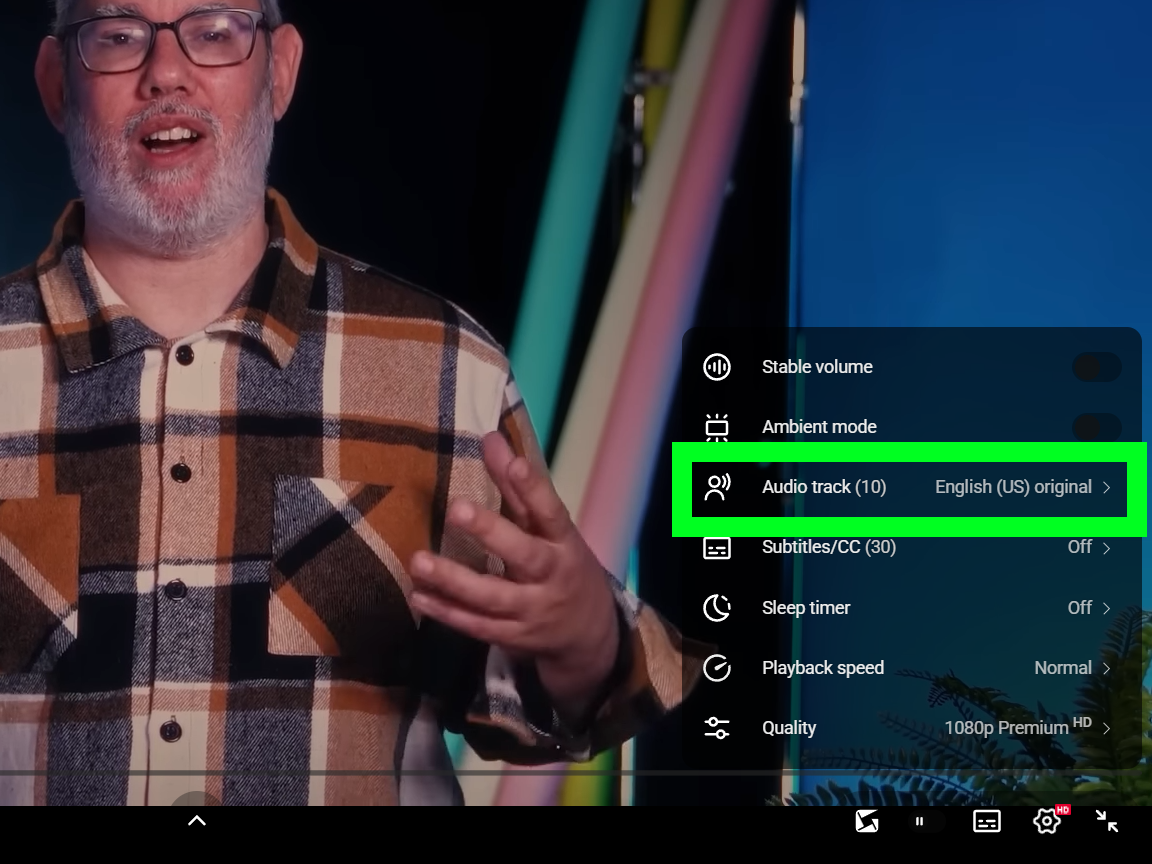
For a normal long-form YouTube video, you can usually open the video settings, select Audio track, and choose the original language. For your broader account experience, you can set preferred languages so YouTube is less likely to translate audio, titles, and descriptions when the original language is already one you understand.
Think of it like ordering coffee. You can tell the barista your usual order, but occasionally the system still hands you oat milk foam with a mystery accent. When that happens, you manually fix the cup.
How to Turn Off Auto Dubbing on a YouTube Video
On Desktop
If a YouTube video starts playing in a dubbed voice on your computer, use the video player’s audio-track menu.
- Open the YouTube video.
- Move your mouse over the video player.
- Click the Settings gear icon.
- Select Audio track.
- Choose the original language or the track labeled as the creator’s original audio.
Once you choose the original audio, YouTube may remember that preference for similar videos or future videos from the same channel. However, this behavior is not always perfectly consistent, especially if you switch devices, clear browser data, watch while signed out, or use different YouTube apps.
On iPhone and Android
On the YouTube mobile app, the process is similar, although the menu layout may look slightly different depending on your app version.
- Open the YouTube app.
- Play the video that is being auto-dubbed.
- Tap the video once to show the controls.
- Tap the Settings gear icon.
- Tap Audio track.
- Select the original language.
If you do not see Audio track, the video may not have multiple tracks available, the app may need an update, or the feature may not be supported in that specific viewing format.
On YouTube Shorts
YouTube Shorts can be trickier because the interface is more compact. When an audio-track option is available, try this:
- Open the Short.
- Tap the three-dot menu or settings option.
- Look for Audio track.
- Select the original language.
Shorts do not always expose the same controls as long-form videos. If the original audio option is missing, try opening the same video on desktop or in the full YouTube app instead of a mobile browser.
How to Set Preferred Languages on YouTube
The best long-term fix is to tell YouTube which languages you actually want. YouTube’s preferred-language settings can apply to audio dubs, titles, and descriptions. If the original audio is in one of your preferred languages, YouTube is more likely to keep the original instead of automatically translating it.
On the YouTube App
- Tap your profile picture.
- Open Settings.
- Go to Languages.
- Choose Preferred languages.
- Select the languages you understand and want to hear.
- Confirm your changes.
For example, if you understand English, Spanish, and Vietnamese, adding those as preferred languages can help YouTube avoid dubbing videos that are already in those languages. This is especially helpful for bilingual or multilingual viewers who do not want every non-local video automatically translated.
On Desktop
On desktop, sign in to YouTube and check your language-related account settings. YouTube’s interface changes occasionally, but the general idea is the same: find language preferences and add the languages you want to hear or read. Also make sure your browser and Google account language settings are not pushing YouTube toward a language you do not actually want for audio.
Why YouTube Keeps Auto-Dubbing Videos
YouTube auto-dubbing exists for a practical reason: it helps creators reach viewers who speak different languages. A cooking video from France can be understood by an English-speaking viewer. A science lesson from the United States can reach students in other countries. In theory, everyone wins. In practice, your ears may occasionally file a complaint.
YouTube may choose a dubbed track based on several signals, including your preferred languages, app language, location, account behavior, and the video’s available audio tracks. If YouTube thinks you prefer English, it may serve an English dub of a video originally recorded in another language. If you actually wanted the original Japanese, French, Spanish, Korean, or Vietnamese audio, that can feel intrusive.
The platform is also expanding multilingual tools for creators. Some creators upload their own professional audio tracks, while others use automatic dubbing generated by YouTube. Either way, the result for viewers is the same menu: one video, multiple possible audio tracks.
Original Audio vs. Auto-Dubbed Audio: How to Tell the Difference
Sometimes it is obvious that a video is dubbed. The mouth movements do not match perfectly, the emotional tone feels slightly flat, or a joke lands with all the grace of a refrigerator falling down stairs. Other times, the dub may sound surprisingly natural.
Look for these clues:
- The video description may show an auto-dubbed label.
- The creator’s voice sounds different from older videos.
- The audio track menu lists more than one language.
- The title or description appears translated.
- Comments mention “original audio” or complain about the dub.
If you are learning a language, watching interviews, following comedy, or listening to music-related content, the original audio often matters more. Tone, timing, accents, slang, and personality can be part of the content itself. A dub can translate words, but it may not fully translate charm.
What to Do If the Audio Track Option Is Missing
If you cannot find the audio-track menu, try these fixes before blaming your phone, your browser, and the entire concept of artificial intelligence.
Update the YouTube App
Older app versions may not show newer audio controls properly. Open the App Store or Google Play Store and update YouTube. Then close and reopen the app.
Try Desktop YouTube
Some controls are easier to find on desktop. If mobile YouTube hides the option, open the same video on a computer and check the settings gear.
Use the Official App Instead of a Mobile Browser
Mobile browsers do not always provide the same YouTube features as the app. If you are watching through a browser on your phone and cannot change audio tracks, open the video in the YouTube app.
Sign In to Your Account
Language preferences work better when YouTube knows which account is watching. If you are signed out, YouTube may rely more heavily on device language, location, or browser settings.
Check the Video Type
Long-form videos, Shorts, livestreams, and embedded videos may not expose identical controls. If one format does not show the option, try another format or device.
Can Browser Extensions Disable Auto Dubbing?
Some desktop users rely on browser extensions or scripts that try to force YouTube to use the original audio track. These tools can be helpful, but they come with the usual extension warning: install only from sources you trust, read permissions carefully, and avoid anything that asks for suspicious access to your account.
Browser extensions can also break when YouTube updates its interface. That means an extension may work today, fail tomorrow, and return next week wearing a fake mustache. For most viewers, the safer first step is to use YouTube’s built-in language and audio-track controls.
Best Settings for Viewers Who Hate Auto Dubbing
If you prefer original audio almost all the time, use this setup:
- Add every language you understand to YouTube’s preferred languages.
- Switch individual videos back to original audio when needed.
- Keep the YouTube app updated.
- Use desktop YouTube when Shorts or mobile playback hides audio controls.
- Avoid changing your app language unless you also want menus, titles, and recommendations to shift.
- Use captions instead of dubs when you want the creator’s real voice plus translation help.
This combination will not make auto dubbing disappear from the internet, but it should make your YouTube experience much more predictable.
When Auto Dubbing Is Actually Useful
To be fair, auto dubbing is not a villain. It is more like an overenthusiastic tour guide. Sometimes it helps; sometimes it narrates the museum painting in the wrong accent.
Auto dubbing can be genuinely useful when you are watching educational videos, product tutorials, travel guides, basic how-to content, or news explainers in a language you do not understand. It can make global content easier to access, especially for viewers who prefer listening over reading subtitles.
The issue is control. Viewers should be able to choose whether they want a dub, subtitles, or the original track. If YouTube starts with the wrong assumption, the experience feels less like accessibility and more like someone changed the TV channel while you were holding the remote.
Common Problems and Quick Fixes
The Video Keeps Switching Back to Dubbed Audio
Set your preferred languages again, clear conflicting language settings, and make sure you are signed in. If the issue happens only on one channel, manually select the original track for a few videos from that channel and see whether YouTube remembers the choice.
The Dubbed Voice Sounds Robotic
That is a limitation of AI dubbing. Switch to original audio and use subtitles if you need translation. This is often better for comedy, interviews, music, film analysis, and language learning.
The Original Audio Is Not Listed
Check whether you are watching a reuploaded clip, an embedded player, a Short, or a third-party app. If the original audio truly is unavailable, the creator may have uploaded the video in that form or the player may not expose all tracks.
YouTube Translates Titles Too
Preferred-language settings can also affect titles and descriptions. Add the original language to your preferred list if you want fewer translated titles.
Real-World Viewer Experiences: What It Feels Like to Fight Auto Dubbing
For many viewers, the first encounter with YouTube auto dubbing is confusing because nothing looks wrong. The video loads normally. The title looks normal. The thumbnail looks normal. Then the creator speaks, and suddenly your brain says, “Wait, that is not the voice I ordered.” It is especially strange when you already know the creator. A familiar chef, tech reviewer, musician, or teacher may sound like a completely different person. The information might still be understandable, but the personality feels like it has been wrapped in bubble wrap.
Language learners often feel this pain the most. Imagine you are studying Spanish and intentionally watching Spanish videos to train your ear. You click a video, ready to practice real pronunciation, rhythm, and slang. YouTube proudly serves you an English dub. Technically, it is trying to help. Practically, it just stole your homework. In that situation, switching to the original audio is not a luxury; it is the whole point of watching.
Another common experience happens with comedy and commentary channels. Humor depends heavily on timing, delivery, and tone. A joke that works in the creator’s real voice may feel oddly flat in an automatic dub. Sarcasm can become sincere. Excitement can become customer-service polite. A dramatic pause can become an awkward silence that makes you check whether your earbuds died. Viewers who care about the creator’s style usually prefer original audio with subtitles because it keeps the human performance intact.
Tech tutorials create a different kind of problem. Auto dubbing can mispronounce product names, software terms, acronyms, or brand names. A viewer trying to fix a phone setting or follow a coding tutorial may hear a translated phrase that does not match the actual menu on screen. In those moments, original audio plus captions can be clearer than a dub, especially when the video includes exact button names or technical instructions.
Travel and food videos are more forgiving. Auto dubbing can be helpful when the main goal is to understand the basic story: where the creator is, what they are eating, what the place costs, and whether the soup is life-changing or merely soup with confidence. Still, many viewers enjoy hearing the original language because it carries local flavor. A street-food video without the real voices, background chatter, and natural reactions can feel less alive.
After testing the available viewer controls, the most practical habit is simple: check the audio track before abandoning the video. If the voice sounds wrong, open settings, choose Audio track, and select the original language. Then review your preferred languages so YouTube gets better hints next time. It is not perfect, but it turns auto dubbing from a surprise ambush into something you can usually control in a few taps.
Conclusion
YouTube auto dubbing is designed to make videos more accessible across languages, but viewers should not have to listen to a dubbed track when they prefer the creator’s original voice. The fastest fix is to open the video settings, choose Audio track, and select the original language. The better long-term fix is to set your preferred languages so YouTube is less likely to translate audio you already understand.
There may not be a perfect universal off switch for every viewer, device, and video type, but you do have control. Use original audio for personality, accuracy, comedy, music, and language learning. Use dubs when they genuinely help. And when YouTube guesses wrong, politely take the remote back.