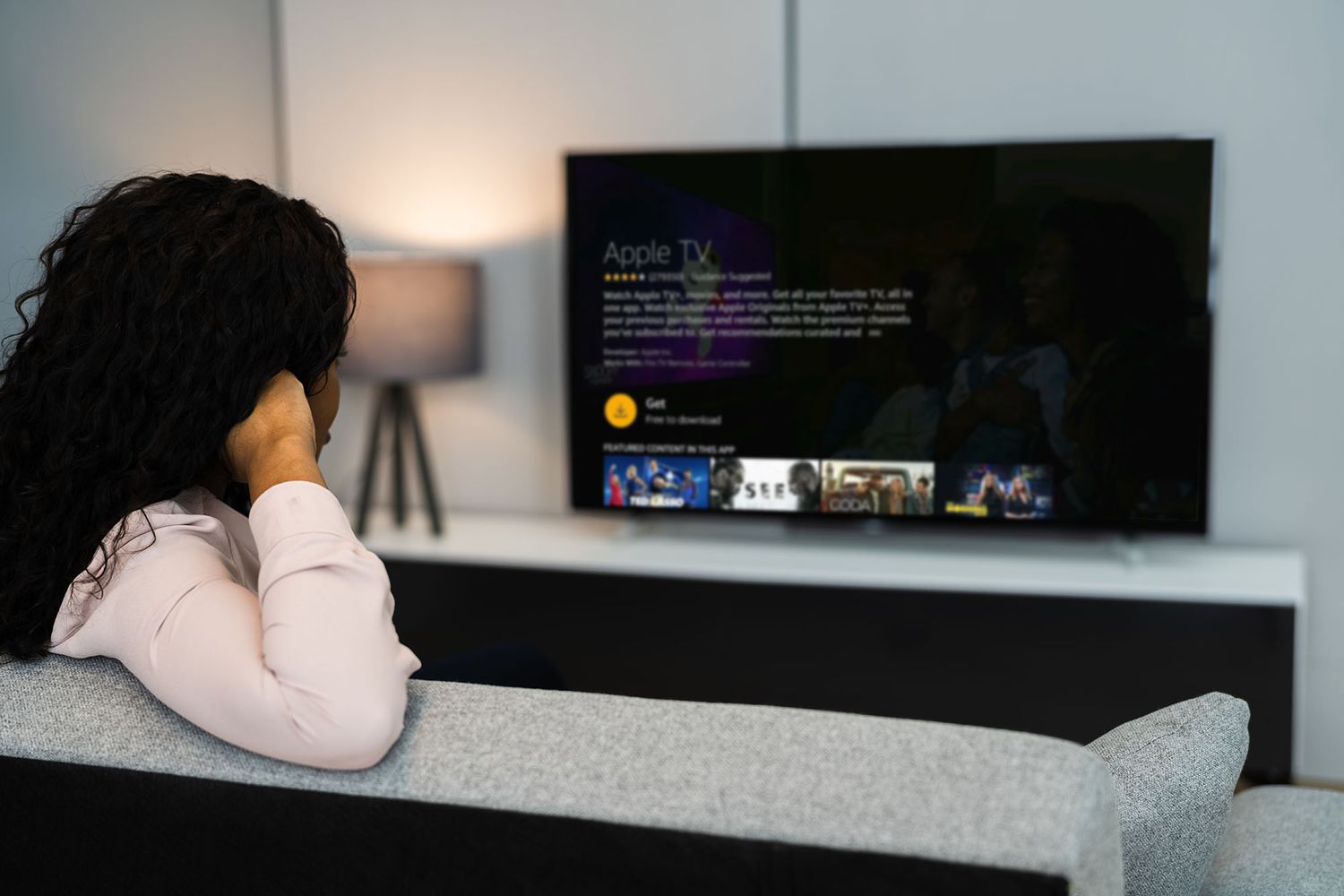
Getting Apple TV on a Fire Stick is one of those rare tech tasks that sounds like it should require three adapters, a secret handshake, and maybe a tiny screwdriverbut thankfully, it does not. In most cases, all you need is your Amazon Fire TV Stick, a stable internet connection, the Apple TV app, and an Apple Account. That is it. No magic. No cable spaghetti. No mysterious “download this random APK from a website with 14 pop-ups” situation.
The Apple TV app is officially available on many Amazon Fire TV devices, including popular Fire TV Stick models. Once installed, it lets you watch Apple TV+ originals, access eligible Apple TV channels, and view movies or shows you have already purchased or rented through Apple. Whether you are trying to catch up on prestige dramas, family movies, documentaries, or that one show everyone keeps telling you to watch, your Fire Stick can become a convenient Apple TV streaming hub.
This guide explains how to get Apple TV on Fire Stick, how to sign in, what to do if the app does not appear, and how to fix common issues. We will keep things clear, practical, and slightly more entertaining than staring at a loading circle.
Can You Get Apple TV on Fire Stick?
Yes, you can get Apple TV on Fire Stick as long as your device supports the Apple TV app and your region allows access to it. The app is available through the Amazon Appstore, so the safest and easiest method is to download it directly from your Fire TV home screen. You do not need an Apple TV box to use Apple TV+ on a Fire Stick. The name is confusing, because Apple apparently enjoys making one phrase mean several things, but here is the simple version:
Apple TV vs. Apple TV+ vs. Apple TV App
Apple TV can refer to Apple’s physical streaming device. Apple TV+ is Apple’s subscription streaming service with original shows and movies. The Apple TV app is the app you install on Fire Stick to watch Apple TV+ and other eligible Apple video content. For this guide, we are talking about installing the Apple TV app on your Amazon Fire TV Stick.
The app itself is free to download, but watching Apple TV+ content requires a subscription. Some movies, shows, channels, rentals, or purchases may also require separate payment or prior purchase through your Apple Account. In other words, downloading the app opens the door, but some rooms inside still have ticket takers.
What You Need Before Installing Apple TV on Fire Stick
Before you start, gather the basics. You will need a compatible Fire TV Stick, an Amazon account connected to the device, Wi-Fi, and an Apple Account if you want to sign in and stream your Apple content. If you already use your Fire Stick for Netflix, Prime Video, Hulu, YouTube, or Disney+, you are probably halfway there.
Basic Requirements
- A compatible Amazon Fire TV Stick or Fire TV device
- A working internet connection
- An Amazon account signed in on your Fire Stick
- The Fire TV remote or the Fire TV mobile app
- An Apple Account for Apple TV+ or previously purchased Apple content
- An active Apple TV+ subscription if you want to watch Apple Originals
It is also smart to update your Fire Stick before installing the app. Updates can improve app compatibility, streaming performance, and general device stability. Translation: fewer random freezes, fewer app tantrums, and less yelling at the remote like it personally betrayed you.
How to Get Apple TV on Fire Stick Using the Fire TV Search Menu
The fastest way to install Apple TV on Fire Stick is through the Fire TV search feature. This method works directly from your TV screen and does not require a computer or phone.
Step 1: Turn On Your Fire Stick
Turn on your TV and switch to the HDMI input where your Fire Stick is connected. Make sure your Fire Stick is connected to Wi-Fi and that the home screen loads properly. If your Fire Stick is still waking up from its dramatic little nap, give it a few seconds.
Step 2: Go to Search
From the Fire TV home screen, select Find or the search icon. Depending on your Fire TV interface version, the layout may look slightly different. Some devices show a magnifying glass icon; others show a search field across the top. Either way, you are looking for the place where Fire TV lets you search for apps, movies, shows, and occasionally things you did not ask for.
Step 3: Search for “Apple TV”
Type Apple TV into the search bar. If your remote has Alexa voice search, you can press the microphone button and say, “Apple TV app.” Voice search can be faster, unless your remote decides “Apple TV” sounds like “apple tea,” in which case typing may save your dignity.
Step 4: Select the Apple TV App
When the results appear, choose the official Apple TV app. Look for the Apple TV icon and make sure the app is published by Apple. Avoid random apps with similar names, especially anything that looks like it was designed in a hurry by someone who just discovered gradients.
Step 5: Choose Get or Download
Select Get or Download. The wording may vary depending on whether you have installed the app before. Wait for the installation to finish. The download usually does not take long, but speed depends on your internet connection and whether your Fire Stick is currently feeling cooperative.
Step 6: Open the Apple TV App
After installation, select Open. You can also find the app later in your apps library. If you plan to use Apple TV often, move it closer to the front of your app row so you do not have to go on a treasure hunt every time you want to watch something.
How to Sign In to Apple TV on Fire Stick
Once the Apple TV app opens, you can browse some areas of the app, but you need to sign in to access Apple TV+, purchases, rentals, and subscriptions connected to your Apple Account.
Sign In With a QR Code or Activation Code
The app may show a QR code or an activation code. The easiest method is usually scanning the QR code with your phone. Follow the on-screen instructions, sign in with your Apple Account, and confirm the connection. If you prefer, you may be able to visit Apple’s activation page on a browser and enter the code shown on your TV.
Sign In Directly on the Fire Stick
Some versions of the app may also let you enter your Apple Account email and password directly on the TV. This works, but typing a long password with a TV remote is nobody’s idea of a glamorous evening. If the QR code option is available, use it. Your thumbs will thank you.
Use the Same Apple Account
Make sure you sign in with the same Apple Account you use for Apple TV+, Apple purchases, or Apple TV channels. If you sign in with the wrong account, your subscription or library may look empty. This is a common mistake, especially in households where one person subscribes, another person rents movies, and nobody remembers which email was used.
How to Install Apple TV on Fire Stick From the Amazon Website
You can also install the Apple TV app from the Amazon Appstore using a browser. This method is useful if searching on your Fire Stick is slow, your remote is missing, or you simply prefer using a keyboard like a civilized human.
Use Amazon’s Appstore Page
Go to Amazon’s website, search for the Apple TV app, and open the official app listing. Make sure you are signed in with the same Amazon account used on your Fire Stick. Then choose your Fire TV device from the delivery options and send the app to that device. The app should install automatically or appear on your Fire Stick shortly after.
If you have multiple Fire TV devices, double-check the device name before sending the app. Otherwise, you may install Apple TV on the living room TV while standing in the bedroom wondering why nothing happened. Technology loves a plot twist.
What Can You Watch With Apple TV on Fire Stick?
The Apple TV app gives Fire Stick users access to several types of Apple video content. The biggest draw is Apple TV+, Apple’s streaming service for original series, films, documentaries, and specials. You may also see Apple TV channels, your purchased movies and shows, and content you previously rented or bought through Apple, depending on your account and region.
Apple TV+ Originals
Apple TV+ includes original shows, movies, documentaries, family programming, and sports-related content where available. If you subscribed through Apple, you should be able to sign in on Fire Stick and watch through the Apple TV app.
Purchased and Rented Content
If you bought or rented movies and shows through Apple on another device, the Fire Stick app may let you access them after signing in. However, purchase options can vary by device and region. In some cases, you may need to buy or rent content on another Apple-supported device first, then watch it through the Apple TV app on Fire Stick.
Apple TV Channels
Depending on availability, you may also access Apple TV channels linked to your Apple Account. These are separate subscriptions inside the Apple TV ecosystem. If a channel does not appear, check that you are signed in with the correct Apple Account and that the channel is supported on your device.
How to Move Apple TV to the Front of Your Fire Stick Apps
After installing Apple TV, you may want to move it to a more convenient spot. Fire TV’s app library can become crowded quickly, especially if your household has every streaming service known to humanity plus three weather apps and a fireplace screensaver.
Press the home button on your remote, go to your apps, highlight the Apple TV app, press the menu button, and choose the option to move it. Place it near the front of your app row. This small step saves time and makes the app easier to find later.
What to Do If Apple TV Does Not Show Up on Fire Stick
If you search for Apple TV and cannot find the app, do not panic. There are several possible reasons, and most are fixable.
Check Device Compatibility
Not every old Fire TV device supports the Apple TV app. If you are using an older Fire Stick, the app may not appear in search results. Newer Fire TV Stick models are more likely to support it. If your device is very old, upgrading to a newer Fire TV Stick may be the simplest solution.
Update Your Fire Stick
Go to Settings, then My Fire TV, then About, and check for system updates. Install any available update and restart your device. After updating, search for Apple TV again. App availability and performance can depend on current Fire OS software.
Check Your Region
App availability can vary by country or region. If your Amazon account, Fire TV region, or Apple Account region is set somewhere the app is not supported, you may not see it. Check your account settings and make sure they match your actual location and payment setup.
Restart the Fire Stick
Sometimes Fire TV just needs a reset. Hold the select and play/pause buttons on the remote for several seconds, or restart from the settings menu. After the device reboots, try searching again. It is the classic “turn it off and on again” solution, and annoyingly, it often works.
How to Fix Apple TV Not Working on Fire Stick
If Apple TV installs but refuses to behave, try these troubleshooting steps before declaring war on your television.
Clear the App Cache
Go to Settings, select Applications, then Manage Installed Applications. Choose Apple TV, then select Clear Cache. Reopen the app and test it again. Clearing the cache can fix freezing, slow loading, or weird app behavior.
Force Stop the App
In the same app settings menu, choose Force Stop. Then reopen Apple TV. This gives the app a fresh start without uninstalling it.
Check Your Internet Connection
Streaming requires a stable connection. If Apple TV buffers constantly, test another app on your Fire Stick. If everything is slow, restart your router, move the Fire Stick closer to the Wi-Fi source, or use an HDMI extender to improve wireless reception behind the TV.
Sign Out and Sign Back In
If your Apple TV+ subscription or library is missing, sign out of the Apple TV app and sign back in with the correct Apple Account. This is especially useful if your household uses multiple Apple IDs.
Uninstall and Reinstall Apple TV
If nothing else works, uninstall the Apple TV app and reinstall it from the Amazon Appstore. This can fix corrupted app data or failed updates. It is not glamorous, but neither is buffering during the best part of a movie.
Should You Sideload Apple TV on Fire Stick?
In most cases, no. You should install Apple TV only from the official Amazon Appstore. Sideloading apps from unknown websites can expose your device to security risks, unstable software, and apps that may not work properly. It can also lead to confusing update problems because unofficial versions may not receive normal app updates.
The official Apple TV app is available through Amazon for supported devices, so there is usually no good reason to hunt for unofficial files. If the app does not appear, the better fix is to check compatibility, update the device, or install it through the Amazon websitenot download mystery software from the digital equivalent of a dark alley.
Apple TV on Fire Stick: Helpful Tips for a Better Experience
Once you have Apple TV working on Fire Stick, a few small tweaks can make the experience smoother.
Use a Strong Wi-Fi Signal
Apple TV+ streams look best when your connection is stable. If your Fire Stick is tucked behind a wall-mounted TV, signal strength may suffer. Use the HDMI extender included with many Fire Stick models to move the device slightly away from the back of the TV. This can improve Wi-Fi reception and reduce buffering.
Keep Fire OS Updated
Software updates can improve app compatibility and fix bugs. Check for updates occasionally, especially if streaming apps start acting strange.
Use Watchlist Features
The Apple TV app lets you keep track of shows and movies you want to watch. Add titles to your queue so you are not stuck scrolling endlessly while your dinner gets cold.
Check Your Subscription Status
If Apple TV+ content suddenly becomes unavailable, check whether your subscription is still active. Payment issues, expired trials, or account changes can interrupt access.
Common Questions About Apple TV on Fire Stick
Is Apple TV Free on Fire Stick?
The Apple TV app is free to download. Apple TV+ requires a paid subscription after any eligible trial. Some movies, channels, and shows may require separate purchases or subscriptions.
Do I Need an Apple Device?
No. You do not need an iPhone, iPad, Mac, or Apple TV box to use the Apple TV app on Fire Stick. However, having a phone can make sign-in easier because you can scan a QR code instead of typing on the TV.
Can I Watch My Apple Purchases on Fire Stick?
Usually, yes, if you sign in with the Apple Account connected to those purchases and your device supports playback. Purchase and rental options may vary, but previously purchased eligible content should appear in your library.
Why Is Apple TV Not Available on My Fire Stick?
The most likely reasons are device compatibility, region settings, outdated Fire OS software, or an account issue. Update your Fire Stick, restart it, and confirm that your device supports the app.
Real-World Experience: What It Is Like Using Apple TV on Fire Stick
Using Apple TV on Fire Stick feels like a practical compromise between two ecosystems that usually prefer their own playgrounds. Apple has its polished app experience, Amazon has its affordable streaming hardware, and somehow they meet in the middle without making the user suffer too much. That alone deserves a small round of applause.
The installation process is generally simple. Search, download, open, sign in, and stream. The most annoying part is usually typing or account verification, especially if you have a long Apple Account password. The QR code sign-in method is much easier, and it is worth using whenever available. Compared with older streaming-device setups, this feels refreshingly normal. You do not need to change HDMI cables, mirror your phone, or explain to your family why the TV now shows a developer settings screen.
In everyday use, the Apple TV app on Fire Stick works best when the Fire Stick is reasonably modern and the Wi-Fi connection is strong. On newer Fire TV Stick 4K models, navigation tends to feel smooth, and shows load without much fuss. On older or lower-powered Fire Stick models, the app may feel slower, especially when switching between menus or loading large artwork-heavy pages. This is not unique to Apple TV; older Fire Sticks can struggle with many modern streaming apps because today’s apps are basically tiny entertainment malls.
One useful habit is keeping the app near the front of your Fire TV apps row. It sounds minor, but it makes a difference. Fire TV’s interface can get busy with recommendations, sponsored rows, and apps you forgot you installed. Moving Apple TV to the front turns it from “Where did that app go?” into “There it is.” Small victory, big couch energy.
The viewing experience is also better when you understand what the Apple TV app actually includes. Some people open it expecting every movie with an Apple logo to be free. That is not how it works. Apple TV+ originals are included with an Apple TV+ subscription, but rentals, purchases, and channels may cost extra. Once you know that, the app is less confusing. Think of it as a storefront, library, and subscription service living inside one app.
Households with multiple Apple Accounts should be extra careful during sign-in. If one family member pays for Apple TV+ and another signs in with a different Apple Account, the app may look like the subscription disappeared. It did not disappear; it is just attached to the other account. The fix is usually simple: sign out and sign back in with the right account.
Another practical tip is to restart the Fire Stick every so often. Streaming sticks are small computers, and small computers occasionally get cranky. If Apple TV freezes, buffers, or opens to a blank screen, a restart can clear temporary glitches. Clearing the cache can also help if the app becomes sluggish.
Overall, Apple TV on Fire Stick is worth setting up if you already own a Fire Stick and want access to Apple TV+ without buying Apple’s separate streaming box. It gives you the Apple content you want while keeping the affordable, familiar Fire TV setup you already use. It is not perfect, and older devices may feel slower, but for most users, it is a clean, convenient way to stream Apple shows and movies from the same remote you use for everything else. That is the dream: fewer remotes, fewer cables, and fewer reasons to crawl behind the TV.
Conclusion
Learning how to get Apple TV on Fire Stick is simple once you know where to look. Search for the official Apple TV app from the Fire TV home screen, download it from the Amazon Appstore, open it, and sign in with your Apple Account. If the app does not appear, update your Fire Stick, check compatibility, confirm your region settings, or try installing it from Amazon’s website.
The best approach is always the official one. Avoid sideloading unknown versions of the app, keep your device updated, and use the same Apple Account connected to your Apple TV+ subscription or Apple library. With a few minutes of setup, your Fire Stick can stream Apple TV+ originals, eligible purchases, rentals, and channels right from your TV. No extra Apple TV hardware required, no technical wizardry needed, and no dramatic battle with HDMI cables.
Note: This article is written for legal streaming through the official Apple TV app on supported Amazon Fire TV devices. App availability, supported features, purchases, subscriptions, and device compatibility may vary by region, account, and Fire TV model.