Few computer surprises are as oddly dramatic as typing a simple email and watching your keyboard behave like it studied abroad without telling you. You press A, and something else appears. You try to type a question mark, and your laptop responds with a mysterious symbol that looks like it belongs on a cheese label. Congratulations: you may have accidentally switched to a French keyboard layout.
The good news is that you probably do not need a new keyboard, a new laptop, or a tiny exorcism performed with a USB cable. In most cases, a “French keyboard” problem is not physical hardware at all. It is a software input layout, such as French AZERTY, French Canadian, Belgian French, or Swiss French. Your device is simply interpreting your keystrokes through a different map.
This guide explains how to get rid of a French keyboard on Windows, Mac, Chromebook, iPhone, iPad, Android, and Samsung Galaxy devices. You will learn how to switch back instantly, remove the French keyboard layout, stop it from returning, and handle the annoying cases where the keyboard appears even though you are sure you already deleted it. Let’s rescue your QWERTY life.
Note: The steps below are written for everyday users, not IT wizards living in a cave of spare cables. Menu names may vary slightly by software version, but the process is the same: find language or keyboard settings, choose the unwanted French input method, remove it, and set your preferred keyboard as the default.
Why Your Keyboard Suddenly Turned French
A French keyboard layout changes how your computer interprets keys. The classic French layout is AZERTY, named for the first six letters on the top row. On a U.S. English keyboard, the top row begins QWERTY. That one change alone explains why typing can suddenly feel like playing piano with mittens.
You might have enabled a French keyboard by pressing a shortcut, adding a language pack, syncing settings from another device, setting up a multilingual profile, or using a school or work computer with shared language options. In Canada, users may also see French Canadian layouts appear because French and English language settings are common on regional devices.
The important distinction is this: display language controls menus and system text, while keyboard layout controls what appears when you type. You can run Windows in English while accidentally typing with French AZERTY. That is why changing the display language alone does not always solve the keyboard problem.
Before You Start: Identify the Problem
If your keyboard types the “wrong” letters or symbols, check whether the problem happens everywhere or only in one app. Open a blank document, browser search box, or notes app. Type a few test characters: A, Q, Z, W, M, ?, @, and quotation marks. If several characters are swapped, you are probably dealing with a keyboard layout setting.
If only one physical key is broken, dirty, sticky, or producing nothing at all, that is more likely a hardware issue. If your keyboard labels are physically printed in French, software settings can still make it type in English, but the printed keys will not magically rearrange themselves. Sadly, computers have not yet learned origami.
How to Get Rid of a French Keyboard: 11 Steps
1. Switch Back to English Instantly
Before deleting anything, try switching the active keyboard layout. On Windows, press Windows key + Spacebar and select English (United States) – US or your preferred layout. You may also see a language indicator such as FRA, ENG, or CAN near the taskbar clock. Click it and choose English.
On Mac, click the input menu in the menu bar, often shown as a language abbreviation or keyboard icon, and select your preferred English input source. You can also use the Globe or Fn key if it is configured to switch input sources.
On Chromebook, click the time in the lower-right corner, choose the keyboard or input method option, and select English. On phones and tablets, tap or hold the globe key, keyboard key, or spacebar to switch languages. This quick switch is not a permanent fix, but it can save you from sending “I’ll be there at 8?” as “I’ll be there à 8é.”
2. Confirm Whether the French Keyboard Is Software or Hardware
Look closely at your physical keyboard. If the printed letters show QWERTY but the screen behaves like AZERTY, the issue is software. If the printed letters show AZERTY, you may have a physical French keyboard. You can still set the software layout to English, but the labels on the keys will not match perfectly.
This matters because many people search for “remove French keyboard” when they really mean “make my keyboard type English again.” If your laptop came from France, Belgium, Switzerland, or a bilingual Canadian market, it may have different physical key labels. In that case, your choices are software layout changes, keyboard stickers, an external keyboard, replacement keycaps, or a keyboard replacement.
3. Remove the French Keyboard Layout in Windows 11 or Windows 10
On Windows, open Settings, then go to Time & language and choose Language & region. Under your language list, select the three-dot menu next to the language that contains the French keyboard. Choose Language options. Scroll to Keyboards, find the French layout, select the three-dot menu next to it, and click Remove.
If the French keyboard is listed under English instead of French, remove it from there. Windows can attach keyboard layouts to languages in ways that are technically logical but emotionally rude. For example, you might use English as your display language while Windows stores a French keyboard under that language’s keyboard options.
If the Remove button is grayed out, add another keyboard layout first, such as US, then remove the French layout. Windows requires at least one keyboard layout for an active language.
4. Remove the French Language Pack in Windows
If you do not need French at all, remove the language pack as well. Go to Settings > Time & language > Language & region. Find French, select the three-dot menu, and choose Remove.
Do not remove French if you need it for spellcheck, translation, schoolwork, customer support, or bilingual typing. Removing the keyboard layout is enough if your only problem is accidental French typing. Removing the entire language pack is best when French keeps showing up and you have no use for it.
5. Set Your Default Windows Keyboard
After removing the French layout, make sure Windows defaults to the keyboard you actually want. Search for Advanced keyboard settings from the Start menu. Under Override for default input method, choose your preferred input method, such as English (United States) – US.
This step is especially useful if your computer behaves correctly after you fix it but returns to French after restarting. Windows may still be prioritizing the wrong input method at sign-in or when opening certain apps.
6. Stop Apps From Using Different Keyboard Layouts
Windows can allow each app window to use a different input method. That sounds helpful until your browser uses English, your word processor uses French, and your messaging app communicates exclusively in keyboard chaos.
Go to Settings > Time & language > Typing > Advanced keyboard settings. Look for the option that says Let me use a different input method for each app window. If it is enabled and causing confusion, turn it off. This keeps your keyboard choice more consistent across apps.
7. Remove a French Keyboard on Mac
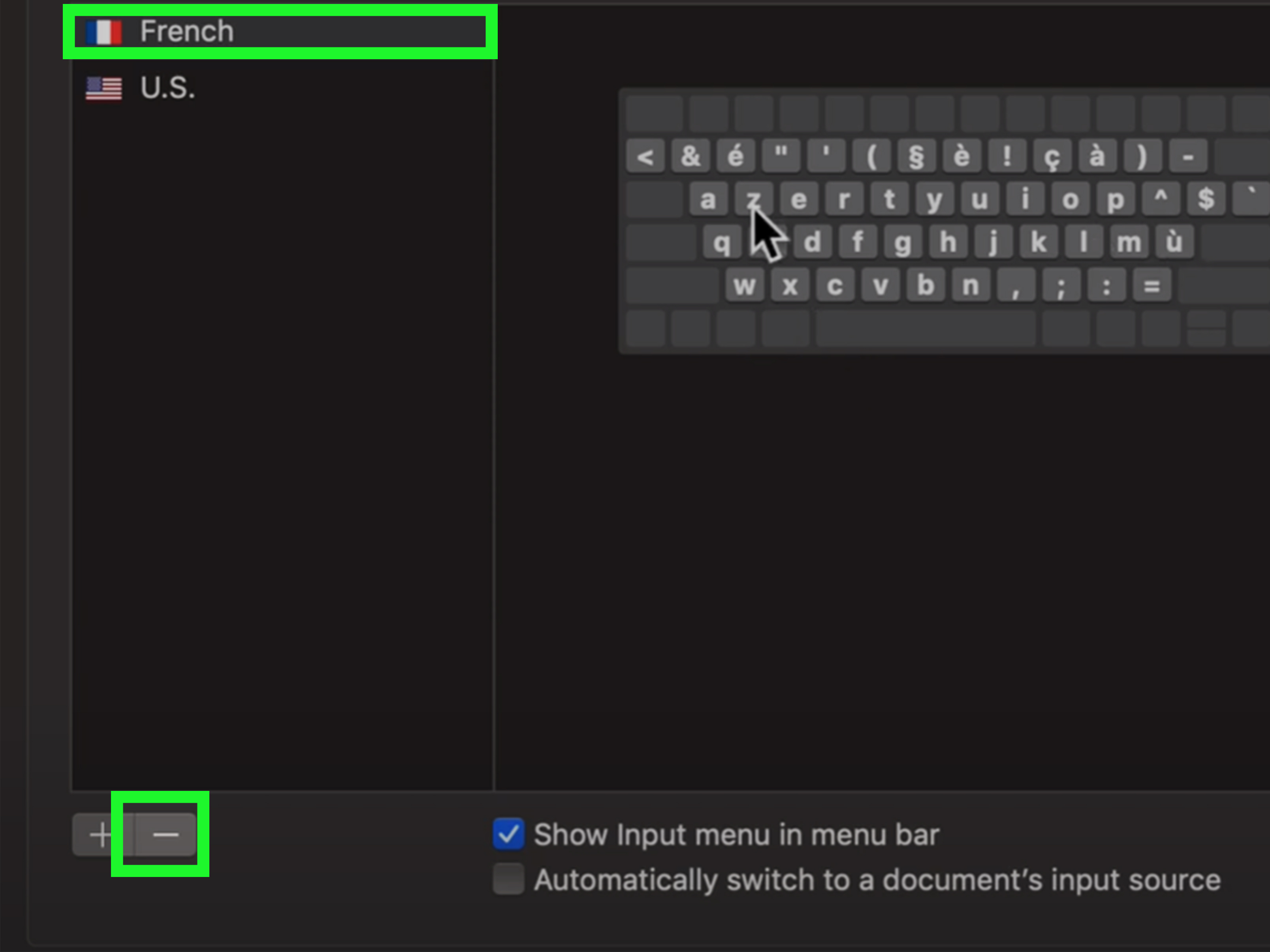
On a Mac, open the Apple menu, choose System Settings, then select Keyboard. Find the Text Input section and click Edit. In the input sources list, select the French keyboard or French input source, then click the remove button.
Keep at least one input source, such as U.S. or ABC. If you regularly switch languages, leave the input menu visible in the menu bar so you can see which keyboard is active. The tiny indicator can prevent big typing disasters, like entering a password with the wrong symbols and blaming your router for personal betrayal.
8. Remove a French Keyboard on Chromebook
On a Chromebook, click the time in the bottom-right corner and open Settings. Go to Advanced, then Languages and inputs. Choose Inputs. Under Input methods, find the French keyboard or input method and select Remove.
If you only need to switch temporarily, use the input selector near the shelf or press the keyboard shortcut configured for switching input methods. If the Chromebook is managed by a school or company, some settings may be controlled by an administrator. In that case, you may need to ask IT to remove or restrict the French input method.
9. Remove a French Keyboard on iPhone or iPad
On iPhone or iPad, open Settings, then go to General > Keyboard > Keyboards. Tap Edit, tap the delete button next to the French keyboard, choose Delete, and tap Done.
If you use multiple keyboards, the globe key lets you switch among them while typing. Removing French from the keyboard list reduces accidental switching and keeps autocorrect from suddenly developing a passion for accents. If you still see French suggestions, check whether you use a third-party keyboard app with its own language settings.
10. Remove a French Keyboard on Android, Gboard, or Samsung Galaxy
On many Android phones using Gboard, open Settings, then go to System > Keyboard > On-screen keyboard > Gboard > Languages. Select the language settings and remove or disable the French layout. You can also open Gboard settings directly from the keyboard by tapping the settings icon, when available.
On Samsung Galaxy devices, open Settings, tap General management, then choose Samsung Keyboard settings. Go to Languages and types or Manage input languages, then turn off French or remove the downloaded French input option.
Android menus vary by manufacturer, so search settings for keyboard, languages, or input if you do not see the exact path. The goal is simple: open the active keyboard app, find its language list, and remove French from that list.
11. Restart, Test, and Prevent the French Keyboard From Coming Back
After removing the French keyboard, restart your device. Then test typing in a plain text field. Try common troublemaker keys: A, Q, Z, W, M, @, ?, apostrophes, and quotation marks.
If the French layout returns, check for synced language settings, work or school device policies, third-party keyboard apps, remote desktop sessions, virtual machines, or browser-based typing tools. If you are on Windows, also confirm that the unwanted layout is not hiding under another installed language. Add the related language temporarily if needed, remove the layout from its options, then remove the language again.
Avoid risky registry edits unless you are experienced or following official IT guidance. Most users can fix the problem through Settings without digging into system files. Your keyboard should not require a treasure map.
Common French Keyboard Problems and Quick Fixes
The Keyboard Keeps Switching Back to French
This usually means more than one input method is still installed, or your system remembers different input methods for different apps. Remove extra layouts, set a default input method, and disable per-app input switching if necessary.
The Taskbar Still Shows a Language Icon
The language icon may appear when more than one input method exists. If you want it gone, make sure only one keyboard layout remains. On Windows, the language bar and input indicator settings can also affect whether the icon is visible.
My Password Is Rejected After Switching Layouts
Password fields are unforgiving. If your keyboard layout changed, symbols in your password may type differently. Use the on-screen keyboard or reveal-password button, if available, to verify what you are entering. Once logged in, remove the unwanted layout.
My Physical Keyboard Is French AZERTY
If the hardware is French, changing the software layout to English will make the computer type English QWERTY, but the printed labels may not match. For long-term comfort, consider keyboard stickers, an external U.S. keyboard, replacement keycaps, or a hardware keyboard swap by a repair technician.
Extra Tips for Avoiding Keyboard Layout Drama
Keep your keyboard list lean. If you do not actively type in French, remove it. If you need French accents occasionally, consider using the U.S. International layout, character map tools, built-in accent shortcuts, or copy-and-paste for rare characters. That is often easier than living with multiple layouts that ambush you during emails.
Learn your device’s switch shortcut, even if you remove extra layouts. On Windows, Windows key + Spacebar is the classic emergency exit. On mobile devices, the globe key is the usual switcher. On Mac, the input menu is your friend. Knowing the shortcut turns panic into a two-second fix.
Finally, check your language settings after major updates, device migrations, or account syncs. Operating systems sometimes restore old preferences because they are trying to be helpful. Like an overenthusiastic waiter refilling a glass you did not ask for, the intention is nice; the result is wet socks.
Real-World Experience: What It Feels Like to Fight a French Keyboard
The first time a French keyboard layout sneaks onto a device, most people do not think, “Ah yes, my input method has changed.” They think, “My keyboard is broken, my computer hates me, and somehow the letter A has resigned.” That reaction is completely understandable. Keyboard layouts are invisible until they betray you.
One of the most common experiences happens during fast typing. You are writing an email, taking notes, or entering a password, and suddenly familiar keys produce unfamiliar results. On an AZERTY layout, letters like A and Q may trade places, W and Z may feel wrong, and punctuation can become a scavenger hunt. The keyboard is not broken; it is simply following a different map. Unfortunately, your fingers did not receive the memo.
Another frustrating moment comes when the fix seems temporary. You switch back to English, everything works, and then the next app opens in French again. This often happens because the device is remembering input methods per app or because several layouts are still installed. The real solution is not just switching back once. The real solution is removing the unwanted layout and setting the correct default.
On shared computers, the mystery can be even stranger. A family member, student, coworker, or previous owner may have added French for legitimate reasons. Then you inherit the device and wonder why the question mark has moved to a secret location. In schools and offices, administrators may also push language settings across devices. If your settings are locked, the problem may require help from IT rather than another round of angry clicking.
Mobile devices have their own personality. On iPhone, iPad, and Android, multilingual keyboards can be genuinely useful, but the globe key makes accidental switching easy. One tap while texting, and autocorrect starts acting bilingual. Suddenly “meeting” becomes a suggestion buffet of French words, accents, and confidence you did not ask for. Removing unused keyboards is the simplest way to make the globe key less dangerous.
The best lesson from dealing with French keyboard problems is that keyboard settings should match your real typing habits. If you write in English every day and French twice a year, do not keep a full French layout active just in case. Use accent shortcuts or add French only when needed. If you work bilingually, keep both layouts but make the input indicator visible so you always know which one is active.
After you fix the issue, take one minute to test your most-used symbols. Email addresses need the @ sign. Passwords often need punctuation. Writers need quotation marks. Students need question marks. Programmers need every bracket known to civilization. Testing these keys immediately prevents the classic “I fixed it, but why can’t I log in?” sequel.
In the end, getting rid of a French keyboard is less about deleting French and more about taking control of your input settings. French is a beautiful language. It simply should not appear uninvited when you are trying to type your Wi-Fi password.
Conclusion
Getting rid of a French keyboard is usually quick once you know where to look. Start by switching back to English, then remove the French layout from your device’s keyboard or language settings. On Windows, check Language & region and Advanced keyboard settings. On Mac, use Keyboard and Text Input. On Chromebook, use Languages and inputs. On iPhone, iPad, Android, and Samsung devices, remove French from the keyboard language list.
If the layout keeps returning, look for hidden input methods, app-specific keyboard settings, synced preferences, third-party keyboards, or school and workplace management policies. Once your preferred keyboard is the only active layout, typing should feel normal again. Your A key can come home. Your question mark can stop hiding. And your keyboard can go back to being a tool instead of a tiny international incident.