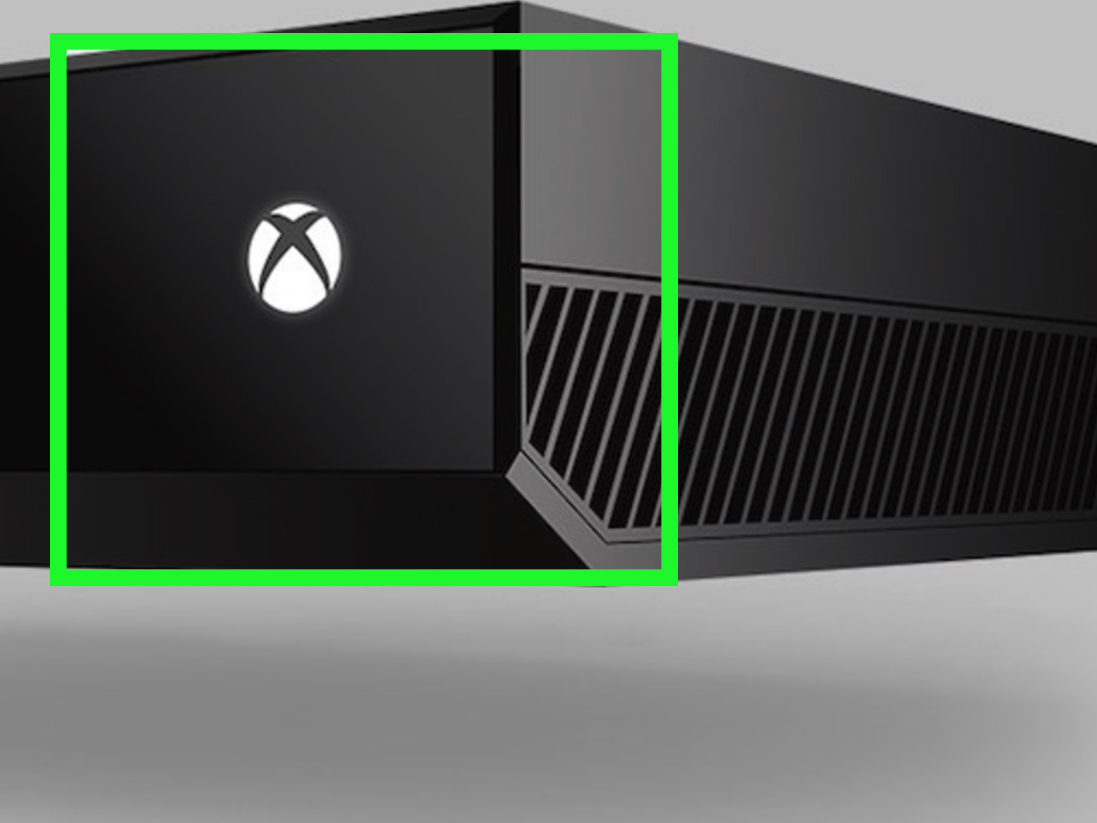
Playing an Xbox 360 through an Xbox One sounds like the kind of console magic that should require a wizard robe, a secret Microsoft handshake, and maybe three AA batteries you definitely cannot find when you need them. Fortunately, the process is much simpler. If you own an Xbox One, Xbox One S, or Xbox One X with an HDMI-in port, you can route your Xbox 360 video signal through the Xbox One and display it on your TV using the Xbox One’s HDMI pass-through feature.
There is one important clarification before we start: “playing Xbox 360 through Xbox One” can mean two different things. First, you can physically connect an Xbox 360 console to the Xbox One’s HDMI-in port and view it through the Xbox One interface. Second, you can play supported Xbox 360 games directly on Xbox One using backward compatibility. This guide focuses on the first methodthe actual console-to-console setupbut it also explains when backward compatibility may be the better choice.
The good news? You can get this working in just three steps. The slightly less glamorous news? You still need the Xbox 360 itself, its controller, a working HDMI cable, and a bit of patience if your Xbox One decides to be dramatic about detecting the signal. Let’s make the old console and the newer console shake hands like civilized living-room electronics.
Before You Start: What You Need
To play the Xbox 360 through the Xbox One, gather the basics first. You will need an Xbox 360 with HDMI output, an Xbox One model that includes an HDMI-in port, a TV or monitor, at least two HDMI cables, and both consoles’ power supplies. You will also need an Xbox 360 controller because the Xbox One controller cannot control the Xbox 360 console. That would be convenient, yes, but the gaming universe enjoys keeping us humble.
This setup works best with the original Xbox One, Xbox One S, and Xbox One X because those systems include HDMI-in hardware. Xbox Series X and Xbox Series S do not include HDMI-in pass-through, so this exact method does not apply to those newer consoles. If you are using a Series console, your best option is backward compatibility or connecting the Xbox 360 directly to your TV.
Also remember that this setup is not the same as upgrading an Xbox 360 game. You are simply using the Xbox One as a middleman between the Xbox 360 and your display. The game is still running on the Xbox 360 hardware, with Xbox 360 graphics, Xbox 360 menus, and all the nostalgic dashboard energy that comes with it.
Step 1: Connect the Xbox 360 to the Xbox One HDMI-In Port
The first step is the most important: connect the cables correctly. Take one HDMI cable and plug one end into the HDMI output port on the Xbox 360. Plug the other end into the HDMI-in port on the Xbox One. Be careful here because the Xbox One has both HDMI-in and HDMI-out ports. The labels matter. If you plug the Xbox 360 into the wrong port, nothing useful will happen, except perhaps a few minutes of questioning your life choices.
Next, connect the Xbox One to your TV. Take a second HDMI cable and plug it into the HDMI-out port on the Xbox One. Then connect the other end to an HDMI input on your TV or monitor. In plain English, the signal path should look like this: Xbox 360 to Xbox One, then Xbox One to TV.
Correct Cable Path
Here is the simple version:
- Xbox 360 HDMI Out → Xbox One HDMI In
- Xbox One HDMI Out → TV or monitor HDMI In
- Xbox 360 controller → Used to control Xbox 360 games
- Xbox One controller → Used to navigate the Xbox One interface
Power on the Xbox 360 and the Xbox One. Make sure the TV is set to the HDMI input used by the Xbox One, not the Xbox 360. Since the Xbox 360 signal is passing through the Xbox One, your TV only needs to “see” the Xbox One.
Step 2: Open OneGuide or the TV Input on Xbox One
After the cables are connected, use your Xbox One controller to open the app or input viewer used for HDMI pass-through. On many Xbox One systems, this is called OneGuide. Depending on your region, updates, and console layout, it may appear as a TV-related app or HDMI input option. The purpose is the same: it displays the device connected to the Xbox One’s HDMI-in port.
Microsoft removed live TV listings from OneGuide, so you should not expect a full TV guide experience. However, HDMI pass-through has historically remained useful for viewing connected HDMI devices. In this case, the connected HDMI device is your Xbox 360. If the Xbox One detects the signal properly, you should see your Xbox 360 dashboard appear on the screen.
If the screen stays black, do not panic. First, confirm that the Xbox 360 is turned on. Then check whether the HDMI cable is fully seated in the Xbox 360 and the Xbox One HDMI-in port. Also check that your TV is on the Xbox One’s HDMI input. If you still see nothing, restart both consoles. This is the classic “turn it off and on again” method, also known as the ancient repair spell of modern technology.
What If OneGuide Is Missing?
If you cannot find OneGuide, look through your apps library, search for TV-related options, and check your Xbox One system settings. Some users may see different wording depending on console updates and region. If the app is unavailable or unreliable on your system, the most practical workaround is to connect the Xbox 360 directly to your TV or use an HDMI switch. It is less fancy, but it works, and sometimes “boring but reliable” wins the championship.
Step 3: Play the Xbox 360 Using the Xbox 360 Controller
Once the Xbox 360 dashboard appears, pick up your Xbox 360 controller and play as usual. The Xbox One is only displaying the signal. It is not running the game, controlling the Xbox 360, or magically turning your old copy of Halo 3 into a modern remaster. Your Xbox 360 still handles the game, save files, controller input, disc reading, and system settings.
This means you should sign in on the Xbox 360 if your game needs your Xbox profile. You should also use the Xbox 360 storage device or cloud saves if you want access to old saved games. If your Xbox 360 game is disc-based, insert it into the Xbox 360, not the Xbox One, when using HDMI pass-through. The Xbox One disc drive is not involved in this method.
For casual play, this setup is fun and convenient, especially if your TV has limited HDMI ports. You can keep the Xbox One connected to the TV and route the Xbox 360 through it, reducing cable swapping. It is like giving your entertainment center a tiny traffic copone with a big green X logo.
Important Limitations You Should Know
HDMI pass-through is useful, but it is not perfect. Because the Xbox 360 video signal is being processed through the Xbox One before it reaches the TV, you may notice slight input lag. For slow-paced games, party games, RPGs, and casual play, this may not bother you. For fast shooters, rhythm games, racing games, or competitive multiplayer, even a small delay can feel like your controller is thinking about your command before politely forwarding it.
You may also run into resolution limits. The Xbox 360 can output HD video, but the HDMI-in setup is not designed to transform the image into a modern 4K gaming experience. If your goal is the sharpest possible picture and lowest possible latency, connecting the Xbox 360 directly to your TV is usually better.
Another limitation involves recording and streaming. HDMI pass-through was originally designed for cable boxes and live TV, not as a professional capture card. If you want to record Xbox 360 gameplay, stream it, or use overlays, a dedicated capture device is usually the better tool. The Xbox One can be clever, but it is not a full replacement for proper capture hardware.
HDMI Pass-Through vs. Backward Compatibility
Here is where many players get confused. If you want to play a supported Xbox 360 game on Xbox One, you may not need the Xbox 360 console at all. Xbox One backward compatibility allows select Xbox 360 and original Xbox games to run directly on Xbox One. If you own a compatible digital game, it may appear in your ready-to-install library. If you own a compatible disc, inserting the disc into the Xbox One prompts the console to download the playable version, while the disc remains required as proof of ownership.
Backward compatibility is often cleaner than HDMI pass-through. You use the Xbox One controller, access Xbox One system features, and avoid routing one console through another. Some backward-compatible games may also benefit from improved performance, steadier frame rates, or enhanced presentation depending on the title and console model.
However, backward compatibility does not support every Xbox 360 game. If your favorite title is not on the compatibility list, or if you want to use the original Xbox 360 dashboard, accessories, saved data, or disc exactly as it was, HDMI pass-through remains a handy option. In short: backward compatibility is best when the game supports it; HDMI pass-through is best when you want to use the actual Xbox 360 console.
How to Transfer Xbox 360 Saves for Backward-Compatible Games
If you decide to use backward compatibility instead of HDMI pass-through, game saves deserve attention. For many Xbox 360 games, you need to save your progress to cloud storage from the Xbox 360 side so the Xbox One can access it later. Once the save is in the cloud and you sign in with the same Xbox profile, supported games can often pick up your progress.
This is especially useful if you started a game years ago and want to continue it on Xbox One without replaying the opening tutorial for the seventeenth time. Nobody needs to relearn how to crouch behind a crate unless they truly want the full 2007 experience.
Troubleshooting Common Problems
No Signal Appears
Check the HDMI cable path first. The Xbox 360 must connect to HDMI-in on the Xbox One, and the Xbox One must connect from HDMI-out to the TV. Then confirm that both consoles are powered on and that the TV is set to the Xbox One input.
The Image Appears, But There Is Lag
Some lag is normal with HDMI pass-through. Try enabling Game Mode on your TV, closing unnecessary apps on the Xbox One, and lowering extra video processing settings on the TV. If you are playing a timing-sensitive game, connect the Xbox 360 directly to the TV for the best response.
The Xbox One Controller Does Not Control the Xbox 360
That is expected. The Xbox One is only displaying the Xbox 360 signal. Use an Xbox 360 controller connected to the Xbox 360 console.
Audio Is Missing or Strange
Check audio settings on both consoles and your TV. Try another HDMI cable if the sound cuts in and out. Also make sure the Xbox 360 is set to a compatible audio output format.
Best Setup Tips for a Better Experience
For the smoothest setup, use reliable HDMI cables and avoid loose connections. Label your cables if your entertainment center looks like a spaghetti monster moved in and started nesting. Keep both consoles well ventilated because running two systems at the same time creates extra heat. The Xbox 360 in particular appreciates airflow, especially older models that have already lived a long and eventful life.
If your TV has enough HDMI ports, compare both options: Xbox 360 directly to TV versus Xbox 360 through Xbox One. Direct connection usually gives the lowest lag. Pass-through gives convenience if you want fewer cable swaps or prefer keeping your Xbox One as the central hub.
For players who only want to play a few classic Xbox 360 games, check backward compatibility first. It is often easier and cleaner. For collectors, preservation fans, or anyone with non-compatible games, the physical Xbox 360 setup is still worth knowing.
Real-World Experience: What It Actually Feels Like
Using an Xbox 360 through an Xbox One feels a little like building a bridge between two eras of gaming. On one side, you have the Xbox 360: loud startup memories, chunky controllers, classic dashboards, and games that defined a generation. On the other side, you have the Xbox One: a more modern interface, easier app switching, and a living-room hub design that tried very hard to be the boss of every HDMI cable in the house.
In practice, the setup is surprisingly satisfying when it works. You power on the Xbox One, open the HDMI input through OneGuide or the TV app, and suddenly the Xbox 360 dashboard appears like a time capsule. For older players, it can feel instantly nostalgic. For newer players, it may feel like visiting a gaming museum where everything still works and the gift shop sells rechargeable battery packs.
The biggest advantage is convenience. If your TV has only two HDMI ports and one is already taken by another device, routing the Xbox 360 through the Xbox One can save you from constantly crawling behind the TV. Anyone who has ever tried to plug in an HDMI cable by touch while dust attacks from above knows this is not a small benefit. The Xbox One becomes a simple switch point, letting you access the older console without rearranging your setup every weekend.
The experience is especially good for slower games. Turn-based RPGs, adventure games, sports titles, local multiplayer games, and casual favorites usually feel fine through pass-through. If you are revisiting a game like Fable II, Viva Piñata, Blue Dragon, or a classic LEGO title, the tiny delay may not matter. You are there for the charm, not to shave three milliseconds off a speedrun.
Fast games are a different story. In shooters, racing games, fighting games, and rhythm games, input lag becomes easier to notice. It may not ruin the experience for everyone, but it can make the game feel slightly disconnected. You press a button, and the action responds just a hair later than expected. That hair may be tiny, but in a boss fight, it suddenly grows a mustache and starts causing problems.
Another real-world issue is reliability. Some Xbox One systems detect the HDMI signal quickly. Others may need a restart, a cable swap, or a little encouragement from the settings menu. This is why direct-to-TV remains the best recommendation for players who want the simplest and most stable setup. HDMI pass-through is clever, but a direct cable is still the shortest path between “I want to play” and “I am playing.”
Backward compatibility can feel more polished when the game is supported. You insert a compatible Xbox 360 disc into the Xbox One, download the playable version, and use the Xbox One controller. That experience feels more modern and integrated. But it does not replace the real Xbox 360 for every game. Many titles never made it into the backward-compatible library, and some players simply enjoy using the original hardware.
The best experience depends on your goal. If you want convenience and have a compatible game, use backward compatibility. If you want to play unsupported games, access the original dashboard, use old accessories, or enjoy the authentic Xbox 360 environment, connect the Xbox 360 through the Xbox One or directly to the TV. Either way, the old console still has plenty of life left in it.
Final Thoughts
Playing the Xbox 360 through the Xbox One is easy once you understand the cable path. Connect the Xbox 360 to the Xbox One’s HDMI-in port, connect the Xbox One to your TV, open the HDMI input through OneGuide or the TV app, and play with your Xbox 360 controller. That is the three-step version, and yes, it is much less scary than the back of your entertainment center makes it look.
For the best performance, connect the Xbox 360 directly to your TV. For convenience, HDMI pass-through is a useful option. For supported games, Xbox One backward compatibility is often the cleanest solution. The smart move is to choose the method that fits the game, your setup, and your tolerance for cable gymnastics.
Whether you are revisiting old favorites, testing a dusty game collection, or showing someone what gaming looked like before every menu had twelve subscription prompts, the Xbox 360 still earns its place in the room. The Xbox One can help keep it there.