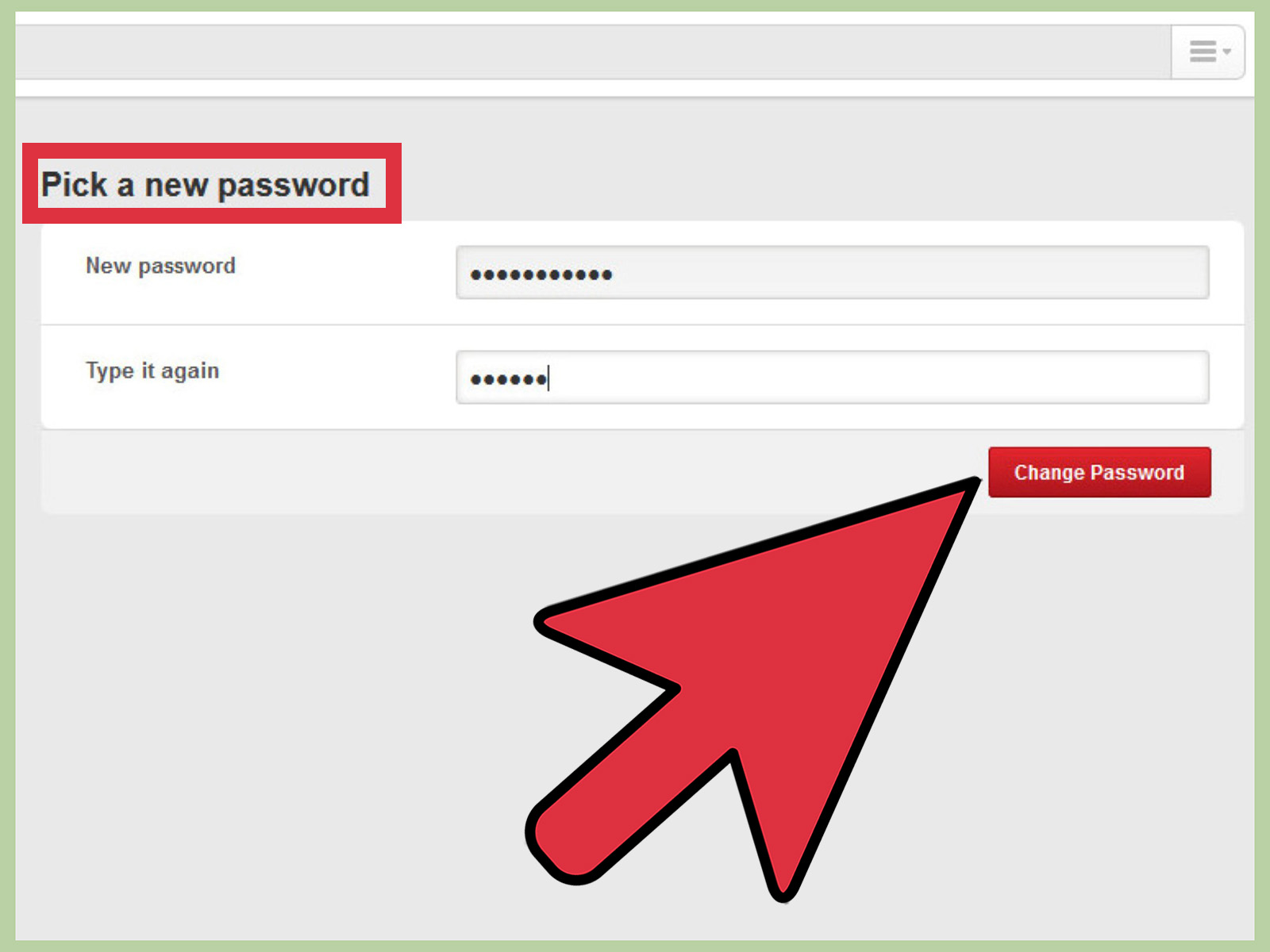
Note: This guide is for recovering access to your own accounts, devices, websites, and home network equipment. Use only official recovery pages, trusted devices, and verified support channels. The “pictures” below are structured as screenshot placeholders so your editor can replace them with your own images before publishing.
Forgetting a password is one of those tiny modern disasters that can make a perfectly normal Tuesday feel like you are trying to defuse a spaceship with oven mitts on. One minute you are logging in to check email, stream a show, pay a bill, or update your website. The next minute, your brain has replaced your password with a foggy memory of “something with an exclamation point.”
The good news: resetting a password is usually straightforward when you use the official recovery tools. The better news: most platforms now offer multiple ways to verify your identity, including email links, text codes, recovery keys, passkeys, security questions, trusted devices, admin dashboards, and account recovery forms. The less-good-but-still-manageable news: some resets take patience, especially when you no longer have access to your recovery email or phone number.
This complete guide explains how to reset a password in 10 different ways, with practical examples for Windows, Google, Apple, Facebook, Instagram, X, PayPal, WordPress, Amazon, Netflix, Dropbox, routers, and password managers. We will also cover what to do after the reset, because changing the password is only half the job. The other half is keeping yourself from doing this dance again next month.
Before You Reset Any Password: Do These 5 Things First
Before clicking every “Forgot password?” button in sight like a raccoon playing a tablet game, slow down and protect yourself.
1. Make sure you are on the official website or app
Password reset pages are a favorite target for phishing scams. Type the website address yourself, use the official app, or access the reset option from the service’s real login page. Avoid password reset links from suspicious emails, texts, pop-ups, or social media messages.
2. Check whether Caps Lock is on
It sounds silly until it saves your afternoon. Passwords are usually case-sensitive, so “CoffeeTiger77!” and “coffeetiger77!” are not the same password.
3. Try your password manager
If you use a password manager or browser password vault, search for the account name. Sometimes the password is saved under an old website name, company name, or alternate email address.
4. Confirm your recovery email and phone
Most password resets depend on access to your email inbox or mobile number. If you recently changed numbers or lost access to an old email address, recovery may take longer.
5. Prepare a strong replacement password
Use a long, unique password for every account. A password like Sunset-Piano-Train-84 is easier to remember and harder to guess than Fluffy123, which is basically a welcome mat for trouble.
How to Reset a Password: 10 Different Ways
1. Reset a Password by Email Link

The email reset link is the most common password recovery method. You enter the email address connected to your account, receive a reset message, click the secure link, and create a new password.
Best for
Google accounts, Dropbox, WordPress, Facebook, Instagram, X, Netflix, Amazon, PayPal, and most online services.
How to do it
- Go to the official login page.
- Click Forgot password?, Need help?, or Reset password.
- Enter your email address, username, or phone number.
- Open the reset email from the official service.
- Click the reset link.
- Create a new password that you have not used before.
- Save the new password in a password manager.
Pro tip
If the email does not arrive, check your spam, junk, promotions, and updates folders. Also search your inbox for terms like “reset,” “security,” “password,” or the service name. Some reset emails expire quickly, so do not wait until next Thanksgiving to click the link.
2. Reset a Password with a Text Message Code

Many services let you reset your password with a one-time code sent to your phone. This is convenient, especially if you are locked out of email. You enter your phone number, receive a code, verify it, and choose a new password.
Best for
Facebook, Instagram, X, Google, Amazon, Netflix, PayPal, and many banking or shopping accounts.
How to do it
- Open the official login or recovery page.
- Select Forgot password?.
- Choose the phone or SMS recovery option.
- Enter the code sent to your phone.
- Create and confirm your new password.
Important warning
Never share verification codes with anyone. Real support teams do not need you to read a code aloud over the phone or send it in a message. If someone asks for your code, that person is not “helping.” They are probably trying to walk into your account wearing a fake mustache.
3. Reset a Google or Gmail Password

If you forgot your Google or Gmail password, use Google’s official account recovery process. Google may ask for your recovery email, recovery phone, previous password, device confirmation, or other signals that prove the account belongs to you.
How to do it
- Go to the Google sign-in page.
- Enter your Gmail address or Google account email.
- Click Forgot password?.
- Follow the verification prompts.
- Check your recovery email or phone if requested.
- Create a new password.
- Review recent security activity after logging in.
What helps Google verify you
Use a familiar device, browser, and location when possible. If you usually log in from your laptop at home, do the recovery there instead of from a random airport tablet that smells faintly of panic and hand sanitizer.
4. Reset an Apple Account Password

Your Apple Account password is used for iCloud, the App Store, Apple Music, device syncing, and other Apple services. If you forgot it, Apple provides several recovery paths through a trusted iPhone, iPad, Mac, the Apple Support app, or Apple’s account recovery website.
How to do it on iPhone or iPad
- Open Settings.
- Tap your name.
- Go to Sign-In & Security.
- Tap Change Password.
- Enter your device passcode if asked.
- Follow the prompts to set a new Apple Account password.
How to do it on a Mac
- Open System Settings.
- Click your name.
- Select Sign-In & Security.
- Choose Change Password.
- Enter your Mac login password if requested.
- Create a new Apple Account password.
If you do not have access to a trusted device, use Apple’s official recovery website or the Apple Support app on a borrowed Apple device. Do not use unofficial “unlock” tools promising miracles. Many of them deliver malware, disappointment, or both.
5. Reset a Windows 10 Password

Windows 10 password recovery depends on the type of account you use. A Microsoft account can be reset online. A local account may use security questions, a password reset disk, or administrator help.
For a Microsoft account
- On the Windows sign-in screen, click I forgot my password.
- Follow the Microsoft account recovery prompts.
- Verify your identity with email, phone, or another approved method.
- Create a new password.
- Return to the Windows sign-in screen and use the new password.
For a local Windows 10 account
- Enter the wrong password until the reset option appears.
- Select Reset password if security questions were configured.
- Answer the security questions.
- Create a new password.
If your computer belongs to a workplace or school, contact the IT administrator. Avoid random password bypass utilities. They can damage the system, expose personal files, or turn your “forgot password” problem into a “why is my laptop making whale noises?” problem.
6. Reset a Social Media Password

Facebook, Instagram, and X all provide password reset options from the login screen. You usually start with your username, email address, or phone number, then choose where to receive the reset link or verification code.
Facebook password reset
- Open Facebook or the Facebook app.
- Tap or click Forgot password?.
- Enter your email, mobile number, name, or username.
- Choose a recovery method.
- Enter the code or open the reset link.
- Create a new password.
Instagram password reset
- Open Instagram.
- Tap Forgot password? or Get help logging in.
- Enter your username, email, or phone number.
- Follow the link or code sent to you.
- Create a new password.
X password reset
- Go to the X sign-in page.
- Click Forgot password?.
- Enter your email, phone number, or username.
- Choose the email address or method for recovery.
- Follow the reset instructions.
After resetting a social media password, check connected apps, active sessions, and login alerts. Remove anything unfamiliar. If you were hacked, resetting the password is step one. Kicking out the intruder is step two. Locking the door behind them is step three.
7. Reset a Shopping, Streaming, or Payment Account Password

Accounts tied to money or subscriptions deserve extra care. Amazon, Netflix, PayPal, and similar services provide official reset flows, but they may require additional verification to protect billing details and purchase history.
Amazon password reset
- Go to Amazon’s password assistance page from the official login area.
- Enter the email address or mobile phone number linked to your account.
- Receive a one-time password or verification message.
- Complete the security check.
- Create a new password.
Netflix password reset
- Go to Netflix login help.
- Choose email or text message recovery.
- Open the reset link or enter the code.
- Create a new password.
- Sign out of all devices if you suspect someone else has access.
PayPal password reset
- Go to PayPal’s official login page.
- Click Forgot password?.
- Enter your email address.
- Complete the security check.
- Create a new password or confirm your access as instructed.
With payment accounts, always review recent transactions after logging back in. If anything looks wrong, contact official support immediately and consider updating your bank or card security settings.
8. Reset a WordPress Password

WordPress password resets are common for bloggers, editors, store owners, and anyone who last logged in “probably sometime before lunch, or maybe last winter.” The simplest method is the built-in lost password link.
How to reset through the login page
- Go to yourdomain.com/wp-login.php.
- Click Lost your password?.
- Enter your username or email address.
- Check your inbox for the password reset email.
- Click the reset link.
- Create a new password.
If the reset email does not arrive
Check spam folders, confirm the admin email address, and verify that your website can send emails correctly. If you own the site and have hosting access, your host may offer a WordPress password reset tool in its dashboard. Advanced users may reset a password through the database, but that should be done carefully and only for a site you own or administer.
After regaining access, update WordPress core, themes, and plugins. Weak or reused passwords are only one way WordPress sites get into trouble. Outdated plugins are another, and they are sneaky little gremlins.
9. Reset a Router or Wi-Fi Admin Password

There are two different router passwords people often confuse: the Wi-Fi password used to join the network, and the router admin password used to change settings. If you forgot the Wi-Fi password, you may be able to view or change it inside the router settings. If you forgot the admin password, the reset process depends on your router model.
How to reset through router settings
- Connect to the router’s network.
- Open the router’s official admin address or app.
- Log in with the admin credentials.
- Go to wireless or security settings.
- Change the Wi-Fi password.
- Reconnect devices using the new password.
How to factory reset a router
- Find the physical reset button on the router.
- Keep the router powered on.
- Press and hold the reset button for the time specified by the manufacturer.
- Wait for the router to restart.
- Log in with the default credentials printed on the label or manual.
- Create a new admin password and Wi-Fi password immediately.
A factory reset erases custom settings, including Wi-Fi name, password, parental controls, port forwarding, and other configuration changes. In other words, do not press the reset button casually just because it looks pressable. That button has consequences.
10. Reset a Password Manager Master Password or Use Recovery Codes

Password managers are excellent because they let you use strong, unique passwords without memorizing 97 variations of your dog’s name. However, the master password is special. In many password managers, the company cannot simply email it to you because it does not know it.
Common recovery options
- Recovery code
- Emergency kit
- Biometric recovery on a previously trusted device
- Family or team administrator recovery
- Account reset, which may erase stored vault data
How to approach it
- Open the official password manager app or website.
- Select the recovery or forgot password option.
- Look for your recovery code, emergency sheet, or trusted device.
- If you are in a family or business plan, ask the authorized organizer or admin about recovery.
- If no recovery option exists, follow the provider’s account reset process and understand what data may be lost.
Once you recover access, print or securely store your emergency kit. Keep it somewhere safe, such as a locked drawer or home safe. Do not tape it to your monitor. That is not “convenient security.” That is a treasure map for chaos.
What to Do After You Reset a Password
A successful reset feels great, but do not stop at the victory lap. A password reset can be a routine fix, or it can be a sign that someone else tried to access your account. Take a few minutes to secure things properly.
Use a unique password
Never reuse the same password across email, banking, shopping, social media, and work accounts. If one site suffers a breach, attackers often try the same email and password combination elsewhere. This is called credential stuffing, and it works because humans are busy, tired, and far too fond of reusing passwords with “2026!” at the end.
Enable multifactor authentication
Multifactor authentication adds another step beyond the password. This might be an authenticator app, hardware security key, passkey, email prompt, or text code. Authenticator apps and security keys are generally safer than SMS codes, especially for important accounts.
Review recovery options
Update your recovery email, phone number, backup codes, and trusted devices. A recovery email you no longer use is like hiding your spare key in a house you moved out of five years ago.
Sign out of unknown sessions
Many services let you view logged-in devices. Sign out of unfamiliar devices, old phones, shared computers, and anything that looks suspicious.
Check for suspicious activity
Review recent logins, sent emails, purchases, connected apps, file sharing, profile changes, and security alerts. If your account was compromised, change passwords for connected accounts too, especially your email account.
Common Password Reset Problems and Fixes
The reset email never arrives
Check spam, search your inbox, wait a few minutes, and confirm you entered the correct email address. If you use multiple email accounts, try each one. For business or school accounts, contact the administrator.
The reset link expired
Request a new link. Password reset links often expire for security reasons. Use the newest email only, because older links may no longer work.
You no longer have the phone number
Look for alternate recovery options, such as email, backup codes, trusted devices, identity verification, or support recovery forms. After you regain access, remove the old number immediately.
You forgot the email address too
Some services let you search by username, phone number, full name, or payment details. Try old email addresses and check saved passwords in your browser or password manager for clues.
The account says it is locked
Wait if the lockout is temporary, follow official unlock instructions, or contact support. Repeated failed attempts can make automated systems more suspicious, so slow down and stop poking the login form like it owes you money.
of Real-World Experience: What Password Resets Teach Us
Password resets look simple from the outside: click a button, receive a code, make a new password, move on with your life. In reality, they reveal a lot about how people manage their digital lives. The biggest lesson is that your email account is the front door to almost everything. If someone controls your email, they can often reset passwords for shopping accounts, social media accounts, cloud storage, streaming services, and even websites you manage. That means your email password should be one of the strongest passwords you own, protected with multifactor authentication and updated recovery details.
The second lesson is that old information causes new problems. People often get locked out because the recovery phone number belongs to a phone they lost years ago, the backup email is an address from college, or the security question answer was written during a deeply confusing phase of life. Was your favorite food pizza, sushi, tacos, or “whatever was free”? Nobody knows. Not even Past You. This is why it is smart to review recovery settings every few months, especially after changing phones, moving jobs, switching email providers, or handing down an old device.
The third lesson is that a password manager turns password resets from a recurring comedy routine into a rare inconvenience. When every account has a unique password, one forgotten login does not become a full-blown identity security project. The password manager remembers the weird, long, random passwords. You remember one strong master password and keep recovery codes in a safe place. That arrangement is much kinder to the human brain, which is already busy remembering birthdays, grocery lists, and where it left the car keys.
The fourth lesson is that password resets should be treated as a security checkpoint, not just a login repair. After resetting, take time to review account activity. Look at recent purchases, messages, devices, connected apps, forwarding rules, and profile changes. On email accounts, check whether mail forwarding or filters were added without your knowledge. On social media accounts, review posts, direct messages, ad accounts, and linked business pages. On payment accounts, scan transactions carefully. A few extra minutes can catch a problem before it becomes expensive.
The fifth lesson is that convenience and security must be balanced. SMS recovery is convenient, but phone numbers can be vulnerable to SIM-swapping or loss. Security keys and passkeys are stronger, but you need backup methods in case a device breaks. Recovery codes are excellent, but only if stored somewhere you can actually find them. The best setup is layered: a unique password, multifactor authentication, updated recovery email, current phone number, backup codes, and a trusted password manager.
Finally, password resets are a reminder that digital security is not about being perfect. It is about building systems that forgive human forgetfulness. You will forget a password someday. Everyone does. The goal is to make recovery safe, boring, and quick. Boring is underrated. In cybersecurity, boring means your account is yours, your money is still where you left it, and your evening is not spent arguing with a login screen while your dinner gets cold.
Conclusion
Learning how to reset a password is one of the most useful digital survival skills you can have. Whether you are recovering Gmail, Windows 10, Apple, Facebook, Instagram, X, WordPress, Amazon, Netflix, PayPal, Dropbox, a router, or a password manager, the safest approach is always the same: use the official recovery method, verify your identity carefully, create a strong unique password, and update your security settings afterward.
A password reset should not be treated like a one-time chore. It is a chance to clean up your digital locks. Add multifactor authentication, refresh recovery options, remove unknown sessions, and store your new login safely. Do that, and the next time your memory decides to replace your password with elevator music, you will be ready.