You know the moment: a TikTok video reveals the secret to perfect crispy potatoes, explains a suspiciously useful phone trick, or features a dog wearing rain bootsand then your thumb accidentally refreshes the feed. The video disappears into the digital wilderness before you can like, save, or share it.
Fortunately, TikTok keeps a record of recently watched videos. Its built-in Watch History feature lets you revisit content from the previous 180 days, search for a forgotten clip, remove selected entries, or clear the list entirely. You simply need to know where TikTok has tucked the feature away.
This guide explains how to see your TikTok watch history in six easy steps on iPhone and Android. It also covers filtering, deletion, troubleshooting, data downloads, and practical ways to avoid losing a great video again.
Quick Answer: Where Is TikTok Watch History?
For most users, the current path is:
Profile > Menu > Settings and privacy > Activity center > Watch history
Some newer versions of TikTok display Activity center directly in the menu that appears after you tap the three-line icon. In that case, you can skip the Settings and privacy screen.
Once opened, Watch History displays videos associated with your account from the previous 180 days. You can tap any available thumbnail to replay the video. TikTok’s interface changes occasionally, but the feature generally remains inside the Activity center.
How to See Your TikTok Watch History in 6 Easy Steps
These instructions apply to the TikTok mobile app on both Android and iOS. Update the app before starting so your menu labels match the newest layout as closely as possible.
-
Step 1: Open the TikTok App
Launch TikTok on your phone or tablet and make sure you are signed in to the correct account.
This detail matters more than it sounds. Anyone who manages a personal profile, business account, or secret account devoted entirely to miniature cooking videos may have several logins. Watch history is connected to the account that viewed the content, so the wrong profile will show the wrong list.
-
Step 2: Tap Profile
Tap Profile in the lower-right corner of the screen. This opens your profile page, where you can see your username, biography, posted videos, private posts, liked content, and saved collections.
If a video is currently playing full-screen and the navigation bar is not visible, tap the back arrow until the bottom menu reappears.
-
Step 3: Open the Three-Line Menu
Tap the three horizontal lines in the upper-right corner. This icon is commonly called the hamburger menu, presumably because the technology industry was hungry when it named everything.
A menu will appear with shortcuts to account tools, creator features, settings, balances, saved music, and other options available for your account type.
-
Step 4: Select Settings and Privacy
Tap Settings and privacy.
On some current TikTok layouts, Activity center appears directly in the menu from Step 3. When you see it there, tap it and move to Step 5. Both paths lead to the same destination; TikTok is simply experimenting with how many taps it takes to reach it.
-
Step 5: Tap Activity Center
Scroll if necessary and select Activity center. This area collects several records related to your account activity, which may include watch history, search history, comment history, recently deleted posts, screen-time information, and content reuse activity.
The exact options depend on your app version, region, age settings, and account features.
-
Step 6: Open Watch History
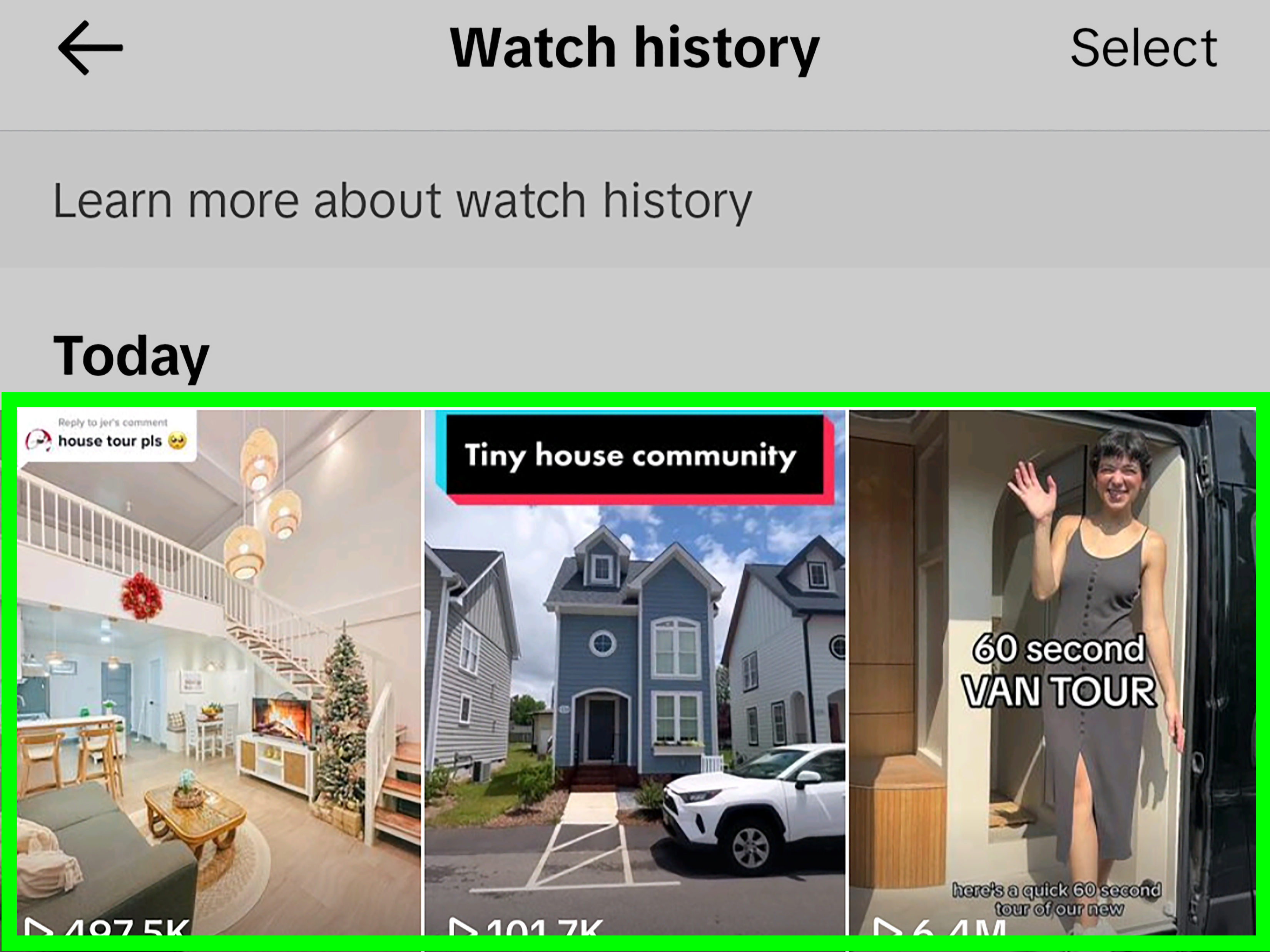
Tap Watch history. TikTok will display thumbnails of videos you recently watched, generally organized with the newest activity first.
Tap a thumbnail to replay the video. You can then like it, add it to Favorites, follow the creator, copy its link, or send it to the friend who absolutely needs to see a raccoon carefully washing cotton candy.
What You Can Do Inside TikTok Watch History
Replay a Previously Watched Video
The most obvious use is reopening a video that vanished before you interacted with it. Tap its thumbnail and TikTok will attempt to load the original post.
A history entry does not guarantee permanent access. The video may no longer play if its creator deleted it, changed its visibility, made the account private, or had the post removed. Watch History is a viewing log, not a magical archive that preserves every video forever.
Filter Videos by Date
Depending on your version of TikTok, you may see a filter or calendar control near the top of the Watch History screen. Use it to narrow the list to today, yesterday, the previous week, or a custom date range.
Date filtering is especially helpful when your memory is something like, “I watched it Tuesday night while pretending to organize the kitchen.” It is less helpful when your memory is simply, “There was music.”
Delete Individual Videos
To remove selected entries, tap Select in the upper-right corner. Choose the videos you want to remove, tap Delete, and confirm your choice.
Deleting an entry from Watch History removes it from the list. It does not delete the creator’s original post, remove your likes, erase comments, or automatically reset your recommendations.
Clear Your Entire Watch History
Open Watch History, tap Select, and look for an option such as Select all watch history. Tap Delete and confirm.
Think carefully before clearing everything. TikTok does not provide a convenient undo button, and the deleted entries may no longer be recoverable through the Watch History screen.
How Far Back Does TikTok Watch History Go?
TikTok’s in-app Watch History generally covers videos watched during the previous 180 days. Older entries are automatically removed from the accessible list.
The list may include videos you watched only briefly. On a rapidly moving For You feed, a clip can begin playing before you decide whether to keep watching, so the history may contain posts you barely remember seeing.
Watch History also has practical limitations. A deleted or private post may appear without loading correctly, and the list does not necessarily explain where you encountered a video, how long you watched it, or why TikTok recommended it.
How to Find One Specific Video in a Huge Watch History
Six months of TikTok viewing can produce a list longer than a grocery receipt after hosting Thanksgiving. Instead of scrolling endlessly, try these methods.
Use TikTok’s Watched-Video Search Filter
- Return to TikTok’s Home screen.
- Tap the magnifying-glass search icon.
- Enter a keyword connected to the video.
- Run the search and open the filter controls beside the search bar.
- Select the Watched video filter and apply it.
Useful search terms can include the creator’s name, spoken topic, caption wording, product name, song title, location, hashtag, or memorable object in the video.
For example, searching for “cast iron pizza” and applying the Watched filter is much faster than inspecting hundreds of thumbnails and questioning every decision that led you there.
Check Your Likes
Open your profile and tap the heart-shaped tab to review videos you liked. This method works only when you tapped the Like button, but it is often faster than opening Watch History.
Your liked-video tab may be private depending on your account settings, but you can still view it while signed in.
Look Through Favorites and Collections
If you tapped the bookmark icon, open Favorites from your profile or menu. Saved videos may be arranged into collections such as Recipes, Travel, Workouts, Shopping, or Things I Will Definitely Try Someday.
Review Direct Messages
Open your Inbox and inspect recent conversations if you shared the video with someone. Even when the original caption escapes your memory, you may remember which friend received itand whether they responded with a laughing emoji or mild concern.
What to Do If Watch History Is Missing
Update TikTok
Open the Apple App Store or Google Play Store, search for TikTok, and install any available update. Older versions may use a different menu structure or fail to display newer Activity center tools correctly.
Check Both Menu Locations
First look for Activity center directly after tapping the three-line profile menu. If it is not there, open Settings and privacy and look again.
Confirm the Correct Account
Switch between your TikTok accounts and inspect Watch History on each one. A video watched under Account A will not normally appear in the history of Account B.
Restart the App
Close TikTok completely and reopen it. A temporary interface or synchronization problem can prevent a menu option from loading.
Clear TikTok’s Cache
Go to Profile > Menu > Settings and privacy and look for storage, cache, or free-up-space controls. Clearing temporary cached files may resolve display problems without deleting your posted videos or account.
Reinstall as a Last Resort
If updating and restarting do not help, reinstalling TikTok may repair damaged app files. Save unfinished drafts first because locally stored drafts can disappear when the app is removed.
Remember That Features Can Roll Out Gradually
TikTok frequently tests menus and tools with different groups of users. Two people using the same phone model may temporarily see slightly different navigation. Regional availability and account settings can also affect what appears.
Can You See TikTok Watch History on a Computer?
The mobile app provides the most reliable access to the dedicated Watch History screen. TikTok’s website allows users to watch videos, search, manage profiles, and interact with content, but its account-history tools do not always match those in the Android and iPhone apps.
Videos watched while signed out, browsing as a guest, or using another account may not appear in the mobile history you expect. For the clearest results, use the TikTok app while signed in to the same account that originally watched the video.
How to Download a Longer Record of Your TikTok Data
When the in-app list does not provide enough information, you can request a copy of your TikTok account data. TikTok says the downloadable file may contain information such as your username, comment history, privacy settings, and video watch history.
- Open TikTok and tap Profile.
- Tap the three-line menu.
- Select Settings and privacy.
- Tap Account.
- Select Download your data.
- Choose the information and file format you want.
- Tap Request data.
Preparing the file can take several days. TikTok will notify you when it is ready, and the completed download remains available only for a limited period. A TXT file is easier to read manually, while JSON is more convenient for importing, sorting, or analyzing with software.
A data download should not be treated as a guaranteed backup of every playable video. It may contain identifiers or activity records rather than permanently saved copies of the original clips.
Does Deleting Watch History Reset the For You Page?
Clearing the visible history list is not the same as fully resetting TikTok’s recommendation system. The For You feed can consider several signals, including videos you watch, skip, replay, like, share, comment on, search for, and mark as Not Interested.
If your feed has become trapped in a strange themeperhaps three hours of competitive carpet cleaninguse TikTok’s dedicated feed controls instead:
- Press and hold unwanted videos and choose Not interested.
- Unfollow accounts that no longer match your interests.
- Search for and engage with topics you genuinely want to see.
- Use Manage topics when available.
- Look for Refresh your For You feed under content preferences.
Deleting Watch History can tidy your account activity, but recommendation changes usually require adjusting the behavioral signals that shape your feed.
Privacy Tips for Managing TikTok Viewing Activity
Watch History is private account information, but anyone who can unlock your device and open your TikTok profile may be able to view it. Protect the account with a strong password, two-step verification, and your phone’s screen lock.
Do not confuse Watch History with Profile View History. Watch History shows videos your account watched. Profile View History is a separate optional feature that may show eligible accounts that visited your profile, subject to TikTok’s conditions and privacy settings.
Parents and guardians should avoid secretly accessing another person’s account. TikTok provides Family Pairing tools that allow families to manage selected safety, privacy, and screen-time controls more transparently.
Frequently Asked Questions
Can other TikTok users see my watch history?
No public Watch History tab appears on your profile. However, someone with access to your unlocked phone or account could open the Activity center and view it.
Does TikTok Watch History include LIVE videos?
The list is primarily designed around watched posts, and coverage of LIVE content can be inconsistent. Check your Following activity, notifications, Inbox, and the broadcaster’s profile when looking for a previous livestream.
Why is a watched video missing?
You may have viewed it while signed out, under another account, or through a browser. The creator may also have deleted the post, changed its privacy, or blocked your account.
Will clearing my cache erase Watch History?
Clearing cache removes temporary app files and is different from deleting entries through the Watch History screen. Drafts deserve extra caution, especially before uninstalling the app.
Can deleted Watch History be restored?
TikTok does not provide a standard restore button for Watch History entries you intentionally delete. You may still find the video through search, Likes, Favorites, messages, browser history, or an account-data request.
How can I make future videos easier to find?
Like important posts, add them to Favorites, organize them into collections, or share them to a private chat. Watch History is useful for recovery, but deliberate saving is faster.
Real-World Experience: Finding the TikTok Video That Got Away
The usefulness of TikTok Watch History becomes obvious the first time a genuinely valuable video disappears. In one typical situation, imagine watching a home-repair creator demonstrate how to stop a cabinet door from sagging. The video shows the exact screwdriver position, explains which hinge screw to adjust, and makes the repair look easy enough that even a person who owns one mysterious Allen wrench feels qualified.
Before you can save it, a notification appears. You answer the message, return to TikTok, and discover that the For You feed has refreshed. Now you are looking at a dancing parrot. The cabinet tutorial is gone.
The first instinct is usually to search broad phrases such as “fix cabinet hinge.” That produces hundreds of clips. Some address loose hinges, some replace the entire door, and one appears to involve a power tool large enough to frighten the cabinet into behaving. Searching becomes frustrating because you do not remember the creator’s name or exact caption.
Watch History changes the process. Open Profile, tap the menu, enter the Activity center, and select Watch history. Because the missing video was watched recently, it should appear near the top. The thumbnail may be recognizable immediately. Once reopened, it can be saved to a Home Projects collection instead of being entrusted to memory again.
Another common experience involves rediscovering entertainment rather than instructions. Suppose you saw a comedian telling a story in several parts. You watched Part 1, accidentally refreshed the feed, and never reached the ending. Watch History can return you to the original post, where the creator’s profile may contain the remaining installments.
The feature is also useful for shopping research. TikTok videos often demonstrate kitchen tools, clothing, electronics, beauty products, and home accessories. A product might look interesting in the moment, but purchasing immediately is not always wise. Reviewing Watch History later allows you to inspect the claim with a cooler head, compare alternatives, read independent reviews, and determine whether the “life-changing” vegetable slicer is truly essential or simply very enthusiastic about cucumbers.
There are limitations. A video may have been removed before you return. The creator might make the account private, or the post’s thumbnail may not reveal enough to identify it quickly. After a long scrolling session, dozens of visually similar videos can appear in the same date range. That is when keyword search, the Watched filter, Likes, Favorites, and direct-message history become valuable backup methods.
The best habit is to use Watch History as a safety net rather than a filing system. When a video is genuinely useful, save it immediately. Create specific Favorites collections instead of one enormous folder. “Weeknight Recipes,” “Phone Tips,” and “DIY Repairs” are far more useful than a single collection named “Good Stuff” containing 847 unrelated posts.
Ultimately, learning how to see your TikTok watch history removes much of the panic from an accidental refresh. The lost video is often only six taps away. Your finger may still swipe at the worst possible moment, but at least TikTok provides a path backand the dancing parrot can wait.
Conclusion
To see your TikTok watch history, open your profile, tap the three-line menu, choose Settings and privacy, enter the Activity center, and select Watch history. If Activity center appears directly in the profile menu, you can open it without visiting Settings and privacy first.
From there, you can replay recently viewed videos, filter activity by date, delete selected entries, or clear the complete list. When a video is difficult to locate, combine Watch History with TikTok’s Watched search filter, Likes, Favorites, collections, messages, and downloadable account data.
The feature may not rescue a post that has been deleted or made private, but it gives you a much better chance of recovering that recipe, tutorial, song, product demonstration, or inexplicably talented pet you forgot to save.
SEO Metadata
Note: TikTok frequently tests interface changes, so menu names and locations may vary slightly by app version, device, account, and region.