Turning off an iPod Classic should be easy. After all, this is a music player with five main buttons, not a spacecraft preparing to dock with the International Space Station. Yet there is no button labeled “Power,” and the Hold switch looks suspiciously like it ought to do the job. That combination has confused generations of otherwise capable music lovers.
The essential answer is simple: unlock the controls, then press and hold the Play/Pause button until the screen goes dark. Apple’s own user guide describes this action as turning off the iPod Classic, while contemporary reviews often describe it as putting the player to sleep. Either way, it stops playback, darkens the display, and reduces power use.
This guide explains the complete process in 11 practical steps, including how to prevent accidental wake-ups, what to do when the iPod refuses to respond, and how to protect an aging battery.
Quick Answer: How Do You Turn Off an iPod Classic?
Make sure the Hold switch is unlocked, then press and hold the Play/Pause button at the bottom of the Click Wheel. Keep holding it until the screen becomes completely dark. Afterward, slide the Hold switch toward the orange position to prevent buttons from waking the iPod in your pocket or bag.
The Hold switch does not actually turn the iPod off. It only locks or unlocks the controls. Think of it as a tiny security guard whose only job is to stop your backpack from selecting the same podcast episode 47 times.
How to Turn Off Your iPod Classic in 11 Steps
-
Step 1: Finish Any Syncing or File Transfer
Before touching the power controls, check whether your iPod Classic is connected to a computer. If the screen displays “Sync in Progress,” “Connected,” or “Do Not Disconnect,” do not unplug it immediately.
Interrupting a transfer can damage music files, playlists, or other data stored on the player. Wait for synchronization to finish, then eject the device through iTunes, Finder, Windows Explorer, or the operating system’s safe-removal feature. Apple’s manual specifically warns against disconnecting the iPod while synchronization is active.
-
Step 2: Disconnect the Charging or Dock Cable
After safely ejecting the iPod, unplug the 30-pin connector or remove the player from its dock. An iPod connected to a powered USB port may continue charging and can display a battery screen even after you try to put it to sleep.
You can technically use the shutdown control while the cable is connected, but disconnecting it makes the result easier to recognize. It also prevents the computer or dock from waking the player again.
-
Step 3: Pause the Current Song, Video, or Podcast
Press the Play/Pause button once to pause anything currently playing. This is not strictly required because holding the same button will also stop normal operation, but pausing first gives you clear confirmation that the button is responding.
Look near the top of the screen. A pause symbol should replace the play symbol. More importantly, the music should stop, which is useful when your headphones are hiding under a couch cushion and blasting an energetic drum solo into the upholstery.
-
Step 4: Return to a Normal Menu Screen
Press the Menu button once or twice until you reach a regular menu or the main screen. You do not need to navigate to a special shutdown setting because the iPod Classic does not have a conventional on-screen power menu.
Returning to a stable menu is helpful when the Now Playing screen, a game, or a large media file appears slow. It also makes it easier to determine whether the Click Wheel is responding normally.
-
Step 5: Locate the Play/Pause Button
The Play/Pause control is positioned at the bottom of the Click Wheel. It is marked with the familiar right-facing triangle and two vertical pause bars.
Do not press the Center button by mistake. The Center button selects menu items and, when combined with Menu, performs a force restart. That is useful during troubleshooting, but it is not the normal way to turn off your iPod Classic.
-
Step 6: Unlock the Hold Switch
Check the small Hold switch on the top edge of the iPod. When the orange section is visible, the controls are locked. Slide the switch away from the orange position so the Click Wheel can accept your command.
If the Hold switch is engaged, pressing and holding Play/Pause will accomplish approximately nothing. The iPod is not being stubborn; it is faithfully obeying your previous instruction to ignore every button. Apple and iFixit both identify the locked Hold switch as a common reason the controls appear unresponsive.
-
Step 7: Press and Hold Play/Pause
Place your thumb directly over the Play/Pause area and press it firmly. Continue holding the button instead of releasing it after a quick tap.
A quick press only pauses or resumes playback. A sustained press sends the sleep or shutdown command. Most working iPod Classic models respond after a couple of seconds, although an older player may take slightly longer if its storage drive or software is busy.
-
Step 8: Wait Until the Screen Turns Completely Dark
Release the button after the display goes black. You should no longer see the menu, battery icon, album artwork, or backlight.
Do not confuse a dimmed backlight with a completed shutdown. The iPod can turn off its backlight automatically while remaining awake and playing. A successfully sleeping iPod has a completely blank display and produces no audio.
-
Step 9: Force Restart the iPod If It Is Frozen
If holding Play/Pause does nothing, the software may be frozen. First, make sure the Hold switch is fully unlocked. Then press and hold the Menu and Center buttons together for approximately eight seconds, or until the Apple logo appears.
Place the iPod on a table if pressing both controls accurately is difficult. Once it restarts, allow the main menu to load and repeat the Play/Pause shutdown method. Apple recommends this Menu-and-Center combination for force restarting an unresponsive iPod Classic.
A force restart should not erase your songs or playlists. It simply reboots the player. A factory restore is a separate and much more destructive process, so do not click Restore in iTunes unless you have backed up your media and genuinely need that option.
-
Step 10: Lock the Controls After the Screen Goes Dark
Once the iPod is asleep, slide the Hold switch toward the orange position. This prevents pressure on the Click Wheel from waking it accidentally.
This step is particularly useful when carrying the iPod in a pocket, backpack, purse, or gym bag. Without the lock, a loose object may press a button, wake the display, and quietly drain the battery while you wonder why your vintage music machine is exhausted before lunch.
-
Step 11: Confirm That It Wakes Normally
To verify that everything worked, slide the Hold switch back to the unlocked position and press any button once. The display should light up and return to the previous screen or main menu.
After confirming normal operation, repeat the shutdown process and lock the controls again before storing the device. This quick test helps distinguish a successful sleep from a weak battery, frozen screen, or failing control button.
Does an iPod Classic Really Turn Off Completely?
The phrase “turn off” is slightly misleading. Apple’s documentation uses that wording, but an iPod Classic normally enters a low-power sleep state rather than electrically disconnecting its battery. That is why it can wake quickly when you press a button instead of performing a lengthy cold boot every time.
The sleep state is normal and does not mean your shutdown attempt failed. The player stores enough information to resume quickly, while the screen, music playback, and most active functions stop.
There is no ordinary menu option for completely removing battery power. Physically disconnecting the internal battery would require opening the case, which is unnecessary for everyday use and can damage the tightly clipped enclosure. iFixit describes the metal-bodied Classic as especially difficult to open safely.
How to Make an iPod Classic Turn Off Automatically
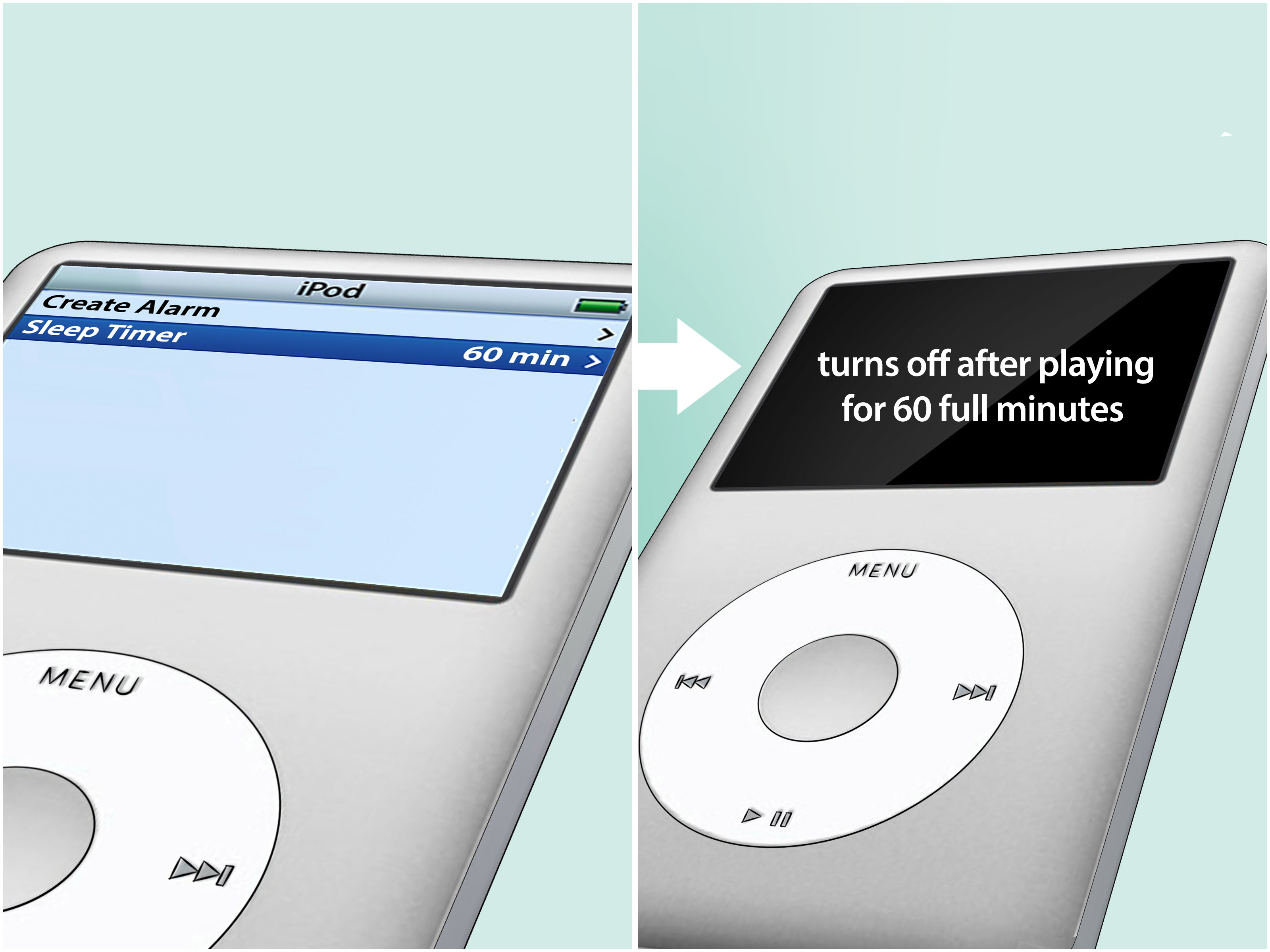
If you enjoy listening in bed, use the built-in Sleep Timer rather than trusting yourself to stay awake long enough to press Play/Pause. Depending on the model and software version, navigate to:
Extras > Alarms > Sleep Timer
Choose the desired playback period. When the timer expires, the iPod stops playing and turns itself off. Apple’s user guide and Macworld both document the Sleep Timer in the Extras and Alarms section.
This feature is excellent for audiobooks, quiet playlists, and podcasts, although falling asleep during a mystery novel may still result in waking up with no idea who committed the crime.
What to Do When Your iPod Classic Will Not Turn Off
Check the Hold Switch Again
Move the Hold switch into the locked position and then back to unlocked. Make sure it travels fully in both directions. Dirt, wear, or damage to the switch assembly can leave the device electronically locked even when the plastic slider appears close to the correct position.
Try a Different Finger Position
The Click Wheel can be sensitive about where pressure is applied. Press the Play/Pause label near the outside edge of the wheel rather than leaning on the Center button. Remove any thick protective case that prevents a clean click.
Charge the Battery
An extremely weak battery can cause sluggish controls, repeated restarts, a blank display, or behavior that resembles a frozen device. Connect the iPod to a reliable powered USB port or compatible charger and leave it charging before trying again.
Older computer keyboard ports may not provide enough power, so use a main USB port on the computer or a suitable wall adapter. Apple’s guide specifically recommends a high-powered USB connection.
Force Restart Before Trying Again
Unlock Hold, then press Menu and Center together until the Apple logo appears. After the reboot completes, press and hold Play/Pause. A restart often clears a temporary software freeze without deleting your library.
Check for a Failing Click Wheel or Hold Switch
If other controls also fail, the problem may be hardware rather than software. Test Menu, Center, Previous, and Next separately. A defective Click Wheel ribbon cable, Hold switch assembly, or logic-board connection may require repair.
Watch for Battery Swelling or Excessive Heat
Stop using the iPod if the back panel begins separating, the Click Wheel appears pushed outward, or the device becomes unusually hot. Those symptoms may indicate a swollen or damaged battery. Do not squeeze the case closed or puncture the battery. Seek help from a technician experienced with older Apple devices. iFixit specifically advises taking precautions when an iPod Classic battery is swollen.
Tips for Preserving an Older iPod Classic Battery
Turning off your iPod properly reduces unnecessary screen and playback activity, but an old battery will still lose charge gradually while the device is stored. That is expected, especially when the original battery has already survived more birthdays than several popular social networks.
Keep the Hold switch locked during storage, reduce screen brightness, and avoid leaving the backlight set to Always On. Apple notes that longer backlight durations can reduce battery performance.
Do not leave the battery completely empty for a long period. Recharge the iPod occasionally, even if it is now used only for road trips or as a carefully curated time capsule of early-2000s music. Lithium-based rechargeable batteries can suffer when left deeply discharged for extended periods.
Finally, avoid repeatedly force restarting the player when a normal Play/Pause hold works. A force restart is a troubleshooting tool, not a dramatic alternative shutdown animation.
Frequently Asked Questions
Why does my iPod Classic turn back on by itself?
A button may be pressed accidentally, the Hold switch may be unlocked, or a connected cable, dock, or computer may wake the player. Put the iPod to sleep, disconnect it from power, and lock the Hold switch.
Does locking the Hold switch turn the iPod off?
No. The Hold switch disables the controls. It is useful after the iPod has entered sleep, but sliding it into the orange position by itself does not stop active music playback.
Will turning off the iPod delete my songs?
No. A normal shutdown or force restart does not erase the music library. Restoring the iPod through computer software can erase its contents, so that option should be treated separately.
Can I turn off the iPod while it is charging?
You can put it to sleep, but the charging screen may remain visible or return periodically. For a clearly blank screen, safely eject the iPod and disconnect the cable after charging or syncing is complete.
How do I turn the iPod Classic back on?
Unlock the Hold switch and press any button. If it does not wake, charge it for a while and try again.
Real-World Experience: Living With the iPod Classic Power Controls
Using an iPod Classic after years of smartphones can feel pleasantly strange. Modern phones present a power menu, display a confirmation screen, and sometimes ask whether you would also like to restart, call emergency services, or reconsider every decision that brought you to this moment. The iPod Classic simply expects you to remember that holding Play/Pause means bedtime.
The most common beginner experience is pressing Play/Pause once, seeing the pause symbol, and waiting for the screen to turn off. It eventually may dim because of the backlight timer, but the player has not necessarily entered sleep. Once users learn that the button must be held, the process becomes automatic. After a few days, the thumb moves to the bottom of the Click Wheel without conscious thought.
The Hold switch creates the second memorable lesson. New owners often treat it as a power slider because it sits on the top edge where a power control logically belongs. They slide it, see a lock icon, and assume the device has been turned off. Ten minutes later, the music is still playing. The switch is best understood as the final step after shutdown, not the shutdown command itself.
Carrying the iPod without engaging Hold quickly demonstrates why the switch exists. A pocket can wake the screen, change the volume, skip tracks, or resume playback. The iPod may emerge from a bag several hours later with a noticeably weaker battery and a listening history that suggests someone is deeply passionate about one accidental song.
Another practical experience involves older batteries. A freshly sleeping iPod with a healthy battery may retain its charge well, while a heavily aged battery can lose power much faster. Owners sometimes blame the shutdown method when the real issue is simply battery degradation. The useful test is to charge the device fully, put it to sleep, lock Hold, leave it disconnected, and check it later. Rapid loss of charge under those conditions points more strongly toward battery wear than an incorrect button sequence.
Frozen controls are also part of vintage-device ownership. Occasionally, holding Play/Pause produces no response. The instinct is to press harder, but the better approach is to confirm that Hold is unlocked and perform the Menu-and-Center force restart. Once the Apple logo appears and the menu reloads, normal shutdown often works again.
The overall experience is refreshingly consistent. There are no software pop-ups, advertisements, cloud prompts, or operating-system questions. You pause the music, hold one physical button, wait for the screen to go dark, and lock the controls. It is a small ritual, but it captures much of the iPod Classic’s appeal: a focused device that does one main job and does not interrupt your album to announce that your refrigerator has finished updating.
Conclusion
To turn off your iPod Classic, unlock the Hold switch and press and hold Play/Pause until the display becomes completely dark. Then lock the Hold switch to prevent accidental wake-ups. If the player is frozen, unlock Hold and force restart it by holding Menu and Center for about eight seconds before trying the normal shutdown command again.
The process feels unusual only because the iPod Classic has no dedicated power button or on-screen shutdown menu. Once you learn the Play/Pause shortcut, turning it off takes just a few secondsand considerably less effort than reorganizing the 4,000 songs you imported in 2008.
Note: On an iPod Classic, “turning off” normally places the device in a low-power sleep state. It does not physically disconnect the internal battery. This article was checked against Apple documentation and support guidance, along with established repair, technology, and battery references.