A blocked website can feel like a locked refrigerator at midnight: the content is probably not life-changing, but suddenly you need to see it immediately. Fortunately, a virtual private network is not the only tool that can restore access.
Depending on how the website is being restricted, you may be able to reach it by changing your DNS resolver, using a trusted web proxy, or browsing through the Tor network. Each method solves a different problem, so choosing the right one can save you from clicking random buttons and wondering why the internet is still giving you the silent treatment.
Why Is the Website Blocked?
Before trying to unblock a website without a VPN, identify what kind of restriction you are facing. Not every error page means someone is deliberately blocking you. A site may be offline, its domain records may be outdated, your browser may have cached a bad response, or the service may not be available in your region.
Common causes include:
- DNS filtering: Your internet provider or local network refuses to resolve the website’s domain name.
- Network filtering: A router, firewall, school, employer, or public hotspot blocks the destination address or category.
- Regional restrictions: The website checks your apparent IP location and limits access by country or state.
- Browser or device settings: Extensions, security software, parental controls, or a stale DNS cache interfere with the connection.
- Server-side restrictions: The site blocks your IP address, requires an account, or is temporarily unavailable.
Try loading the website on a different connection, such as cellular data instead of Wi-Fi. You can also test another browser or device. If the site works elsewhere, the problem is probably connected to your original network or configuration rather than the website itself.
Method 1: Change Your DNS or Enable Secure DNS
What DNS Does
The Domain Name System acts like an address directory for the internet. When you enter a domain name, your device asks a DNS resolver for the corresponding IP address. If the resolver returns an error or intentionally filters that domain, the website will not load even though its server is working perfectly well.
Switching to a reputable public resolver can help when the restriction exists only at the DNS level. Secure DNS technologies such as DNS over HTTPS and DNS over TLS encrypt the lookup between your device and the resolver, reducing the risk of ordinary DNS requests being observed or modified while in transit. However, secure DNS protects only DNS lookups; it does not encrypt all browsing traffic or hide your IP address from websites.
Option A: Enable Secure DNS in Chrome
- Open Chrome and select the three-dot menu.
- Choose Settings.
- Open Privacy and security, followed by Security.
- Find Use secure DNS under the advanced settings.
- Turn it on and select a reputable service provider.
- Restart the browser and test the website again.
Chrome normally uses secure DNS in automatic mode and may fall back to ordinary DNS when the automatic encrypted lookup fails. Selecting a custom provider can prevent that fallback, although an unavailable custom resolver may then produce a “server IP address could not be found” error. Chrome may also disable this option on managed devices or devices using parental controls.
Option B: Enable DNS Over HTTPS in Firefox or Edge
In Firefox, open Settings, select Privacy & Security, and scroll to the DNS over HTTPS section. Firefox offers several protection levels, allowing you to balance compatibility with encrypted DNS use.
Microsoft Edge also provides secure DNS controls within its privacy and security settings. The exact wording may change slightly between browser versions, but searching the settings page for “secure DNS” usually finds it faster than wandering through menus like an explorer who forgot the map.
Option C: Change DNS at the Operating-System Level
Changing the DNS settings for your operating system can affect multiple browsers and applications. Common public resolver addresses include:
- Cloudflare: 1.1.1.1 and 1.0.0.1
- Google Public DNS: 8.8.8.8 and 8.8.4.4
- Quad9: 9.9.9.9 and 149.112.112.112
On Windows 11, open Settings > Network & internet, choose your Wi-Fi or Ethernet connection, find the DNS server assignment, and select Edit. Save the existing addresses before changing anything so you can restore them if necessary.
On Android, open Settings > Network & internet > Private DNS. Choose the provider-hostname option and enter a supported hostname. For example, Cloudflare documents one.one.one.one for its standard resolver. Android emphasizes that Private DNS secures DNS questions and answers only, not the rest of your connection.
When Changing DNS Will Not Work
A DNS change will not help if the network blocks the website’s IP address, inspects traffic after the lookup, or requires access through an approved gateway. It also will not overcome a website’s account restrictions or IP-based regional licensing rules.
Think of DNS as getting a correct street address. A new directory can help when someone removed the address from your old directory, but it cannot help when the road itself is closed.
Method 2: Use a Trusted Web Proxy
How a Web Proxy Unblocks a Website
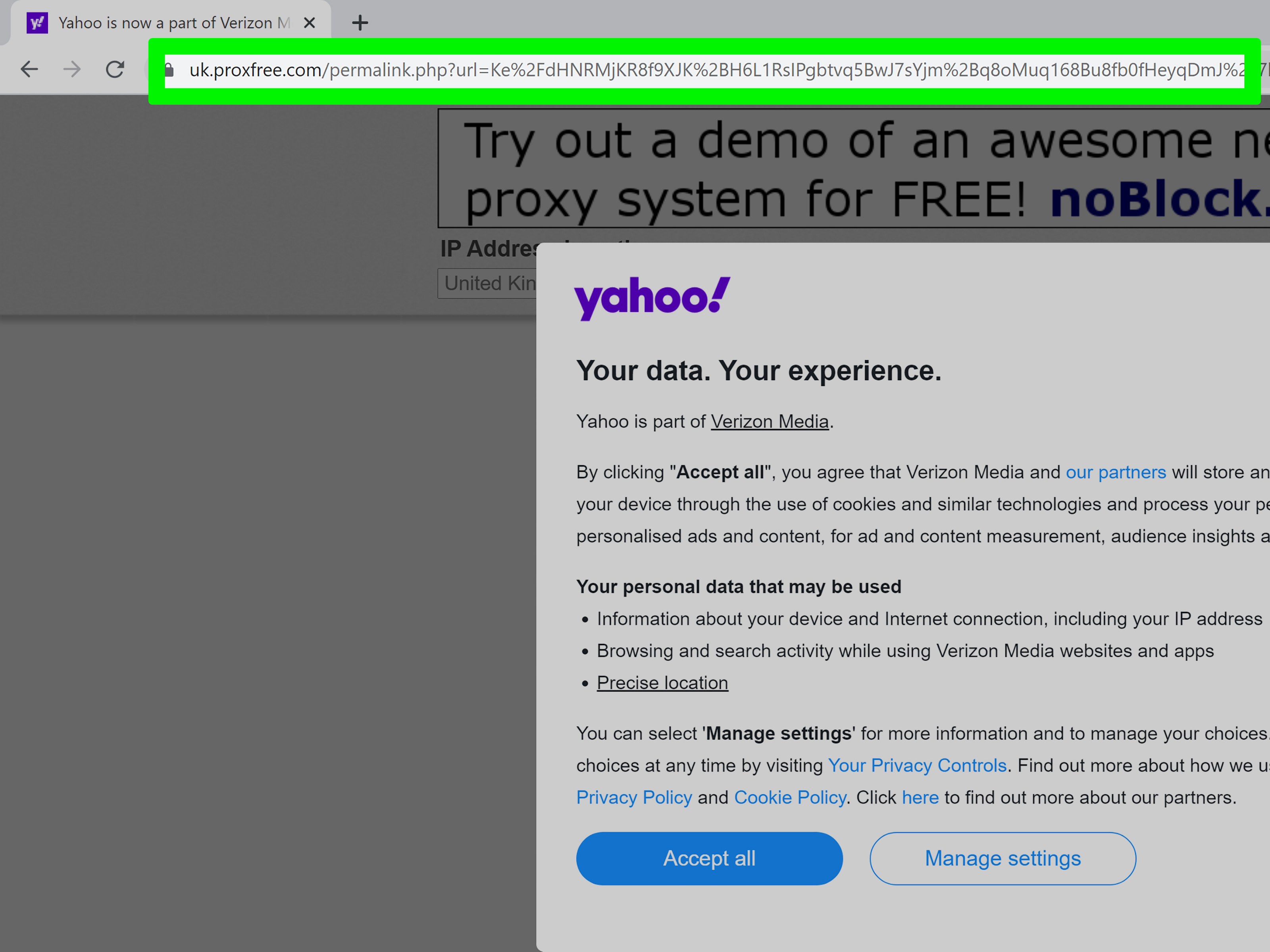
A proxy server stands between your browser and the destination website. Instead of contacting the website directly, your browser sends the request to the proxy. The proxy retrieves the page and sends the result back to you.
Because the destination sees the proxy’s address rather than your direct connection, a proxy can sometimes bypass a local network block or a basic regional restriction. Unlike a full VPN, a browser-based web proxy generally handles only the pages opened through that proxy. Other applications, background services, and browser tabs may continue using your normal connection.
How to Use a Browser-Based Proxy
- Choose a reputable proxy provider with a clear privacy policy and identifiable operator.
- Open the provider’s official website.
- Enter the full address of the blocked website into the proxy’s address field.
- Select a server location when that option is available.
- Open the page and confirm that the destination uses HTTPS.
- Close the proxy session when you are finished.
This method is convenient because it usually requires no installation or system-wide configuration. It works best for reading articles, viewing public reference pages, or checking content that does not require a sensitive login.
Using a Manually Configured Proxy
A commercial, workplace-approved, or personally operated proxy may provide a server address and port number. Windows supports automatic proxy detection, setup scripts, and manual proxy configuration under Settings > Network & internet > Proxy. macOS provides proxy controls under System Settings > Network, followed by the connection details and proxy settings.
Do not copy proxy addresses from a mystery list posted by an anonymous account three years ago. An untrustworthy proxy may monitor requests, inject advertising, alter downloads, or disappear at the precise moment you finally need it.
Proxy Safety Rules
- Do not enter banking, payment, medical, work, or primary email credentials through an unknown proxy.
- Avoid downloading software or documents through an unverified free service.
- Use websites with HTTPS and pay attention to browser certificate warnings.
- Do not install random proxy extensions with broad permissions.
- Read the service’s privacy, retention, and logging policies.
- Turn off manual proxy settings after use if you do not need them permanently.
HTTPS helps protect the connection between a browser and a legitimate website, but it does not magically turn an untrustworthy intermediary into your new best friend. The Federal Trade Commission recommends checking for HTTPS and the lock indicator when transmitting information online, while also reminding users that browser privacy modes do not make activity invisible to websites or networks.
When a Proxy May Fail
Modern websites often depend on JavaScript, cookies, video streaming, real-time connections, authentication redirects, and anti-bot systems. A simple proxy may load the homepage while breaking the login button, video player, shopping cart, or half the layout.
Some services also maintain lists of known proxy addresses. When that happens, you may see a CAPTCHA, an access-denied message, or an invitation to identify every traffic light in a photograph.
Method 3: Browse With Tor Browser
What Tor Browser Does
Tor Browser routes web traffic through the Tor network rather than sending it directly from your device to the destination. According to the Tor Project, a standard Tor circuit sends traffic through three randomly selected relays before the final relay connects to the public website. This design can help protect privacy and circumvent stronger forms of censorship without requiring a conventional VPN subscription.
How to Use Tor Browser
- Download Tor Browser only from the official Tor Project source.
- Install it for your supported operating system.
- Open the browser and select Connect.
- Wait for the connection to the Tor network to complete.
- Enter the website address as you would in another browser.
- Keep Tor Browser updated when new versions are available.
Tor Browser is available for major desktop operating systems and Android. It is a separate browser rather than a setting that transforms every application on your device. Programs outside Tor Browser generally continue using their normal internet connections.
What to Do When Tor Is Blocked
Some networks block direct connections to publicly known Tor relays. Tor Browser includes bridge support for this situation. Bridges are alternative entry points that are harder for a censoring network to identify and block. Users can configure built-in bridges or request bridge addresses through Tor Browser’s connection settings.
Tor Browser Limitations
Routing traffic through multiple relays may make browsing slower than a direct connection, particularly for large files, high-resolution video, or interactive applications. Some websites also restrict Tor exit addresses or display extra security checks.
Avoid installing additional browser extensions in Tor Browser. The Tor Project warns that plugins and add-ons can weaken anonymity protections or cause traffic to bypass Tor. It also advises against using torrent applications through Tor because they may reveal a user’s actual IP address and place unnecessary load on the network.
Which Unblocking Method Should You Choose?
| Situation | Best Method to Try | Main Limitation |
|---|---|---|
| The domain fails only on one network | Change DNS or enable secure DNS | Does not bypass IP-level blocking |
| You need to read one public webpage quickly | Trusted web proxy | May break logins, scripts, or video |
| The network uses stronger censorship | Tor Browser | Can be slower and trigger CAPTCHAs |
| The site blocks your account | Contact the website | Network tools cannot remove account restrictions |
| The device is managed by work or school | Contact the administrator | Settings may be intentionally locked |
Quick Troubleshooting Before You Unblock Anything
Sometimes the website is not blocked at all. Before changing network settings, try these basic checks:
- Confirm that the web address is spelled correctly.
- Reload the page in a private browsing window.
- Temporarily disable a recently installed extension.
- Restart the browser, device, and router.
- Clear the browser cache and operating-system DNS cache.
- Test the site on cellular data or another trusted network.
- Check whether the service is experiencing a widespread outage.
If the website fails on every device and every network, no local unblocking method will repair a server that is offline. Sometimes the internet’s sophisticated technical diagnosis is simply, “The website is having a bad day.”
Practical Experiences: What These Methods Feel Like in Real Use
Experience 1: The Website That Worked Everywhere Except Home
Imagine that a news archive opens normally on cellular data but produces a domain-not-found error on your home Wi-Fi. That pattern strongly suggests a DNS or router-level problem. Changing the browser to a reputable secure DNS provider is usually the most sensible first experiment.
In this type of situation, the improvement can feel immediate. The browser repeats the lookup through the new resolver, receives a usable address, and loads the website without redirecting all traffic through another country. Pages remain fast because the actual website connection is still direct.
The important lesson is that secure DNS is wonderfully effective when DNS is the problem and wonderfully irrelevant when it is not. If the same website still refuses to load after a successful lookup, repeatedly switching between five DNS providers is unlikely to produce a dramatic movie ending. The block probably occurs farther along the connection path.
Experience 2: A Proxy That Loaded the Article but Not the Video
A browser-based proxy often performs well with a mostly static article. You paste the address, wait a few seconds, and the text and images appear. Then you click the embedded video and discover that the player has transformed into a blank rectangle with emotional issues.
This happens because modern pages may load resources from several domains, use specialized streaming protocols, require third-party cookies, or check the apparent location more than once. A basic web proxy may rewrite the main page without correctly handling every related request.
The experience demonstrates where a proxy shines: quick, low-risk access to public information. It is less attractive for complex applications, private dashboards, online banking, cloud documents, or websites that require persistent authentication. When a proxy requests unusual permissions or asks you to install a “special video player,” close the tab rather than auditioning for tomorrow’s malware statistics.
Experience 3: Tor Worked, but Patience Became Part of the Setup
Tor Browser can succeed when DNS changes and simple proxies cannot because it sends requests through a different network path. The first connection may take longer than opening a conventional browser, and the destination may present a CAPTCHA or additional verification screen.
Once connected, ordinary articles and lightweight websites generally feel manageable. Large downloads and high-resolution streams are less pleasant because Tor prioritizes privacy and censorship resistance rather than winning a speed contest. When direct Tor connections are blocked, enabling an appropriate bridge can help, although it adds another configuration step.
The best experience comes from treating Tor Browser as a specialized tool. Keep its default protections, avoid piling on extensions, and use it for the browsing activity that actually needs an alternative route. Trying to convert it into a heavily customized everyday browser can undermine the protections that made it useful in the first place.
Experience 4: When No Technical Method Is the Right Answer
Some apparent blocks are business rules rather than network barriers. A streaming service may check payment country, account region, licensing rights, device location, and IP address together. A forum may have suspended the account itself. A government service may require access from a supported jurisdiction.
In those cases, changing DNS, opening a proxy, or using Tor may produce another error instead of access. The correct solution may be contacting support, correcting the account region, waiting for a temporary restriction to expire, or finding an authorized alternative source.
Knowing when to stop is part of good troubleshooting. The goal is not to throw every privacy tool at every error message. It is to identify the restriction, choose the least complicated authorized solution, and avoid creating a larger security problem while solving a small browsing inconvenience.
Conclusion
You can often unblock websites without a VPN by changing your DNS resolver, using a trusted proxy, or browsing with Tor Browser. Start with secure DNS when a domain fails to resolve, use a reputable web proxy for simple public pages, and consider Tor when the restriction involves stronger network censorship.
None of these methods is universal. DNS does not hide your IP address, a proxy is only as trustworthy as its operator, and Tor may reduce speed or trigger additional verification. Match the method to the problem, protect sensitive information, and respect the rules governing the network and content.
Research note: This article synthesizes current technical and safety guidance from official Google Chrome, Android, Google Public DNS, Chromium, Mozilla Firefox, Microsoft Edge, Windows, Apple, Cloudflare, Quad9, Tor Project, Federal Trade Commission, and CISA resources.