There are few modern household mysteries more dramatic than a missing Fire Stick remote. One minute it is sitting on the coffee table. The next, it has entered the same secret dimension as lost socks, tiny screwdriver bits, and that one charging cable you swear you just saw yesterday.
The good news: your Amazon Fire TV Stick is not useless without its original remote. In most cases, you can control a Fire Stick without a remote by using the Amazon Fire TV mobile app, your TV’s own remote through HDMI-CEC, or a keyboard, game controller, or replacement remote. Each method has its own “best moment,” and choosing the right one can save you from performing a couch-cushion excavation worthy of an archaeology documentary.
This guide explains three easy alternatives, how to set them up, what to do when Wi-Fi gets in the way, and how to avoid this little streaming emergency in the future.
Note: This guide is for people who own or are authorized to use the Fire TV device. It focuses on practical, normal home troubleshootingnot bypassing accounts, locks, or security settings.
Can You Use a Fire Stick Without the Original Remote?
Yes, you can use a Fire Stick without the original remote, but the easiest method depends on one important detail: whether your Fire Stick and phone are connected to the same Wi-Fi network.
If your Fire Stick is already connected to your home Wi-Fi, the Amazon Fire TV app is usually the fastest fix. It turns your iPhone, iPad, or Android device into a virtual remote with navigation buttons, a touchpad-style control area, keyboard input, and voice features on compatible devices.
If your Fire Stick is not connected to Wi-Fi, things become trickier. The app generally needs your phone and Fire TV device on the same network. In that case, you may need to use your TV remote with HDMI-CEC, connect a keyboard with the right adapter, temporarily recreate your old Wi-Fi network name and password, or pair a replacement remote.
Quick Comparison: Which Fire Stick Remote Alternative Should You Use?
| Method | Best For | What You Need | Main Limitation |
|---|---|---|---|
| Amazon Fire TV App | Fast everyday control | Phone, Amazon account, same Wi-Fi | May not work if Fire Stick is on a different network |
| TV Remote via HDMI-CEC | Basic navigation without downloading anything | CEC-compatible TV and TV remote | Feature names vary by TV brand |
| Keyboard, Game Controller, or Replacement Remote | Setup problems, Wi-Fi changes, long-term fixes | Compatible accessory or new Fire TV remote | May require pairing or an adapter |
Alternative 1: Use the Amazon Fire TV App on Your Phone
The Amazon Fire TV app is the best first move when your Fire Stick remote disappears. It is official, free, and much easier than typing a twelve-character streaming password with a plastic remote while your patience slowly leaves the building.
What You Need
To use your phone as a Fire Stick remote, you need the Amazon Fire TV app, an Amazon account, a mobile device, and a Fire TV Stick connected to the same Wi-Fi network as your phone. That “same Wi-Fi” part is the key. Your phone and Fire Stick need to see each other on the network before the app can connect.
How to Set It Up
- Download the Amazon Fire TV app from the Apple App Store or Google Play Store.
- Connect your phone or tablet to the same Wi-Fi network as your Fire Stick.
- Open the Fire TV app and sign in with your Amazon account.
- Select your Fire TV device from the list.
- Enter the code shown on your TV screen, if prompted.
- Use the on-screen remote controls to navigate, select apps, search, pause, rewind, and type.
The app is especially helpful for text entry. Searching for “that one movie with the guy from that other show” is much easier when you can use your phone keyboard instead of clicking across an on-screen alphabet like it is 2007.
When the Fire TV App Works Best
The app is perfect if your Fire Stick remote is lost, broken, out of batteries, or currently wedged under a reclining chair. It also works well as a backup remote for guests, bedrooms, travel TVs, and homes where remotes mysteriously migrate from room to room.
What If the App Cannot Find Your Fire Stick?
If the Fire TV app does not detect your device, check the basics first. Make sure the Fire Stick is powered on, the TV is on the correct HDMI input, and your phone is connected to the same Wi-Fi network. Restarting the phone, app, router, and Fire Stick can also help.
If you recently changed your Wi-Fi name or password, the Fire Stick may still be trying to connect to the old network. The app will not magically leap across networks like a superhero in sweatpants. In that situation, try one of the other methods below.
Alternative 2: Use Your TV Remote with HDMI-CEC
Many TVs can control HDMI-connected devices through a feature called HDMI-CEC. That means your regular TV remote may be able to move around the Fire TV interface, select apps, go back, and control playback. It is not always glamorous, but it often works well enough to rescue movie night.
What Is HDMI-CEC?
HDMI-CEC stands for HDMI Consumer Electronics Control. In normal human language, it allows devices connected through HDMI to send basic control commands to each other. Your TV remote can sometimes control your Fire Stick because the TV passes button presses through the HDMI connection.
The confusing part is that TV manufacturers love giving HDMI-CEC their own brand names. Samsung may call it Anynet+, LG often calls it SimpLink, Sony uses BRAVIA Sync, and other brands may use names like CEC Control, HDMI Control, or Device Link. Because apparently “one clear name” was too easy.
How to Try HDMI-CEC Control
- Turn on your TV and switch to the HDMI input where your Fire Stick is connected.
- Open your TV’s settings menu using the TV remote.
- Look for HDMI-CEC, HDMI Control, Anynet+, SimpLink, BRAVIA Sync, or a similar setting.
- Enable the feature.
- Return to the Fire TV screen and test the TV remote’s arrow, OK/Enter, Back, and Play/Pause buttons.
Some TVs recognize the Fire Stick immediately. Others need a restart. If nothing happens, unplug the Fire Stick from power for about a minute, plug it back in, wait for Fire TV to load, and test again.
What You Can and Cannot Do with a TV Remote
With HDMI-CEC, you can usually perform basic navigation. That includes moving around the home screen, opening apps, selecting titles, and controlling playback. However, advanced buttons may not work. You may not get an Alexa voice button, app shortcut keys, settings shortcuts, or the exact same experience as the Fire TV remote.
Still, if your goal is to open Netflix, launch Prime Video, or stop your child from watching the same cartoon theme song for the forty-second time, HDMI-CEC can be a lifesaver.
Alternative 3: Use a Keyboard, Game Controller, or Replacement Fire TV Remote
If the Fire TV app cannot connect and HDMI-CEC is being stubborn, a physical accessory can get you back in control. Depending on what you already own, you may be able to use a USB keyboard, Bluetooth controller, or replacement Fire TV remote.
Option A: Use a USB Keyboard with an OTG Adapter
A USB keyboard can be useful when your Fire Stick is stuck on a setup screen or network screen. Many Fire TV Stick models do not have a full-size USB port, so you typically need a compatible OTG adapter that allows power and USB input at the same time.
The basic idea is simple: connect the OTG adapter to the Fire Stick’s power port, connect power to the adapter, then plug a USB keyboard into the adapter. Once the Fire Stick recognizes the keyboard, you can often use arrow keys to move, Enter to select, and Escape or Backspace as a back-style command depending on the keyboard and screen.
This method is not as smooth as using the official app, but it can be extremely handy when your Fire Stick is stranded before Wi-Fi setup. Think of it as the emergency tire in your streaming trunk.
Option B: Use a Bluetooth Keyboard or Game Controller
Fire TV devices support certain Bluetooth input devices, including compatible game controllers and keyboards. This is more useful after you already have a way to navigate to settings because Bluetooth accessories usually need to be paired first.
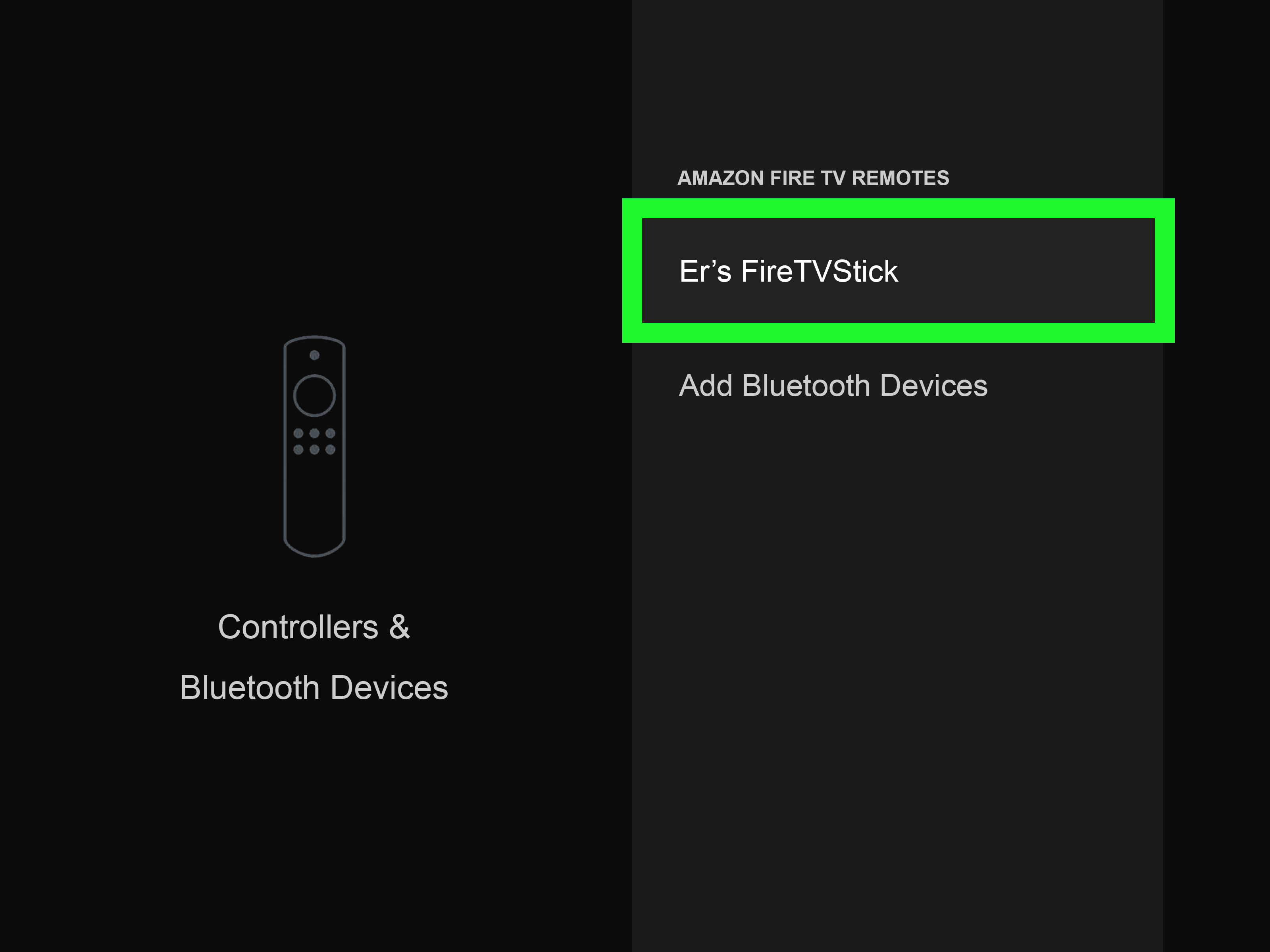
To pair a Bluetooth accessory, go to Settings, choose Controllers & Bluetooth Devices, then select the appropriate device type and follow the pairing instructions. Once connected, a keyboard can make searching and logging in easier, while a game controller can help with navigation and gaming.
The catch is obvious: if you have absolutely no control method at all, getting to the Bluetooth pairing menu can be difficult. Use the Fire TV app, HDMI-CEC, or a USB keyboard first, then pair Bluetooth accessories for future convenience.
Option C: Pair a Replacement Fire TV Remote
If you want the most normal long-term fix, buy a compatible replacement Fire TV remote. Make sure it matches your Fire TV Stick model. Some remotes support TV power and volume, some include app buttons, and some work only with specific generations.
Once you have a replacement remote, insert fresh batteries and hold the Home button for about 10 seconds to start pairing. If you can already access the Fire TV menu with the app or another control method, you can also go to Settings, then Controllers & Bluetooth Devices, then Amazon Fire TV Remotes, and select Add New Remote.
A replacement remote is less “without a remote” and more “without the original remote,” but it belongs on the list because it is often the cleanest fix. There is no shame in replacing the tiny plastic wand that controls your entertainment universe.
What to Do If You Changed Wi-Fi and Lost the Fire Stick Remote
This is the most frustrating Fire Stick situation: your remote is gone, your Wi-Fi has changed, and the Fire TV app cannot connect because the Fire Stick is still looking for the old network. It is the streaming equivalent of locking your keys in the car while the car judges you silently.
You have a few possible solutions:
- Rename your new Wi-Fi network to match the old Wi-Fi name and password. If the Fire Stick recognizes it, it may reconnect automatically.
- Use a mobile hotspot with the same network name and password the Fire Stick remembers, then connect a second phone to that hotspot and use the Fire TV app.
- Try HDMI-CEC through your TV remote and use it to open Fire TV network settings.
- Use a USB keyboard and OTG adapter to navigate to Wi-Fi settings.
- Pair a compatible replacement remote if you have one available.
The easiest fix is usually recreating the old Wi-Fi credentials if you remember them. Once the Fire Stick reconnects, use the Fire TV app to update the network settings properly. Then write the new Wi-Fi password somewhere safe, preferably not on a napkin that will become a grocery list.
Troubleshooting Tips When Nothing Works
Restart Everything
Unplug the Fire Stick from power, wait about a minute, and plug it back in. Restart your phone and router too. It sounds too simple, but many device connection issues are basically tiny electronic tantrums cured by a nap.
Check the HDMI Input
Make sure your TV is on the correct HDMI input. If your Fire Stick is plugged into HDMI 2 and your TV is showing HDMI 1, no app, remote, keyboard, or motivational speech will help until you switch inputs.
Use Fresh Batteries
If you still have the original remote but it seems dead, replace the batteries before declaring it lost to history. Fire TV remotes can behave strangely when batteries are weak.
Move Closer to the TV
For pairing, stay close to the Fire Stick. Bluetooth range is good, but during setup, closer is better. Also remove obvious sources of interference when possible.
Confirm Compatibility Before Buying Accessories
Before buying a replacement remote, OTG adapter, Ethernet adapter, or Bluetooth controller, check compatibility with your exact Fire TV model. Fire TV Stick generations vary, and the wrong accessory can turn a quick fix into a return-label printing session.
Which Method Is the Best?
For most people, the best way to use a Fire Stick without a remote is the Amazon Fire TV app. It is fast, free, official, and convenient. It also makes typing much easier, which is a huge bonus if you have ever tried entering a long email address using only left, right, up, down, and regret.
The best no-download method is HDMI-CEC with your TV remote. It is ideal when you just need basic control and your TV supports it. The best emergency method is a USB keyboard with an OTG adapter, especially when the Fire Stick is stuck before Wi-Fi setup. The best permanent fix is a compatible replacement Fire TV remote.
How to Prevent This Problem Next Time
Once you regain control, take a few minutes to future-proof your setup. Install the Fire TV app on at least one phone in the household. Enable HDMI-CEC on your TV if it works reliably. Keep your Wi-Fi name and password stored somewhere secure. Consider adding a small remote holder near the TV, because apparently remotes cannot be trusted to live independently.
You can also add a brightly colored case or silicone cover to the remote. A neon remote is harder to lose than a black remote that blends perfectly into every couch, blanket, shadow, and emotional void.
Real-World Experience: What It Is Actually Like to Use a Fire Stick Without a Remote
The first thing you notice when using a Fire Stick without its original remote is that the panic fades faster than expected. At first, losing the remote feels like the end of civilization. The TV is there. The Fire Stick is there. The internet is working. Your streaming apps are waiting. But the one small plastic object that makes everything happen has vanished, probably under a cushion with three popcorn kernels and a receipt from 2022.
In real use, the Fire TV app is the most comfortable replacement. The phone-based remote feels natural after a few minutes, especially because most people already have their phone within arm’s reach. The best part is the keyboard. Logging into apps, searching for shows, and typing Wi-Fi passwords becomes much faster. The downside is that it depends on your phone battery and Wi-Fi connection. If your phone is charging in another room or your Fire Stick is not on the same network, the convenience disappears quickly.
Using the TV remote through HDMI-CEC feels more old-school, but it can be surprisingly effective. It is great for simple tasks like opening an app, selecting a movie, pausing, and backing out of menus. However, it can feel limited. Some TV remotes do not map every button neatly, and the experience varies from one TV brand to another. In one living room, it may feel like a miracle. In another, it may feel like trying to steer a shopping cart with one wobbly wheel.
The keyboard method is less elegant but more powerful in emergencies. A USB keyboard with the correct OTG adapter can help when the Fire Stick is stuck on a Wi-Fi screen and the app cannot connect. This method feels a little nerdy, but in a good waythe kind of nerdy that saves the evening. It is not something most people want permanently hanging behind the TV, but it is excellent as a rescue tool.
A replacement remote is still the most satisfying long-term answer. Once paired, everything feels normal again. Voice search works if the remote supports it, volume and power controls may return, and guests do not have to download an app just to watch something. The only real challenge is buying the correct remote for your model.
The biggest lesson from real experience is simple: set up backups before you need them. Install the Fire TV app while your original remote still works. Turn on HDMI-CEC and test it. Store your Wi-Fi details securely. Add a remote cover that is bright enough to be seen from space. Future you will be grateful, and present you can stop interrogating the couch like it committed a crime.
Conclusion
You do not need to abandon your Fire Stick just because the remote is missing, broken, or hiding in a suspiciously remote-shaped gap between sofa cushions. The Amazon Fire TV app is the easiest solution when your phone and Fire Stick are on the same Wi-Fi network. Your TV remote may work through HDMI-CEC for basic navigation. A keyboard, game controller, or replacement Fire TV remote can rescue more complicated situations, especially when Wi-Fi settings have changed.
The smartest approach is to use the fastest method available now, then prepare a backup for next time. Because there will be a next time. Remotes are small. Couches are deep. Life is chaos. But at least your Fire Stick is still controllable.