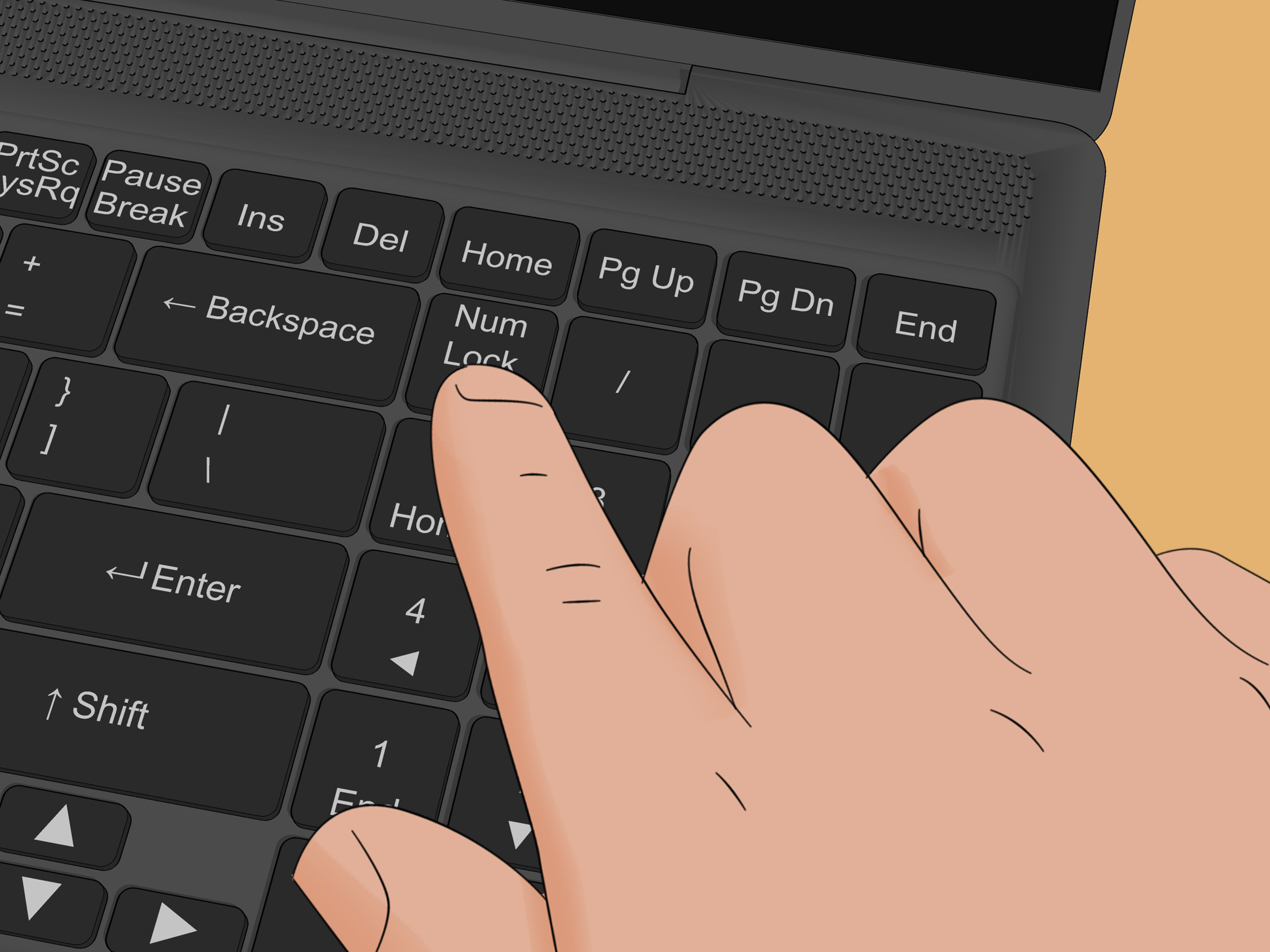
NumLock on a Lenovo ThinkPad is one of those tiny keyboard features that can feel either delightfully useful or mysteriously mischievous. One minute you are typing a password, the next minute your letters have staged a small rebellion and started behaving like numbers. Do not worry. Your ThinkPad is not haunted, and your keyboard has not decided to pursue a side career in accounting. Most of the time, NumLock is simply enabled, disabled, hidden, or handled differently depending on your ThinkPad model.
This guide explains how to use the NumLock feature on Lenovo ThinkPads, including older models with embedded numeric keypads, newer ThinkPads without a dedicated NumLock key, Windows 10 and Windows 11 workarounds, external numeric keypads, and practical troubleshooting tips. Whether you are entering spreadsheet data, typing alt codes, using accounting software, or trying to stop your keyboard from typing numbers instead of letters, this guide will help you get control of NumLock without needing a magnifying glass, a service manual, or a dramatic sigh.
What NumLock Does on a ThinkPad
NumLock, short for Number Lock, changes how numeric keypad keys behave. On a full-size keyboard, turning NumLock on usually makes the keypad type numbers. Turning it off makes some keypad keys work as navigation keys, such as Home, End, Page Up, Page Down, and arrow-style movement. On a compact laptop keyboard, the story can be a little more interesting.
Many Lenovo ThinkPads are designed for portability, which means they may not include a separate number pad on the right side. Older ThinkPads sometimes solved that problem with an embedded numeric keypad. In that layout, certain letter keys double as number pad keys when NumLock is active. For example, keys around the right side of the keyboard may behave like a mini keypad. This is useful when you need numeric input, but confusing if you accidentally turn it on and suddenly your normal typing looks like a secret robot language.
Newer ThinkPads often skip the embedded numeric keypad entirely. On those models, there may be no physical NumLock key at all. That does not mean you are stuck. Windows includes an On-Screen Keyboard that can expose a virtual NumLock key, and external USB or Bluetooth numeric keypads can provide a dedicated NumLock button.
First, Check Your ThinkPad Keyboard Layout
Before pressing random key combinations like you are defusing a movie bomb, look closely at your ThinkPad keyboard. Lenovo has used several keyboard layouts across ThinkPad generations, and the correct NumLock method depends on the exact model.
Look for These Labels
Search the top row and upper-right area of the keyboard for labels such as NumLk, NmLk, ScrLk, or a small secondary icon printed on a key. On some older ThinkPads, NumLock may share a key with Scroll Lock. On other models, it may be activated through a function-key combination. If the label is printed in a secondary color or smaller text, you usually need to hold the Fn key while pressing it.
If you see a dedicated number pad on the right side of the keyboard, using NumLock is easy: press the NumLock or NumLk key once to enable number entry, and press it again to disable it. If your ThinkPad is compact and does not have a right-side keypad, keep reading.
How to Turn NumLock On or Off on Older Lenovo ThinkPads
Older ThinkPad models commonly support NumLock through a function-key shortcut. The most common combinations include:
- Fn + ScrLk
- Fn + NmLk
- Fn + NumLk
Press the correct combination once to enable the embedded numeric keypad. Press the same combination again to turn it off. Some older ThinkPads display an on-screen NumLock indicator when the feature changes state, which is helpful because the keyboard itself may not have a bright, obvious light. Think of it as the laptop politely whispering, “I changed modes,” instead of shouting it with a neon sign.
What Happens When Embedded NumLock Is On?
When embedded NumLock is active, selected letter keys may type numbers or keypad-style input instead of letters. This is the classic reason users search for phrases like “Lenovo ThinkPad keyboard typing numbers instead of letters” or “how to turn off NumLock on ThinkPad.” If your U, I, O, J, K, L, or nearby keys are acting strangely, NumLock is one of the first settings to check.
The fix is usually simple: press the same NumLock shortcut again. If your model uses Fn + ScrLk, press Fn + ScrLk. If it uses Fn + NmLk, press Fn + NmLk. Then open a text editor and type a few letters to confirm that normal typing has returned.
How to Use NumLock on Newer ThinkPads Without a NumLock Key
Many modern ThinkPads do not include a NumLock key or embedded numeric keypad. That can feel odd if you came from an older laptop, but it is normal. Lenovo’s newer compact layouts often prioritize a clean keyboard, dedicated navigation keys, and portability over a hidden keypad layer.
If your ThinkPad has no NumLock key, use the Windows On-Screen Keyboard. This is the most reliable built-in workaround for Windows 10 and Windows 11.
Use the Windows On-Screen Keyboard
- Click Start.
- Open Settings.
- Select Accessibility.
- Choose Keyboard.
- Turn on the On-Screen Keyboard.
- When the keyboard appears, click Options.
- Enable Turn on numeric keypad, if available.
- Click the virtual NumLock key.
This method is especially useful when an external keyboard is connected, when a software program expects NumLock, or when your ThinkPad keyboard simply does not provide a physical NumLock shortcut. It is not glamorous, but it works. And in technology, “it works” deserves a small parade.
Using an External Numeric Keypad with a ThinkPad
If you frequently enter numbers, an external numeric keypad is the most comfortable solution. Accountants, data-entry workers, spreadsheet warriors, and anyone who lives in Excel for more than ten minutes a day will appreciate the speed. A USB numeric keypad plugs into your ThinkPad and usually includes its own NumLock button. Many Bluetooth keypads work the same way.
On Lenovo external numeric keypads, NumLock commonly controls whether the keypad types numbers or performs navigation/editing functions. When NumLock is on, pressing the number keys enters numbers. When it is off, those same keys may act like navigation keys. Some Lenovo keypad models include an indicator light so you can see the current mode at a glance.
For long sessions, an external keypad is better than trying to force a compact laptop keyboard to behave like a full desktop keyboard. Your hands will thank you, your spreadsheet will thank you, and your coffee may remain unspilled because you are no longer doing finger gymnastics.
NumLock, Fn Lock, and Ctrl/Fn Swap: Do Not Mix Them Up
ThinkPads have several keyboard features that sound similar but do different jobs. NumLock controls numeric keypad behavior. Fn Lock changes how the top-row function keys behave. Ctrl/Fn swap changes the behavior of the physical Fn and Ctrl keys on supported models. Mixing these up can make troubleshooting feel like trying to solve three puzzles at once.
NumLock
NumLock affects number-pad input. It is the feature you want when number keys are not typing numbers, or when letter keys are unexpectedly typing numbers on older embedded-keypad models.
Fn Lock
Fn Lock usually toggles with Fn + Esc on many ThinkPads. It changes whether the F1–F12 row performs standard function-key actions or special actions such as volume, brightness, microphone mute, and display controls. Fn Lock does not usually turn NumLock on or off by itself.
Fn and Ctrl Key Swap
Some ThinkPads allow users to swap the Fn and Ctrl key behavior in BIOS, Lenovo Vantage, or Lenovo Keyboard Manager. This can affect which physical key you must press for shortcuts. If a guide says “press Fn” but your keys have been swapped, your muscle memory may betray you like a coworker who “just made a tiny spreadsheet change.” Check your keyboard settings if shortcut combinations do not behave as expected.
How to Tell Whether NumLock Is On
The easiest test is wonderfully low-tech: open Notepad, Word, a browser search box, or any safe text field and press the keys in question. If a right-side keypad types numbers, NumLock is on. If it moves the cursor or performs navigation, NumLock is off. On older embedded-keypad ThinkPads, if letter keys type numbers, NumLock is probably enabled.
Some models display a small on-screen notification when NumLock changes. Some external keypads have an LED indicator. Others offer no obvious sign, which means the text-field test is still the fastest detective tool. No cape required.
Common NumLock Problems on Lenovo ThinkPads and How to Fix Them
Problem 1: My ThinkPad Types Numbers Instead of Letters
This usually happens on older ThinkPads with an embedded numeric keypad. Press the NumLock shortcut again, commonly Fn + ScrLk or Fn + NmLk. Then test the keyboard in a text editor. If the problem continues, restart the computer and check whether an external keyboard or accessibility setting is influencing input.
Problem 2: I Cannot Find the NumLock Key
Your model may not have one. Open the Windows On-Screen Keyboard and enable the virtual numeric keypad. If you need NumLock every day, consider an external numeric keypad.
Problem 3: The Number Pad Works in One App but Not Another
Some applications interpret keypad input differently, especially remote desktop tools, virtual machines, BIOS screens, older accounting software, or games. Test NumLock in Notepad first. If it works there, the keyboard is probably fine and the issue is application-specific.
Problem 4: Mouse Pointer Moves When I Press Number Pad Keys
Windows Mouse Keys may be enabled. Mouse Keys lets the numeric keypad move the pointer. Open Settings > Accessibility > Mouse and turn off Mouse Keys if you do not need it. You can also check accessibility keyboard shortcuts because Left Alt + Left Shift + NumLock can toggle Mouse Keys.
Problem 5: NumLock Beeps or Triggers an Accessibility Prompt
Holding NumLock for five seconds can toggle Windows Toggle Keys, an accessibility feature that plays sounds when lock keys are pressed. If you hear unexpected tones, check Settings > Accessibility > Keyboard and review Toggle Keys settings.
How to Use NumLock for Faster Work
NumLock is not just a troubleshooting topic. Used correctly, it can make your ThinkPad workflow faster. If you work with invoices, budgets, inventory sheets, student grades, shipping numbers, or financial reports, a number pad is much faster than the top number row. The top row is fine for typing a password or entering a short date. For serious numeric input, it feels like walking across the room for every digit.
For laptop-only users, the best strategy depends on your model. If your ThinkPad has an embedded numeric keypad, learn the NumLock shortcut and practice the key layout. If your ThinkPad does not have an embedded keypad, use the On-Screen Keyboard for occasional needs or buy an external keypad for daily work. If you move between a desk and meetings, keep a small USB-C or Bluetooth keypad in your laptop bag. It weighs almost nothing and can save a surprising amount of time.
Best Practices for ThinkPad NumLock Settings
- Learn your model’s shortcut: Look for NumLk, NmLk, or ScrLk markings before assuming the shortcut.
- Use Notepad for testing: It quickly reveals whether keys are typing numbers, letters, or navigation commands.
- Check Windows Accessibility: Mouse Keys and Toggle Keys can change how NumLock behaves or sounds.
- Use Lenovo Vantage carefully: Keyboard settings can affect Fn behavior, which may change shortcut expectations.
- Consider an external keypad: It is the cleanest solution for heavy number entry.
- Do not panic: A keyboard typing numbers instead of letters is usually a mode issue, not a hardware failure.
Experience-Based Tips for Using NumLock on Lenovo ThinkPads
After working with ThinkPads across different generations, the biggest lesson is simple: keyboard behavior depends heavily on the exact model. A ThinkPad T-series from years ago may behave very differently from a modern X1 Carbon, X13, T14, or compact business model. Older machines often feel more “keyboard nerd friendly” because they include extra printed functions, embedded keypad behavior, and classic shortcuts. Newer machines are cleaner and slimmer, but they sometimes hide or remove features that long-time users expect.
One practical experience is that accidental NumLock activation is most confusing when users do not know the embedded keypad exists. Someone may think the keyboard is broken because certain letters produce numbers. In reality, the laptop is doing exactly what it was told to do. The fastest fix is to look for the NumLock-related shortcut and toggle it off. When helping someone remotely, asking “Do the keys around J, K, L, U, I, and O act weird?” can quickly identify the issue.
Another useful tip is to separate NumLock troubleshooting from Fn Lock troubleshooting. Many ThinkPad users press Fn + Esc because they remember it fixes “function key stuff.” That shortcut may help with F1–F12 behavior, but it will not necessarily fix numeric keypad mode. If numbers and letters are the problem, focus on NumLock. If brightness, volume, or F-key shortcuts are the problem, focus on Fn Lock. This distinction saves time and prevents the classic “I changed another setting and now I have two problems” situation.
For people who enter numbers professionally, an external numeric keypad is worth it. It may seem unnecessary until you spend an afternoon entering invoice amounts, product quantities, or form IDs using the top row. The top row works, but it slows your rhythm. A separate keypad lets your right hand handle numbers naturally while your left hand manages shortcuts, tabbing, or spreadsheet navigation. It also prevents compact laptop layouts from becoming a daily annoyance.
The Windows On-Screen Keyboard is a helpful backup, especially when traveling. It is not something most users want to use all day, but it is excellent when a physical NumLock key is missing or when you need to trigger NumLock for a remote session, virtual machine, or stubborn application. Keep the steps in mind: open Accessibility keyboard settings, enable the On-Screen Keyboard, turn on the numeric keypad option, and click NumLock. It is a little hidden, but once you know where it lives, it becomes a reliable rescue tool.
Finally, do not overlook accessibility settings. Mouse Keys and Toggle Keys can make NumLock seem broken when the keyboard itself is fine. If the pointer moves with number pad keys, Mouse Keys is likely involved. If the computer beeps when you press lock keys, Toggle Keys may be enabled. These features are useful for people who need them, but accidental activation can be confusing. Checking Accessibility settings should be part of any serious NumLock troubleshooting routine.
The best ThinkPad NumLock habit is to test before changing too much. Open a blank text field, press the suspected keys, toggle NumLock once, and test again. If the behavior changes, you have found the right control. If it does not, move to Windows settings, external keyboard settings, or Lenovo keyboard utilities. Calm testing beats random shortcut smashing every time, even if random shortcut smashing feels emotionally satisfying for three seconds.
Conclusion
Using NumLock on a Lenovo ThinkPad is easy once you know which keyboard generation you are dealing with. Older ThinkPads may use shortcuts like Fn + ScrLk or Fn + NmLk to control an embedded numeric keypad. Newer ThinkPads may not have a physical NumLock key at all, making the Windows On-Screen Keyboard or an external numeric keypad the smarter solution. If your keyboard types numbers instead of letters, do not assume disaster. Check NumLock first, then review Fn Lock, accessibility settings, and external keypad behavior.
Note: Lenovo ThinkPad keyboard layouts vary by model and generation, so always confirm the labels printed on your keyboard or check your specific model’s user guide if a shortcut does not work.