There are few modern mysteries more annoying than wondering, “Wait… am I still logged into Instagram on that old phone, my cousin’s tablet, or the laptop I used once at a hotel?” Good news: Instagram gives you ways to check the devices and locations recently used to access your account. Even better, you can log out suspicious sessions before they turn your profile into a discount-sunglasses billboard.
This guide explains how to view your account’s login devices on Instagram using three practical methods: the Instagram mobile app, Instagram on desktop, and Meta Accounts Center/Security Checkup. You’ll also learn what the login activity list means, how to spot suspicious sessions, and what to do if something looks wrong.
Instagram’s layout changes from time to time, so menu names may vary slightly. However, the core path usually revolves around Accounts Center, Password and security, and Where you’re logged in. Think of it as Instagram’s security control room, minus the dramatic spy-movie lighting.
Why You Should Check Instagram Login Devices
Checking your Instagram login devices is not just for people who suspect a hack. It is basic digital hygiene, like brushing your teeth, but with fewer minty bubbles and more peace of mind. Your Instagram account may contain private messages, saved posts, business contacts, payment-related settings, personal photos, and access to connected Facebook or Meta accounts. If someone else gets in, they may be able to view private information, send messages, change settings, or lock you out.
Instagram’s recent login activity can help you answer important questions:
- Which phones, tablets, or computers have recently accessed your account?
- Are there logins from cities or regions you do not recognize?
- Is an old device still signed in?
- Did someone access your account after you used a shared computer?
- Do you need to change your password or enable two-factor authentication?
The login devices screen is especially useful after borrowing a device, selling an old phone, managing multiple Instagram accounts, receiving a suspicious password reset email, or noticing strange activity such as unfamiliar follows, messages, comments, or profile changes.
Before You Start: What Instagram Login Activity Shows
Instagram’s login activity generally shows recent sessions connected to your account. Depending on the platform and app version, you may see device type, approximate location, date or time, and whether a session appears active or recent. The location is not always perfect. A login may appear in a nearby city because internet providers, VPNs, mobile networks, and IP routing can make location data fuzzy. In other words, your phone may not have teleported to Dallas; your carrier may simply be doing carrier things.
Still, login activity is a powerful clue. If you live in Ohio and see a device you do not recognize in another country, that deserves attention. If you see your own iPhone, your browser, and your work laptop, you are probably looking at normal activity.
Way 1: View Instagram Login Devices in the Mobile App
The Instagram app is usually the easiest way to check where your account is logged in. This method works for most iPhone and Android users and is the best place to start.
Steps to Check Login Devices on iPhone or Android
- Open the Instagram app.
- Tap your profile picture in the bottom-right corner.
- Tap the three-line menu in the top-right corner.
- Tap Accounts Center.
- Select Password and security.
- Tap Where you’re logged in.
- Choose the Instagram account you want to review, especially if you manage more than one account.
- Review the list of devices, browsers, and locations shown.
Once you are on the login devices screen, look carefully at each session. Instagram may group devices by account, so make sure you are reviewing the correct profile. This matters if you manage a personal account, a brand account, and that one experimental meme page you created at 2 a.m. and refuse to discuss.
How to Read the Login List
Look for device names you recognize, such as your iPhone, Samsung phone, iPad, Mac, Windows PC, or browser session. Also check the location and date. A familiar device in a familiar area is usually safe. A strange device in a place you have never visited is a red flag.
Common normal entries may include:
- Your current phone or tablet
- Your home computer browser
- Your work laptop if you use Instagram professionally
- A device you recently upgraded from
- A city near your actual location because of mobile network routing
Suspicious entries may include:
- A device type you do not own
- A location in another country with no reasonable explanation
- Repeated logins you do not recognize
- A browser session after you used a public or shared computer
- Activity that appears around the same time your account behaved strangely
How to Log Out Devices from the App
If you find a device that should not have access, Instagram usually lets you select the session and log it out. In some versions, you may need to tap the account, scroll down, choose Select devices to log out, select the devices, and confirm. After logging out a suspicious device, change your password immediately and turn on two-factor authentication.
Do not ignore suspicious sessions just because your account “still seems fine.” Unauthorized access can be quiet at first. A person may simply watch your messages, wait, or test what they can change. Treat unrecognized sessions like a raccoon in the attic: maybe it has not destroyed anything yet, but you should not invite it to stay.
Way 2: View Instagram Login Devices on Desktop or Web Browser
If you prefer a larger screen, you can check Instagram login devices from a computer. This is useful if your phone is lost, broken, charging in another room, or currently being held hostage by a toddler watching cartoons.
Steps to Check Login Devices on PC or Mac
- Open a trusted browser on your PC or Mac.
- Go to Instagram and sign in to your account.
- Click More or the menu icon on the left side, depending on your layout.
- Open Settings.
- Go to Accounts Center.
- Select Password and security.
- Choose Where you’re logged in.
- Select your Instagram account and review the listed devices.
Instagram’s desktop interface sometimes moves menu items around, especially as Meta updates Accounts Center. If you do not immediately see the option, search within Settings for terms such as password, security, login activity, or where you’re logged in.
When the Desktop Method Is Better
The desktop method is helpful when you want to review details slowly, manage multiple accounts, or take action after suspicious activity. It also works well if your Instagram app is outdated or glitchy. Sometimes the app hides behind a spinning loading icon like it is pondering the meaning of life. A browser can be faster.
Use desktop login review when:
- You recently used Instagram on a shared computer.
- You want to log out old browser sessions.
- Your phone app is not displaying Accounts Center correctly.
- You manage Instagram for a business or creator account.
- You need a bigger screen to compare devices and locations.
Safety Tip for Browser Users
Only check your login devices from a computer you trust. Avoid logging into Instagram on public computers at libraries, schools, hotels, airports, or internet cafes unless absolutely necessary. If you must use a shared device, use a private browsing window, do not save your password, and log out when finished. Then check your login activity later from your own device.
Way 3: Use Security Checkup and Login Alerts
The third way to review login-related access is through Instagram’s broader security tools, especially Security Checkup and login alerts. These features do not replace the login devices screen, but they help you review account safety more completely.
What Security Checkup Does
Instagram’s Security Checkup is designed to guide users through important account protection steps. Depending on availability and your account status, it may help you review login activity, confirm your recovery email and phone number, check profile information, and review accounts that share login information.
This is useful because login devices are only one piece of the puzzle. If someone has access to your email, recovery phone number, or connected accounts, logging out one device may not be enough. Security Checkup helps you look at the bigger security picture.
How to Find Security Checkup
- Open Instagram.
- Go to your profile.
- Tap the three-line menu.
- Open Accounts Center or Settings and privacy.
- Go to Password and security.
- Look for Security Checkup, Login activity, or related security options.
If you do not see Security Checkup, do not panic. Feature availability can vary by account, region, device, and app version. You can still use Where you’re logged in, update your password, confirm recovery details, and enable two-factor authentication.
Use Login Alerts and Two-Factor Authentication
Two-factor authentication, often called 2FA, adds another layer of protection. Instead of relying only on your password, Instagram may ask for a login code or approval when someone tries to access your account from an unfamiliar device. This can stop an attacker even if they somehow know your password.
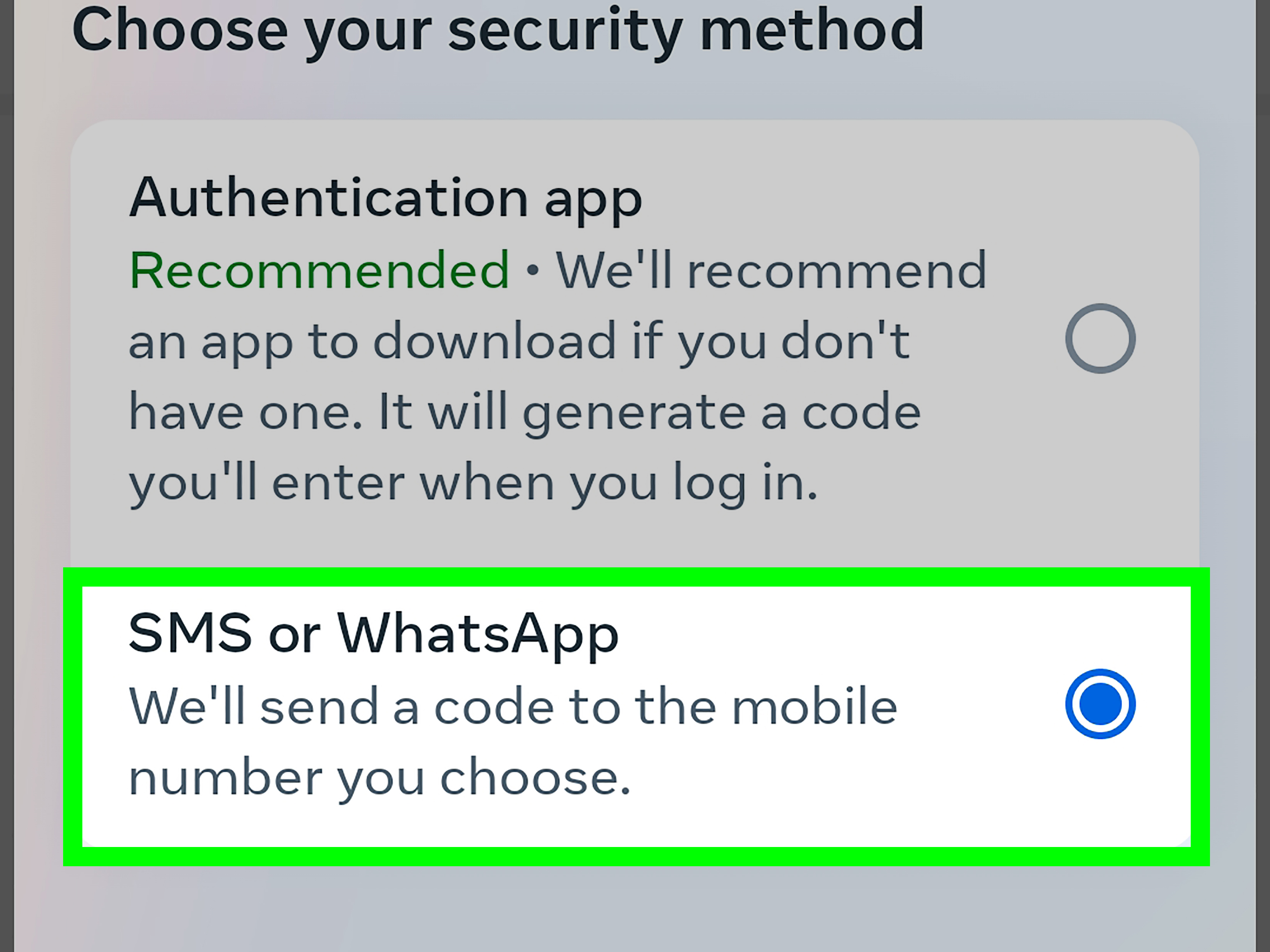
To set it up, go to Accounts Center, open Password and security, choose Two-factor authentication, and select your Instagram account. You may be able to use an authentication app, text message, WhatsApp in some regions, backup codes, or connected devices. An authenticator app is often a strong choice because it is not as vulnerable to phone-number problems as SMS.
Login alerts are also helpful. When enabled, they can notify you if someone tries to log in from an unrecognized device. If you receive a login request you did not make, deny it, change your password from the official Instagram app or website, and review your login devices.
What to Do If You See an Unknown Instagram Login Device
Finding an unfamiliar login can be scary, but do not panic-click your way into chaos. Take a calm, step-by-step approach.
1. Log Out the Unknown Device
From Where you’re logged in, select the unknown session and log it out. If Instagram offers a multi-select option, choose every device you do not recognize. Keep your current trusted device active so you do not accidentally lock yourself out.
2. Change Your Instagram Password
Use a strong, unique password that you do not use anywhere else. Avoid names, birthdays, pet names, school names, favorite teams, or anything that could be guessed from your profile. A password manager can create and store long, random passwords so your brain does not have to remember something like “r7!Qv92$bananaCloudOrbit.”
3. Turn On Two-Factor Authentication
After changing your password, enable 2FA. This is one of the best defenses against unauthorized access. If possible, save backup codes in a safe place. Do not store them in a note titled “Instagram backup codes!!!” on a shared device. Subtlety is your friend.
4. Check Email and Phone Recovery Details
Make sure the email address and phone number on your Instagram account belong to you. If an attacker changes your recovery details, they may be able to regain access even after you change your password.
5. Review Third-Party Apps and Websites
Some third-party apps ask for Instagram access. Remove anything you do not recognize or no longer use. Be especially careful with apps promising free followers, automatic likes, secret viewers, or magical growth overnight. If an app sounds like it was written by a wizard with a marketing budget, be skeptical.
6. Check Your Account Activity
Look for unfamiliar messages, posts, comments, follows, unfollows, profile edits, linked accounts, or ad-related changes. If your account was used to send spam or scams, warn your contacts not to click suspicious links.
Why Instagram Login Locations Can Look Wrong
A strange location does not always mean someone hacked you. Login locations are often based on IP address data, which can be approximate. Your mobile carrier, internet provider, VPN, workplace network, or browser privacy tools may route traffic through another city or region.
For example, you might live in a small town, but Instagram shows a login from the nearest major city. That can be normal. But if the device type, timing, and location all seem wrong, treat it seriously. A location alone is a clue; a location plus a mystery device plus weird account behavior is a siren wearing a neon hat.
How Often Should You Check Instagram Login Devices?
For most users, checking once every month or two is enough. If you are a creator, business owner, social media manager, public figure, or anyone with an account that attracts attention, check more often. You should also review login devices immediately after any suspicious event.
Check your Instagram login devices when:
- You receive a login alert you did not trigger.
- You get an unexpected password reset email.
- Your account follows people by itself.
- Messages appear that you did not send.
- Your bio, email, phone number, or username changes unexpectedly.
- You used Instagram on someone else’s device.
- You lost a phone, tablet, or laptop.
- You sold or gave away an old device.
Common Mistakes to Avoid
Using the Same Password Everywhere
If your Instagram password is also your email password, gaming password, shopping password, and “random website I joined in 2017” password, you are making life easier for attackers. Use a unique password for Instagram.
Ignoring Old Devices
Old phones and tablets may still be logged in. If you no longer use a device, log it out. Before selling or giving away a device, sign out of accounts and perform a factory reset.
Trusting Suspicious Emails
Phishing emails often pretend to be Instagram. They may claim your account will be deleted, verified, suspended, or blessed with instant fame if you click a link. Do not use login links from suspicious emails. Open Instagram directly through the official app or by typing the website address yourself.
Leaving Shared Computers Logged In
Never assume closing a browser tab logs you out. It does not. If you use Instagram on a shared computer, manually log out and review your login devices afterward.
Experience-Based Tips for Managing Instagram Login Devices
After helping people troubleshoot Instagram login problems, one pattern shows up again and again: most scary-looking login lists are a mix of harmless old sessions, confusing locations, and one or two genuinely questionable entries. The trick is not to panic. The trick is to investigate like a calm detective with excellent snacks.
Start by naming your own devices mentally. For example: “I use an iPhone 15, a Windows laptop, an old iPad, and Chrome at work.” Then compare that list with Instagram’s login activity. If the list shows those devices, you are likely fine. If it shows an Android phone you have never owned, a browser you never use, or a login from a place you cannot explain, take action.
Another practical experience: locations can be misleading, but timing usually tells a better story. If you see a login from another city at the exact time you were scrolling Instagram on mobile data, it might be your carrier. If you see a login at 3:17 a.m. while you were asleep and the device is unfamiliar, that is more suspicious.
For creators and small business owners, create a routine. Once a month, review Where you’re logged in, confirm your recovery email, check connected apps, and make sure 2FA is still enabled. This takes only a few minutes and can save you from a very bad day. Losing access to a personal account is frustrating; losing access to a business account can affect customers, campaigns, income, and reputation.
If multiple people manage one Instagram account, avoid casually sharing one password in a group chat. That is how security turns into spaghetti. Use official business tools and role-based access whenever possible. If direct login sharing is unavoidable for a small team, change the password when someone leaves the team and review logged-in devices immediately.
One overlooked tip is to secure your email first. Your Instagram account is only as safe as the email attached to it. If someone controls your email, they may reset your Instagram password. Use a strong password and 2FA on your email account too. Think of email as the master key drawer. You would not leave that drawer open in a hallway.
Finally, do not wait for a crisis to learn where the login devices page is. Open it today, even if everything seems normal. Familiarity matters. When something suspicious happens, you will know exactly where to go instead of frantically tapping every menu like you are trying to defuse a cartoon bomb.
Conclusion
Knowing how to view your account’s login devices on Instagram is one of the simplest ways to protect your profile. Whether you use the mobile app, desktop browser, or Security Checkup, the goal is the same: review who has access, remove what you do not recognize, and strengthen your account before trouble arrives wearing sunglasses and a fake mustache.
Use Accounts Center > Password and security > Where you’re logged in as your main path. If something looks suspicious, log out unknown devices, change your password, enable two-factor authentication, confirm recovery details, and remove questionable third-party apps. A few minutes of review can prevent days or weeks of account recovery stress.