Your TCL TV has one job: show moving pictures while you pretend you are “just watching one episode.” So when the screen goes black, it feels personal. The good news is that a black screen on a TCL TV does not always mean the TV is dead, doomed, or secretly auditioning to become a decorative wall mirror. In many cases, the issue comes from a stuck software process, the wrong input, a weak HDMI connection, a power-saving setting, or a device connected to the TV.
The tricky part is that “TCL TV black screen” can describe several different problems. Maybe the TV has sound but no picture. Maybe there is no sound, no picture, and only a tiny standby light blinking like it knows something you do not. Maybe the TCL logo appears for two seconds and then disappears into the void. Or maybe streaming apps work, but your game console or cable box shows only black.
This guide walks you through 10 practical fixes for a TCL TV black screen, starting with the easiest and safest steps before moving toward factory resets and possible hardware problems. The steps apply broadly to TCL Roku TV, TCL Google TV, TCL Android TV, and TCL Fire TV models, although menu names can vary by model and software version.
Before You Start: Identify What Kind of Black Screen You Have
Before grabbing a screwdriver, remote, flashlight, paperclip, or emotional support snack, take 30 seconds to observe the symptoms. This helps you avoid wasting time on the wrong fix.
Ask These Quick Questions
- Do you hear sound? If yes, the TV may be receiving content, but the display, backlight, HDMI connection, or picture processing may be failing.
- Do you see the TCL or Roku logo briefly? If yes, the panel may still work, but software, firmware, or startup behavior could be stuck.
- Is the standby light on, blinking, or off? No light can point toward a power issue, while a light with no image suggests the TV is receiving some power.
- Does the black screen happen only on one HDMI device? If yes, the cable, port, input setting, or external device may be the real villain.
- Can you open the menu? If menus appear, the panel is working, and the issue may be app, input, picture setting, or source related.
Once you know what you are dealing with, work through the fixes below in order. Think of it like troubleshooting a car that will not start: you check the gas and battery before replacing the engine.
1. Power Cycle the TCL TV
The classic “turn it off and on again” exists because electronics occasionally trip over their own digital shoelaces. A TCL TV can get stuck after a software update, a failed HDMI handshake, a streaming app crash, or a standby glitch. A full power cycle clears temporary errors without deleting your apps, passwords, or settings.
How to Power Cycle a TCL TV
- Turn off the TV using the remote or the physical power button.
- Unplug the TV from the wall outlet.
- Wait at least 60 seconds.
- While the TV is unplugged, press and hold the physical power button on the TV for 15 to 30 seconds if your model has one.
- Plug the TV directly into the wall outlet.
- Turn the TV back on.
Do not rush the waiting step. The point is to let stored electricity drain from the internal components. If your TCL TV has a black screen with sound, this simple reset can sometimes bring the picture back immediately. If the TV still looks like a very expensive rectangle of sadness, continue to the next fix.
2. Check the Power Outlet, Power Cable, and Standby Light
If your TCL TV screen is black and there is no sound, the issue may not be the screen at all. The TV may not be getting stable power. This is especially possible if the standby light is off, the TV clicks but never starts, or it turns on briefly and shuts down.
What to Check
- Make sure the power cord is fully seated in the TV and the wall outlet.
- Plug another device, such as a lamp or phone charger, into the same outlet to confirm it works.
- Bypass power strips, extension cords, and surge protectors temporarily.
- Inspect the power cable for cuts, bends, loose ends, or damage.
- Look at the standby light. No light may suggest no power. A blinking or solid light may suggest the TV has power but is failing to start correctly.
If the TV works when plugged directly into the wall, your power strip may be the problem. It is not glamorous, but neither is replacing a TV because a $12 power strip decided to retire early.
3. Wake the TV and Rule Out Remote Problems
Some TCL TVs enter sleep, standby, or power-saving modes after long periods of inactivity. Sometimes the screen goes dark while the TV is technically still on. Pressing the wrong button, using a weak remote, or relying on a remote with dying batteries can make the TV seem broken when it is simply not receiving the wake-up command.
Try These Remote and Wake-Up Steps
- Press the Home button several times.
- Press Power once, wait 10 seconds, then press it again.
- Replace the remote batteries.
- Use the physical power button on the TV instead of the remote.
- If you use a Roku TV, try the Roku mobile app as a temporary remote.
If pressing Home brings the picture back, check your power-saving settings. On many TCL Roku TV models, you can go to Settings > System > Power > Auto Power Savings and adjust standby behavior. On TCL Google TV or Android TV models, look under Settings > System > Power & Energy or similar menus.
4. Confirm the Correct Input Source
A surprisingly common reason for a TCL TV black screen is the wrong input. Your TV might be working perfectly while patiently showing HDMI 2, even though your cable box is on HDMI 1. The TV is not broken; it is just looking in the wrong room.
How to Check Inputs
- Press Input, Source, or the input button on your remote.
- Pause for about 10 seconds on each HDMI input.
- Look for your cable box, game console, streaming device, or Blu-ray player.
- If you see the TCL menu or home screen, the display itself is working.
If your TCL TV home screen appears but one device shows a black screen, focus on that device, HDMI cable, or HDMI port. If every input is black and the menu does not appear, the issue is more likely TV software, power, backlight, or internal hardware.
5. Reseat HDMI Cables and Try a Different HDMI Port
HDMI connections can fail quietly. A cable can look fine while carrying sound but not video, or it may struggle with 4K, HDR, HDCP copy protection, or refresh-rate changes. This is why a TCL TV may have sound but no picture when using a cable box, PlayStation, Xbox, soundbar, receiver, or streaming stick.
HDMI Troubleshooting Steps
- Unplug the HDMI cable from both the TV and the external device.
- Reconnect both ends firmly.
- Try a different HDMI port on the TCL TV.
- Use a known-good HDMI cable, preferably a certified high-speed cable for 4K devices.
- Restart the external device after reconnecting the cable.
- Connect the device directly to the TV instead of through a receiver or soundbar.
If the picture returns after changing the cable or port, congratulations: you solved the mystery without needing a repair bill. If a game console still shows black, lower its video output settings by connecting it to another TV or monitor first. Sometimes a device outputs a resolution or HDR format that the TV input does not like.
6. Disconnect External Devices and Reboot Everything
External devices can confuse a TV during startup. USB drives, HDMI sticks, cable boxes, game consoles, soundbars, and receivers can cause handshake problems, CEC conflicts, or boot delays. If your TCL TV black screen started after plugging something in, that accessory deserves a polite but firm interrogation.
Do a Clean Startup
- Turn off the TV.
- Unplug the TV from power.
- Disconnect all HDMI devices, USB drives, soundbars, and antennas.
- Wait 60 seconds.
- Plug the TV back in with nothing connected except power.
- Turn it on and check whether the home screen appears.
If the TV works with everything disconnected, reconnect devices one at a time. The last device you reconnect before the screen goes black is probably the troublemaker. Try replacing its HDMI cable, changing its video settings, updating its software, or turning off HDMI-CEC features such as “1-touch play,” “device control,” or “power sync.”
7. Test Different Apps, Channels, and Video Sources
Sometimes the TCL TV is not the problem. A single app, streaming service, live TV channel, or video file can fail while the rest of the TV works normally. If Netflix plays but your cable box is black, that is different from a TV that shows no menus at all. Troubleshooting becomes much easier when you separate “one source is broken” from “the whole display is broken.”
What to Test
- Open the TCL home screen or settings menu.
- Try more than one streaming app.
- Play a different video inside the same app.
- Switch from HDMI to a built-in app, or from an app to HDMI.
- If using antenna or cable, try another channel.
On TCL Google TV or Android TV models, you can also clear app data if only one app causes a black screen. Go to Settings > Apps > See all apps, choose the app, then clear cache or data. On Roku TV models, removing and reinstalling the affected channel may help. Restart the TV afterward so the app does not carry its bad mood into the next session.
8. Adjust Picture, Brightness, Backlight, and Power-Saving Settings
If the TCL TV screen is extremely dim rather than completely black, picture settings may be the issue. This can happen after changing picture modes, enabling energy-saving options, using automatic brightness features, or accidentally lowering backlight settings. The TV may still display an image, but it is so dark that you need detective-level squinting to see it.
Settings Worth Checking
- Picture Mode: Try Standard, Movie, or Normal instead of an aggressive energy-saving mode.
- Brightness: Increase brightness gradually.
- Backlight: Raise the backlight level if your model offers this option.
- Local Dimming: Toggle it off temporarily if the screen appears uneven or too dark.
- Auto Power Savings: Disable overly aggressive sleep or standby settings.
- Ambient Light Sensor: Turn it off temporarily to test whether the TV is dimming too much.
If you cannot see the menu, use a flashlight angled at the screen. If you can faintly see menus or movement, the TV may have a backlight problem rather than a simple settings issue. That flashlight test becomes important in Fix 10.
9. Update TCL TV Software or Firmware
Smart TVs run operating systems, and operating systems occasionally need a tune-up. A software bug can cause black screens, app crashes, HDMI problems, frozen startup screens, or strange power behavior. If your display works well enough to access settings, check for updates before doing a full factory reset.
How to Update a TCL Roku TV
Go to Settings > System > System Update > Check Now. Install any available update, then restart the TV.
How to Update a TCL Google TV or Android TV
Go to Settings > System > About > System Update, then check for updates. Menu wording may vary slightly depending on model and software version.
If the black screen started immediately after an update, do not repeatedly unplug the TV during another update attempt. Let the TV sit for a while if you suspect it is still processing. If it remains stuck, use the recovery or reset steps below. A failed or interrupted firmware update can sometimes require TCL support, especially if the TV cannot reach the setup screen.
10. Restart, Factory Reset, or Use Recovery Mode
A factory reset is the “fine, let us start over” option. It can fix corrupted settings, stubborn software glitches, and startup problems, but it also erases saved Wi-Fi networks, app logins, preferences, and custom settings. Try it after easier steps fail.
Non-Destructive Restart First
If you can access menus on a TCL Roku TV, try Settings > System > Power > System Restart. This refreshes the system without deleting everything. On Google TV models, go to Settings > System > Restart.
Factory Reset Through the Menu
- TCL Roku TV: Go to Settings > System > Advanced System Settings > Factory Reset.
- TCL Google TV: Go to Settings > System > About > Factory Reset.
- TCL Android TV: Go to Settings > Device Preferences > Reset > Factory Data Reset.
Factory Reset With the Physical Button
Many TCL TVs have a small reset pinhole on the back or side. With the TV powered on or plugged in, press and hold the reset button with a paperclip for about 10 to 30 seconds, depending on your model, until the TV restarts or displays a recovery screen.
Some TCL Roku TV models can enter recovery mode by unplugging the TV, holding the reset button, plugging the TV back in, and continuing to hold the button until the recovery screen appears. Follow the on-screen instructions carefully. If recovery mode never appears and the screen remains black, the problem may be deeper than normal software troubleshooting.
Bonus Hardware Check: Use the Flashlight Test
If your TCL TV has sound but no picture, the flashlight test can help determine whether the backlight has failed. Turn the TV on, play something with movement, then shine a bright flashlight at an angle close to the screen. Look carefully for faint images, menus, subtitles, or motion.
What the Flashlight Test Means
- Faint image visible: The LCD panel may be creating the picture, but the LED backlight is not illuminating it.
- No faint image at all: The problem may involve the main board, T-Con board, power board, panel, or software.
- Backlight flashes briefly then disappears: The TV may be detecting a backlight fault and shutting the lighting circuit down.
Backlight strips, power boards, T-Con boards, and main boards are repairable in some cases, but repair cost matters. For a smaller or older TCL TV, professional repair may cost nearly as much as replacement. For a large, newer, or premium TCL Mini LED or QLED model, a repair estimate may be worth it.
When to Contact TCL Support or a TV Repair Technician
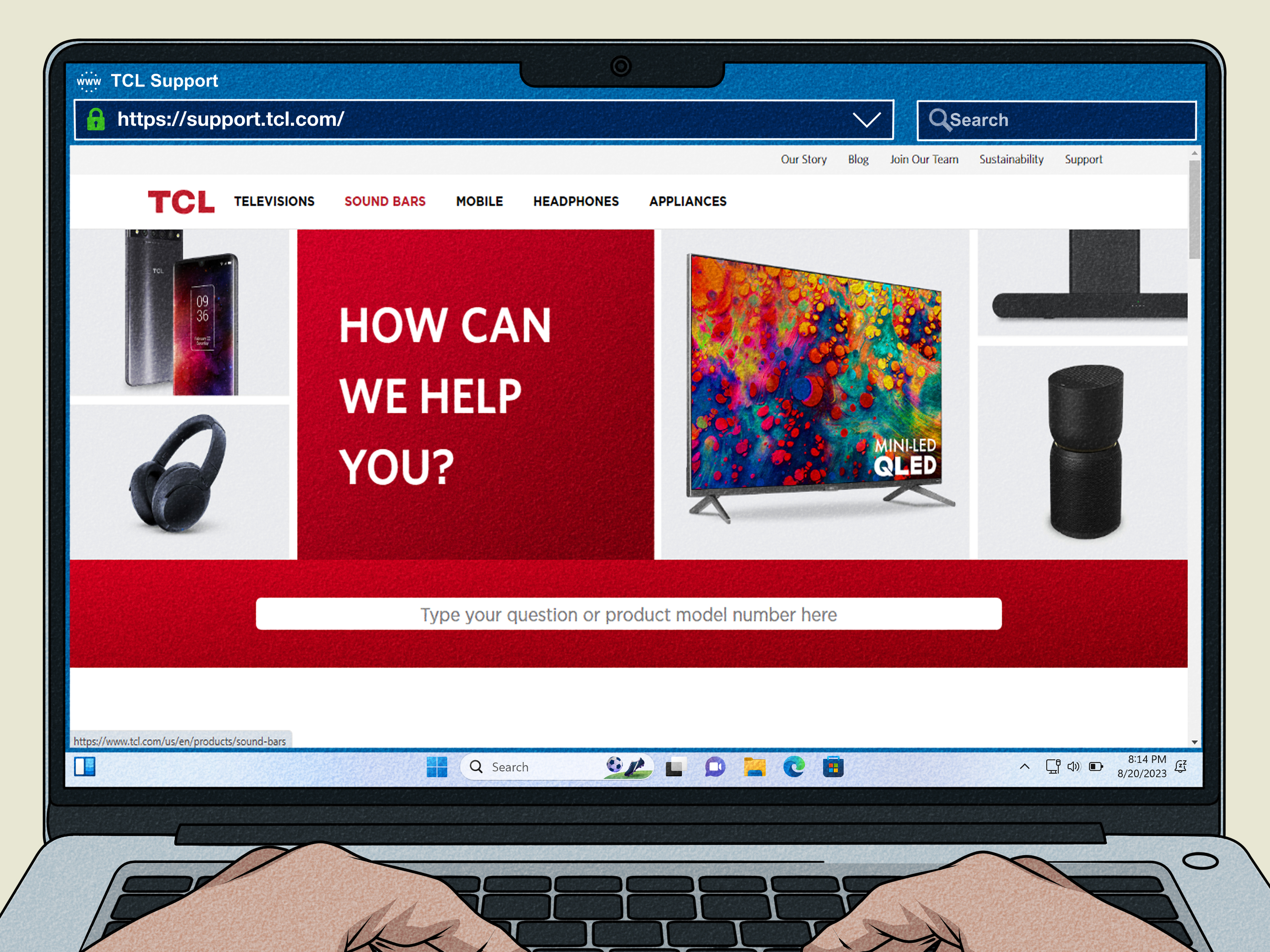
Contact TCL support or a qualified TV repair technician if the TV is under warranty, the screen remains black after power cycling and reset attempts, the standby light blinks in a repeating pattern, the TV smells hot or electrical, or the flashlight test suggests backlight failure. Do not open the TV unless you have experience repairing electronics. TVs can hold dangerous voltage even after being unplugged, and “I watched one video” is not the same as “I am trained to handle power boards safely.”
Before calling support, write down the model number, serial number, purchase date, operating system type, and the exact symptoms. For example: “TCL Roku TV 55-inch, sound works, no picture, faint image visible with flashlight, power cycle did not help.” That kind of detail can save time and reduce the chance of being told to unplug it for the ninth time.
How to Prevent a TCL TV Black Screen From Coming Back
Once your TCL TV is working again, a few habits can reduce future black screen issues. Keep the TV software updated, but avoid interrupting updates. Use quality HDMI cables, especially for 4K HDR devices. Give the TV ventilation so heat does not build up around the back panel. Avoid plugging too many devices into one overloaded power strip. Restart the TV occasionally instead of letting it sit in standby forever.
If you use game consoles, streaming sticks, soundbars, or cable boxes, update those devices too. A black screen can come from either side of the HDMI connection. The TV and the device have to agree on resolution, refresh rate, HDR, and copy protection. When they do not, you get the world’s least entertaining magic trick: now you see the picture, now you do not.
Real-World Experiences: What Usually Works and What Usually Does Not
In everyday troubleshooting, the fastest wins usually come from simple steps that people skip because they seem too obvious. A TCL TV black screen often gets fixed by unplugging the TV for a full minute, removing every HDMI device, and starting the TV with only the power cord attached. Many users plug the TV back in after five seconds and call it a power cycle, but that is more like a power blink. Give the TV enough time to discharge, especially if it has been stuck in standby or frozen after an app crash.
Another common experience is the “sound but no picture” situation. People understandably assume the screen is dead, but the cause can be an HDMI problem. A cable box may output sound while failing to send usable video. A game console may switch to a resolution the TV input cannot display. A streaming stick may be underpowered through the TV’s USB port. In those cases, changing the HDMI cable, switching ports, plugging the streaming device into a wall adapter, or rebooting the external device can solve the issue. It is not exciting, but neither is explaining to your wallet why it bought a new TV unnecessarily.
The most frustrating cases are intermittent black screens. The TV works for an hour, goes black during a movie, then behaves normally the next morning. These issues often point to heat, unstable power, HDMI handshake problems, or failing internal components. If the blackout happens only when a console switches into HDR, focus on HDMI settings and cables. If it happens across built-in apps and all inputs, focus on power, software, backlight, or board failure.
Factory reset can be effective, but it should not be the first move unless the TV is unusable. People sometimes reset too quickly and lose all their settings, only to discover the real issue was the cable box or a loose HDMI connection. A smarter approach is to test the menu, test another app, test another HDMI port, and disconnect accessories first. Factory reset is useful when menus are slow, apps fail repeatedly, the TV boot loops, or the black screen appeared after settings became corrupted.
The flashlight test is one of the most revealing hands-on checks. If you shine a flashlight on the screen and see a faint image, the TV is still generating the picture. That usually points toward the backlight system. Backlight failure is common enough that many repair technicians check it early. The decision then becomes practical: repair or replace. If the TV is under warranty, contact TCL. If it is out of warranty, compare the estimate with the price of a similar replacement. A backlight repair on a large TV may be worthwhile; on a budget 32-inch or 43-inch model, replacement may make more sense.
Finally, keep expectations realistic. Some black screen problems are quick fixes, and some are hardware failures wearing a software costume. Start with power, input, HDMI, source testing, software updates, and reset options. If those fail and the flashlight test suggests backlight or board trouble, stop poking at settings and get a professional diagnosis. Your TCL TV may still be fixable, but at that point it needs more than optimism and a remote with fresh batteries.
Conclusion
A TCL TV black screen can look dramatic, but the solution is often surprisingly ordinary. Start with a full power cycle, check the outlet and remote, confirm the correct input, reseat HDMI cables, disconnect external devices, and test different apps or sources. If the picture returns, update the software and adjust power-saving or picture settings to prevent repeat problems. If the TV still has sound but no visible image, use the flashlight test to check for possible backlight failure. When resets and recovery mode do not help, it is time to contact TCL support or a repair technician.
The key is to troubleshoot in order. Do not jump straight to factory reset or replacement when the culprit might be a sleepy HDMI cable. Your TV may not be dead; it may just need a clean restart, a better signal, or a little less drama.
Note: This article is for general troubleshooting and does not replace model-specific instructions from TCL or professional repair advice. If your TV is under warranty, contact TCL support before opening the TV or paying for repairs.