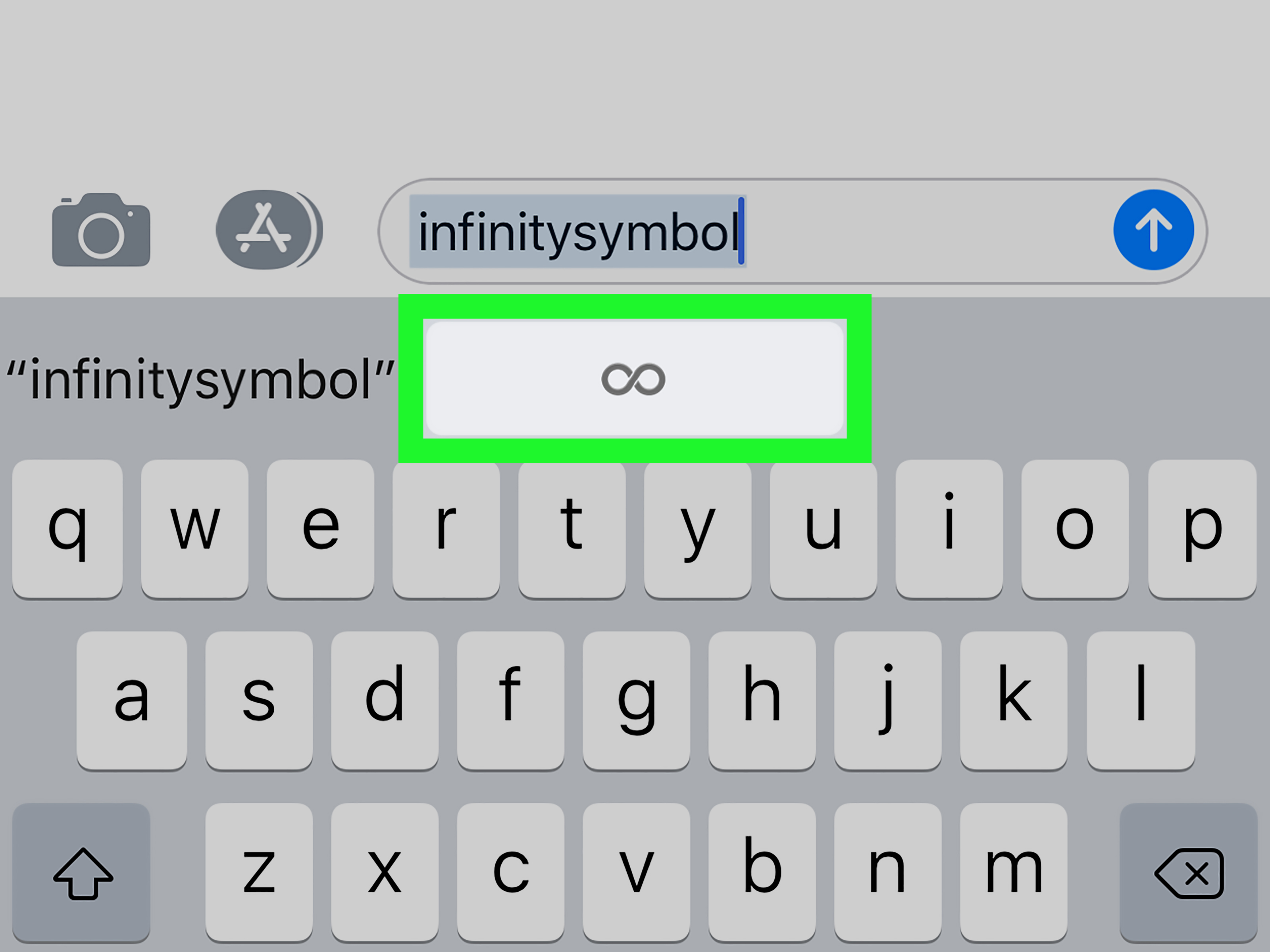
Need to type the infinity symbol on an iPhone? You are not alone. The infinity sign looks simplejust a sideways figure eight with a sense of dramabut the iPhone keyboard does not place it beside the comma like it is waiting politely for its moment. Whether you want to write ∞ in a math note, add ♾️ to an Instagram bio, send a “love you forever” text, or make your username look slightly more mysterious than necessary, there are several easy ways to do it.
The good news: you do not need a secret developer menu, a jailbreak, or a tiny wizard living inside your Settings app. The better news: once you set up the right shortcut, typing the infinity symbol on an iPhone can become almost automatic. This guide explains four practical methods, when to use each one, and how to avoid common symbol mix-ups between the mathematical infinity sign ∞ and the infinity emoji ♾️.
First, Know the Difference: ∞ vs. ♾️
Before you start tapping around your iPhone like you are trying to unlock a treasure chest, it helps to understand that there are two common “infinity” characters people use:
The mathematical infinity symbol: ∞
The symbol ∞ is the classic mathematical infinity sign. It is a Unicode character used in math, science, philosophy, design, and general writing. If you are typing an equation, writing about limits, making a clean tattoo-style caption, or adding a simple symbol to your bio, this is usually the best choice.
The infinity emoji: ♾️
The symbol ♾️ is the infinity emoji. It may appear as a white infinity mark inside a colored square or rounded shape, depending on the app, device, and platform. It is more decorative and emotional than mathematical. Use it for texts, social posts, “forever” captions, friendship messages, neurodiversity-related expression, or anything that benefits from a little emoji sparkle.
In short: use ∞ when you want a clean symbol, and use ♾️ when you want an emoji. The difference is small visually, but it matters in search results, document formatting, accessibility, and how the character appears across apps.
Method 1: Copy and Paste the Infinity Symbol on iPhone
The fastest way to make the infinity symbol on an iPhone is beautifully low-tech: copy it and paste it. Yes, it is the digital equivalent of “borrow this and don’t ask questions.” It works in Messages, Notes, Mail, Safari, Instagram, TikTok, Facebook, X, WhatsApp, Pages, Google Docs, and most apps that accept text.
Copy these symbols
Mathematical infinity sign: ∞
Infinity emoji: ♾️
How to copy and paste it
- Touch and hold the symbol you want: ∞ or ♾️.
- Tap Copy when the menu appears.
- Open the app where you want to use it.
- Tap the text field.
- Touch and hold the cursor area, then tap Paste.
This method is perfect when you only need the infinity symbol once or twice. It is also the easiest method for beginners because it requires no settings changes. If your goal is simply to add an infinity sign to a caption like “Best friends ∞” or “This playlist is on repeat ♾️,” copying and pasting does the job quickly.
Best uses for copy and paste
Copy and paste is ideal for occasional use, one-time social media posts, quick texts, usernames, profile bios, and decorative captions. It is also useful if you are switching between the standard infinity symbol and the infinity emoji and want full control over which version appears.
The only downside is that you need somewhere to copy the symbol from. To make life easier, paste both versions into your Notes app and save them in a note titled “Symbols.” That way, whenever you need the infinity symbol, you can grab it from your own mini symbol pantry. It is not glamorous, but neither is hunting for one tiny sideways eight at 11:47 p.m.
Method 2: Use iPhone Text Replacement for an Infinity Shortcut
If you type the infinity symbol often, Text Replacement is the best long-term solution. This built-in iPhone feature lets you create a shortcut that automatically expands into a word, phrase, emoji, or symbol. For example, you can type infsym, and your iPhone can replace it with ∞. Congratulations: your keyboard now has a tiny magic trick.
How to create an infinity symbol shortcut
- Copy the infinity symbol you want to use: ∞ or ♾️.
- Open the Settings app on your iPhone.
- Tap General.
- Tap Keyboard.
- Tap Text Replacement.
- Tap the + button in the top-right corner.
- In the Phrase field, paste ∞ or ♾️.
- In the Shortcut field, type something easy to remember, such as infsym, inf, or foreverr.
- Tap Save.
Now open Notes or Messages and test it. Type your shortcut, tap the space bar, and your iPhone should replace the shortcut with the infinity symbol. If it works, you have officially upgraded from “Where is that symbol?” to “I am the symbol master.”
Choosing a good shortcut
Pick a shortcut you will not accidentally type in normal conversation. For example, inf is short, but it may appear in words or abbreviations. A shortcut like infsym is safer because it is memorable and unlikely to show up by accident. You can also create two shortcuts:
- infsym → ∞
- infemoji → ♾️
This setup is especially helpful for students, teachers, content creators, designers, tattoo artists, social media managers, and anyone who uses special characters regularly. Instead of copying the symbol every time, you type a short trigger and let iOS handle the rest.
Why Text Replacement is the best everyday method
Text Replacement works across many apps because it is part of the iPhone keyboard system. That means your infinity shortcut can appear in Messages, Notes, Mail, Safari search boxes, social media captions, and more. It also saves time if you frequently type other special symbols, email addresses, hashtags, business phrases, or canned replies. The infinity symbol may be your gateway shortcut; soon you may have your entire life compressed into keyboard abbreviations. Efficient? Yes. Slightly chaotic? Also yes.
Method 3: Use the Emoji Keyboard to Insert the Infinity Emoji
If you want the emoji version ♾️, the built-in iPhone emoji keyboard is the easiest native option. The infinity emoji is part of the emoji set, so you can search for it just like you would search for a heart, fire, star, or that one face you use when your friend says “quick question” and then sends a paragraph.
How to find the infinity emoji
- Open an app where you can type, such as Messages, Notes, or Instagram.
- Tap the text field to bring up the keyboard.
- Tap the Emoji button or the globe icon on the keyboard.
- Use the emoji search field and type infinity.
- Tap ♾️ to insert it.
This method is excellent for casual messages and social posts. If you are writing “forever grateful ♾️” or “same best friend since middle school ♾️,” the emoji version feels natural. It has more personality than the plain mathematical symbol, which is great unless you are doing homework. Your calculus teacher may not appreciate an emoji in the middle of a limit problem, no matter how charming it looks.
What if you do not see the emoji keyboard?
If the emoji keyboard does not appear, it may not be added to your keyboard list. You can usually add it by going to Settings > General > Keyboard > Keyboards > Add New Keyboard, then selecting Emoji. After that, the emoji button or globe icon should appear when you are typing.
When to use the infinity emoji
Use ♾️ for emotional or visual meaning: forever love, lifelong friendship, endless creativity, repeat mode, unlimited energy, or a poetic caption that needs a tiny symbol doing big emotional work. Because emoji can look different across platforms, it is best for casual communication rather than formal documents.
Method 4: Use a Symbols Keyboard, Web Tool, or Notes Shortcut Collection
The fourth way is to use a symbols-focused keyboard app, a reputable symbol website, or your own saved symbol collection in Notes. This method is useful if you often need not only the infinity symbol but also arrows, fractions, Greek letters, currency symbols, math operators, stars, hearts, and other characters that the standard iPhone keyboard does not display upfront.
Option A: Use a symbol keyboard app
Some third-party keyboard apps offer large symbol libraries. After installing one from the App Store, you can add it through Settings > General > Keyboard > Keyboards > Add New Keyboard. Once added, you can switch keyboards by tapping the globe icon while typing.
However, be selective. Keyboard apps can request permissions, and some may ask for “Full Access” to enable extra features. Before using any third-party keyboard, check the app’s privacy details, reviews, developer reputation, and whether it actually needs additional access. If you only need the infinity symbol, a Text Replacement shortcut is usually simpler and safer.
Option B: Use a trusted symbol website
Another easy option is to search the web for “copy infinity symbol” and copy ∞ from a reliable symbol reference page. This is convenient when you need a clean Unicode character and do not want to install anything. It is also helpful if you need related codes, such as the HTML entity ∞, the decimal code ∞, or the hex code ∞.
Option C: Build your own Notes symbol library
For a no-app, no-fuss solution, create a note called “Useful Symbols” and paste the characters you use most. For example:
- ∞ Infinity symbol
- ♾️ Infinity emoji
- → Arrow
- ★ Star
- ✓ Check mark
- © Copyright
- ™ Trademark
This approach is surprisingly effective. It keeps your favorite symbols in one place, works offline after you create the note, and avoids cluttering your iPhone with extra keyboards. It is basically a junk drawer, but for typographyand unlike your real junk drawer, it will not contain three mystery screws and a battery from 2018.
Which Method Should You Use?
The best method depends on how often you need the infinity symbol and where you plan to use it. For one-time use, copy and paste is fastest. For frequent use, Text Replacement is the clear winner. For casual texting and social media, the emoji keyboard is fun and simple. For heavy symbol use, a saved Notes library or symbol keyboard may be worth it.
Quick comparison
| Method | Best For | Main Advantage |
|---|---|---|
| Copy and paste | One-time use | Fast and beginner-friendly |
| Text Replacement | Frequent typing | Automatic shortcut across apps |
| Emoji keyboard | Texts and social posts | Easy access to ♾️ |
| Symbol keyboard or Notes library | Many special characters | Flexible symbol collection |
Common Problems and Fixes
The shortcut does not expand
If your Text Replacement shortcut does not turn into the infinity symbol, check that you tapped Save. Then test it in Apple Notes, where keyboard features usually behave reliably. Also make sure your shortcut is typed exactly as saved. Autocorrect has many talents, but mind reading is still in beta in the grand theater of human frustration.
The symbol looks different in another app
The plain infinity sign ∞ is usually consistent, but fonts can make it look thinner, heavier, wider, or more decorative. The emoji ♾️ varies even more because each platform has its own emoji design. If appearance matters, send a test message or preview your post before publishing.
The emoji appears instead of the plain symbol
If you need the mathematical infinity symbol, make sure you are copying ∞, not ♾️. The plain symbol is better for equations, articles, web content, and formal writing. The emoji is better for expression and decoration.
The iPhone keyboard does not show the infinity sign on long press
The standard iPhone keyboard includes many hidden characters through long-press menus, but the mathematical infinity sign is not always available as a direct long-press option in the basic keyboard layout. That is why copy and paste, Text Replacement, and emoji search are more dependable methods.
Examples of Using the Infinity Symbol on iPhone
Here are a few simple examples you can copy, customize, or quietly pretend you invented:
- Love you ∞
- Best friends ♾️
- Creativity has no limit ∞
- Repeat mode: ♾️
- lim x → ∞
- Dream bigger ∞
- Forever starts here ♾️
For web writing, the infinity symbol can also be represented with HTML entities. The most common options are ∞, ∞, and ∞. If you are publishing content online, using the actual symbol ∞ usually works fine in modern editors, but HTML entities can be helpful when working directly with code.
Extra Experience: What It Is Actually Like to Use the Infinity Symbol on an iPhone
After using the infinity symbol on an iPhone in real-world situationstexts, captions, notes, math explanations, and web draftsthe biggest lesson is simple: the “best” method changes depending on your mood and your mission. Copy and paste feels unbeatable when you are in a hurry. You see the symbol, grab it, paste it, and move on with your life. It is the drive-thru coffee of symbol typing: not fancy, but extremely effective.
Text Replacement, however, becomes the favorite once you use the symbol more than a few times. Setting up infsym for ∞ feels slightly unnecessary at first. Then, three days later, you type it automatically and wonder why you ever lived any other way. The same thing happens with email shortcuts, address shortcuts, and common phrases. The iPhone keyboard starts to feel less like a tiny glass rectangle and more like a personal assistant who has finally stopped asking follow-up questions.
The emoji keyboard is the most enjoyable method, especially for casual messages. Searching “infinity” and tapping ♾️ is quick, visual, and satisfying. It is perfect for a birthday post, a friendship caption, or a message that says “I support you forever” without requiring a full emotional essay. The emoji version carries a warmer feeling than the mathematical sign. It says “forever” more than “calculus,” which is usually a good thing unless you are actively doing calculus.
That said, the emoji can be unpredictable. In one app it may look clean and modern; in another it may appear slightly different. If you are designing a brand bio, tattoo concept, logo idea, or professional post, the plain ∞ symbol usually looks more polished. It behaves like text, blends with fonts, and does not bring its own colorful emoji costume to the party.
A saved Notes symbol library is the underrated hero. It works especially well for people who publish content, manage social media, write product descriptions, or frequently need symbols that are not obvious on the iPhone keyboard. Keeping ∞, ♾️, arrows, stars, check marks, and trademark symbols in one note saves time and prevents random web searches. It also reduces the risk of copying a weird lookalike character that does not display correctly later.
The main mistake people make is using the wrong infinity character for the job. The plain ∞ symbol is best for clean text, math, search-friendly content, and professional formatting. The ♾️ emoji is best for emotion, personality, and casual digital expression. Neither is “wrong,” but they are not identical. Think of them as siblings: related, recognizable, and absolutely not interchangeable at a formal dinner.
For most iPhone users, the winning setup is simple: create a Text Replacement shortcut for ∞, use the emoji keyboard for ♾️, and keep both saved in Notes as backup. With those three habits, you can type the infinity symbol almost anywhere without thinking about it. Tiny symbol, big convenience. Not quite infinite powerbut for an iPhone keyboard, close enough.
Conclusion
Making the infinity symbol on an iPhone is easy once you know where to look. You can copy and paste ∞ or ♾️, create a Text Replacement shortcut, search for the infinity emoji on the emoji keyboard, or use a symbol keyboard or saved Notes collection. For occasional use, copying is fastest. For everyday use, Text Replacement is the smartest method. For social posts and texts, the infinity emoji adds a friendly visual touch.
The key is choosing the right version. Use ∞ for a clean mathematical or typographic infinity sign, and use ♾️ when you want the emoji style. Once you set up your shortcut, your iPhone will stop making the infinity symbol feel like a hidden treasure and start treating it like any other character. Forever, apparently, can fit in one keyboard shortcut.
Note: This article was created from current iPhone keyboard behavior, Apple keyboard features, Unicode character information, emoji references, and practical mobile typing guidance, rewritten in original American English for web publication.