Connecting an HP Deskjet 2540 wirelessly to your computer sounds like one of those “five-minute jobs” that somehow turns into a staring contest with a blinking blue light. The good news? This printer can absolutely work over Wi-Fi when the network, printer buttons, and computer settings are lined up correctly. The even better news? You do not need to be a network engineer, router whisperer, or the family member everyone calls when the internet sneezes.
The HP Deskjet 2540 All-in-One is an older but still useful home printer that supports wireless printing through a 2.4 GHz Wi-Fi network and HP wireless features. Because it does not have a large touchscreen control panel, setup depends mostly on the printer’s physical buttons, HP printer software, Windows or macOS printer settings, and sometimes WPS, also known as Wi-Fi Protected Setup.
This guide explains how to connect an HP Deskjet 2540 wirelessly to your computer, how to install the right software, how to add the printer in Windows or on Mac, and how to fix the common issues that make this model act like it has joined a secret printer rebellion.
Before You Start: What You Need
Before trying to connect the HP Deskjet 2540 to Wi-Fi, make sure you have the basics ready. Skipping this part is like baking cookies and forgetting the oven exists.
- Your HP Deskjet 2540 printer powered on and placed near the router.
- A working 2.4 GHz Wi-Fi network.
- Your Wi-Fi network name, also called the SSID.
- Your Wi-Fi password.
- A Windows PC or Mac connected to the same Wi-Fi network.
- The latest HP printer software, HP Smart app, or HP full-feature driver package when available.
- A USB cable, only if the wireless software setup asks for temporary USB setup.
The most important detail is that the HP Deskjet 2540 works with 2.4 GHz wireless networks. If your router uses both 2.4 GHz and 5 GHz, connect your computer to the 2.4 GHz network during setup. Many modern routers combine both bands under one name, which is convenient until an older printer looks at it and says, “No thank you.”
Understanding the HP Deskjet 2540 Wireless Buttons
The HP Deskjet 2540 does not guide you with a fancy screen. Instead, it communicates through buttons and lights. The blue wireless light is your main clue. If the light is blinking, the printer is trying to connect or is waiting for wireless setup. If the light becomes solid, the printer is connected to a wireless network.
Wireless Button
The Wireless button turns wireless capability on or off. Holding it for several seconds can start WPS push-button mode, depending on the printer state. This is useful when your router has a WPS button.
Cancel Button
The Cancel button stops current operations. It is also used with the Wireless button to reset wireless settings on many HP Deskjet 2540 units.
Wireless Direct Button
Wireless Direct lets a computer or mobile device connect directly to the printer without using a router. This is not the same as connecting the printer to your home Wi-Fi network. Wireless Direct can be useful in a pinch, but for normal home printing from a computer, connecting the printer and computer to the same Wi-Fi network is usually better.
Method 1: Connect the HP Deskjet 2540 Using WPS
WPS is often the simplest way to connect an HP Deskjet 2540 wirelessly, but it only works if your router supports WPS. Look for a button on your router labeled WPS. It may show a circular arrow symbol. If your router does not have WPS, skip to the software setup method.
Step-by-Step WPS Setup
- Turn on the HP Deskjet 2540 and make sure it is close to your Wi-Fi router.
- Press and hold the printer’s Wireless button until the wireless light starts blinking.
- Go to your router and press the WPS button.
- Wait while the printer tries to connect. This can take a minute or two.
- When the blue wireless light becomes solid, the printer is connected to the Wi-Fi network.
Once the printer is connected to the router, move to your computer and add the printer through Windows or macOS settings. The printer being connected to Wi-Fi is only half the job. Your computer still needs to recognize it as an available printer.
Method 2: Connect Using HP Software on Windows
If WPS is unavailable or unreliable, HP software is the more controlled option. For the HP Deskjet 2540, HP may offer full-feature software and drivers, HP Easy Start, or setup through HP Smart depending on your operating system and region.
Step 1: Prepare the Printer
Turn the printer on and place it near the router. Make sure paper is loaded and ink cartridges are installed. Yes, the printer can complain about ink during setup, because apparently printers enjoy multitasking as drama coaches.
Step 2: Download HP Printer Software
Go to the official HP support website and search for HP Deskjet 2540 All-in-One Printer series. Choose your operating system and download the recommended software or driver package. Avoid random driver websites. A printer driver should come from HP or your operating system’s trusted update system, not from a mysterious download button wearing a fake mustache.
Step 3: Run the Installer
Open the downloaded installer and follow the on-screen instructions. When asked for the connection type, choose Wireless or Network. The installer may search for printers already connected to your network.
If the printer has not yet joined the Wi-Fi network, the installer may ask you to connect a USB cable temporarily. This allows the software to send your Wi-Fi name and password to the printer. After the wireless connection is created, the installer should tell you to disconnect the USB cable.
Step 4: Add the Printer in Windows
After setup, Windows may add the printer automatically. If it does not, add it manually:
- Open Start.
- Go to Settings.
- Select Bluetooth & devices, then Printers & scanners.
- Click Add device.
- Choose your HP Deskjet 2540 from the list.
- Print a test page.
On Windows 10, the path may appear as Settings > Devices > Printers & scanners. On Windows 11, it is usually under Bluetooth & devices. Either way, the goal is the same: get Windows to see the printer on the same network.
Method 3: Connect the HP Deskjet 2540 to a Mac
Connecting the HP Deskjet 2540 to a Mac is similar, but macOS often relies on AirPrint or Apple’s built-in printer discovery. The printer must first be connected to the same Wi-Fi network as the Mac.
Step 1: Connect the Printer to Wi-Fi
Use WPS if your router supports it. If not, use HP setup software for Mac if available for your version of macOS. Some older HP printers may need HP drivers or HP Easy Start rather than only the default macOS printer list.
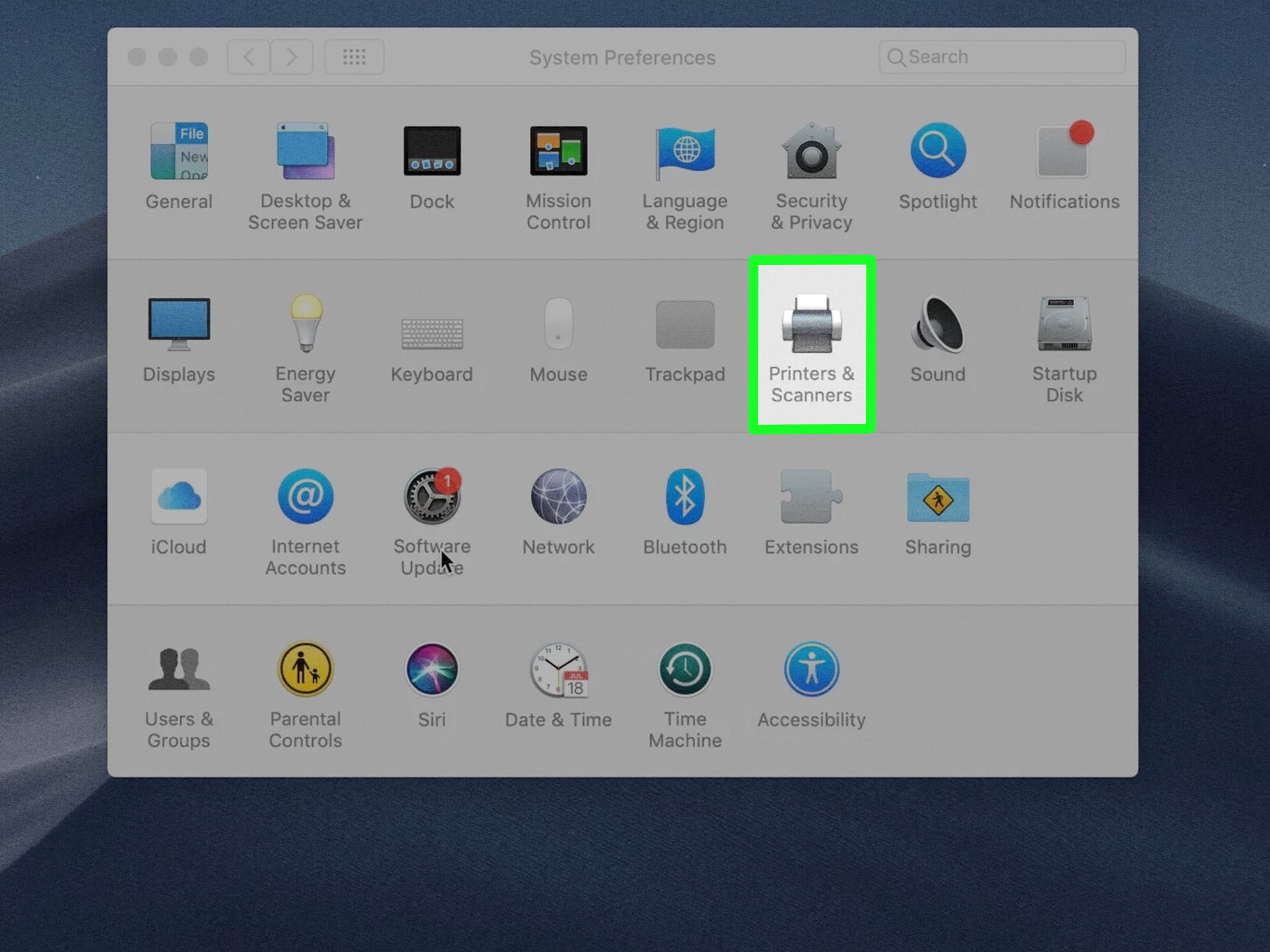
Step 2: Add the Printer in macOS
- Click the Apple menu.
- Open System Settings.
- Select Printers & Scanners.
- Click Add Printer, Scanner, or Fax, or click the plus button if your macOS version uses that layout.
- Select the HP Deskjet 2540 when it appears.
- Choose the recommended driver or AirPrint option if available.
- Click Add.
If the printer does not appear, wait a minute after turning it on. Older wireless printers sometimes need extra time to join the network. Also confirm your Mac is connected to the same Wi-Fi network, not a guest network or a different router band.
Method 4: Use Wireless Direct When There Is No Router
Wireless Direct can be helpful if you do not have access to a router or need a temporary connection. With Wireless Direct, the printer creates its own wireless signal. Your computer connects to the printer’s network directly.
How Wireless Direct Works
Press the printer’s Wireless Direct button to enable the feature. Then open Wi-Fi settings on your computer and look for a network name related to the HP Deskjet 2540. Connect to that network. You may need a password printed on the printer’s information page or shown in the printer documentation.
Wireless Direct is convenient, but it has a trade-off: while your computer is connected directly to the printer’s Wi-Fi signal, it may disconnect from your normal internet Wi-Fi. That is why Wireless Direct is best for quick printing, not everyday printing from a home office computer.
How to Restore Wireless Settings on the HP Deskjet 2540
If the printer was previously connected to another router, moved from another house, or inherited from someone who forgot the Wi-Fi password three routers ago, resetting the printer’s network settings can help.
On many HP Deskjet 2540 printers, you can restore wireless settings by pressing and holding the Wireless button and the Cancel button together for about five seconds. The wireless light should start blinking, showing that the printer is ready for a fresh wireless setup.
After restoring the wireless settings, repeat the WPS method or run the HP setup software again. A reset does not delete your printer from the computer, but if the connection changes, removing and re-adding the printer in Windows or macOS can prevent confusion.
Troubleshooting: Why Your HP Deskjet 2540 Will Not Connect
Wireless printer problems are common, especially with older printers and modern routers. Here are the most likely causes and fixes.
1. The Printer Is on the Wrong Wi-Fi Band
The HP Deskjet 2540 is designed for 2.4 GHz wireless networks. If your router separates 2.4 GHz and 5 GHz into different names, connect your computer to the 2.4 GHz network during setup. If your router uses one combined network name, check router settings to make sure 2.4 GHz is enabled.
2. The Computer and Printer Are Not on the Same Network
Your computer and printer must be on the same local network. Guest networks often block device discovery, so avoid setting up the printer on a guest Wi-Fi network. If your laptop is connected to a VPN, temporarily disconnect it during setup because some VPNs can hide local printers.
3. The Router Is Too Far Away
Move the printer closer to the router during setup. After it connects, you can move it to its normal location, but avoid corners, thick walls, metal shelves, and microwave-heavy zones. Printers do not enjoy living inside Wi-Fi caves.
4. Old Printer Entries Are Confusing Windows or macOS
If your computer shows multiple HP Deskjet 2540 entries, remove the old ones. Then add the printer again. On Windows, go to Printers & scanners, select the old printer, and remove it. On Mac, open Printers & Scanners, select the printer, and remove it before adding a fresh entry.
5. The Driver Is Missing or Too Basic
Windows may install a basic printer driver automatically, but scanning and full printer management may require HP software. If printing works but scanning does not, install the full HP software package if available for your operating system.
6. The Print Queue Is Stuck
A stuck print job can make a perfectly connected printer appear broken. Open the print queue, cancel old jobs, restart the printer, and try again. This is the printer version of clearing your throat before giving a speech.
How to Print a Test Page
After connecting the HP Deskjet 2540 wirelessly, print a test page to confirm the setup worked.
On Windows
- Open Settings.
- Go to Printers & scanners.
- Select the HP Deskjet 2540.
- Open printer properties or printer settings.
- Choose Print Test Page.
On Mac
- Open System Settings.
- Select Printers & Scanners.
- Choose the HP Deskjet 2540.
- Open the print queue or printer options.
- Print from any simple document, such as a one-line TextEdit file.
If the test page prints, celebrate responsibly. Maybe do not throw confetti near the paper tray.
Best Setup Method: WPS or HP Software?
Use WPS if your router supports it and you want the fastest setup. It is simple and does not require typing a Wi-Fi password into the printer, which is convenient because the HP Deskjet 2540 does not have a keyboard or touchscreen.
Use HP software if WPS fails, your router does not support WPS, or you need scanning features installed on your computer. HP software is also better when changing from a USB connection to a wireless connection because it can configure the printer and install the correct driver in one process.
Use Wireless Direct only when you need temporary direct printing or do not have a normal Wi-Fi router available. For everyday use, a standard home Wi-Fi connection is more practical.
Security Tips for Wireless Printing
Wireless printing is convenient, but you should keep the setup secure. Use a strong Wi-Fi password and avoid open networks. If your router has WPS, use it only during setup and consider disabling WPS afterward if your router allows it. Do not connect your printer to public Wi-Fi networks, and avoid downloading drivers from unofficial websites.
If you use Wireless Direct, protect it with a password if the option is available. A printer may seem harmless, but an unsecured device on a network can become an unnecessary risk. Also, update your computer regularly so printer discovery, driver handling, and security features continue to work properly.
Real-World Experience: What Actually Helps When Connecting the HP Deskjet 2540
In real home setups, the HP Deskjet 2540 usually connects successfully when three things are handled correctly: the printer is reset, the router is using 2.4 GHz Wi-Fi, and the computer is on the same network. Most failed attempts come from one of those three details, not from the printer being “broken.” Older printers can be stubborn, but they are usually not villains. They are more like retired office workers who need instructions repeated slowly.
One common experience is that the wireless light keeps blinking after pressing the WPS button. When this happens, the first thing to check is timing. WPS usually requires you to start the process on the printer and then press the router’s WPS button within a short window. If you wait too long, both devices miss each other like two people waving from opposite train platforms. Restarting the sequence often fixes it.
Another practical lesson is to move the printer close to the router for setup, even if you plan to keep it across the room later. Wireless setup is more sensitive than regular printing. A weak signal can cause the connection process to fail before the printer ever gets properly registered on the network. Once the connection is stable, you can test different locations.
Many users also discover that their router has a combined Wi-Fi name for both 2.4 GHz and 5 GHz. This is common on newer routers. Phones and laptops handle it gracefully, but older printers may not. If the Deskjet 2540 refuses to connect, logging into the router and temporarily separating the 2.4 GHz network name can make setup much easier. For example, you might name the 2.4 GHz network “HomeWiFi_2G” and connect both the computer and printer to that network during setup.
A temporary USB cable can also save the day. Even though the goal is wireless printing, HP setup software may use USB only long enough to send Wi-Fi information to the printer. After that, the cable can be removed. This feels backward at first, but it is a normal setup method for many older wireless printers without touchscreens.
Another experience worth mentioning is that printer names can multiply. You may see “HP Deskjet 2540,” “HP Deskjet 2540 Series,” “HP Deskjet 2540 Network,” or a similar variation. If printing fails, remove old copies and add the printer again after confirming it is connected to Wi-Fi. A clean printer list can solve problems that look much more complicated than they really are.
Finally, patience matters. After turning on the printer, give it a minute or two before printing. Older wireless printers may need time to wake up, reconnect to Wi-Fi, and become visible to the computer. Clicking Print five times in frustration only creates five stuck jobs, and then the printer prints all of them later just to prove a point.
Conclusion
Connecting an HP Deskjet 2540 wirelessly to your computer is easiest when you remember the basics: use a 2.4 GHz Wi-Fi network, place the printer near the router, choose WPS or HP software setup, and make sure your computer and printer are on the same network. If the setup fails, restore the printer’s wireless settings, remove old printer entries, and try again with a clean connection.
The HP Deskjet 2540 may be an older printer, but it can still be a reliable wireless printer for everyday documents, schoolwork, home office pages, labels, and occasional scans. Treat it gently, feed it the right Wi-Fi, and it should stop blinking at you like it knows something you do not.
Note: This guide is written for a standard home Wi-Fi setup using an HP Deskjet 2540-series printer. Menu names may vary slightly depending on your Windows version, macOS version, router model, and available HP software.