Deleting a Discord server on Android is not difficult, but it is definitely not something to do while half-watching a movie, eating chips, and pretending you “just want to clean things up.” Once a Discord server is deleted, the server, channels, conversations, member list, and community setup are gone. There is no magical “undo” button hiding behind a cute little Clyde icon.
Maybe your gaming group moved to a new server. Maybe a school project ended months ago. Maybe you created a test server called “Definitely Not My Secret Bot Lab” and now it is cluttering your server list. Whatever the reason, this guide walks you through how to delete a Discord server on Android in eight easy steps, with practical tips to avoid deleting the wrong community by accident.
Before you begin, remember the most important rule: only the server owner can delete a Discord server. Administrators can manage many things, but they cannot delete the entire server unless they are the owner. If you do not see the delete option, that is usually why.
Quick Answer: How to Delete a Discord Server on Android
To delete a Discord server on Android, open the Discord app, select the server you own, tap the server name or three-dot menu, go to Settings, open Overview, scroll down, tap Delete Server, and confirm the deletion. If your account uses multi-factor authentication, Discord may ask for an authentication code before completing the process.
Before You Delete: What Happens When a Discord Server Is Deleted?
Deleting a Discord server is permanent. When the server is removed, its text channels, voice channels, member history, server settings, roles, permissions, and messages are no longer available. Think of it less like closing a browser tab and more like shredding the whole filing cabinet.
This is why Discord places the delete option inside server settings instead of putting it next to everyday actions like muting notifications or changing your nickname. The app wants you to slow down and confirm that you really mean it. That is a good thing, especially if your server has years of conversations, inside jokes, event plans, or screenshots of someone losing spectacularly in a boss fight.
Who Can Delete a Discord Server?
The server owner can delete the server. Not a moderator. Not an admin. Not the friend who says, “Trust me, I know Discord.” Even users with powerful permissions cannot delete the server unless the owner account is the one performing the action.
If you are not the owner, you can leave the server, mute it, hide channels you do not use, or ask the owner to delete or transfer it. If you are the owner but no longer want to manage the community, consider transferring ownership instead of deleting it. That keeps the server alive while handing responsibility to someone else.
How to Delete a Discord Server on Android: 8 Easy Steps
The exact layout of Discord’s Android app may shift slightly as updates roll out, but the core path is usually the same: server menu, settings, overview, delete server, confirm. Follow these steps carefully.
Step 1: Open the Discord App on Your Android Phone
Start by opening the Discord app on your Android device. Make sure you are logged into the account that owns the server. This matters because having admin permissions is not enough. If you created the server with another account, you will need to log into that owner account before the delete option appears.
If the app feels slow or refuses to load, check your internet connection, update Discord from the Google Play Store, or restart the app. A glitchy app is not the best place to make a permanent decision.
Step 2: Select the Server You Want to Delete
On the left side of the Discord mobile interface, tap the icon for the server you want to remove. Take an extra second to confirm you selected the correct server. Many people have multiple servers with similar icons, especially if they use default initials or have several test communities.
Here is a simple safety check: read the server name at the top of the screen before continuing. If you are about to delete “Friday Game Night” instead of “Old Test Server,” your future self will appreciate the pause.
Step 3: Tap the Server Name or Three-Dot Menu
Once you are inside the server, tap the server name near the top of the screen or tap the three-dot menu beside it. On Android, Discord commonly uses this area to open the server menu, where you can access settings, invite options, notifications, and other server tools.
If you do not immediately see the menu, swipe or tap carefully around the top header. Discord’s mobile layout is compact, so the control may feel small depending on your screen size.
Step 4: Open Server Settings
In the server menu, tap Settings. This opens the control center for your server. From here, owners and authorized users can adjust server name, icon, roles, moderation features, channels, members, and other administrative settings.
If Settings is missing, you may not have the right permissions, or you may not be using the owner account. Again, only the owner can complete the deletion.
Step 5: Go to Overview
Inside Server Settings, tap Overview. This section usually contains basic server details such as the server name, region-related settings, system messages, and other general options. It is also where Discord places the delete option on mobile.
Some app updates may reorganize settings slightly, but look for the general server information page. If you are in roles, members, moderation, or channels, back up and return to the Overview area.
Step 6: Scroll Down and Tap Delete Server
Scroll toward the bottom of the Overview page until you find Delete Server. The option is usually placed low on the page for a reason: Discord does not want anyone tapping it casually like they are ordering extra fries.
Tap Delete Server only after you have checked that you are in the correct server and understand that the deletion is permanent.
Step 7: Confirm the Deletion Prompt
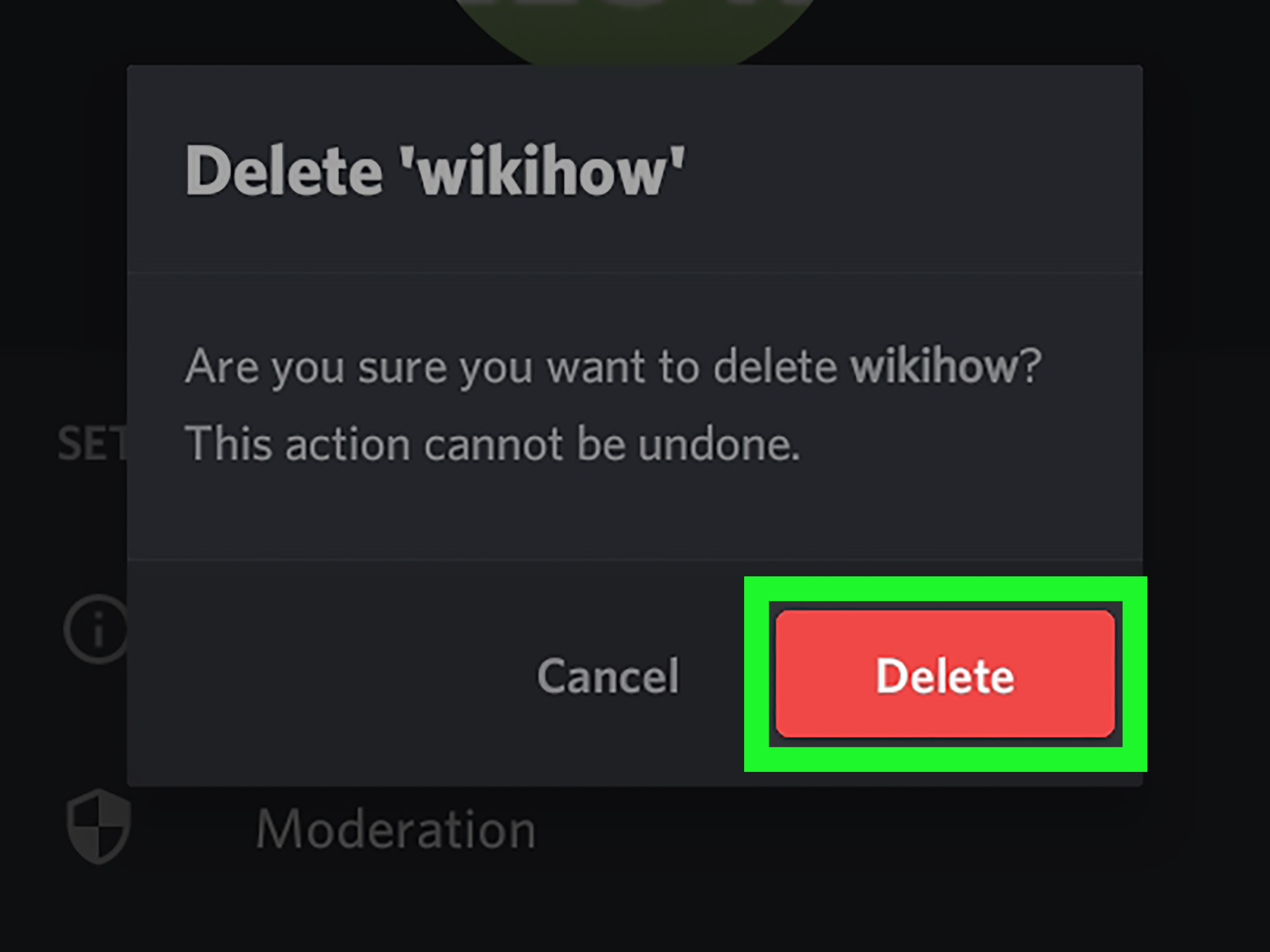
Discord will show a confirmation prompt. If your account does not use multi-factor authentication, you may only need to confirm by tapping Yes or a similar confirmation button. If your account uses MFA or 2FA, Discord may ask for an authentication code before allowing the deletion.
This confirmation exists to protect your server from accidental taps and unauthorized access. Do not enter a code or confirm the action unless you are completely sure. Once the server is deleted, you cannot recover its member list, channels, or messages.
Step 8: Verify That the Server Is Gone
After confirmation, Discord removes the server from your server list. Return to the server sidebar and check that the icon is gone. If the server still appears, wait a moment, refresh the app, or close and reopen Discord.
If the deletion fails, check whether you are the owner, whether your connection is stable, and whether your account needs MFA verification. If Discord requires multi-factor authentication for certain owner actions and you have not enabled it, you may need to set it up before completing deletion.
Should You Delete the Server or Transfer Ownership?
Deleting is best when the server is truly finished. For example, a temporary event server, abandoned test server, or duplicate community may not need to live forever. However, if people still use the server, transferring ownership is often the better choice.
Transfer ownership when the server has active members, useful resources, community history, bots, roles, or channels that someone else could manage. This is especially smart for gaming clans, school clubs, creator communities, study groups, and fan servers. Instead of burning down the digital clubhouse, you hand someone else the keys.
How to Prepare Before Deleting a Discord Server
Tell Members Before You Delete It
If your server has active members, post an announcement before deleting it. You do not need to write a novel. A simple message works: “This server will be deleted on Friday because we have moved to a new community. Please save anything important before then.” Clear communication prevents confusion, especially for members who rely on pinned resources or event channels.
Save Important Information
Before deleting, copy anything worth keeping. That might include rules, welcome messages, bot commands, channel names, role structures, event schedules, FAQ posts, links, or pinned announcements. If you built a useful server layout, save a checklist so you can recreate it later.
Remove or Notify Bots and Integrations
If your server uses bots, webhooks, or integrations, check whether they connect to outside tools. For example, a bot might post updates from YouTube, Twitch, GitHub, or a calendar. Deleting the server ends its role in that community, but you may also want to clean up connected dashboards or remove unused bot settings elsewhere.
Cancel or Review Server-Related Subscriptions
If the server has boosts or paid tools connected to it, review those before deleting. Server Boosts and premium bot services may have separate account-level settings. Deleting the server does not mean every outside subscription magically disappears. That would be convenient, but sadly, the internet still expects us to check billing pages like responsible adults.
Common Problems When Deleting a Discord Server on Android
I Do Not See the Delete Server Button
The most common reason is that you are not the server owner. You might be an admin, moderator, or longtime member, but only ownership grants the ability to delete the entire server. Another possibility is that you are logged into the wrong Discord account.
Discord Asks for a 2FA or MFA Code
If your account has multi-factor authentication enabled, Discord may ask for a current code from your authenticator app, passkey, security key, or backup method. This is normal. Open your authentication app or use your saved backup codes if needed.
The App Layout Looks Different
Discord updates its mobile design from time to time. If your Android app looks different from a screenshot you saw online, look for the same general path: server menu, server settings, overview, delete server. Updating the app can also help if your settings screens do not match current instructions.
I Deleted the Wrong Server
Unfortunately, deleted servers cannot be restored. This is why the best habit is to check the server name twice before confirming. If the server mattered to members, you may need to create a new server, invite people again, rebuild channels, and reconfigure roles from scratch.
Useful Tips for Android Users
First, keep the Discord app updated. Newer versions often fix bugs and keep settings paths consistent with current support instructions. Second, use a stable internet connection before making major changes. A dropped connection during a confirmation step can create confusion, even if the deletion does not complete.
Third, avoid deleting servers when you are tired, angry, or in a hurry. Discord communities can hold years of shared memories. If you are deleting a server because of drama, take a break first. Digital cleanup is good. Rage-deleting a community at 1:00 a.m. because someone argued about pizza toppings is less good.
Real-World Experience Notes: What It Feels Like to Delete a Discord Server on Android
In practice, deleting a Discord server on Android feels easy from a technical standpoint and surprisingly heavy from a community standpoint. The taps are simple. The decision is the part that deserves more attention. Many server owners create small communities for hobbies, games, classes, projects, or friend groups without realizing how much history can build up there. A server that started as “just a place to chat” may eventually contain years of plans, jokes, shared files, strategy notes, event memories, and emotional little breadcrumbs from different phases of life.
One helpful experience is to treat deletion like moving out of an apartment. You would not toss the keys into a river before checking the closet, grabbing your documents, and telling your roommates. Do the same with Discord. Review the channels. Look at pinned posts. Check whether any members still use the server. If the server has a resources channel, copy the important links. If it has a rules channel you spent an hour perfecting, save it somewhere. If it has a bot setup that actually works without exploding every Tuesday, document that miracle.
Another lesson is that Android makes server management convenient, but a phone screen can also make mistakes easier. Icons are small. Menus can feel cramped. If you own several servers, their icons may blur together when you are scrolling quickly. Before tapping Delete Server, slow down and read the exact server name. It sounds obvious, but most digital disasters begin with someone saying, “I thought I was clicking the other one.”
It is also smart to make a short goodbye announcement if the server has even a small active group. Members appreciate knowing what happened. A deleted server without warning can feel like the whole clubhouse vanished overnight. A simple message gives people time to save photos, copy links, exchange friend requests, or move to a replacement server. You do not need to make it dramatic. “Hey everyone, this server is no longer active, so I’ll be deleting it this weekend. Please save anything you need” is enough.
Finally, consider whether deletion is really the best ending. Sometimes the better move is to archive channels, lock posting, rename the server, or transfer ownership. A quiet server is not always a useless server. It may still be a reference library, a memory box, or a backup meeting place. But when the server truly has no purpose left, deleting it can feel refreshing. Your Discord sidebar gets cleaner, your notifications get quieter, and your digital life becomes a little less crowded. That is the good kind of cleanup: no drama, no confusion, no accidental community bonfire.
Conclusion
Learning how to delete a Discord server on Android is simple once you know where to look: open the server, go to Settings, choose Overview, tap Delete Server, and confirm. The bigger question is whether deletion is the right choice. Since Discord server deletion is permanent, take a moment to save important information, notify members, and consider transferring ownership if the community still has value.
If the server is empty, outdated, duplicated, or no longer useful, deleting it can be a clean and practical move. Just remember the golden rule: check the server name twice, confirm once, and do not expect Discord to resurrect it later like a fantasy RPG character with premium armor.