Deleting a Skype message sounds simple until you are staring at an old chat thinking, “Why did I send that at 1:47 a.m.?” Maybe it was a typo. Maybe it was a file sent to the wrong person. Maybe it was a dramatic “Okay.” with a period that now feels like a legal document. Whatever the reason, knowing how to delete messages on Skype can help you clean up conversations, protect privacy, and reduce digital clutter.
There is one important update before we roll up our sleeves: consumer Skype was officially retired on May 5, 2025, with Microsoft moving users toward Microsoft Teams Free. However, many people still search for Skype message deletion because they have old chat history, migrated conversations, exported records, or remaining access to Skype-related data. This guide explains how message deletion worked on Skype mobile and desktop, what users should know about deleting conversations, and how to handle Skype data responsibly now that the platform has entered its farewell-tour era.
Can You Still Delete Skype Messages?
In classic Skype, users could remove individual instant messages from a chat. On mobile, the process usually involved pressing and holding a message, then choosing Remove. On desktop or web, users typically right-clicked the message and selected Remove. Skype then asked for confirmation before removing the message.
That said, deleting a message is not the same as erasing every trace of a conversation from the universe. Depending on the timing, device sync, notifications, exports, screenshots, and whether the chat later moved into Teams, a message may have already been seen, copied, backed up, or preserved in some other form. In other words, deletion is helpful, but it is not a time machine with a trash-can icon.
How to Delete a Skype Message on Mobile
If you are using a mobile version of Skype or reviewing older instructions for iPhone, iPad, or Android, the process is straightforward. The controls may vary slightly depending on app version, but the general method is the same.
Steps for iPhone and Android
- Open the Skype app on your phone or tablet.
- Go to the Chats tab.
- Select the conversation that contains the message you want to remove.
- Find the exact message. Take a second here; deleting the wrong message is the digital version of grabbing salt instead of sugar.
- Tap and hold the message until a menu appears.
- Choose Remove.
- Confirm the action when Skype asks if you are sure.
After confirmation, Skype would remove the selected message from the conversation view. In many cases, the chat would show that a message had been removed. This helped avoid confusion when a conversation suddenly looked like it had skipped a beat.
What Happens After Removing a Message on Mobile?
When you removed a Skype instant message, the message content was no longer visible in the chat. However, there are a few practical limitations to remember. If the recipient already read the message, deletion cannot make them forget it. If they received a notification preview, took a screenshot, exported their data, or copied the text elsewhere, removing the message from Skype will not erase those copies.
This is why deleting a Skype message is best understood as a cleanup tool, not a guaranteed privacy shield. It is useful for correcting mistakes, reducing clutter, or removing sensitive information quickly, but it works best when used immediately after sending.
How to Delete a Skype Message on Desktop
Skype desktop users had a similarly simple process. Whether using Skype on Windows, Mac, Linux, or the web version, deleting a single message usually started with a right-click.
Steps for Windows, Mac, and Skype Web
- Open Skype on your computer or browser.
- Sign in to the account connected to the chat.
- Select the conversation from the chat list.
- Scroll to the message you want to delete.
- Right-click the message.
- Choose Remove from the menu.
- Confirm the removal when prompted.
Desktop deletion was especially convenient for long chats because using a mouse and larger screen made it easier to find old messages. If you were cleaning up a conversation with years of “Can you hear me?” and “Oops, wrong file,” desktop was usually the less painful route.
Deleting Messages Sent by Someone Else
In standard Skype chats, you could remove messages that you sent. You generally could not delete another person’s message for everyone. You might be able to remove or hide a conversation from your own chat list, but that does not delete the other person’s message from their account.
This distinction matters. Removing your own message affects the message you sent. Deleting or clearing a conversation affects your view of the chat. It does not magically walk across the internet, knock on the recipient’s device, and tidy their inbox.
How to Delete an Entire Skype Conversation
Sometimes one message is not the problem. Sometimes the whole conversation feels like a drawer full of old cables: you do not know what half of it does, but it is taking up space. Skype allowed users to delete entire conversations from their chat list.
On Mobile
- Open Skype and go to your chat list.
- Find the conversation you want to delete.
- Tap and hold the conversation.
- Select Delete Conversation or a similar option.
- Confirm the deletion.
On Desktop
- Open Skype on your computer.
- Find the conversation in the left-side chat list.
- Right-click the conversation.
- Select Delete Conversation.
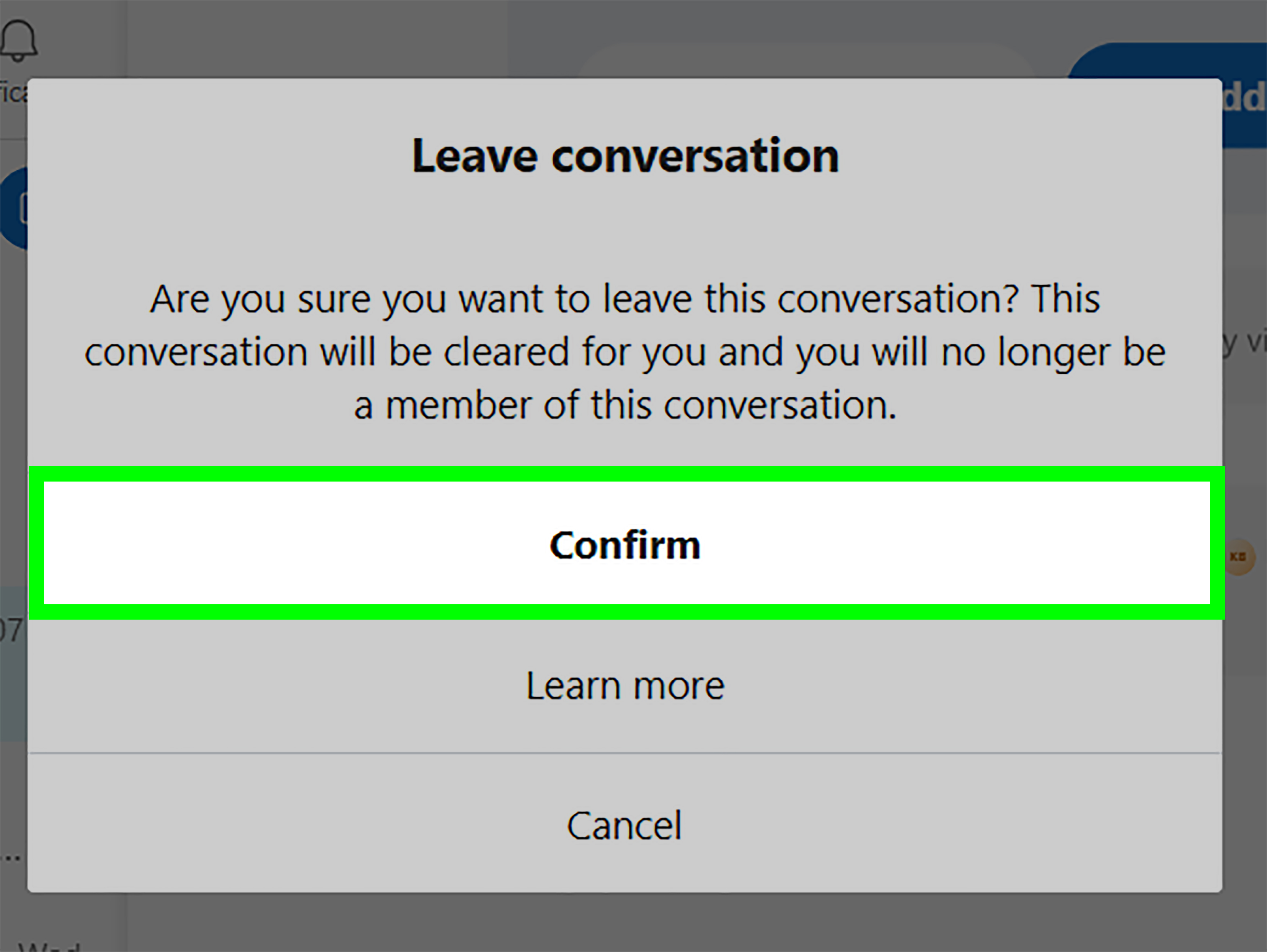
- Confirm when prompted.
Deleting a conversation removed it from your chat list, but it did not necessarily delete the conversation for everyone else. The other participant might still have their own copy of the chat. If the goal is personal cleanup, conversation deletion works well. If the goal is total removal from every device and account, the reality is more limited.
Remove vs. Delete Conversation: What Is the Difference?
The wording can be confusing because apps love using similar verbs for different things. In Skype, Remove usually referred to removing a specific message. Delete Conversation referred to removing a chat thread from your conversation list.
Think of it this way:
- Remove message: Deletes one message you selected.
- Delete conversation: Clears the chat thread from your chat list.
- Export data: Downloads a copy of Skype history and files where available.
- Delete Skype data: Requests removal of certain Skype-related data through Microsoft’s available tools.
For most users, the safest order is to export anything important first, review it, and then delete what you no longer need. That way, you do not accidentally remove a conversation containing an address, receipt, client note, family photo, or the only known copy of Aunt Linda’s famous potato salad instructions.
How to Delete Skype Data After Skype Retirement
Because Skype has been retired for consumer users, message management now depends heavily on Microsoft’s remaining data tools and migration options. Microsoft has directed users toward Microsoft Teams Free and has provided options to export Skype data for a limited period.
If your goal is to remove old Skype content, start by checking whether your Skype history has migrated to Teams Free or whether it is available through the Skype export portal. If you need records for personal, legal, business, or sentimental reasons, export before deleting. Once data is permanently deleted, recovery may not be possible.
Best Practice: Export Before You Delete
Before deleting old Skype conversations, consider downloading your available Skype data. This may include chat history, shared files, contacts, and related information. Exporting gives you a backup, especially if you are unsure whether you will need old conversations later.
For example, a freelancer might have Skype chats containing project approvals. A family member might have old photos shared in a chat. A student might have study notes from a group conversation. Delete too quickly, and your future self may stare into the distance whispering, “I should have backed that up.”
Can You Bulk Delete Skype Messages?
Skype was not designed with a simple “delete every message I have ever sent” button for everyday users. You could remove individual messages and delete conversations, but bulk deletion was limited. Some third-party tools have claimed to help with mass deletion, but users should be careful with any service that asks for account access, login credentials, or permission to scan private conversations.
For privacy and safety, avoid giving unknown tools access to your Microsoft account. If a tool sounds too magical, read the fine print. Your chat history is personal data, not confetti for random apps to sweep up.
Troubleshooting: Why Can’t I Delete a Skype Message?
The Message Is Too Old or No Longer Editable
Some messaging apps limit how long you can edit or delete messages. Skype’s behavior changed across versions and platforms, so older messages may not always show the same options as recent ones. If the Remove option is missing, the app version, account status, or service retirement may be the reason.
You Are Trying to Delete Someone Else’s Message
If the message was sent by another participant, you usually cannot remove it for everyone. You may be able to delete the conversation from your own chat list, but you cannot control the sender’s original message.
You Are Using Teams Instead of Skype
After Skype’s retirement, many users access migrated contacts and history through Microsoft Teams Free. Teams has its own message controls, interface, and limitations. If you are managing old Skype content inside Teams, look for Teams-specific options rather than expecting every Skype menu to appear exactly as before.
The App Is Outdated
If you are using an old Skype app installed on a device, menus may not load correctly, sync may fail, or the service may not function as expected. In that case, use Microsoft’s current account and data tools instead of relying only on the old app.
Privacy Tips Before Deleting Skype Messages
Deleting messages is useful, but prevention is better. Before sending sensitive information in any chat app, ask whether the message really belongs there. Passwords, ID numbers, financial details, private documents, and confidential work files should be shared through secure channels whenever possible.
Here are practical privacy habits that age well:
- Double-check the recipient before sending files or personal information.
- Avoid sending passwords in plain text.
- Use secure password managers for credential sharing.
- Export important chats before removing old data.
- Delete unnecessary conversations during regular digital cleanups.
- Remember that screenshots and notifications may survive deletion.
Specific Examples of When to Delete Skype Messages
You Sent a Message to the Wrong Chat
This is the classic panic scenario. You meant to send a casual comment to a friend and accidentally sent it to a work chat. Remove it as quickly as possible. Then, if necessary, send a short correction such as, “Sorry, wrong chat.” Calm, clear, and much better than pretending the message was part of an avant-garde productivity strategy.
You Shared an Outdated File
If you uploaded the wrong document version, remove the message and send the correct file with a clear note. For example: “Please ignore the previous file. This is the updated version.” This prevents confusion and keeps the chat organized.
You Posted Personal Information
If you accidentally shared a phone number, address, login detail, or private document, remove the message immediately. Then take additional steps if needed, such as changing a password or contacting the recipient directly.
You Want a Cleaner Chat List
Deleting old conversations can make your account easier to navigate. This is especially helpful if your Skype list became a museum of old group calls, abandoned projects, and people whose profile photos have not changed since 2014.
What to Do If You Need Records Before Deleting
If a Skype conversation contains important information, do not delete it immediately. Export your data first where available. Save the exported file somewhere secure, such as an encrypted drive or trusted cloud storage account. Label it clearly so you do not end up with a mystery file called messages_final_final_REAL.zip six months from now.
For business or legal matters, consider keeping a formal record before deleting anything. Chat history can contain agreements, timestamps, project decisions, or payment discussions. When in doubt, preserve first and delete later.
Skype Message Deletion Checklist
- Identify whether you need to delete one message or an entire conversation.
- Check whether the chat is still in Skype or has moved to Teams Free.
- Export important data before deleting.
- Use tap-and-hold on mobile or right-click on desktop for individual messages.
- Use the chat list menu to delete whole conversations.
- Remember that deletion may not remove screenshots, notifications, or exported copies.
- Review Microsoft’s current Skype data tools if the old app no longer works.
Experience-Based Tips: What I’ve Learned From Cleaning Up Skype Messages
Deleting Skype messages is less about one button and more about having a good cleanup strategy. The first lesson is simple: do not start deleting until you know what you are deleting. Old Skype conversations often contain more than casual chat. They may include photos, client instructions, addresses, meeting notes, login hints, invoice details, or emotional messages you may want later. Before removing anything, skim the conversation and decide whether it belongs in the trash, an archive, or a secure backup.
The second lesson is that individual message deletion works best when you act quickly. If you send the wrong thing, remove it right away. A fast deletion can reduce confusion, especially in active chats. But do not assume the recipient never saw it. Notification previews are fast, people are faster, and screenshots are forever’s annoying cousin. If the message matters, follow up honestly. A simple correction is often better than silently deleting and hoping nobody noticed.
The third lesson is that deleting entire conversations feels satisfying, but it can be risky. A clean chat list looks wonderful, especially if you enjoy that fresh-start feeling. However, old conversations can be surprisingly useful. I recommend using a three-part system: keep, export, delete. Keep active conversations. Export anything important but no longer needed daily. Delete the clutter. This approach keeps your account tidy without turning your digital history into a disappearing act.
The fourth lesson is to be careful with third-party cleanup tools. The promise of mass deletion sounds tempting, especially if you have years of chats. But any tool that wants deep access to your account should be treated with caution. Read privacy policies, avoid sharing passwords, and use official Microsoft options whenever possible. Saving ten minutes is not worth giving a random tool the keys to your message history.
The fifth lesson is that Skype’s retirement changes the conversation. Today, many users are not really managing active Skype chats; they are managing old Skype history, exported records, or migrated Teams data. That means the smartest move is to think in terms of data preservation and account privacy. Export what you need before the access window closes. Delete what you do not want to keep. Then move future conversations to a current platform with privacy settings you understand.
Finally, make message cleanup a habit rather than a once-a-decade panic project. Every few months, review old chats, remove unnecessary conversations, and save important records properly. Digital clutter builds quietly. One day it is three chats; the next day it is a full archaeological dig featuring project files, birthday plans, and a group chat named “Test Call 2.” A small cleanup routine keeps everything manageable.
Conclusion
Knowing how to delete messages on Skype is useful for privacy, organization, and damage control after the occasional “oops” moment. On mobile, the classic method was to tap and hold a message, select Remove, and confirm. On desktop, users could right-click a message and choose Remove. Entire conversations could also be deleted from the chat list, although that mainly affected your own view.
Because consumer Skype has been retired, the bigger task now is managing old Skype data wisely. Export important conversations before deleting them, understand that removal does not erase screenshots or notification previews, and use Microsoft’s current tools for data access where available. In short: clean up your chats, protect your privacy, and do not trust a delete button to do the work of good digital habits.