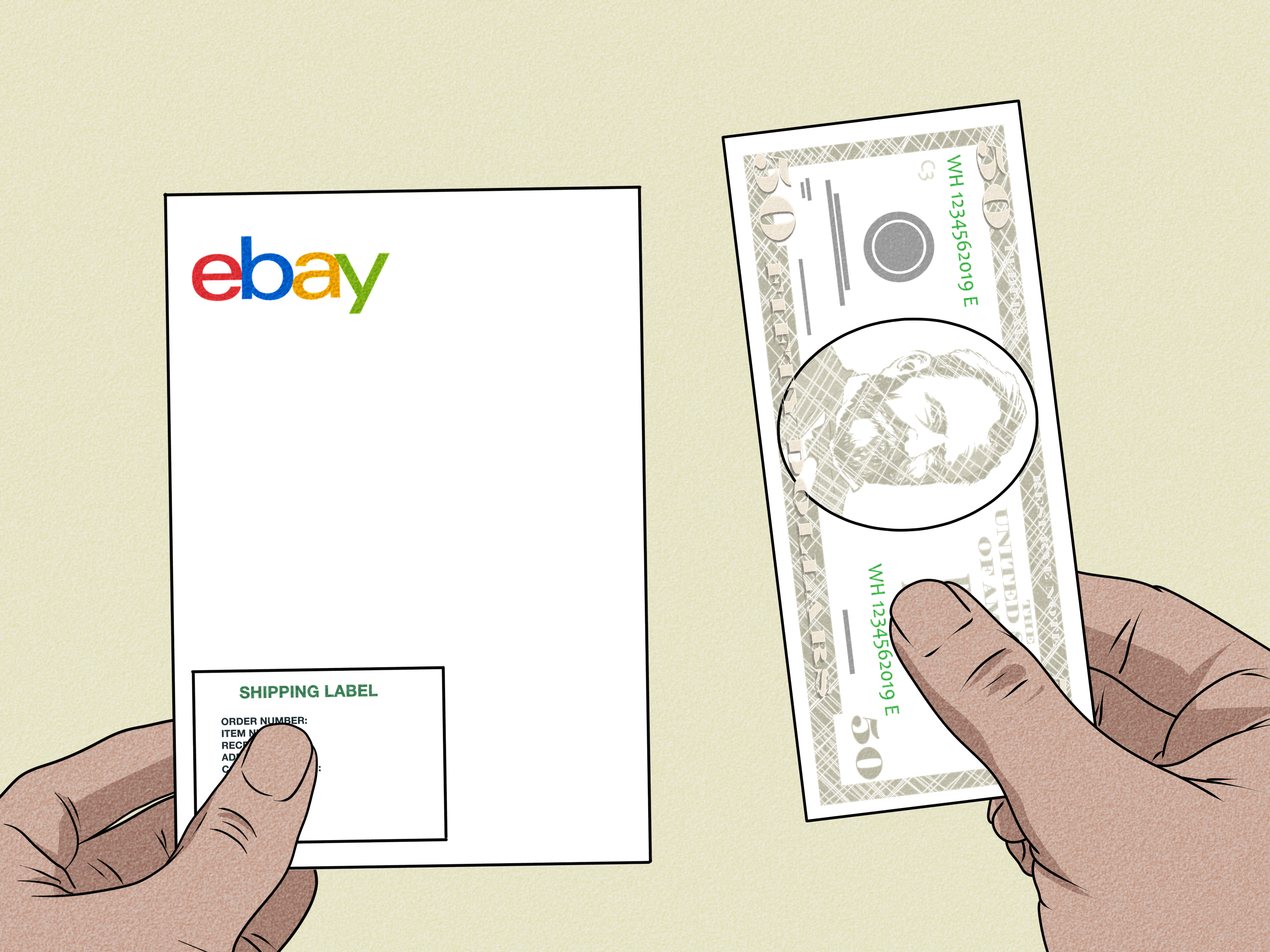
If you sell on eBay long enough, a shipping label will go missing at the worst possible moment. Maybe your printer decided to enter its dramatic phase. Maybe you closed the PDF too fast. Maybe the label printed half on the page and half in another dimension. Whatever happened, the good news is that reprinting an eBay shipping label is usually simple.
This guide walks sellers through exactly how to reprint a shipping label on eBay, when it works, when it does not, and what to do if you used a QR code, a thermal printer, or a third-party shipping tool. We will also cover common mistakes, troubleshooting tips, and real-world seller experiences so you can get the order out the door without accidentally buying postage twice. Because that is not a fun surprise. At all.
Quick Answer: Can You Reprint an eBay Shipping Label?
Yes. If you bought the shipping label through eBay Labels, you can usually reprint it from your shipping records. For most sellers, the process is straightforward: open the order’s shipping area, find the label, and download it again.
That said, there are a few important limits. Reprinting a shipping label is not the same as creating a new label. A reprint uses the same tracking number and the same postage that was already purchased. It is meant for situations like a printer problem, a misplaced PDF, or a label that came out blurry, cropped, or sideways like it was trying to become modern art.
If you need to change the address, package details, service, or label format after purchase, reprinting alone will not fix that. In those cases, you may need to cancel the unused label and buy a new one. If you bought the label through a shipping platform outside eBay, such as Pirate Ship, ShipStation, ShippingEasy, or Stamps.com, you usually need to reprint it there rather than inside eBay.
How to Reprint a Shipping Label on eBay Step by Step
Method 1: Reprint from Seller Hub
If you manage your store from Seller Hub, this is usually the easiest route.
- Sign in to your eBay seller account.
- Open Seller Hub.
- Go to your shipping area, often listed as Track and manage your shipments.
- Find the order you need.
- Select the option to Download label or re-open the label PDF.
- Print the file again using the correct printer and paper settings.
This method works best when the label was purchased directly through eBay Labels and you are still within eBay’s reprint window. If the label was bought as a single label, check your email as well. In many cases, eBay sends a PDF copy in the purchase confirmation message.
Method 2: Reprint from My eBay
If you are not using Seller Hub every minute of the day, you can still access the label through My eBay.
- Sign in to eBay.
- Go to My eBay.
- Open the shipping label management area.
- Find the order tied to the label.
- Choose Download label.
- Open the file and print it again.
For casual sellers, this route is often more intuitive. For power sellers, “intuitive” may still be a strong word, but it gets the job done.
Method 3: Reprint from the eBay App
If you are packing orders from your couch, garage, kitchen table, or whatever room has become your unofficial shipping department, the eBay app can help too.
- Open the eBay app and sign in.
- Tap Selling, then Orders.
- Select the order.
- Tap Manage shipping.
- Use the menu options to reprint or view the saved shipping label or QR code.
This is handy when you need to pull up a label quickly, save a QR code, or send the file to another device for printing.
What If You Need the QR Code Again?
Not every seller prints at home. Some choose a QR code when buying postage and then have the label printed at a participating drop-off location. If that is your setup, losing the QR code can feel like losing the golden ticket to your entire afternoon.
Thankfully, eBay typically lets you re-download the QR code during the same reprint window. Go back to the same shipping record and select Download QR code. You may also find the code in the email related to the label purchase.
This option is especially useful if your printer is out of commission, your toner is on strike, or you simply do not want to deal with printer settings before coffee.
What If You Do Not Have a Printer?
You still have options. In fact, this is one of the most seller-friendly parts of the modern shipping process.
Use the eBay QR Code Option
When available, eBay lets you purchase a label with a QR code instead of printing immediately. You can take that QR code to a supported USPS, FedEx, or UPS location and have the label printed there.
Email the Label to Yourself
If you already downloaded the label PDF, send it to yourself and print it elsewhere. That might be another computer, a local print shop, an office printer, or even a kind friend who owes you a favor.
Use Carrier Print Services
USPS offers Label Broker options for supported labels, while UPS and FedEx also offer store-based or QR-code-based printing in certain workflows. The key is simple: do not panic and buy the same label again just because your home printer decided to become decorative furniture.
When Reprinting Works Best
Most sellers reprint labels for the same handful of reasons:
- The printer jammed: classic shipping-table chaos.
- The label printed too small or too large: often caused by paper size or scaling settings.
- The PDF was closed before printing: surprisingly common.
- The original print was blurry: usually a printer quality or driver issue.
- You used the wrong device: for example, buying the label on your phone but printing from your laptop later.
- You chose QR code and need it again: because phones also enjoy hiding important emails.
In all of these cases, reprinting is the correct move because you are not changing the shipment itself. You are simply recovering the same postage and the same tracking number.
What Reprinting Will Not Fix
Here is where sellers can get tripped up. Reprinting a shipping label is helpful, but it is not magic.
It Will Not Change the Shipping Address
If the buyer’s address is wrong or you used the wrong shipping destination, do not just reprint the label and hope for the best. You need to cancel the unused label if eligible and purchase a corrected one.
It Will Not Change the Package Weight or Dimensions
If you entered the wrong weight or box size, reprinting keeps those original details. If the package has changed, you need a new label.
It Will Not Create a New Tracking Number
A reprint is still the same shipment. If you need a fresh tracking number, you need a new label, not a reprint.
It Should Not Be Used for a Second Shipment
One label is for one package. Reusing the same label for another shipment is a bad idea operationally and financially. If you are sending another box, buy another label.
How to Avoid Paying for the Same Label Twice
This is the part sellers care about most, and for good reason. Nothing ruins a smooth shipping day like realizing you bought postage again because the first print did not work.
Before purchasing a new label, always do these checks:
- Search your email for the label confirmation and attached PDF.
- Check the shipping label history in Seller Hub or My eBay.
- Look in your downloads folder for the original PDF.
- Confirm whether the label came from eBay or a third-party shipping tool.
- Try printing from another device if the first one is acting cursed.
Only buy a fresh label if you truly need a different shipment record or the old label can no longer be used. For unused eligible labels, canceling may be the right move before repurchasing.
What If You Bought the Label Through Pirate Ship, ShipStation, ShippingEasy, or Stamps.com?
This is a major point of confusion for sellers who use eBay alongside outside shipping software.
If the label was created through a third-party platform, that platform usually pushes the tracking number back to eBay. eBay then shows the order as shipped, but eBay did not create the label file itself. That means the reprint typically needs to happen in the original platform, not on eBay.
Here is the practical rule:
- Bought on eBay: reprint on eBay.
- Bought on Pirate Ship: reprint on Pirate Ship.
- Bought on ShipStation or ShippingEasy: reprint from shipment history there.
- Bought on Stamps.com: reprint from its history or eligible reprint area.
This matters because many sellers see the tracking number on eBay and assume eBay can regenerate the label. Sometimes it cannot. The platform that sold the postage is usually the platform that stores the printable label record.
Troubleshooting eBay Label Printing Problems
Problem: The Label Prints Cropped
Check your paper size and scale settings. A 4 x 6 thermal label and an 8.5 x 11 sheet are not interchangeable unless your printer settings match the file and layout.
Problem: The Barcode Looks Blurry
Use a better print quality setting, clean the print head on a thermal printer, or switch devices. A barcode that looks fuzzy to your eyes may also look fuzzy to a scanner.
Problem: The Label Is Tiny on the Page
Turn off “fit to page” if it shrinks the label too much, or confirm the PDF viewer is using the intended paper size.
Problem: The Printer Is Fine but Nothing Happens
Download the label first and print from the saved file rather than directly from a browser tab. Browser printing can be weirdly creative.
Problem: You Need a Better Shipping Setup
If you ship often, a thermal printer can save time, reduce ink costs, and make reprints cleaner. If you ship occasionally, a standard inkjet or laser printer still works well with the proper paper format.
Best Practices for Sellers Reprinting Labels
- Download the PDF immediately after buying the label.
- Save labels in a dedicated folder by date or order number.
- Double-check printer settings before printing, especially when switching between thermal and standard paper.
- Remove old labels if you reuse boxes.
- Do not confuse reprint, duplicate, and new label actions across platforms.
- If the shipment details changed, stop and create a corrected label instead of forcing the old one to work.
The smoother your label workflow, the less likely you are to lose time on shipping day. And in ecommerce, a ten-minute delay has a magical way of turning into forty-five minutes and a snack break you did not plan.
Seller Experiences: What Reprinting a Shipping Label Usually Feels Like in Real Life
On paper, reprinting a shipping label sounds like a tiny task. Click a button, print the file, done. In real life, it usually happens in the middle of three other things. You are sealing a box, answering a buyer message, trying to remember whether order number 1274 needed bubble wrap, and suddenly your printer spits out a label that looks like it was faxed from 1998. That is when the reprint button becomes your best friend.
Many sellers run into the issue right after they switch devices. They buy postage on a phone because it is quick, then move to a laptop for printing. Somewhere in that handoff, the original label gets buried under browser tabs, random screenshots, and a recipe page they forgot to close. Reprinting saves the day, but the bigger lesson is simple: shipping gets easier when you keep one predictable routine.
Another common experience is the thermal-printer learning curve. Sellers upgrade because they want faster fulfillment, cleaner labels, and less ink drama. Smart move. But the first week with a thermal printer can feel like trying to negotiate with a tiny robot that only speaks in calibration beeps. Labels come out sideways, too dark, too light, or mysteriously offset. Reprinting is not really the problem in those moments. The real issue is printer setup. Once the settings are dialed in, though, life gets much easier.
Then there is the “I thought I needed a new label, but I actually just needed the old PDF” moment. That one happens more than sellers like to admit. It usually starts with panic. The order has to go out today. The printer failed. The email is missing. The coffee is cold. Buying a new label seems faster, but often it is not necessary. A quick search in shipping history or the email confirmation solves it. Experienced sellers get very good at pausing before they repurchase postage.
Sellers who use multiple shipping platforms have their own version of this headache. They see tracking inside eBay and assume the label can be pulled from there. Not always. If Pirate Ship or another platform created the label, that is where the reprint usually lives. Once sellers understand that separation between marketplace records and shipping-platform records, the confusion drops fast.
There is also a practical emotional side to all of this. Reprinting a label is not just a technical step. It is often the thing standing between a seller and an on-time shipment. When you sell online, even a small glitch feels bigger because it touches handling time, buyer expectations, and your own work rhythm. The good news is that label issues are usually fixable. Seasoned sellers learn not to treat every printing problem like a five-alarm fire. They troubleshoot, reprint, move on, and keep packing.
In the end, the real seller experience is not about perfection. It is about recovery. Labels go missing. Printers misbehave. Files vanish into the digital void for no obvious reason. The sellers who handle shipping best are not the ones who never have problems. They are the ones who know exactly where to go, what to click, and when to stop before paying for postage twice.
Final Thoughts
If you are wondering how to reprint a shipping label on eBay, the process is usually simple: go back to your shipment record, download the label or QR code again, and print it using the correct settings. The trick is knowing when a reprint is the right fix and when you actually need a new label.
For eBay sellers, that distinction matters. A reprint is perfect for lost files, printer errors, and QR code recovery. It is not the answer for wrong addresses, changed package details, or second shipments. Once you understand that, you avoid wasted postage, shipping delays, and unnecessary frustration.
In other words, when your printer misbehaves, do not panic. Reprint smart, ship on time, and let the package leave your workspace with dignity.