Sending money used to require a checkbook, a bank run, or that awkward moment when someone says, “I’ll pay you back,” and everyone silently knows that money has moved to the same mysterious place as missing socks. Today, Facebook Messenger makes peer-to-peer payments much easier through Meta Pay, the payment system formerly known as Facebook Pay.
With Messenger payments, eligible users can send or receive money inside a chat, almost as casually as sending a thumbs-up emoji. But because real money is involvednot pretend Monopoly money with your uncle’s face on itit is important to understand who can use the feature, how to set it up, how to avoid mistakes, and when not to use it.
This guide explains how to send money with Facebook Messenger, how to receive money, what to check before tapping “Pay,” and how to protect yourself from common payment app scams. The short version: Messenger payments can be convenient for friends and family, but they should be used carefully, especially when buying from strangers.
What Is Facebook Messenger Money Transfer?
Facebook Messenger money transfer is a peer-to-peer payment feature powered by Meta Pay. Meta Pay works across Meta services such as Facebook, Messenger, Instagram, and participating online stores, depending on the feature and country. In Messenger, the feature is designed mainly for sending money to people you know, such as a friend who paid for dinner, a sibling who covered concert tickets, or a roommate who somehow believes “rent” is an optional subscription.
Messenger payments are not exactly the same as using a full banking app. The payment happens inside a conversation, but the money moves through a linked payment method. In many cases, the person receiving money may need to add an accepted payment method before funds can be fully received.
Who Can Send and Receive Money in Messenger?
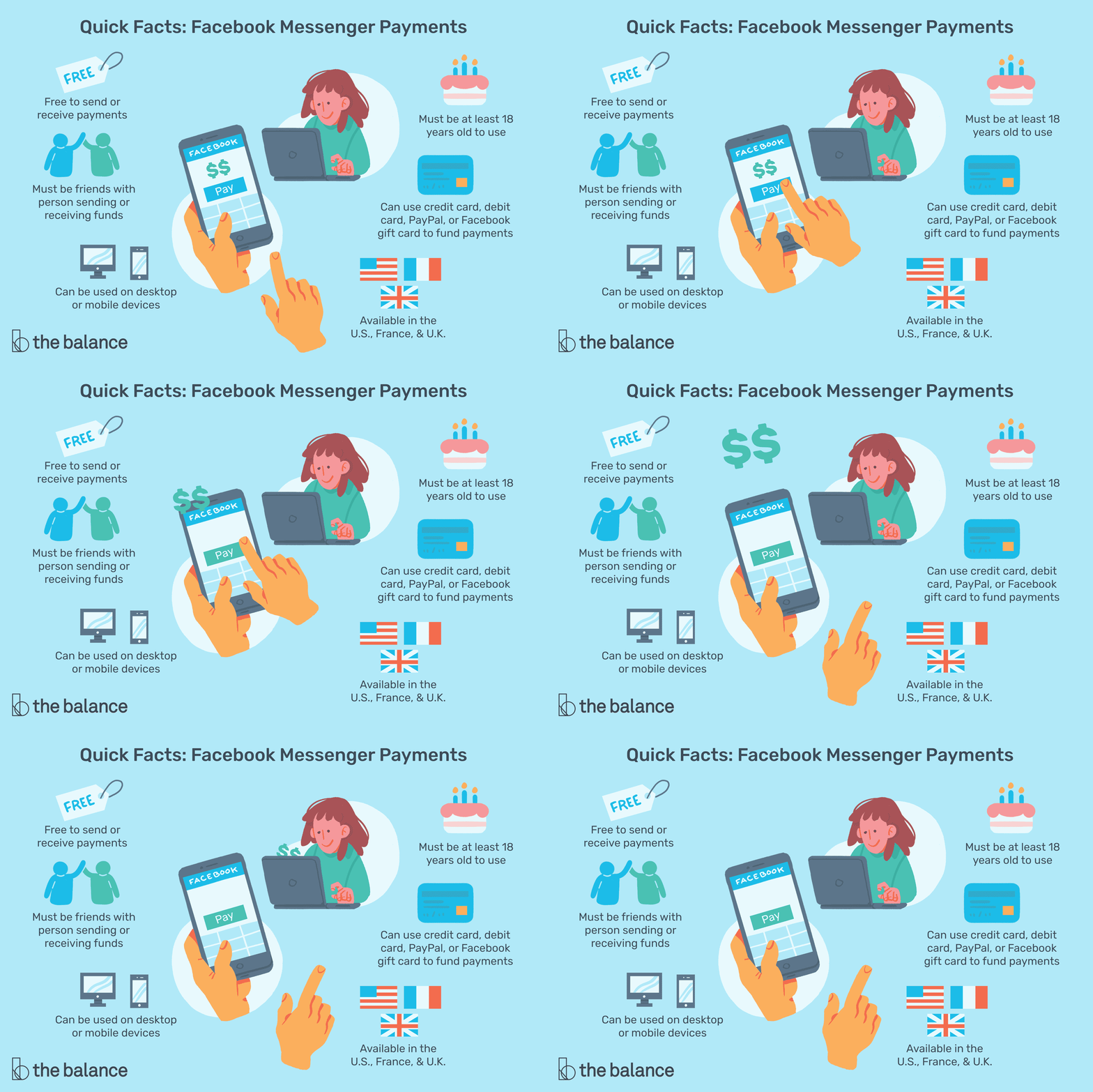
Before opening Messenger and trying to send your friend $12 for tacos, check eligibility. Meta’s help information states that payments in Messenger are currently available on mobile devices in the United States. As of December 16, 2024, users located in Wisconsin can no longer send or receive money in Messenger.
To use Messenger payments, both the sender and receiver generally need to meet the requirements. That usually means they must be in an eligible location, use a supported mobile version of Messenger, have a Facebook account in good standing, and have an accepted payment method linked to Meta Pay. Users must also be old enough to use payment services under Meta’s requirements, which commonly means adults rather than minors.
If the payment option does not appear in your Messenger chat, it does not always mean you did something wrong. The feature may not be available in your location, your account may need verification, the other person may not be eligible, or Meta may have disabled payments because of unusual activity.
How To Set Up Meta Pay for Messenger
Setting up Meta Pay is usually the first step before sending or receiving money with Facebook Messenger. The exact menu labels may change slightly as Meta updates the app, but the general process is straightforward.
Step 1: Open Messenger on Your Phone
Messenger payments are mobile-focused, so start in the Messenger app on iPhone or Android. Make sure the app is updated. An outdated app is like a refrigerator full of leftovers: technically functional, but full of surprises.
Step 2: Go to Payments or Meta Pay Settings
Open your profile or settings area in Messenger, then look for “Meta Pay,” “Payments,” or “Orders and payments.” The wording can vary depending on your device and account. If you cannot find any payment menu, your account or region may not support Messenger payments.
Step 3: Add an Accepted Payment Method
Follow the prompts to add a supported card, account, or payment option shown in the app. Meta Pay may ask you to verify your payment method to help protect your account and comply with legal requirements. Do not add someone else’s payment method. That is not “being resourceful”; that is a fast way to create a financial mess.
Step 4: Set Up a PIN or Security Confirmation
Meta Pay may require or allow a PIN for extra security. In some cases, you may also use device security such as fingerprint or face recognition. Turn on payment confirmation whenever available. A PIN is not exciting, but neither is explaining to your bank why your phone sent money while bouncing around in your backpack.
How To Send Money With Facebook Messenger
Once Meta Pay is set up, sending money in Messenger usually takes only a few taps. Still, slow down before the final confirmation. A typo in a text message is funny. A typo in a money transfer is a tiny financial horror movie.
Step-by-Step Instructions
- Open the Messenger app on your mobile device.
- Start a chat with the person you want to pay.
- Tap the plus icon, menu icon, or payment symbol if it appears.
- Select the payment option.
- Enter the amount you want to send.
- Add a short note, such as “pizza,” “tickets,” or “your half of the gift.”
- Review the recipient, amount, and payment method carefully.
- Confirm the payment using your PIN, password, or device security if prompted.
After sending, Messenger should show the payment inside the conversation. You may also be able to view the transaction in your Meta Pay or payment history. Keep the conversation until the payment is settled, especially if the transfer is for something important.
How To Receive Money With Facebook Messenger
Receiving money through Messenger is usually simple if your account is eligible and your payment method is already set up. When someone sends you money, Messenger should notify you in the chat. If you have already added an accepted payment method, the money may process automatically. If not, Messenger may ask you to add one before you can receive the funds.
Always check that the payment appears inside the real Messenger app, not just in an email or screenshot someone sends you. Scammers love fake payment confirmations because fake screenshots cost them nothing and can cost you plenty.
What To Do If Money Has Not Arrived
If someone says they sent money but you have not received it, do not panic immediately. Payment delays can happen because of verification, bank processing, account restrictions, or payment method issues. Open the Messenger conversation and your Meta Pay transaction history. If the payment shows as pending, wait for the app’s status to update. If it failed, ask the sender to check their payment method and account eligibility.
If the payment does not appear at all, be cautious. Never ship an item, hand over tickets, or release a product based only on someone saying, “Trust me, I sent it.” Trust is lovely. Verified payment is lovelier.
Does Facebook Messenger Charge Fees for Sending Money?
Meta’s help information says it does not cost money to use Facebook, and Messenger payments are generally presented as a no-fee way to send and receive money between eligible users. However, your bank, card issuer, or payment provider may have its own rules, holds, or fees. Always review what the app displays before confirming a payment.
For personal transfers between friends and family, Messenger can be a convenient option. For business sales, Marketplace deals, or purchases from people you do not know, it is better to use a payment method that clearly includes buyer and seller protections.
Is Sending Money Through Messenger Safe?
Messenger payments can be safe when used correctly, especially between people you personally know and trust. Meta Pay includes security features such as payment verification, PIN options, and account monitoring. Still, payment app safety depends heavily on user behavior. In plain English: the app can have locks, but you still need to stop handing the keys to strangers.
The Federal Trade Commission warns that scammers often use mobile payment apps because once money is sent, it can be difficult to get back. Common scams include fake emergencies, fake prizes, fake customer support, fake marketplace purchases, and impersonation messages from hacked accounts.
Smart Safety Rules
- Only send money to people you know and trust.
- Confirm unexpected money requests outside Messenger, such as by calling the person.
- Check the recipient’s profile carefully before sending.
- Use a PIN or biometric confirmation for payments.
- Never share your Facebook password, Meta Pay PIN, or verification code.
- Do not rely on screenshots as proof of payment.
- Avoid paying strangers through Messenger for Marketplace items unless you fully understand the risks.
When Should You Use Messenger Payments?
Messenger payments are best for simple, personal situations. For example, you might use Messenger to repay a friend for lunch, split a rideshare, send money to a family member, contribute to a group gift, or pay back your roommate for utilities. These are casual transfers where both people already know each other.
Messenger is less ideal for purchases from strangers. If someone on Marketplace asks you to pay through Messenger before you see the item, slow down. That does not automatically mean it is a scam, but it does mean you should be careful. For online purchases, a payment method with clear purchase protection is usually smarter.
Common Problems With Messenger Payments
The Payment Button Is Missing
If you do not see the payment option, the feature may not be available to you. You may be outside the supported area, using a desktop version, chatting with an ineligible recipient, or using an account that needs verification. Update the app and check Meta Pay settings, but do not assume the feature exists for every user.
The Payment Failed
A failed payment may happen because of insufficient funds, bank rejection, verification issues, suspicious activity, app glitches, or unsupported payment methods. Try checking your payment method, confirming your identity if requested, and reviewing whether the recipient is eligible.
Meta Pay Is Turned Off
Meta may turn off payments if it detects unusual activity or a policy issue. If this happens, follow the instructions shown in the app. Avoid trying strange “fixes” from random comments or unofficial support accounts. Real support will not ask for your password or security code in a direct message.
Messenger Payments vs. Other Payment Apps
Messenger payments compete with other peer-to-peer options such as PayPal, Venmo, Cash App, and Zelle. The biggest advantage of Messenger is convenience: if you already chat with someone there, you do not need to switch apps. The biggest disadvantage is availability. Messenger payments are not available everywhere, and the feature can be harder to find than dedicated payment apps.
Another difference is user expectation. People open Venmo or Cash App specifically to move money. People open Messenger to chat, complain about traffic, send memes, and occasionally ask, “Can you send me the $18?” That casual setting is convenient, but it can also make users less careful. Treat every payment like a real transaction, because it is one.
Best Practices Before You Tap Pay
Before sending money through Facebook Messenger, take ten seconds to verify three things: the person, the amount, and the reason. Is this the correct profile? Is the amount right? Do you understand why you are sending it? If the answer to any of those questions is “uhhh,” pause.
For larger transfers, send a small test amount first only when appropriate and when you fully trust the person. Keep your app updated, protect your Facebook account with two-factor authentication, and review your payment history regularly. If you see an unauthorized transaction, contact Meta Pay support through the official app and notify your bank or card provider quickly.
Real-Life Examples of Using Messenger Payments
Example 1: Splitting Dinner
Your friend pays the restaurant bill because the server brought one check and everyone suddenly forgot how math works. You open Messenger, tap the payment option, send your share, and add a note like “dinner split.” This is the perfect kind of Messenger payment: small, personal, and easy to verify.
Example 2: Paying a Roommate
Your roommate pays the electric bill, and you send your half through Messenger. Add a note such as “May electricity.” Notes are helpful because three months later, nobody remembers whether $74 was for utilities, groceries, or that emergency plunger purchase nobody wants to discuss.
Example 3: Marketplace Purchase
You find a used phone on Facebook Marketplace, and the seller wants payment through Messenger before meeting. This is where caution matters. If you do not know the person, do not pay in advance unless you are comfortable with the risk. Meet safely in a public place, inspect the item, and use a payment method appropriate for the transaction.
Extra Experience-Based Tips for Sending and Receiving Money With Facebook Messenger
After looking at how people actually use Messenger payments, the most useful advice is not “tap here, then tap there.” It is learning when the feature makes life easier and when it quietly turns into a headache wearing a tiny digital hat.
First, Messenger payments work best when the conversation already has context. If your friend says, “Can you send me your half of the pizza?” and the payment appears right below that message, everything is clear. The chat becomes a receipt. You know who asked, what the money was for, and when you paid. That is far better than sending money through a separate app and later trying to remember whether “$23 to Mike” was pizza, parking, or repayment for emotional damage caused by karaoke night.
Second, notes matter. Always add a short payment note. It may feel unnecessary in the moment, but it can save confusion later. Use simple labels like “movie tickets,” “rent share,” “gas money,” or “birthday gift.” A blank payment is like a mystery novel with no ending. A labeled payment is boring, practical, and exactly what your future self wants.
Third, do not rush because someone says it is urgent. Real friends can wait thirty seconds while you verify a request. Scammers depend on speed. They want you emotional, distracted, and tapping buttons like you are playing a mobile game. If a friend suddenly asks for emergency money in Messenger, contact them another way before sending anything. Accounts get hacked, and scammers often copy the tone of real conversations just well enough to fool people who are in a hurry.
Fourth, keep your payment method current. A surprisingly common problem is money being delayed because someone has an old card, expired card, or unsupported payment method connected. If you use Meta Pay often, check your payment settings occasionally. Remove old cards and keep only the methods you actually use. Your payment wallet should not look like a museum exhibit of every debit card you have ever owned.
Fifth, understand the difference between paying a person and buying a product. Sending money to your cousin for concert tickets is one thing. Sending money to a stranger for a “brand-new laptop, definitely real, no questions please” is another. Messenger payments are convenient, but convenience is not the same as purchase protection. For buying goods online, especially from strangers, use methods and checkout systems that clearly explain dispute rights, shipping confirmation, and refund options.
Sixth, check payment status before acting. If you are selling something, do not accept a screenshot as proof. Open the app and confirm that the payment appears in your own account. Fake payment emails and fake screenshots are common because they are easy to create. Your rule should be simple: if it is not visible in the official app, it is not real enough to trust.
Seventh, use account security like you actually enjoy keeping your money. Turn on two-factor authentication for Facebook. Use a strong password. Set a Meta Pay PIN if available. Lock your phone. These steps are not glamorous, but neither is calling your bank because your account was accessed after you reused the same password from a forgotten gaming forum in 2014.
Finally, remember that payment apps are tools, not magic. Messenger can make small personal payments fast and painless, but it cannot replace common sense. Use it with people you know, read every confirmation screen, and never let politeness pressure you into sending money before you are comfortable. A good payment experience should feel boring, clear, and confirmed. In money matters, boring is beautiful.
Conclusion
Facebook Messenger can be a convenient way to send and receive money through Meta Pay, especially for everyday payments between friends and family. The setup is simple: use the mobile Messenger app, add an accepted payment method, secure your account, open a chat, enter the amount, and confirm the transfer.
The most important thing to remember is that Messenger payments are not available to everyone, and they are not ideal for every situation. They work best for trusted personal transfers, not risky purchases from strangers. Before sending money, verify the recipient, review the amount, and protect your account with every security option available. Your wallet will thank you, probably without sending a GIF.