Note: This article is written for web publishing and is based on current iPhone Safari behavior, Apple’s Safari guidance, and widely used iOS troubleshooting practices.
Safari on iPhone is a little like that friend who remembers where you parked, what coffee you order, and which website you check every morning before your brain has fully joined the meeting. The Frequently Visited Sites section on Safari’s Start Page is designed to make your regular browsing faster by showing shortcuts to websites you visit often or recently.
When it works, it feels wonderfully simple. Open a new tab, tap the site you need, and boomyou are back to your favorite recipe blog, email provider, school portal, work dashboard, shopping page, or news site without typing the web address again. When it disappears, however, it can make Safari feel oddly empty, like a refrigerator with only mustard and one suspicious lime.
The good news: turning on frequently visited sites on an iPhone usually takes less than a minute. The slightly less glamorous news: depending on your iOS version, Apple may label this feature as Frequently Visited or include it under Suggestions on the Safari Start Page customization screen. Either way, the basic process is nearly the same.
This guide explains how to turn on Frequently Visited Sites on an iPhone in 3 steps, what to do if the option is missing, how privacy settings affect it, and how to manage what appears on your Safari Start Page.
What Are Frequently Visited Sites on iPhone?
Frequently Visited Sites are website shortcuts that appear on Safari’s Start Page based on your browsing activity. Safari looks at the websites you visit often or recently and may display them as icons below your Favorites or other Start Page sections.
This feature is different from Favorites. Favorites are websites you manually save. Frequently visited sites are generated automatically by Safari. In simple terms, Favorites are the websites you chose; frequently visited sites are the websites Safari noticed you keep returning to. Safari is not judging your habits. It is just quietly taking notes.
The feature can be helpful when you visit the same websites every day. For example, if you regularly check Gmail, Google Docs, YouTube, your bank, a school portal, a weather site, or a project dashboard, Safari can place those sites within quick tapping distance.
How to Turn on Frequently Visited Sites on an iPhone: 3 Steps
Here is the simplest way to enable frequently visited websites in Safari on iPhone.
Step 1: Open Safari and Go to a New Tab
First, open the Safari app on your iPhone. Then open a new tab so you can see the Safari Start Page.
Depending on your Safari layout, you can usually do this by tapping the Tabs button and then tapping the plus (+) button. On newer iOS versions, you may also tap the menu button and choose New Tab. The goal is simple: get to the Start Page, which is the page Safari shows when you open a blank new tab.
If Safari opens directly to a website, do not panic. You did not break the internet. Just open a new tab manually. The Start Page is where Apple keeps the controls for sections like Favorites, Reading List, Privacy Report, iCloud Tabs, Recently Closed Tabs, and frequently visited or suggested websites.
Step 2: Scroll Down and Tap Edit
Once you are on the Safari Start Page, scroll all the way to the bottom. You should see an Edit button. Tap it.
This opens the Start Page customization menu. Think of it as Safari’s closet organizer. You can decide which sections should show up, which ones should stay hidden, and whether your Start Page should use the same settings across your Apple devices.
On this screen, you may see options such as Favorites, Suggestions, Privacy Report, Reading List, Recently Closed Tabs, iCloud Tabs, and Background Image. On some iOS versions, you may see a separate toggle called Frequently Visited. On newer versions, frequently visited websites may be part of the Suggestions section.
Step 3: Turn on Frequently Visited or Suggestions
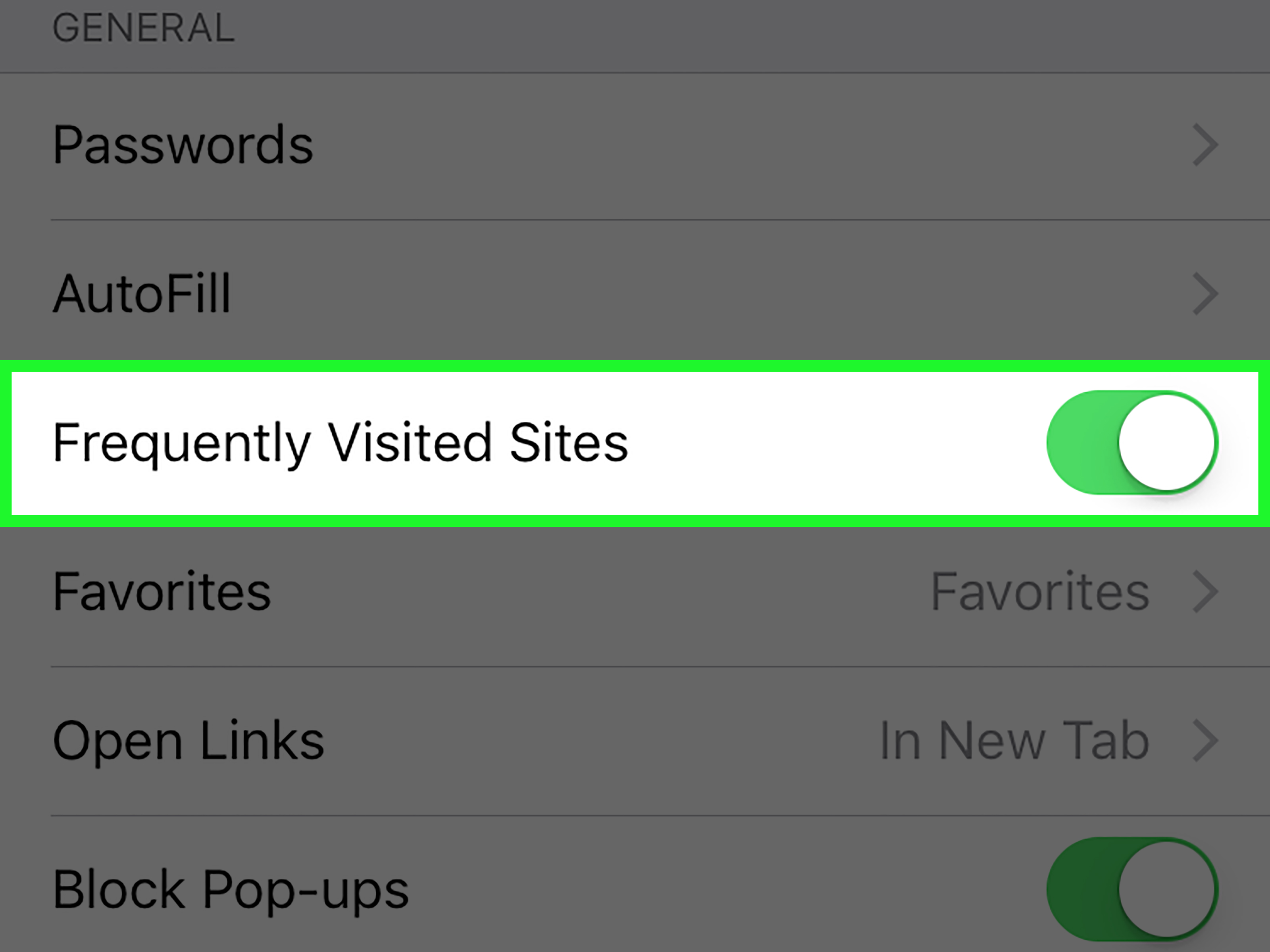
Now turn on the option labeled Frequently Visited. If your iPhone does not show that exact wording, turn on Suggestions. Apple’s latest Safari Start Page settings describe Suggestions as including websites you visit most, along with links shared from apps like Messages, Mail, Calendar, and Maps.
After switching it on, close the customization menu and return to your Safari Start Page. If Safari already has enough browsing history to work with, your frequently visited websites may appear right away. If not, give it some time. Safari may need you to browse normally before it has enough information to generate useful shortcuts.
That is the whole process: Safari > New Tab > Edit > Frequently Visited or Suggestions On. Three steps, no screwdriver, no tech degree, and no need to whisper encouragement to your phonealthough we support positive device relationships.
Why You Might Not See “Frequently Visited” on Your iPhone
If you followed the steps above and cannot find a toggle named Frequently Visited, there are several likely reasons.
Your iOS Version Uses “Suggestions” Instead
Apple changes labels and interface details over time. In some older Safari layouts, the option appears as Frequently Visited. In newer iOS versions, the Start Page may use Suggestions to show websites you visit most, links shared with you, and other recommended items.
So, if you are looking for “Frequently Visited” and only see “Suggestions,” turn on Suggestions. That may be the modern version of what you need.
You Are Using Private Browsing
Private Browsing is designed to keep browsing activity from being saved in the usual Safari history. If you spend most of your time browsing in Private mode, Safari may not have the normal history data it needs to populate frequently visited websites.
To check, open Safari and look at your tab mode. If you are in Private Browsing, switch back to regular tabs. Then browse normally for a while and check the Start Page again.
You Recently Cleared Safari History
Clearing Safari history, cookies, cache, and website data can remove the information Safari uses to suggest frequently visited websites. This is useful when you want a cleaner browser, but it can also make the Frequently Visited section disappear temporarily.
After clearing history, Safari may need time to rebuild its suggestions. Visit your regular sites a few times, open a new tab, and check again later.
Safari Does Not Have Enough Browsing Data Yet
If your iPhone is new, recently reset, or you just started using Safari after months of living in another browser, the Frequently Visited section may not appear instantly. Safari is smart, but it is not psychic. It needs browsing patterns before it can display meaningful shortcuts.
Use Safari normally for a few days. Visit the sites you want to access quickly. Over time, Safari should begin showing relevant suggestions if the Start Page option is enabled.
How to Remove One Frequently Visited Site Without Turning Off the Whole Feature
Sometimes the feature is useful, but one website on the list needs to go. Maybe it was a one-time visit. Maybe it is clutter. Maybe it is that oddly specific forum thread you opened at 1:13 a.m. and would prefer not to explain to future-you.
To remove a single frequently visited site from Safari’s Start Page, press and hold the website icon. If Safari offers a delete or remove option, tap it. This should remove that shortcut from the Start Page without disabling the entire section.
If the website keeps returning, clear the specific website from your Safari history or clear broader browsing history. Just remember that clearing all history can affect other Safari conveniences, including address bar suggestions and logged website behavior.
Frequently Visited Sites vs. Favorites: What Is the Difference?
It is easy to confuse Frequently Visited with Favorites, but they serve different purposes.
Favorites Are Manual
Favorites are websites you intentionally save. If you want a website to stay on your Start Page no matter how often you visit it, add it to Favorites. This is best for important websites you want to control directly, such as your email, school portal, work login, banking website, or favorite news source.
Frequently Visited Sites Are Automatic
Frequently visited sites are generated by Safari based on your browsing activity. They can change over time. If you stop visiting a website, Safari may eventually stop showing it. If you suddenly begin checking a new website every day, Safari may promote it to the Start Page.
For maximum convenience, use both. Keep essential sites in Favorites and let Frequently Visited handle the temporary or habit-based shortcuts.
How to Add a Website to Favorites Instead
If you want a website to appear reliably on your Safari Start Page, adding it to Favorites is often better than waiting for Safari to classify it as frequently visited.
Open the website in Safari, tap the share or menu button, and choose Add to Favorites or Add Bookmark, depending on your iOS version and menu layout. Choose the Favorites folder if Safari asks where to save it.
This is especially helpful for websites you need often but do not visit enough for Safari to treat them as frequent. For example, a tax payment portal, health insurance login, travel booking page, or once-a-week work dashboard may be important even if it is not opened daily.
Privacy Tips for Frequently Visited Sites on iPhone
The Frequently Visited section is convenient, but convenience and privacy sometimes wrestle for the same chair. If other people borrow your iPhone or can see your screen, the Start Page may reveal websites you visit often.
Turn Off the Section When You Want a Cleaner Start Page
To hide frequently visited websites, go back to Safari > New Tab > Edit and turn off Frequently Visited or Suggestions. This does not necessarily erase your browsing history; it simply hides that Start Page section.
Use Private Browsing for Sessions You Do Not Want Saved
Private Browsing can help keep certain activity from appearing in Safari history on your iPhone. It is useful for gift shopping, sensitive searches, or temporary sessions you do not want influencing normal Safari suggestions.
Clear History When Needed
You can clear Safari history and website data from iPhone settings. On newer iOS versions, this is typically found through Settings > Apps > Safari > Clear History and Website Data. Clearing this data can remove browsing history, cookies, and cache, but it may also sign you out of websites or reset site preferences.
In other words, clearing history is effective, but it is not a tiny broom. It is more like bringing in a leaf blower.
What to Do If Frequently Visited Sites Still Do Not Show
If the feature is turned on but nothing appears, try these fixes.
1. Make Sure You Are on the Safari Start Page
Frequently visited sites appear on the Start Page, not inside every website or tab. Open a new tab and scroll through the Start Page sections.
2. Browse in Regular Mode
Switch out of Private Browsing and visit several websites in normal Safari tabs. Safari needs regular browsing history to build suggestions.
3. Check the Start Page Customization Menu Again
Go back to the Start Page, tap Edit, and confirm that Frequently Visited or Suggestions is switched on.
4. Restart Safari
Close Safari from the app switcher and reopen it. This simple refresh can fix small display glitches.
5. Restart Your iPhone
If Safari behaves strangely, restart your iPhone. It is the oldest troubleshooting advice in the book because it still works surprisingly often. Technology is fancy, but sometimes it just needs a nap.
6. Update iOS
Software updates can change Safari’s design, fix bugs, and improve compatibility. Go to Settings > General > Software Update to check whether an update is available.
Should You Turn on Frequently Visited Sites?
For most iPhone users, yes. Frequently visited sites can make Safari faster and more personal. You spend less time typing web addresses and more time getting where you wanted to go.
The feature is especially useful if you use Safari as your main browser, open the same websites every day, or prefer a Start Page that works like a dashboard. It is less useful if you share your phone often, prefer a minimalist browser, or do not want Safari showing browsing-based shortcuts.
There is no permanent commitment. Turn it on, try it for a few days, and see whether it improves your browsing routine. If it feels cluttered, turn it off. Safari will survive the rejection.
Common Questions About Frequently Visited Sites on iPhone
Can I choose which sites appear in Frequently Visited?
Not directly. Safari chooses frequently visited sites automatically. If you want full control, use Favorites instead.
Why did a frequently visited site disappear?
Safari may update the list based on changing browsing habits. A site can also disappear if you remove it manually, clear history, use Private Browsing, or turn off the related Start Page setting.
Does turning off Frequently Visited delete my history?
No. Turning off the Start Page section hides those shortcuts. To delete browsing history, you need to clear Safari history or website data separately.
Does Frequently Visited sync across Apple devices?
Safari can sync certain browsing data and Start Page settings across Apple devices when iCloud Safari syncing and related Start Page options are enabled. If you prefer each device to have its own layout, review the Use Start Page on All Devices setting.
Real-World Experience: Using Frequently Visited Sites on an iPhone
In everyday use, the Frequently Visited feature feels most valuable when your iPhone is part of your daily routine. For example, imagine someone who checks email before breakfast, opens a project dashboard at work, reads headlines during lunch, and visits a recipe site while deciding what to cook for dinner. Without frequently visited sites, each of those stops requires typing, searching, or digging through bookmarks. With the feature turned on, Safari gradually turns the Start Page into a tiny command center.
The best experience usually comes from combining automatic shortcuts with manual organization. Frequently Visited is great for habits that change. Favorites are better for must-have links. A smart setup might include your most important sites in Favorites at the top, while Safari’s frequently visited or suggested websites fill in the rest based on what you are currently doing. During tax season, financial websites may appear more often. During a home project, hardware stores, paint guides, or measurement calculators may rise to the surface. During vacation planning, hotel and airline pages might suddenly become regular guests. Safari adapts as your life changes, which is helpful because most people do not want to reorganize bookmarks every Tuesday.
One practical tip is to give the feature a fair testing period. Many users turn it on, open a new tab, see nothing useful, and assume it is broken. In reality, Safari may need more browsing history before it can display accurate shortcuts. Visit the websites you use most in regular browsing mode for a few days. Avoid relying only on Private Browsing if you want Safari to learn your normal patterns. After a short period, the Start Page often becomes much more useful.
Another useful habit is to clean up the Start Page once in a while. If a website appears that you no longer need, remove it. If a site matters enough that you would be annoyed if it disappeared, add it to Favorites. This creates a nice balance: Safari handles the flexible stuff, while you control the essentials. It is like letting a robot vacuum clean the floor but still keeping your favorite chair exactly where you want it.
Privacy is the one area where users should be thoughtful. Frequently visited sites can reveal browsing habits at a glance. That may not matter if your Start Page shows weather, email, and a news site. It may matter more if your browsing includes personal research, gift shopping, medical portals, financial accounts, or private interests. If you often hand your phone to friends, classmates, coworkers, or family members, consider whether you want those shortcuts visible. You can turn the section off, use Private Browsing for certain sessions, or clear specific items from history.
From a usability standpoint, the feature is a small but meaningful iPhone convenience. It will not change your life, organize your closet, or convince your charger cable to stop disappearing. But it can remove a few seconds of friction every time you open Safari. Over weeks and months, those seconds add up. For users who browse heavily on iPhone, turning on Frequently Visited Sites is one of those tiny settings that makes the phone feel more personal and less like a blank rectangle with opinions.
Conclusion
Turning on Frequently Visited Sites on an iPhone is simple: open Safari, go to a new tab, tap Edit on the Start Page, and enable Frequently Visited or Suggestions. The exact label depends on your iOS version, but the purpose is the same: Safari can show quick shortcuts to websites you visit often or recently.
If the section does not appear immediately, give Safari time to collect normal browsing history. Make sure you are not relying only on Private Browsing, confirm the Start Page setting is enabled, and consider adding essential websites to Favorites for more control. Used wisely, Frequently Visited Sites can turn Safari’s Start Page into a faster, cleaner, more useful launchpad for your daily browsing.