Trying to type the Indian rupee symbol can feel oddly dramatic for something so tiny. You are writing an invoice, updating a spreadsheet, preparing a travel budget, or adding a price to a blog post, and suddenly your keyboard acts like it has never heard of India, money, or basic cooperation. The good news is that typing the rupee symbol on a PC or Mac is easy once you know the right shortcut, menu, or copy-and-paste trick.
The Indian rupee symbol is ₹. Its Unicode value is U+20B9, and it represents the Indian rupee, commonly abbreviated as INR. Because the symbol is a standard Unicode character, it works across modern versions of Windows, macOS, Microsoft Word, Google Docs, browsers, websites, and most design tools. The only catch is that the keyboard shortcut can change depending on your operating system, keyboard layout, app, and font.
This guide explains how to type a rupee symbol on PC or Mac using the fastest methods first, then walks through reliable alternatives for Word, Google Docs, spreadsheets, web pages, and older devices. No keyboard wizard robe required.
Quick Answer: Copy and Paste the Rupee Symbol
If you only need the rupee symbol once, the fastest method is beautifully low-tech: copy this symbol and paste it where you need it.
₹
That is the Indian rupee sign. Copy it with Ctrl + C on Windows or Command + C on Mac, then paste it with Ctrl + V or Command + V. This works in Word, Google Docs, Excel, Google Sheets, email, websites, social media posts, and most content management systems.
Copying and pasting is not cheating. It is computer survival. Still, if you type prices often, shortcuts are much faster.
What Is the Rupee Symbol?
The rupee symbol ₹ is the official currency symbol for the Indian rupee. It combines visual elements inspired by the Devanagari letter “र” and the Latin capital “R,” with horizontal lines that resemble other currency marks. In digital writing, it is treated as a Unicode character, which means computers recognize it as a specific symbol rather than a random graphic.
For writers, accountants, online sellers, students, travelers, and anyone working with Indian prices, the rupee symbol is cleaner than typing “Rs.” over and over. For example, ₹999 looks more polished and compact than Rs. 999, especially in product listings, invoices, comparison tables, and mobile screens where space matters.
How to Type a Rupee Symbol on Windows PC
Windows gives you several ways to type the rupee symbol. The best method depends on whether you are using Microsoft Word, a browser, a spreadsheet, or a keyboard layout such as English (India).
Method 1: Use the Unicode Shortcut in Microsoft Word
If you are using Microsoft Word, this is one of the most reliable methods:
- Place your cursor where you want the rupee symbol.
- Type 20B9.
- Press Alt + X.
- The code changes into ₹.
Example: type 20B9, press Alt + X, and Word converts it into ₹.
This method is especially useful because it does not require changing your keyboard layout. It also works well when you are already editing a document, report, invoice, or school assignment in Word. If you type many symbols, remembering Unicode shortcuts can make you feel like the calm person in a room full of people Googling “where is the rupee key?”
Method 2: Use AltGr + 4 or Ctrl + Alt + 4 on English (India) Keyboard
On many Windows computers using the English (India) keyboard layout, you can type the rupee symbol with:
AltGr + 4
On some keyboards, AltGr is the right-side Alt key. If your keyboard does not have a key labeled AltGr, try:
Ctrl + Alt + 4
This shortcut depends on your active keyboard layout. If you are using a U.S. keyboard layout, pressing the same keys may not produce the rupee symbol. Windows is not being rude; it is simply following the current input layout.
How to Add the English (India) Keyboard in Windows
If the rupee shortcut does not work, add an India-based keyboard layout:
- Open Settings.
- Go to Time & language.
- Select Language & region.
- Add or choose English (India).
- Under keyboard options, add the appropriate keyboard layout.
- Switch layouts using the language icon on the taskbar or Windows key + Spacebar.
After switching to the English (India) layout, try AltGr + 4 again. This is a good setup for people who regularly type Indian currency amounts such as ₹500, ₹1,999, or ₹75,000.
Method 3: Use Windows Character Map
Character Map is the dependable old toolbox of Windows symbols. It may not look flashy, but it usually gets the job done.
- Click the Windows search box.
- Type Character Map.
- Open the Character Map app.
- Choose a Unicode-friendly font such as Segoe UI Symbol or Arial Unicode MS, if available.
- Search or browse for the rupee symbol ₹.
- Click Select, then Copy.
- Paste it into your document.
This method works when shortcuts fail, when your keyboard lacks a number pad, or when you are using an app that does not recognize Word-style Unicode input.
Method 4: Insert the Rupee Symbol in Microsoft Word Using the Symbol Menu
If keyboard shortcuts are not your favorite thing, use Word’s menu:
- Open your Word document.
- Click Insert.
- Choose Symbol, then More Symbols.
- Look under currency symbols or search for the Unicode value 20B9.
- Select the rupee symbol and click Insert.
This is a slower method, but it is beginner-friendly. It is also helpful if you want to confirm that the font you are using supports the symbol.
How to Type a Rupee Symbol on Mac
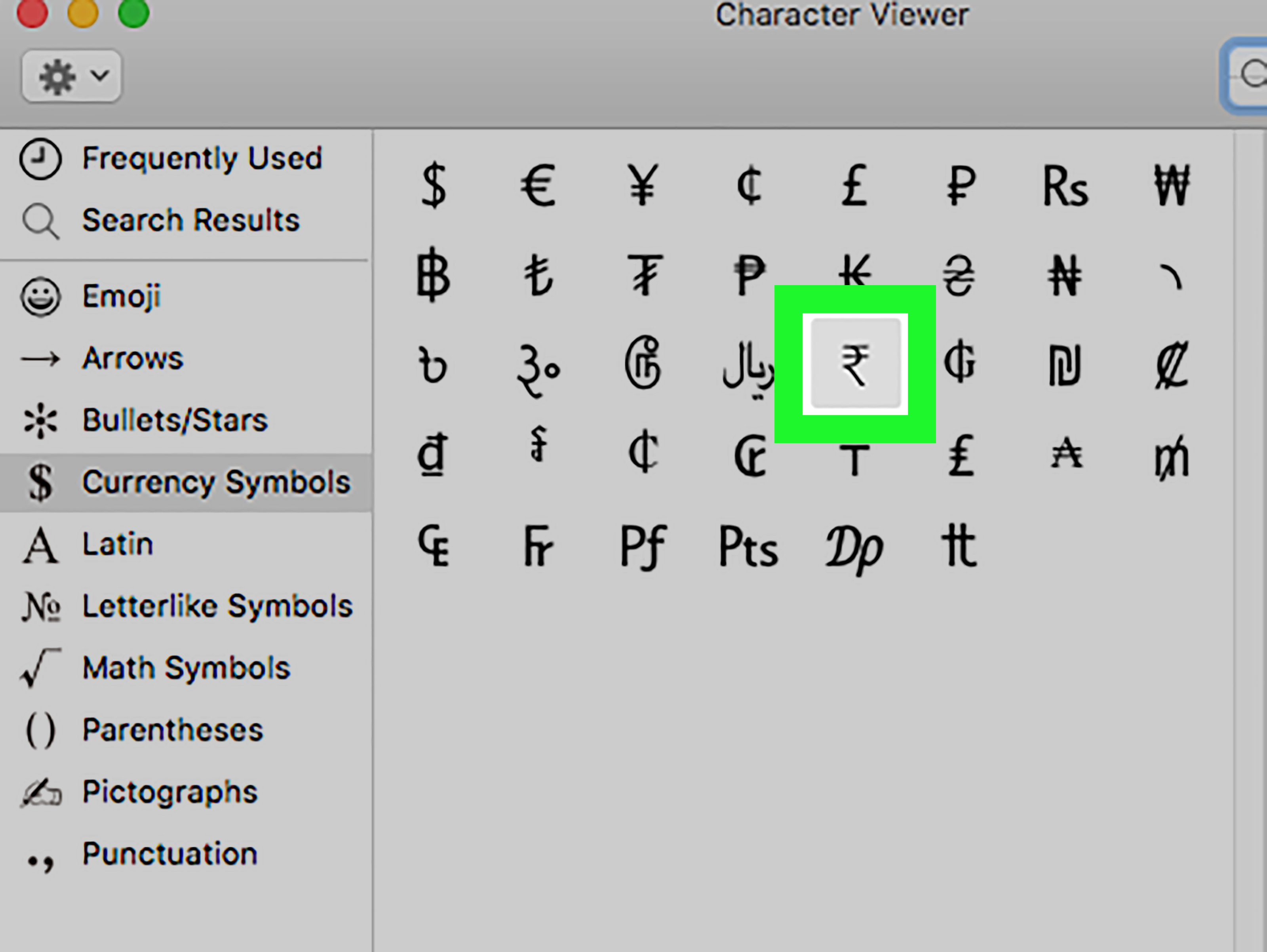
On a Mac, the most reliable method is the Character Viewer. Some keyboard layouts may support a shortcut such as Option + 4, but this depends on the selected input source. On a standard U.S. layout, Option combinations may produce other symbols instead.
Method 1: Use Mac Character Viewer
To insert the rupee symbol on macOS:
- Place your cursor where you want the symbol.
- Press Control + Command + Space.
- The Character Viewer opens.
- Search for rupee or Indian rupee.
- Double-click ₹ to insert it.
This works in many Mac apps, including Pages, Notes, Mail, Safari, Chrome, Google Docs, and other text fields. It is the safest method because it does not depend on remembering whether your keyboard is U.S., ABC, ABC-India, or another layout.
Method 2: Try Option + 4 on India-Based Mac Input Sources
Some Mac users can type the rupee symbol with:
Option + 4
However, this shortcut is layout-dependent. If it does not work, check your input source:
- Open System Settings.
- Go to Keyboard.
- Find Text Input and click Edit.
- Add an India-focused input source if needed.
- Switch input sources from the menu bar or Globe/Fn key, depending on your settings.
If the shortcut still does not work, do not wrestle the keyboard. Use Character Viewer. It is faster than turning a five-second symbol into a twenty-minute personality test.
How to Type the Rupee Symbol in Google Docs
Google Docs makes special characters easy to insert, including the rupee symbol.
- Open your Google Doc.
- Click Insert.
- Choose Symbols, then Special characters.
- Search for rupee or enter the Unicode value 20B9.
- Click the rupee symbol to insert it.
You can also paste the symbol directly into Google Docs. If you use it often, create a text replacement shortcut. For example, you can set Google Docs to replace rsym with ₹. That way, every time you type your custom shortcut, Docs can automatically insert the symbol. It is like teaching your document a tiny financial magic trick.
How to Type the Rupee Symbol in Excel or Google Sheets
In spreadsheets, the simplest method is often copy and paste. But there are better options if you work with rupee amounts regularly.
In Microsoft Excel
You can paste ₹ into a cell, use a compatible font, or apply a currency format if Indian rupee formatting is available in your regional settings. For labels, type something like:
₹1,250
For calculations, keep the number as a number and use currency formatting instead of typing the symbol into every cell. That way, Excel can still calculate totals, averages, taxes, and discounts correctly.
In Google Sheets
Google Sheets may not always offer the same special-character insertion menu as Google Docs. The practical workaround is:
- Insert the rupee symbol in Google Docs.
- Copy it.
- Paste it into Google Sheets.
For real accounting work, use number formatting rather than manually typing ₹ before each number. Manual symbols look nice, but formatted numbers behave better.
How to Add the Rupee Symbol in HTML and Web Pages
If you are writing HTML, you can type the symbol directly:
₹999
You can also use a numeric character reference:
₹999
Or use the hexadecimal version:
₹999
All three can display the rupee symbol in modern browsers. For clean web publishing, make sure your page uses UTF-8 encoding. Most modern websites already do, but if your content management system turns ₹ into a question mark or box, use ₹ or ₹ instead.
Best Fonts for the Rupee Symbol
Most modern fonts support the Indian rupee sign, but not all fonts are equally reliable. If the symbol appears as a square box, empty rectangle, or mystery tofu block, the font probably does not include that character.
Try common fonts such as:
- Arial
- Calibri
- Segoe UI
- Noto Sans
- Times New Roman
- Helvetica Neue
For websites, use a font stack with Unicode-friendly fonts. If your design uses a decorative font, test the rupee symbol before publishing. A beautiful product page loses some charm when the price reads like □999.
Rupee Symbol Shortcuts: Quick Reference Table
| Platform or App | Best Method | Notes |
|---|---|---|
| Windows + Word | Type 20B9, then press Alt + X | Very reliable in Word and some Microsoft apps |
| Windows with English (India) keyboard | AltGr + 4 or Ctrl + Alt + 4 | Depends on active keyboard layout |
| Windows any app | Use Character Map | Great backup method |
| Mac | Control + Command + Space, search “rupee” | Most reliable Mac method |
| Mac India input source | Try Option + 4 | May vary by layout |
| Google Docs | Insert > Symbols > Special characters | Search by name or Unicode value |
| HTML | ₹ or ₹ |
Useful for web publishing |
Common Problems and Easy Fixes
The Shortcut Does Not Work
If AltGr + 4 does not type the rupee symbol, check your keyboard layout. The shortcut usually requires an India-based layout. Switch to English (India) or use Character Map instead.
The Symbol Appears as a Box
This usually means your font does not support the rupee symbol. Change to a modern Unicode font such as Segoe UI, Arial, Calibri, or Noto Sans.
Alt Codes Do Not Work on a Laptop
Some Windows Alt code methods require a numeric keypad. Many compact laptops do not have one. Use Word’s 20B9 + Alt + X shortcut, Character Map, or copy and paste.
The Symbol Changes When I Paste It Online
If a website or editor mangles the symbol, use the HTML numeric reference ₹. Also make sure the page supports UTF-8 encoding.
My Mac Shortcut Types a Different Symbol
That is usually a keyboard layout issue. Use Control + Command + Space and search for the rupee symbol in Character Viewer. It is slower than a shortcut but far more dependable.
When Should You Use ₹ Instead of Rs.?
Use ₹ when writing modern, polished, space-saving prices. It looks especially good in ecommerce listings, menus, comparison tables, digital ads, invoices, and financial dashboards.
Use Rs. when your audience may be using older systems, when a plain-text environment does not support special characters, or when you want maximum compatibility in basic text files. In most modern web and office settings, ₹ is the better choice.
Practical Examples
Here are common ways to use the rupee symbol correctly:
- Product price: ₹799
- Discount offer: Save ₹250 today
- Invoice line: Design service ₹12,000
- Travel budget: Hotel: ₹4,500 per night
- Comparison table: Basic plan: ₹299/month
For readability, place the rupee symbol directly before the amount with no space: ₹999. This is the most common digital style. In longer financial documents, follow the style guide used by your organization.
Real-World Experience: What Actually Works Best
After using the rupee symbol across documents, spreadsheets, websites, and content projects, one lesson becomes obvious: the “best” method is not always the most impressive shortcut. It is the method that works every time in the tool you are using. For example, the Word shortcut 20B9 + Alt + X is excellent when you are writing a document, but it is not the first thing to try inside a browser form, a social media caption box, or a spreadsheet cell. In those cases, copy and paste or an operating system character picker is often faster.
For Windows users, the biggest source of confusion is keyboard layout. Someone may say, “Just press AltGr + 4,” and that advice can be perfectly correct on their computer. Then you try it on your laptop and get absolutely nothing, which makes the keyboard look guilty. The missing piece is usually the active keyboard layout. If Windows is using a U.S. layout, the system may not treat that key combination as a rupee shortcut. Once you switch to English (India), the shortcut has a much better chance of working.
For Mac users, the Character Viewer is the least stressful option. It takes a few clicks the first time, but once you know to press Control + Command + Space and search “rupee,” the process is simple. Mac keyboard shortcuts can vary by input source, and that creates confusion for people who move between U.S., ABC, and India-focused layouts. Character Viewer avoids all that drama and politely inserts the symbol without asking you to understand the philosophy of keyboard mapping.
For web publishers, the most reliable habit is to use the actual symbol ₹ when your editor handles UTF-8 properly, and use ₹ when you want maximum HTML safety. This matters for ecommerce pages, affiliate articles, price comparison posts, and WordPress content. A broken currency symbol on a product page looks unprofessional, even if everything else is perfect. It is a tiny character, but it carries a lot of trust.
For spreadsheet users, the best experience comes from separating appearance from calculation. If you manually type ₹ into every cell, your numbers may stop behaving like numbers. That can break formulas, sorting, totals, and charts. Instead, apply currency formatting when possible. Use the symbol in headers, labels, or notes, but keep financial data clean. Your future self, especially the version trying to fix a broken total at midnight, will be grateful.
The practical rule is simple: use shortcuts for speed, character tools for reliability, and HTML entities for publishing safety. Keep a copy of ₹ in a note, text expander, or clipboard manager if you type it often. That tiny habit can save surprising amounts of time.
Conclusion
Typing the rupee symbol on a PC or Mac is easy once you choose the right method for your situation. On Windows, Microsoft Word users can type 20B9 and press Alt + X, while English (India) keyboard users can often use AltGr + 4 or Ctrl + Alt + 4. On Mac, the most dependable method is Control + Command + Space to open Character Viewer and search for the rupee sign. In Google Docs, use the Special characters menu. For HTML, use ₹ or ₹.
Whether you are formatting an invoice, publishing a product review, writing a travel guide, or making a spreadsheet behave like a responsible adult, the rupee symbol ₹ is only a shortcut away.