Note: Twitter is now called X, but many people still search for “Twitter bookmarks,” “saved tweets,” and “bookmark tweets.” This guide uses both names so humans, search engines, and your slightly confused group chat can all stay on the same page.
We have all done it: you are scrolling through Twitter/X for “just five minutes,” and suddenly you find a brilliant thread, a funny post, a recipe, a breaking-news update, a business idea, or a meme so specific it feels like your phone has been reading your diary. You want to save it, but liking it feels too public. Sending it to yourself is chaotic. Taking a screenshot means it will disappear between 47 photos of your lunch and a blurry picture of a parking sign.
That is exactly why Twitter Bookmarks exist. Bookmarks let you privately save posts so you can return to them later without liking, reposting, replying, or announcing to the internet, “Yes, I am saving this thread about productivity while procrastinating.” They are simple, fast, and surprisingly useful once you know where to find them.
In this guide, you will learn how to use Twitter Bookmarks in three quick and easy ways: how to save a post, how to view and remove saved posts, and how to organize bookmarks so they do not turn into a digital junk drawer with Wi-Fi. We will also cover privacy, bookmark counts, X Premium folders, mobile vs. desktop steps, and practical examples for everyday users, creators, students, marketers, and professional overthinkers.
What Are Twitter Bookmarks?
Twitter Bookmarks, now officially called X Bookmarks in many parts of the platform, are a private save-for-later feature. When you bookmark a post, it is added to your personal Bookmarks area. You can open that area later and revisit posts you saved, including threads, links, videos, announcements, jokes, tutorials, replies, and anything else you want to keep.
The biggest difference between bookmarks and likes is privacy. A like may be visible or connected to your public activity depending on the platform experience, but a bookmark is meant for your eyes only. The person who posted does not receive a notification saying you bookmarked their post. Your followers cannot open your profile and browse your bookmarks. Your bookmarked list is not a public trophy shelf. It is more like a secret snack drawer, but for content.
There is one small detail to know: some posts may show a bookmark count. That number can show how many total times a post has been bookmarked, but it does not reveal the accounts that bookmarked it. In other words, people may see that a post was saved many times, but they cannot see that you were one of the savers. Your identity remains private.
Why Use Twitter Bookmarks Instead of Likes?
For years, people used likes as a messy save button. If they wanted to read a thread later, they liked it. If they wanted to remember a link, they liked it. If they wanted to keep a spicy opinion for private analysis, they liked it and then hoped no one noticed. Bookmarks solve that problem.
Use Twitter Bookmarks when you want to save a post without sending a social signal. They are perfect for research, reading later, collecting inspiration, tracking useful advice, saving customer feedback, remembering product launches, or keeping funny posts for a gloomy Tuesday. Likes say, “I enjoyed or support this.” Bookmarks say, “Future me might need this.” Future you, by the way, is already grateful.
Quick Way #1: Bookmark a Post on Twitter/X
The fastest way to use Twitter Bookmarks is to save a post directly from your timeline. The exact button placement may vary slightly between iPhone, Android, desktop, and app updates, but the idea is the same: find the post, tap or click the bookmark option, and the post goes into your saved list.
How to Bookmark a Post on Mobile
- Open the X app on your iPhone or Android device.
- Find the post you want to save.
- Tap the bookmark icon if it appears under or near the post.
- If you do not see a bookmark icon, tap the share icon and choose the option to add the post to Bookmarks.
- Look for the confirmation message that the post has been saved.
That is it. No ceremony. No confetti. No tiny librarian appears to stamp a due date. The post is simply saved to your Bookmarks area.
How to Bookmark a Post on Desktop
- Go to X.com and sign in to your account.
- Find the post you want to save.
- Click the bookmark icon if it is visible.
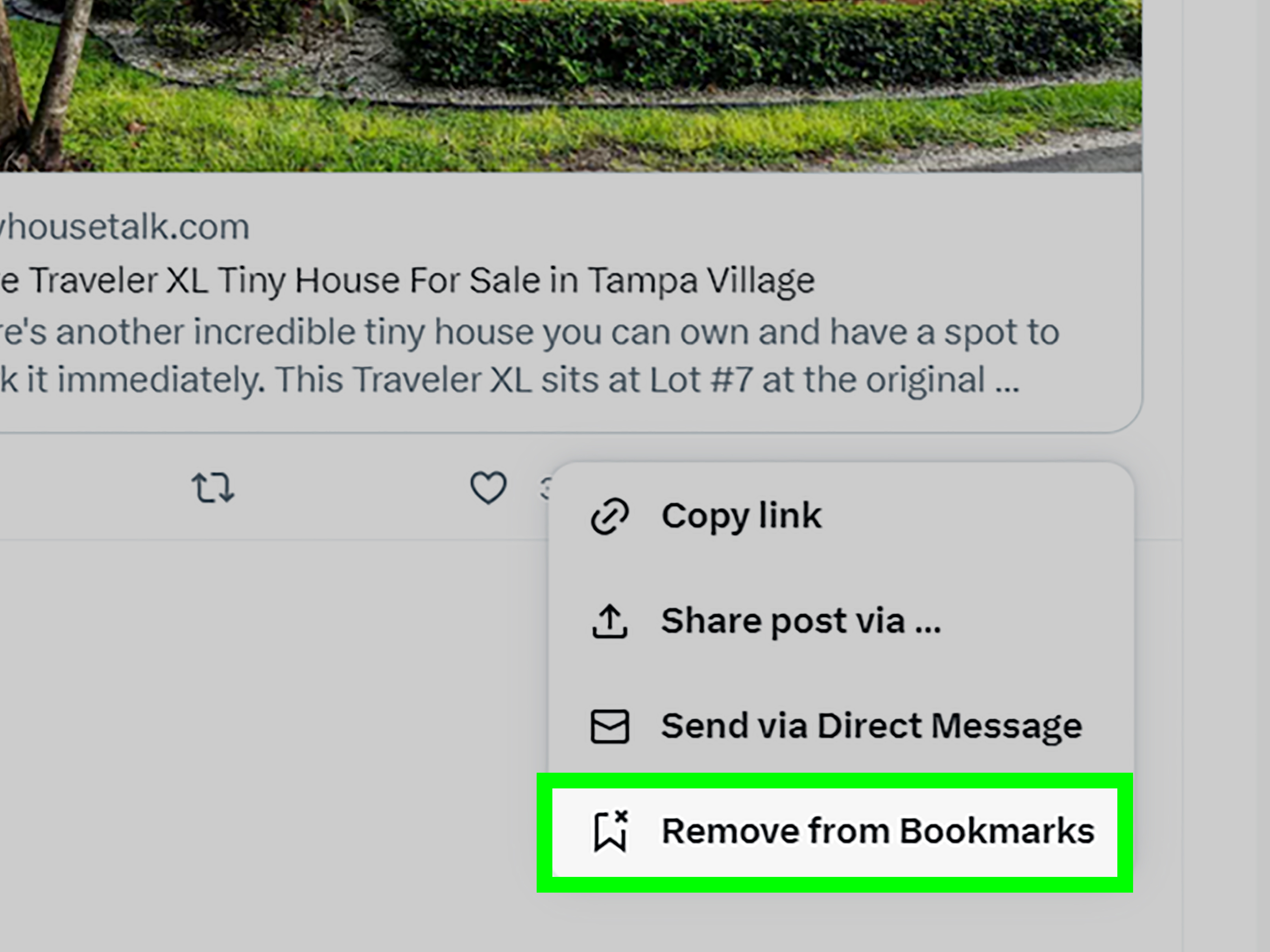
- Alternatively, click the share icon and choose the bookmark option.
- Open your Bookmarks area later from the left-side navigation or menu.
On desktop, the bookmark button is often easier to spot because there is more screen space. If your sidebar is collapsed, you may need to click “More” to find Bookmarks. If X changes the layout again while you are making coffee, do not panic. Look for the bookmark ribbon icon, the share menu, or the left navigation menu.
What Kinds of Posts Should You Bookmark?
You can bookmark almost anything useful. Save a long thread explaining a complex topic. Save a video tutorial you want to watch later. Save a quote post with a smart industry take. Save a travel recommendation. Save a customer complaint you need to answer after lunch. Save a job post, a recipe, a study resource, or a funny post that deserves a second laugh.
For example, a social media manager might bookmark competitor campaigns, creator ideas, audience questions, and platform updates. A student might bookmark academic resources, scholarship posts, and explainers. A writer might bookmark clever hooks, trending topics, and research threads. A normal person might bookmark memes about being tired. All are valid. Especially the tired memes.
Quick Way #2: View, Search, and Remove Your Twitter Bookmarks
Saving posts is only half the game. The other half is finding them again before they fossilize beneath six months of “I’ll read this later.” Luckily, viewing bookmarks is simple once you know where the feature lives.
How to View Twitter Bookmarks on Mobile
- Open the X app.
- Tap your profile icon or menu icon.
- Choose “Bookmarks.”
- If your app shows “History” instead, open History and look for the Bookmarks tab.
- Scroll through your saved posts.
X has been expanding save-and-return features, and on some versions of the mobile app, bookmarks may appear inside a broader History area along with likes, videos, or articles. If you cannot find Bookmarks in the old spot, check the menu for History. It is still private, but the label may be different depending on your app version and rollout status.
How to View Twitter Bookmarks on Desktop
- Go to X.com.
- Look at the left-side navigation menu.
- Click “Bookmarks.”
- If it is not visible, click “More” and then choose “Bookmarks.”
- Browse your saved posts in chronological order.
Desktop is great for reviewing bookmarks because it gives you more room to read threads, open links, and clean up your saved list. If you use bookmarks for work, research, content planning, or learning, schedule a few minutes on desktop once a week. Your future self will stop whispering, “Where did I save that thing?”
How to Remove a Twitter Bookmark
Removing a bookmark is just as easy as saving one. Open your Bookmarks area, find the saved post, and tap or click the bookmark icon again. In some versions, you may use the share menu and choose the option to remove the post from Bookmarks.
You can also clear all bookmarks from the Bookmarks timeline using the more menu at the top of the Bookmarks area. Be careful with that option. It is the digital equivalent of dumping your desk drawer into a volcano. Refreshing? Yes. Reversible? Not always.
When Should You Delete Bookmarks?
Delete bookmarks when they are no longer useful, when the link is outdated, when the post was saved for a one-time task, or when you no longer remember why you saved it. A bookmark list should help you, not become a museum of abandoned intentions.
A good rule: if you open a bookmark and cannot explain why it matters in five seconds, remove it or move it into a better system. Saving everything feels productive, but organizing nothing is just hoarding with a nicer icon.
Quick Way #3: Organize Twitter Bookmarks with Folders and Smart Habits
Basic Twitter Bookmarks are free and useful, but they become even more powerful when organized. If you are using X Premium, you may have access to Bookmark Folders, which allow you to group saved posts by topic. If you do not have Premium, you can still use simple habits to keep your bookmarks manageable.
How Bookmark Folders Work
Bookmark Folders help you sort saved posts into named categories. For example, you might create folders such as “Marketing Ideas,” “Read Later,” “Recipes,” “AI Tools,” “Client Research,” “Funny,” or “Content Inspiration.” Every saved post can still appear in your general bookmarks list, while also being placed in a folder for easier access.
Folders are especially helpful for people who save a lot of posts. Without folders, bookmarks are usually shown as one long timeline. That is fine if you save five posts a month. It is less fine if you save five posts before breakfast.
How to Create a Bookmark Folder
- Bookmark a post first.
- When prompted, choose the option to add it to a folder if available.
- Create a new folder and give it a clear name.
- Save the post to that folder.
- Repeat for other posts you want grouped by topic.
Depending on your device, you may also be able to create a folder from the Bookmarks page itself. Look for a folder icon, new folder button, or folder management option. If you do not see those features, your account may not have access to Bookmark Folders, or the feature may not be available in your current app version.
Best Folder Ideas for Everyday Users
- Read Later: Articles, threads, and long posts you cannot read immediately.
- Ideas: Creative prompts, business ideas, writing hooks, and campaign inspiration.
- Learning: Tutorials, explainers, how-to threads, and expert advice.
- Work: Industry updates, client mentions, competitor posts, and useful tools.
- Fun: Memes, jokes, videos, and posts that deserve a return visit.
- Shopping or Tools: Product recommendations, apps, gadgets, and reviews.
The trick is not to create too many folders. If you have 43 folders, congratulations: you have invented a second inbox. Start with three to six categories and adjust later.
Are Twitter Bookmarks Private?
Yes, Twitter Bookmarks are private. Only you can view your saved bookmarks inside your account. The original poster does not receive a notification when you bookmark a post, and other users cannot open a list of your bookmarks from your profile.
However, remember that privacy does not mean “the internet has no memory.” If you reply to a post, repost it, quote it, or like it, those actions may be visible depending on the platform’s current rules and your account settings. Bookmarking alone is the private action. Everything else should be treated like a tiny public performance on a very loud stage.
Twitter Bookmarks vs. Likes vs. Lists
Bookmarks, likes, and lists all help you manage content, but they serve different purposes.
Bookmarks
Bookmarks are for privately saving individual posts. Use them when you want to return to something later without showing public interest.
Likes
Likes are engagement signals. Use them when you genuinely want to react positively to a post or support the creator. They are not ideal as a private filing system.
Lists
Lists are collections of accounts, not individual saved posts. Use them to follow groups of people by topic, industry, location, or interest. For example, you could create a list of journalists, designers, local restaurants, or AI researchers.
Here is the simplest way to remember it: bookmark posts, like reactions, and list people.
Common Problems with Twitter Bookmarks
I Bookmarked a Post, but I Cannot Find It
Check your Bookmarks area from the menu. If you are on mobile and do not see Bookmarks, look for History. Also make sure you are logged into the same account you used when saving the post. Many people have multiple accounts and forget which one they were using. This is not a moral failing; it is just modern life with too many passwords.
The Bookmark Button Is Missing
If the bookmark icon is not visible, tap or click the share icon. The bookmark option may be inside that menu. You can also update the app, restart it, or check the desktop version to see whether the interface differs.
My Bookmarks Are Too Messy
Set a weekly cleanup routine. Remove posts you no longer need, create folders if available, and move useful posts into a note-taking app, spreadsheet, or content calendar if they require action. Bookmarks are a holding area, not a final destination for everything you have ever found interesting.
Can I Export Twitter Bookmarks?
X does not make bookmark exporting as simple as clicking one magical “download my saved brilliance” button. Some third-party tools claim to help organize or export bookmarks, but you should be careful before connecting your account. Review permissions, privacy policies, pricing, and reputation before using any outside tool. If a service asks for more access than it needs, walk away with the confidence of someone ignoring a suspicious link in a text message.
Practical Examples: How Different People Can Use Twitter Bookmarks
For Students
Students can bookmark explainers, scholarship announcements, professor posts, research discussions, book recommendations, and study resources. A folder called “Study Later” or “Sources” can be useful if Bookmark Folders are available.
For Creators
Creators can bookmark post formats, viral hooks, audience questions, collaboration ideas, trending sounds, video inspiration, and examples of strong storytelling. Instead of copying someone’s work, use bookmarks to study patterns: opening lines, structure, timing, visuals, and audience reactions.
For Marketers
Marketers can bookmark customer complaints, competitor campaigns, industry news, influencer posts, ad examples, and product feedback. A weekly bookmark review can become a lightweight research ritual. It is like social listening, but with fewer dashboards and more coffee.
For Job Seekers
Job seekers can bookmark hiring posts, recruiter advice, resume tips, interview threads, salary discussions, and company announcements. Create categories such as “Jobs,” “Networking,” and “Interview Prep” if folders are available.
For News Readers
News readers can save developing stories, expert analysis, official statements, and background explainers. Just remember to verify important claims before sharing. A bookmarked post is not automatically true; it is simply saved. The bookmark icon is useful, but it is not a fact-checking wizard.
Best Practices for Using Twitter Bookmarks Without Losing Your Mind
Use Bookmarks for Action, Not Decoration
Before saving a post, ask: “Will I actually use this?” If the answer is yes, bookmark it. If the answer is “I like the idea of being the kind of person who would use this,” maybe let it pass. Your bookmark list should serve your real life, not your fantasy productivity avatar.
Review Bookmarks Weekly
Pick one day each week to review your saved posts. Read the article, watch the video, reply to the thread, move the idea into your content plan, or delete the bookmark. Even ten minutes can keep your list from becoming a swamp.
Name Folders Clearly
If you use folders, choose names that make sense at a glance. “Marketing” is better than “Stuff.” “Recipes” is better than “Yum maybe.” “Client Ideas” is better than “Important???” Your future self does not want to solve a riddle written by your past self.
Do Not Use Bookmarks as Your Only Archive
If a post is extremely important, copy the key information into a more permanent system. Posts can be deleted, accounts can go private, links can break, and platforms can change. For serious research, save notes outside X as well.
500-Word Experience Section: What It Is Really Like to Use Twitter Bookmarks Every Day
Using Twitter Bookmarks regularly feels a little like finally putting a basket by the front door. Before the basket, your keys, sunglasses, receipts, and mysterious tiny objects end up everywhere. After the basket, life is not magically perfect, but at least you know where the chaos is supposed to go. Twitter Bookmarks do the same thing for your scrolling life. They give all those “I need this later” posts a proper home.
The first experience most people have is relief. You find a useful post, save it, and move on without deciding whether to like it publicly. That matters more than it sounds. Sometimes you want to save a controversial opinion for research, a competitor’s announcement for work, or a thread about a sensitive topic. Bookmarking lets you keep it without turning your public profile into a mood board of every thought you have investigated.
The second experience is discovery. After a week or two, you open your bookmarks and realize your saved posts reveal your real interests. Maybe you saved ten posts about meal prep, seven about freelancing, and twelve about AI tools. That is not random; it is a pattern. Your bookmarks can become a mirror of what you are learning, planning, or secretly obsessed with. In a useful way, they show you what your attention keeps returning to.
The third experience is mild embarrassment. You will absolutely find posts you saved and no longer understand. A vague joke from three weeks ago. A reply with no context. A product recommendation you cannot remember needing. This is normal. It is also why cleanup matters. A bookmark list is healthiest when it stays active. Save, review, act, delete. Repeat. That rhythm keeps bookmarks useful instead of dusty.
For work, bookmarks can become a surprisingly strong research tool. A marketer might save audience complaints, competitor launches, creator examples, and industry predictions. A writer might save hooks, statistics, expert comments, and story ideas. A small business owner might save customer questions, local conversations, and product feedback. The key is to review bookmarks with a purpose. Open the list and ask: “What can I turn into action?” Maybe the answer is a blog post, a reply, a product improvement, or a note for a meeting.
For personal life, bookmarks are just as useful. Save a recipe before grocery shopping. Save a travel tip before a trip. Save a funny video for later. Save a thread that explains a topic you want to understand when your brain is not running on 12% battery. Bookmarks respect the fact that not every good post arrives at the right time. Sometimes the internet hands you a five-course meal when you only have time for a cracker. Bookmark it and come back hungry.
The best experience comes when you combine speed with discipline. Bookmark quickly, but review intentionally. Use folders if you have them, but do not over-engineer the system. A simple set of categories and a weekly cleanup habit can turn Twitter Bookmarks from a forgotten feature into a personal knowledge tool. It will not make you instantly organized, but it will reduce the number of brilliant posts you lose forever. And in the endless waterfall of social media, that is a small miracle with a ribbon-shaped icon.
Conclusion
Twitter Bookmarks are one of the easiest ways to save posts privately and revisit them later. Whether you still call the platform Twitter or have fully accepted X into your vocabulary, the feature is simple: save a post, open your Bookmarks or History area later, and remove or organize saved items when you are done. For casual users, bookmarks are great for memes, links, videos, and read-later threads. For professionals, they can become a lightweight research system for content, marketing, networking, and learning.
The three quick and easy ways are simple. First, bookmark posts directly from the post or share menu. Second, view and manage your bookmarks from the menu, sidebar, or History tab if your app uses that layout. Third, organize your saved posts with folders if available, or with consistent review habits if you use the free version. Keep the system simple, clean it regularly, and do not let your saved posts become a digital attic full of “someday.”
In short, Twitter Bookmarks help you save smarter, scroll calmer, and find important posts again without relying on screenshots, likes, or memory. And honestly, memory has enough to do already.